
In this Article:
Try Kanbanchi now
Start your free trial

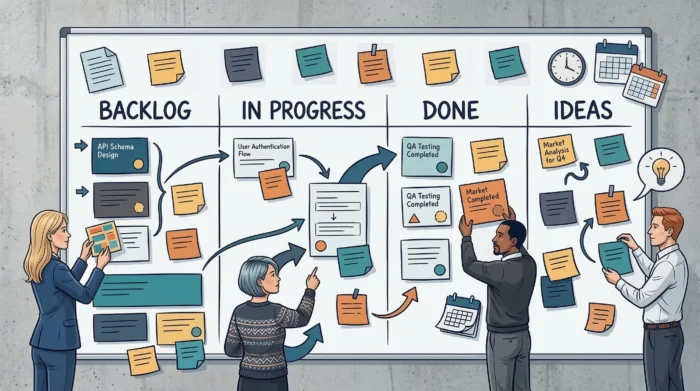
As a project manager, you know you need to invest a significant amount of time in planning. Project boards create a visual of the work and are a great way to prioritize and manage shifting priorities. If you have not been using a project board, now is an excellent time to consider using one. It can help you plan and bring a visual element to your project.
A project board is the heartbeat of your workflow. It is the visual pulse that tells you if your project is healthy, lagging, or flatlining.
Originally, these were physical whiteboards plastered with colorful sticky notes that inevitably lost their adhesive and fell to the floor. Today, the online visual project board has taken that original, now slightly fluff-ridden concept and supercharged it with automation, cloud storage, and real-time collaboration.
But what actually constitutes a board in the professional sense? Is it just a list with a few columns, or is it something deeper? In this guide from the team at Kanbanchi, we are going to explore the project board’s definition, purpose, and features, and look at real-world project board examples you can steal for your own team.
Whether you’re managing a brand-new product launch with your SME or you’re just trying to organize your team’s weekly content calendar, it’s time to get visual. Come on, and let’s get to know all there is. We’re going to begin with a rundown of all the basics you need to understand.
Before we look at the high-tech versions, let’s ground ourselves in the basics. If you were to explain a project board to someone who has only ever used a paper notebook, how would you describe it?
At its simplest, a project board is a visual representation of a work process. It transforms a hotchpotch of tasks into tangible cards that move through various stages of completion.
While a traditional to-do list is vertical and static, a project board is horizontal and dynamic.
Why go through the trouble of setting one up? The purpose of a project board is threefold:
What are the core features, then, of any successful board?
In busy workplaces, a project board is needed more than ever to help deliver business success. Steve McBroom points this out in his article for the Institute of Project Management. He says: “It’s not just about having talented project managers; it’s about creating the right environment and implementing the right tools and processes to support them.”
These days, a professional-grade board needs more than just columns. To be truly effective, it must include:
| Board item | Key feature |
|---|---|
| Task Cards | The heartbeat of the board. Each card should contain the “Who, What, and When” of a task. |
| Dynamic Columns | These represent your workflow stages (e.g., Backlog, Drafting, Review, Published). |
| Visual Indicators | Color-coded tags, priority levels, and user avatars that give you information at a glance. |
| Metadata Fields | The ability to attach files, set estimated vs. actual time, and create checklists within a single card. |
Here’s something to think about and a rhetorical question for you: If your current system requires you to ask three different people for a status update, do you really have a system? A true project board is designed to be the only answer you need…
So, with that in mind, let’s now move on to think about why your team really does need to adopt a project board for their work.
The days of the physical office whiteboard (complete with dried-out markers and “DO NOT ERASE” warnings) are officially behind us, and thank goodness.
In an SME work team where your lead designer might be in London while your developer is in Devon, a physical board isn’t just outdated; it’s a liability…
The transition to an online visual project board is the single most effective way to eliminate information stagnation within your organization.
Think about this:
So, whether you are at your desk or checking in from a phone between meetings, your workspace is always in your pocket.
This accessibility is the backbone of modern remote and hybrid work cultures.
Have you ever worked off an old version of a spreadsheet? It’s frustrating and wasteful.
With a digital board, the moment a card moves from In Progress to Review, all stakeholders are notified. There is:
Physical sticky notes don’t collect data (just fluff when they fall off the whiteboard and onto the carpet). An online visual project board does.
It tracks:
You can’t optimize what you don’t measure, and digital boards automatically measure everything.
The biggest drain on productivity is the “where is that file?” hunt.
Digital boards solve this by letting you attach Google Drive files, links, and documents directly to task cards. The task and its context live together, forever.
That’s the how and why…now we’ll move on to consider some industry-inspired examples that should help to convince you that investing in this kind of software is the way forward.
More articles on project management this way.
A project board is a flexible canvas. It adapts to the unique language of your department. To help you visualize how this works in practice, let’s look at a few project board examples that go beyond the basic To Do, Doing, Done, and how you how various industries can use them to their advantage during their working day.
For a marketing team, the board acts as an editorial calendar. The flow focuses on the stages of creation:
| Board card | What it does |
|---|---|
| Backlog/Ideation | Raw ideas waiting for a green light. |
| Research & Outline | Gathering data and structure. |
| Writing | The active drafting phase. |
| SEO & Graphics | Optimization and visual asset creation. |
| Editor Review | The final quality check. |
| Scheduled/Published | The finish line. |
Developers often use boards to manage Sprints. Their columns will therefore be much more technical and coding-driven.
| Board card | What it does |
|---|---|
| Product Backlog | Highlights all the requested features. |
| Sprint Backlog | Tasks selected for the current 2-week cycle |
| In Development | Code is being written. |
| Code Review/QA | Testing for bugs and performance. |
| UAT (User Acceptance Testing) | Final sign-off. |
| Live | The feature is in users’ hands. |
Yes, HR needs project boards too! As an example, look at how you might use one to track a candidate’s journey to winning a role; it’s a project in itself:
| Board card | What it does |
|---|---|
| Applications Received | New resumes to scan. |
| Initial Screening | First-round calls |
| Department Interviews | Technical or team-fit checks |
| Offer Extended | Negotiation phase |
| Onboarding | Getting the new hire ready for Day 1. |
Regardless of the department, the goal is the same: to make the invisible work visible. When you can see the workflow, you can master it.
Examples like these are all very well and good, so you can see how they would fit into any company structure. In most industries, they’ll play a useful role and help teams see how they can organise their flow better.
While this is great, we also need to consider the pain points that might arise from using project boards, so let’s get started on this right now.
Let’s be honest: before the project board became a staple of modern work, we relied on spreadsheets. And for some, the nightmare hasn’t ended.
The traditional way of tracking projects:
Are all actually a productivity trap; it’s a lot of pointless busy work that often achieves nothing other than raising everyone’s blood pressure and delaying projects even further than they need to be.
Spreadsheets are great for budgets, but they are terrible for people.
A row of text doesn’t capture the urgency of a deadline or the complexity of a task. It’s hard to see who is doing what at a glance.
You end up spending more time scrolling through columns than actually completing work.
When project data is tucked away in a private document or a manager’s inbox, the rest of the team is working in the dark.
This leads to the twice as much busywork phenomenon, where two people unknowingly start the same task because neither can see the other’s progress.
An online visual project board acts as the antidote to this chaos. By turning data into visual objects (cards), you engage the brain’s spatial memory. You don’t just read that a project is 50% done; you see it.
The visual board provides:
Once all of this is in your team’s sights, suddenly everything becomes a lot easier to focus on. Tasks don’t seem as onerous, delays are dealt with simply and without fuss, and everyone knows that they’re singing from the same hymn sheet, in real time.
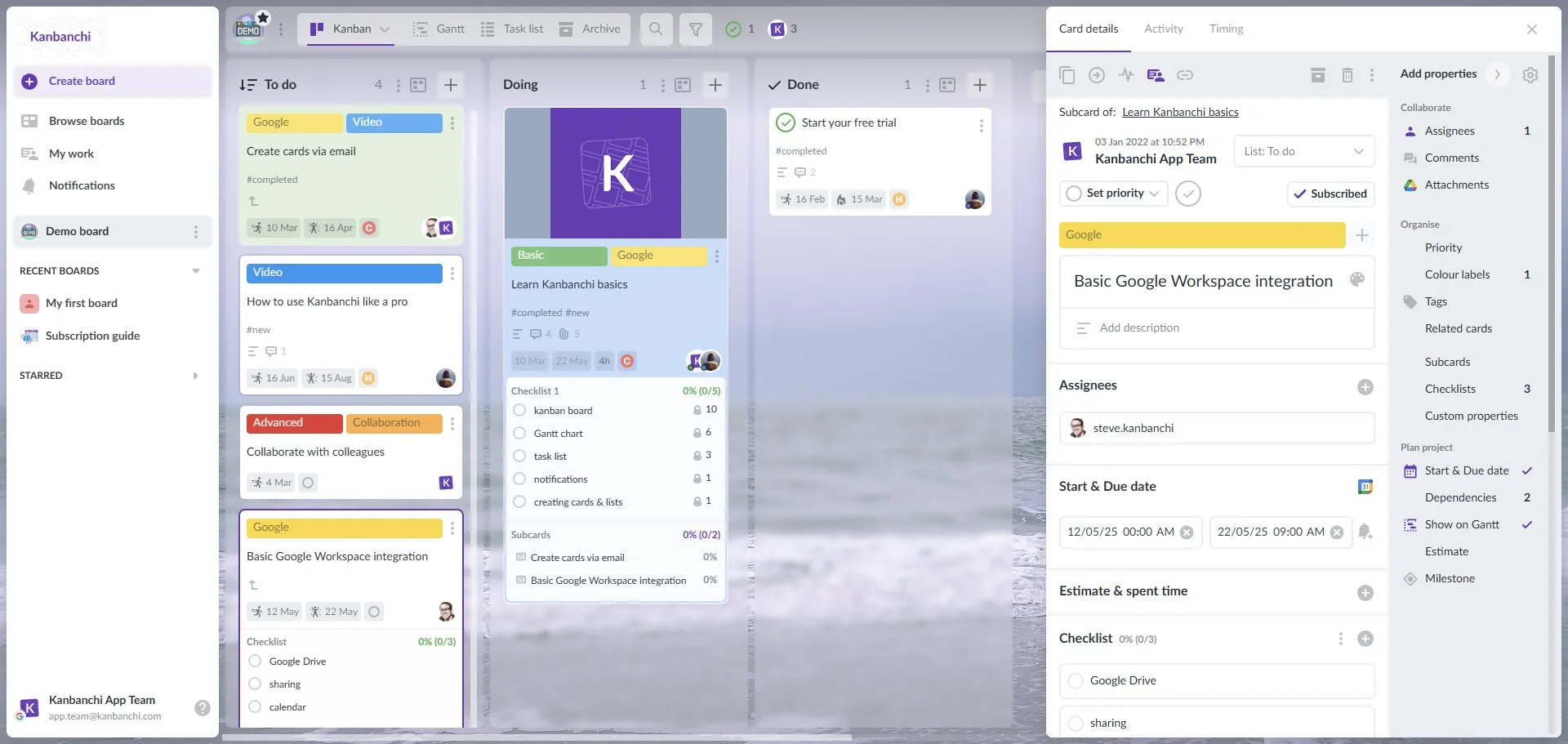
It’s clear that using a project board for your team’s work is the way forward. Now, let’s take some time to look at a great software solution that can solve all your project problems.
Start a free Kanbanchi trial now
If your team already uses Google Workspace or Microsoft 365, why would you leave it to manage your projects? We get it, and it’s a question that’s often asked.
If we’re honest, most project management tools feel like a foreign country with far too much to take in all at once.
You have to learn a new language, set up new passwords, and manually move files back and forth.
Kanbanchi is different. It is the only online visual project board that feels like a native part of your Google or Microsoft account. That’s because it was built with native integration in mind.
Kanbanchi doesn’t just integrate with Google Drive or OneDrive; it lives there.
Your project boards are stored as files in your Google Drive or OneDrive. This means your project’s security is as robust as Google’s or Microsoft infrastructure.
No new accounts to manage, no syncing errors, just your work, where it belongs. Easy to view, easy to manage for everyone. Winner!
While we’ve focused on the project board, some projects need a timeline view as well.
Kanbanchi allows you to flip your board into a professional Gantt chart instantly. This gives you the visual ease of a board for daily tasks and the strategic power of a timeline for long-term planning.
Need to attach a brief to a card? You don’t have to download and re-upload it.
In Kanbanchi, you simply browse your Google Drive or OneDrive directly from the card. The file stays in its original folder, and your team always has the latest version.
There’s no fuss or faff with any of it. One click for most things, and it’s all done without leaving the comfort and safety of your project board.
There are many reasons teams already invested in Google Workspace or Microsoft 365 make the switch to our software. Here are three of them:
By choosing a tool like Kanbanchi, you aren’t just buying software. You are streamlining your team’s entire digital ecosystem with an all-in-one tool that requires no installation and has a low learning curve. It’s the answer to your project board problems.
If all this has won you over, then why not try Kanbanchi today?
As ever, we’re going to end our guide with some of the most commonly asked questions about mastering project boards for work purposes.
If there’s anything we haven’t covered or you’d like to ask us about the topic, get in touch, and we can discuss a free Kanbanchi trial.
Keep it simple. Start by mapping out your current workflow on a piece of paper. What are the stages a task goes through from “Idea” to “Done”? Use those stages as your column headers. Don’t over-complicate it early-you can always add more columns as your project grows.
A task list is a static, one-dimensional “to-do” group. A project board is a two-dimensional “process” map. Lists tell you what needs to be done; boards tell you where the work is in the pipeline and who is holding it up.
If a column like “In Progress” has more than 5–7 cards per person, you likely have a bottleneck. The goal of a project board is to limit “Work in Progress” (WIP) so that the team focuses on finishing tasks rather than just starting new ones.
If you use a tool like Kanbanchi, yes. Because the boards are stored in your Google Drive, they inherit the enterprise-grade security settings of your Google Workspace. If someone shouldn’t see the files in your Drive, they won’t see the board.
Related article: PM Tools That Help Teams Plan and Deliver Better

In this Article:
Start using Kanbanchi now
Start your free trial