
In this Article:
Try Kanbanchi now
Start your free trial


If you are asking whether Google Workspace has a project management tool, the short answer is: not as a single, dedicated app. Google Workspace gives teams a strong set of building blocks: Gmail, Drive, Docs, Sheets, Calendar, Chat, Meet, and Tasks. Those tools support communication, file collaboration, and simple task tracking. But they do not add up to a complete project management system with visual boards, Gantt timelines, time tracking, structured task ownership, and project reporting all in one place.
That gap becomes noticeable when your team grows beyond informal coordination. A small team can often get by with spreadsheets, calendar reminders, and email threads. A team responsible for client work, cross-functional projects, or anything with real deadlines usually needs something more reliable.
That is why many Google Workspace teams add a tool like Kanbanchi, which is designed to work inside the Google environment and adds Kanban boards, Gantt charts, time tracking, Drive integration, Gmail task creation, Calendar sync, and other project management capabilities.
It helps to be clear about what Google Workspace was designed to do. It is a collaboration suite; its strength is helping people create documents, communicate, share files, and meet online. Project management requires something different: a connected system for planning work, assigning responsibilities, tracking progress across people and time, and surfacing problems before they become business risks.
Those are two different jobs, and Google Workspace is built for the first one.
Google Workspace includes several apps that teams use for project-related work:
| Google Workspace app | How teams use it for projects | Main limitation for project management |
|---|---|---|
| Google Tasks | Personal to-dos and simple reminders | Limited for team workflows, dependencies, and reporting |
| Google Calendar | Deadlines, meetings, and project milestones | Does not show a full project workflow by default |
| Google Sheets | Task trackers, timelines, and project lists | Manual setup, easy to break, hard to scale across teams |
| Google Drive | Project files, folders, and shared documents | Stores work but does not manage task flow by itself |
| Google Docs | Briefs, specs, meeting notes, and plans | Great for documentation, not for live task tracking |
| Gmail | Requests, approvals, and project communication | Work gets buried in inboxes without a task system |
| Google Chat and Meet | Team discussions and meetings | Conversations are not the same as project accountability |
These tools are useful individually. The challenge is that they are separate. A due date in a spreadsheet, a document in Drive, a request in Gmail, and a status update in Chat can quickly become disconnected, and nobody has a complete picture of where the project actually stands.
When teams need real project management, they typically look for a few specific things that Google Workspace does not include out of the box:
For personal productivity, Google Tasks and Calendar may be enough. For anything involving a team, deadlines, and accountability, most organizations need a dedicated tool that sits inside Workspace rather than replacing it.
It makes complete sense to begin with the tools you already have. Google Workspace is familiar, cloud-based, and easy to share. For most teams, the first attempt at project management is a Google Sheet with columns for task name, owner, status, due date, and notes. And for a short project with a small number of tasks, that actually works.
The problems start when the project grows. More people join. Tasks multiply. Priorities shift. Someone updates their own version of the tracker, and now there are two spreadsheets with different data. A manager needs to know what is blocked, but there is no way to see that without reading every row.
A spreadsheet is flexible, but project management requires structure that a spreadsheet cannot enforce on its own. If every team builds its own tracker with its own column names and color codes, there is no consistent view across the organization. When people forget to update their rows (which they will), the tracker stops reflecting reality. If tasks live across multiple sheets, seeing workload conflicts and dependencies becomes nearly impossible.
The signs that a team has outgrown the spreadsheet approach are usually the same: status meetings that exist only to ask for updates, unclear ownership when something goes wrong, duplicate work because two people acted on the same request, and missed deadlines nobody saw coming.
Gmail and Google Chat are excellent for communication, but they were not designed to be a system of record for project work. Decisions get buried in long threads. Requests arrive without owners or deadlines. Work gets discussed in Chat and then promptly forgotten because nobody wrote it down anywhere trackable.
A project management tool should turn those conversations into assigned, visible, trackable tasks. The inbox can stay as the communication channel, but it just should not be where execution is managed.
Before looking at additional tools, it is worth understanding what you can actually do with native Google apps and where those limits appear.

Google Tasks is a straightforward personal to-do list connected to Gmail and Calendar. You can add tasks, set due dates, and keep track of individual responsibilities without leaving Gmail.
For team project management, however, Google Tasks runs out of capability quickly. There is no shared Kanban workflow, no project-wide Gantt chart, no time tracking, and no way to connect a task to a Drive file or a project discussion. It is personal productivity software, not a team project management system.
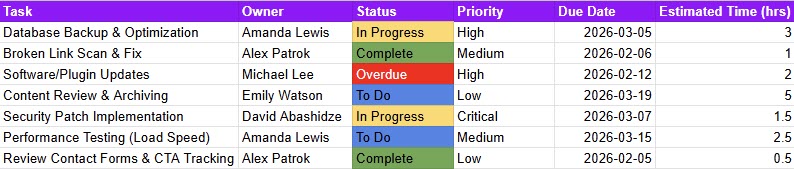
Sheets can be turned into a simple project tracker, and many teams use it this way: columns for task, owner, priority, status, start date, due date, and comments. With enough effort, you can even build a basic timeline view.
The problem is that a spreadsheet does not behave like project management software. It can’t notify anyone when something changes. It does not prevent someone from accidentally breaking a formula. You can’t see who is over-allocated across multiple projects. Maintaining it properly can easily become a task in itself, and the time spent keeping the spreadsheet up to date is time not spent on the actual work.
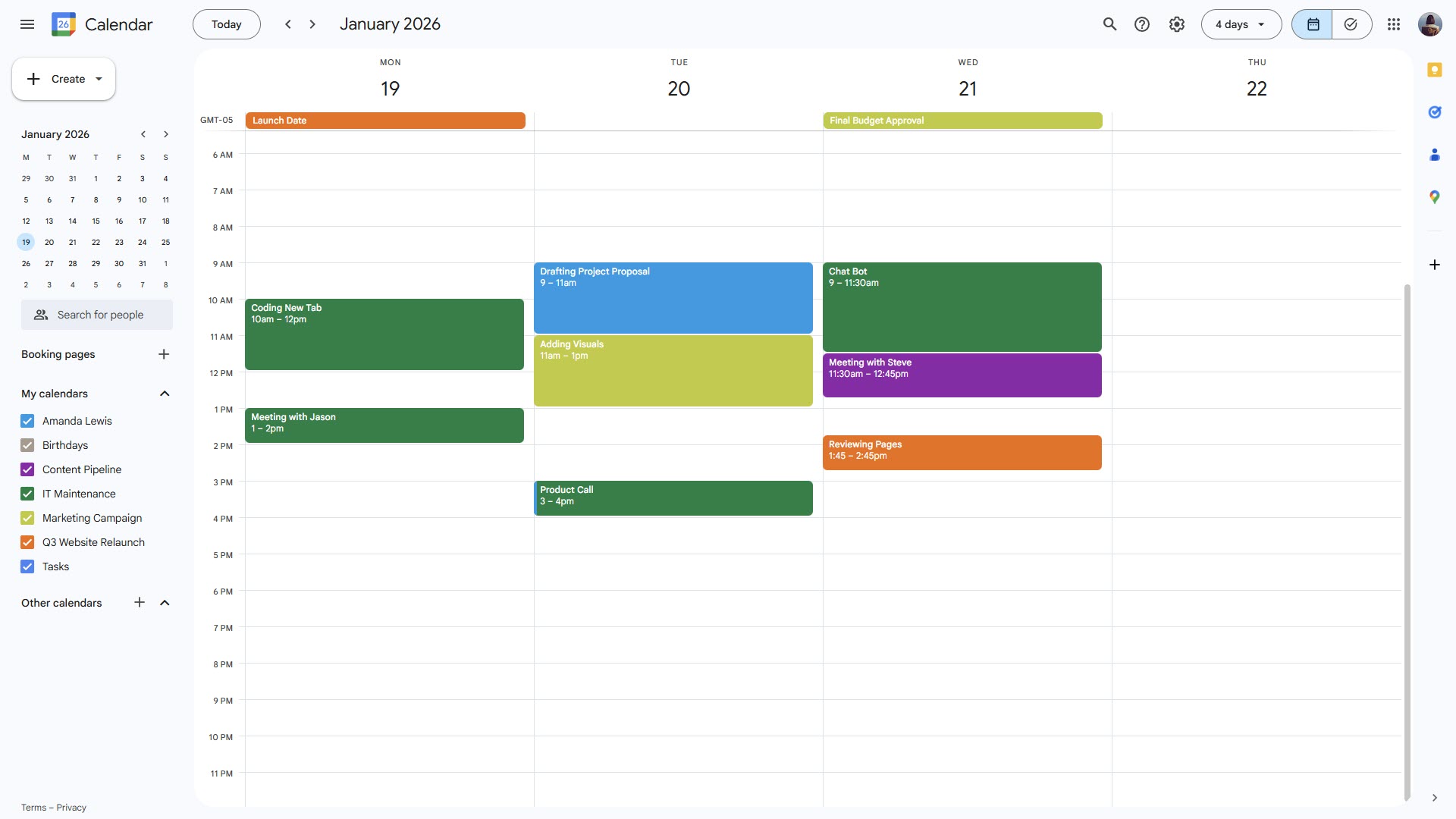
Google Calendar is useful alongside project management, but it is not a substitute for it. A calendar shows time; it does not show the full workflow behind each date.
A launch deadline on a calendar does not reveal every task required to hit that date, who owns each step, what is blocked, or how much time has already been spent. You need both: a calendar for scheduling and a project management tool for everything that has to happen before each date arrives.
If your team already runs on Google Workspace, the right project management tool should fit that environment naturally. The goal is not to force your team into a completely separate platform with its own login, its own file storage, and its own permission system. The goal is to extend Google Workspace with the project visibility it was not built to provide.
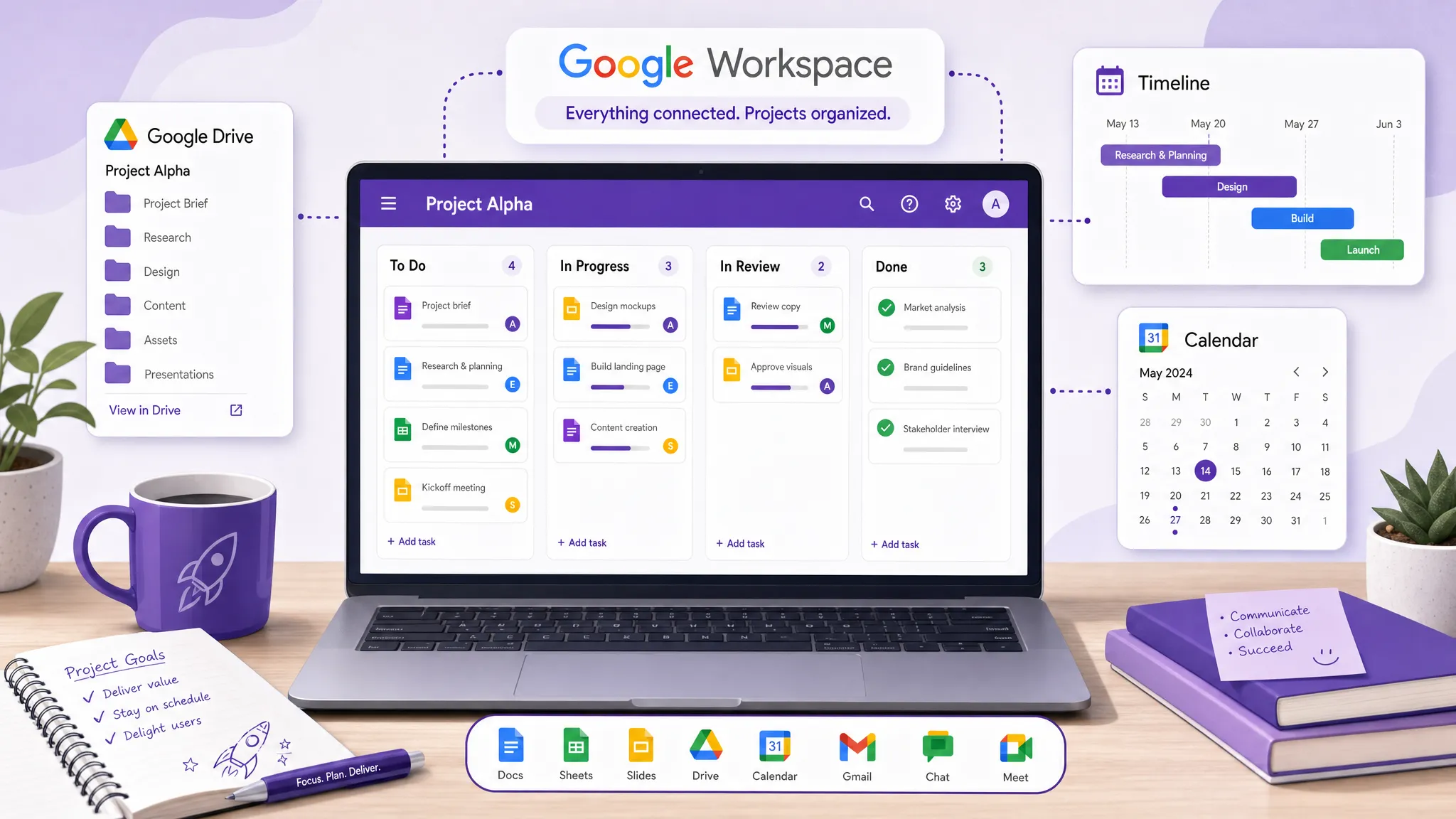
A strong Google Workspace project management tool should help your team plan, execute, and report without adding administration. Look for these capabilities when comparing options:
The closer the tool works with your existing Google environment, the easier adoption will be. Teams should not have to choose between their project board and the files, emails, and calendars they already use every day.
Kanbanchi is built for teams that want project management inside their Google Workspace, not alongside it. Instead of replacing Drive, Gmail, or Calendar, it connects project tasks with the apps your team already relies on every day.

With Kanbanchi, teams can create visual Kanban boards, add cards for tasks, assign people, set priorities, attach files from Google Drive or Shared Drives, communicate directly on task cards, and track progress in real time. Because boards are stored in Google Drive and shared through the same Google permissions your team already uses, there are no new access systems to manage.
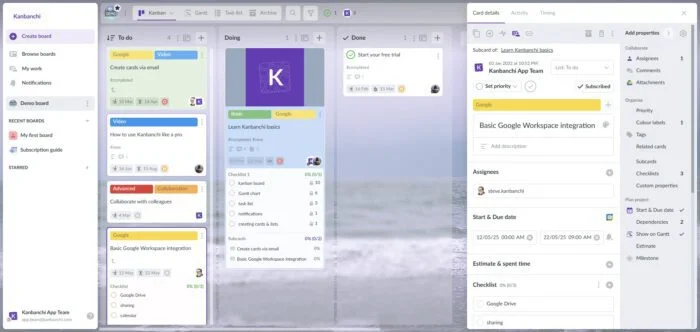
Kanban boards make work visible in a way that spreadsheets and inboxes cannot. Instead of checking a tracker or asking for updates, team members see tasks moving through stages: To Do, In Progress, Review, Done. They know exactly where everything stands.
Teams can customize boards for any workflow: marketing campaigns, operations processes, HR onboarding, product development, or client delivery. Kanbanchi supports tags, priorities, filters, sorting, subcards, templates, and swimlanes, so boards can stay simple or handle more complex work when needed.

A Kanban board is excellent for workflow visibility, but some projects need timeline planning too. Kanbanchi lets teams switch any board to a Gantt chart view, so cards can be seen across time. This helps managers plan schedules, understand how tasks relate to each other, and adjust dates when priorities change without rebuilding anything.
For a deeper look at what Google offers natively for timelines and where it falls short, this article on Google Gantt charts covers the options available within Workspace and when a dedicated tool becomes necessary.

Kanbanchi includes time tracking directly on cards. Team members can start a timer on a task, and the recorded time is available for review. This is useful for service teams, agencies, and any organization that needs to understand how long work actually takes: for billing, for planning, or simply for making better decisions about workload.
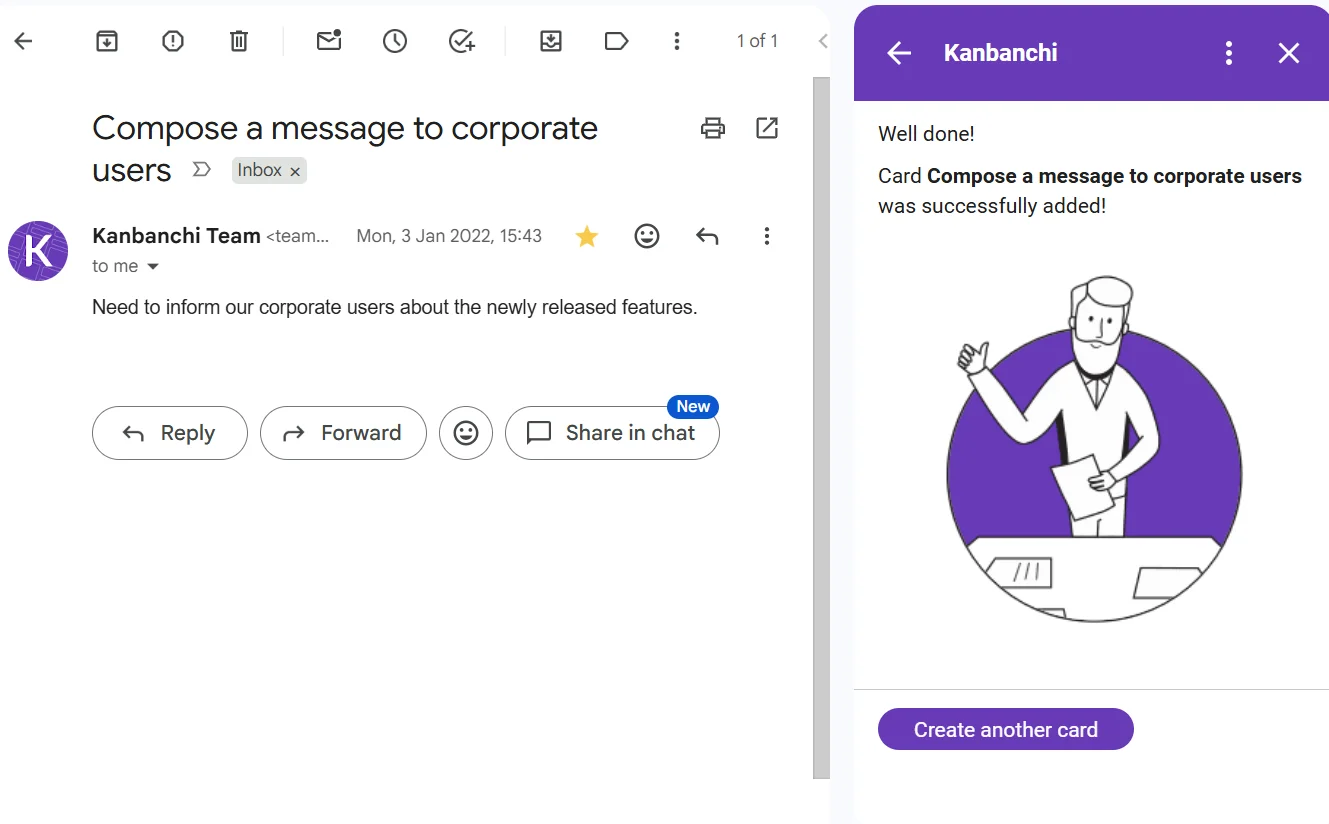
Kanbanchi’s integration with Google Workspace is one of the things that makes it feel like a native tool rather than an external add-on. You can attach files from Google Drive and Shared Drives directly to task cards, create cards from Gmail messages, sync card due dates with Google Calendar, and export board data to Google Sheets for reporting.
Sign up for a free trial of Kanbanchi
This means a task can include its owner, deadline, discussion, checklist, attached Drive files, and time logged – all in one place, all inside the Google environment your team already works in. For a full breakdown of these integrations, Kanbanchi’s overview of Google integration covers each connection in detail.
Not every team needs a dedicated project management platform right away. The right answer depends on how complex your projects are, how many people are involved, and how much visibility leadership actually needs.
| Situation | Native Google tools may be enough | A tool like Kanbanchi is a better fit |
|---|---|---|
| Personal task tracking | Google Tasks and Calendar work well | Not necessary unless tasks connect to team projects |
| One simple project | A Google Sheet can be sufficient | Useful if several people need live visibility |
| Recurring team workflows | Sheets become harder to maintain | Kanban boards and templates improve consistency |
| Deadline-driven projects | Calendar helps with reminders | Gantt charts show full schedules and dependencies |
| Client or cross-functional work | Email and Drive can become scattered | Shared boards keep tasks, files, and comments together |
| Management reporting | Manual updates are required | Exports and structured data support clearer reporting |
| Growing teams | Each team may create its own system | Standardized boards help scale project practices |
For a team of three to five people, the difference may appear as soon as two projects run at the same time. For larger organizations, the benefit is often visibility. Leaders can understand what is happening without interrupting their teams for status updates.
Many projects begin as emails (a client request, an internal approval, a design change, or a support escalation). Instead of leaving that request in an inbox, the Kanbanchi Gmail add-on lets teams turn it into a card. That card has an owner, a due date, attached files, and a place in the workflow from the moment it is created.
Once work is captured, the team moves cards through a clear process. A marketing team might use Briefing, Content Creation, Design, Approval, and Published. An operations team might use Request Received, In Progress, Waiting for Vendor, Review, and Complete. The exact stages can match how your team already works. The goal is to make that process visible to everyone.
When timing matters, the same board can be viewed as a Gantt chart. This is especially useful for launches, events, client deliverables, and projects with multiple phases where one task’s delay affects everything that follows.
As work continues, time tracking and board data help managers see how the project is actually progressing. Teams can export board data to Google Sheets for further analysis, or connect it to a reporting dashboard like Google Looker Studio when they need something more structured.
The best project management tool is not the one with the most features; it is the one your team will actually use consistently.
Pick one workflow that currently causes the most confusion. Campaign planning, client onboarding, hiring, product releases, or weekly operations. Pick one and build a board around it. Keep the first version simple, then add structure as the team gets comfortable.
A tool works only when everyone agrees on how to use it. Decide what each card must include, when due dates are required, who is responsible for updating the status, and how often the board is reviewed. These rules do not need to be complicated, but they need to be consistent.
The strongest setup for Google Workspace teams is usually not a choice between native apps or project management software; it includes both. Google Docs for content, Drive for files, Gmail for communication, Calendar for scheduling, and Kanbanchi as the project layer that connects tasks, timelines, and accountability.
Google Workspace does not include a single native project management tool with Kanban boards, Gantt charts, time tracking, and project reporting. It includes productivity apps that support project work individually, but teams usually need a dedicated integrated app to bring all of that together in one place.
Google Tasks is designed for personal task management and simple reminders. It connects well to Gmail and Calendar for individual use, but it was not built to manage team projects with shared workflows, task dependencies, timeline planning, time tracking, and reporting.
Yes, and many teams start there. Google Sheets works well for simple projects with a small number of tasks and people. As projects grow in complexity (more people, more deadlines, more dependencies), spreadsheets become difficult to maintain reliably and start creating more coordination problems than they solve.
The right tool depends on your team’s workflow, size, and reporting needs. For teams that want Kanban boards, Gantt charts, time tracking, and deep Google Workspace integration in one place, Kanbanchi is designed specifically for that environment, connected directly with Drive, Gmail, Calendar, and Sheets.
Kanbanchi is designed primarily for Google Workspace, but also supports Microsoft 365 compatibility. For Google Workspace teams, its main advantage is the way project boards, tasks, files, and calendars stay connected within the familiar Google environment.
Yes. Kanbanchi includes a Gmail add-on that lets teams turn important emails into task cards without copying anything manually. The card can then be assigned, scheduled, prioritized, and tracked on the shared project board.
You can manage basic dates with Google Calendar and build manual timelines in Google Sheets. If you need a connected project timeline: one that shows task ownership, progress, and dependencies alongside dates, Kanbanchi’s Gantt chart gives you that within a Google Workspace-friendly workflow.
Google Workspace is an excellent foundation for business collaboration, but it was not designed to be a full project management platform. If your team is currently relying on spreadsheets, inboxes, and status meetings to understand where projects stand, you are spending more time coordinating work than completing it.
Kanbanchi adds the missing project management layer to Google Workspace: visual boards, timelines, time tracking, Drive attachments, Gmail task creation, Calendar sync, templates, swimlanes, and reporting-friendly exports. All inside the environment your team already uses every day. Explore Kanbanchi and see how your team can manage projects without leaving Google Workspace

In this Article:
Start using Kanbanchi now
Start your free trial