
In this Article:
Try Kanbanchi now
Start your free trial

Google Workspace is already where most teams write, meet, share files, and discuss work. The challenge is that project work tends to spread across Gmail threads, Drive folders, Calendar events, Sheets trackers, and chat messages – each useful in isolation, each adding a little more distance between your team and a clear picture of where things actually stand.
A strong Google Workspace integration brings those pieces together. When it works well, leaders can see what is happening, teams know what to do next, and fewer decisions get lost between tools. When it does not work well, the cost is real: manual workarounds, duplicate effort, missed deadlines, and a growing sense that coordination takes more energy than the actual work.
This guide is for business owners, team leads, IT administrators, and individual contributors who want to use Google Workspace more effectively for project execution. The focus is on practical habits, honest trade-offs, and the tools that make integration possible without adding unnecessary complexity.
Google Workspace is excellent for collaboration. Docs, Sheets, Slides, Drive, Gmail, Meet, and Calendar help teams create and communicate quickly. But collaboration tools and project management tools solve different problems.
Project management requires a reliable structure for ownership, status, timing, dependencies, priorities, and progress. Without that structure, teams compensate with manual systems. A manager keeps the plan in a spreadsheet. A specialist tracks tasks in Gmail. Meeting notes live in a Docs file. Deadlines sit in Calendar, but status updates happen in a chat thread.
Each tool is useful. But together, they create hidden project risk. Nobody has a complete picture. Updates get duplicated. People spend meeting time establishing where things stand instead of solving problems.
This is where deeper integration becomes valuable – not as an additional layer of software for its own sake, but as a way to keep documents, communication, schedules, and tasks connected inside the environment your team already uses.
There is also a less obvious reason to invest in integration: security. When teams rely on a mixture of disconnected tools outside Google Workspace, sensitive project data ends up distributed across services with different access controls, backup policies, and permission models. Keeping work inside a governed Workspace environment means you can apply consistent access rules, benefit from Google’s security infrastructure, and avoid creating gaps that administrators cannot easily manage.
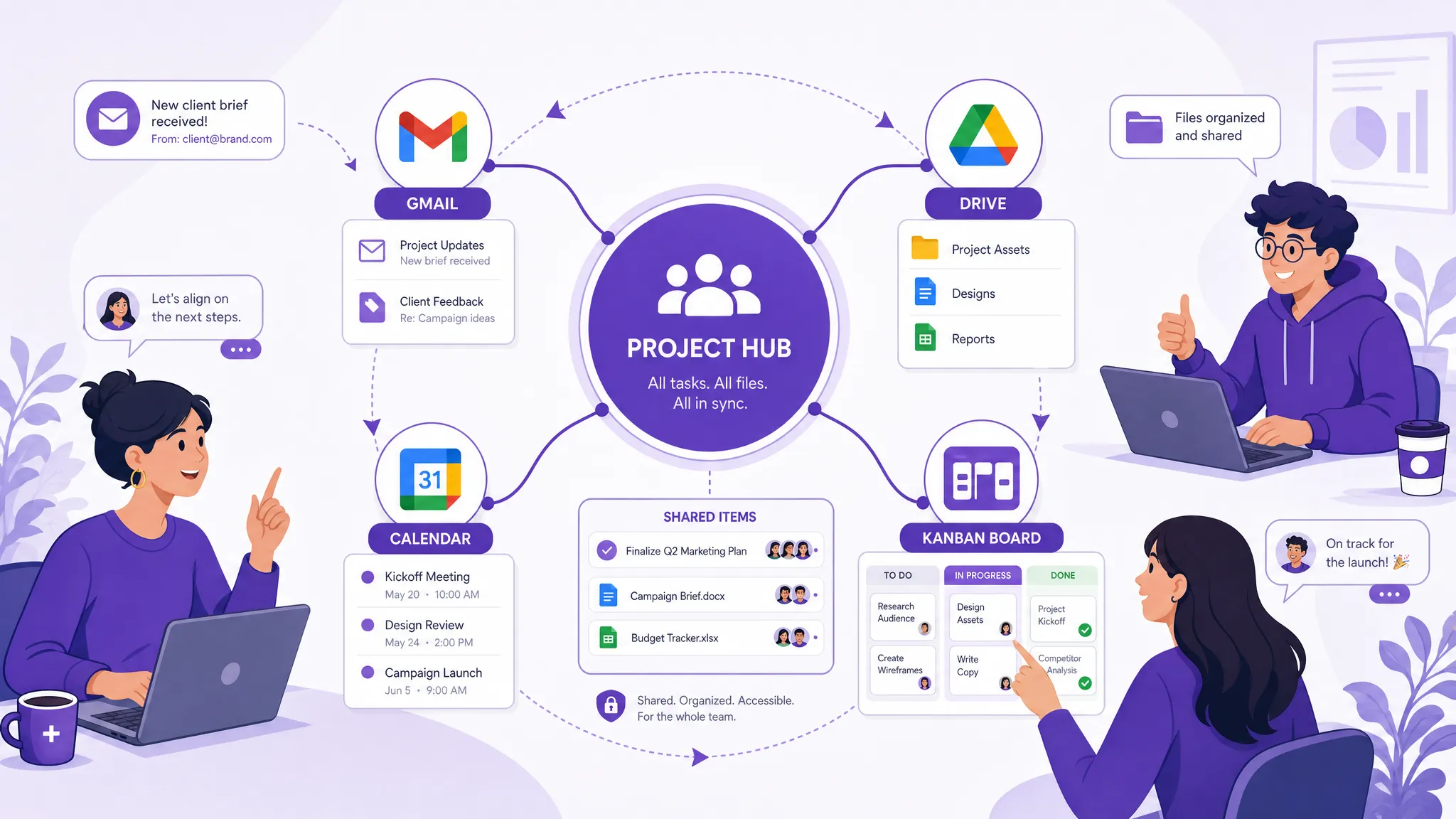
Many teams start with Google Sheets as a task tracker, Calendar for milestones, and Drive folders for project files. This works for small, contained projects. As teams grow, however, leaders usually need more: visual workflow stages, task assignments with clear ownership, priorities, checklists, dependencies, and time tracking that does not require manual assembly.
Google Workspace gives you the collaboration building blocks. For coordinating execution across people, timelines, and competing priorities, teams benefit from a dedicated project management layer that integrates with those blocks rather than replacing them.
Integration only works if the whole team participates. This sounds obvious, but it is the most common reason integration efforts fall short.
If some team members do not join the shared workflow, they will not receive shared documents, invites, or task updates in the same way as everyone else. You end up with a hybrid system where some work is visible and some is not – which is often worse than no system at all, because managers assume visibility they do not actually have.
Before connecting tools, invest time in explaining why the new approach matters. Most people can see the personal benefit when it is described clearly: fewer meetings to establish status, less time chasing file versions, less risk of missing a deadline because an email got buried. These are not abstract organizational goals. They are everyday frustrations that a connected workflow genuinely reduces.
Remote and distributed teams tend to see the most immediate benefit from this kind of integration, because they cannot rely on hallway conversations to fill the gaps that disconnected tools create.
Before connecting any tools, decide where the project record should live. For most Google Workspace teams, that should be a shared project board connected to Google Drive. The board should answer basic questions quickly: what needs to be done, who owns it, what is blocked, what is due next, and what has been completed.
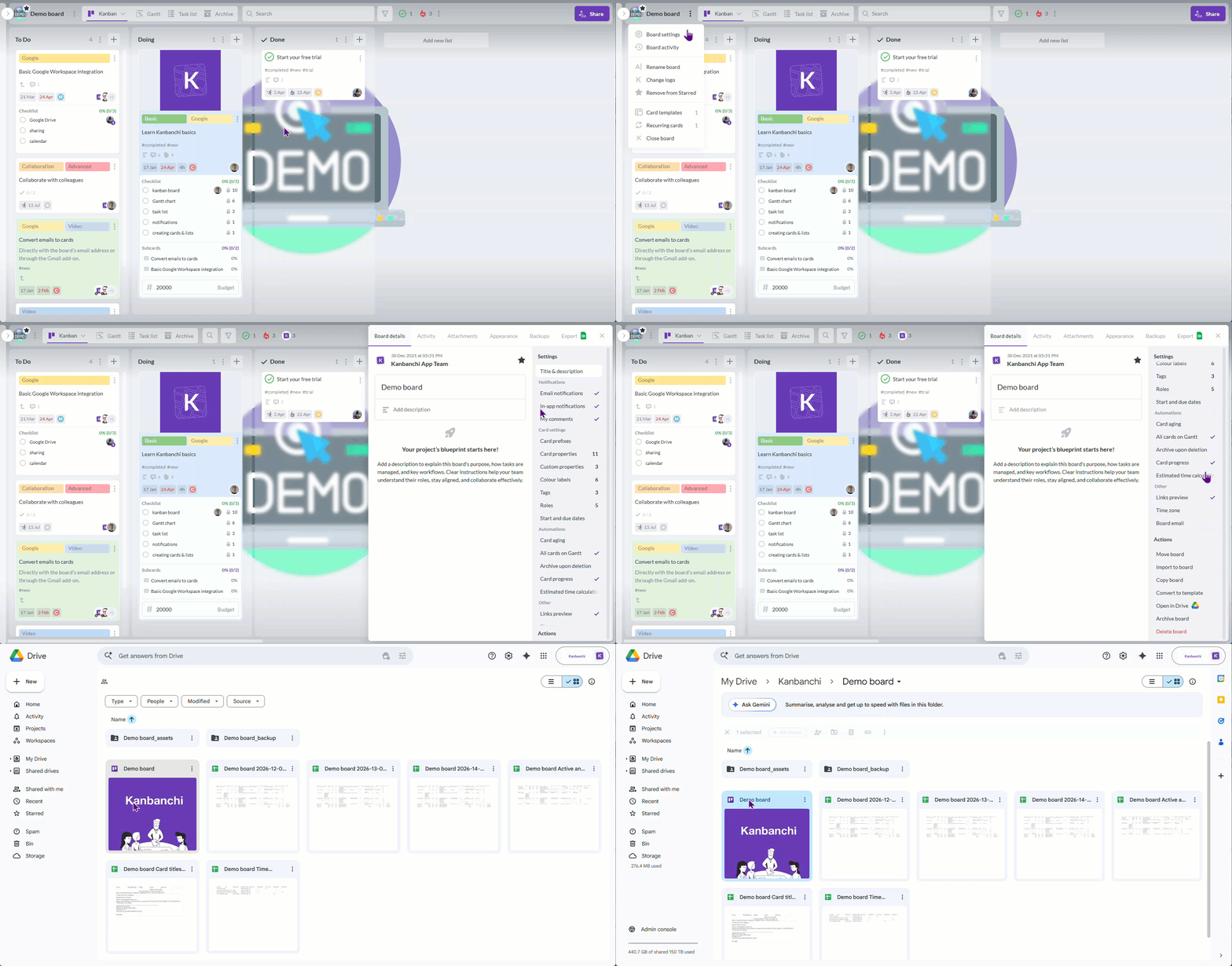
Kanbanchi supports this approach by letting teams create project boards inside a Google Workspace environment. Boards are created as files in Google Drive, and Enterprise users can create boards directly in Shared Drives. This keeps project management aligned with the file governance model your organization already uses, rather than creating a separate system that sits outside it.
The practical benefit is simple: people stop asking where the latest plan is. The board becomes the operational hub. Drive remains the source for documents and deliverables.
A project board is only useful if the right people can access it – and only as secure as the permissions model behind it. Use the same discipline you apply to Google Drive: assign access based on role, team, and business need.
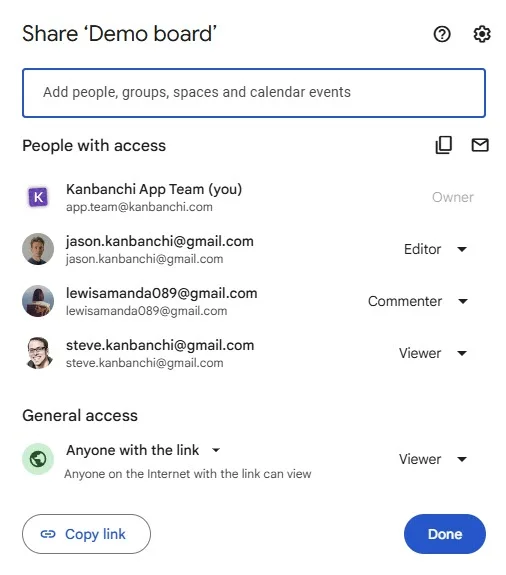
Kanbanchi boards can be shared internally and externally in line with your organization’s Google policies. If your organization relies on Drive permissions and Shared Drives to control access, this alignment means administrators do not need to manage a separate permission model for project boards.
A Kanban board gives everyone a simple, visual answer to “Where does this task stand?” Common lists include To Do, In Progress, Review, Blocked, and Done. Teams can adapt those columns to match their real process.
Kanbanchi offers flexibility in how boards are structured. You can use a classic Kanban layout organized by task status, or you can structure the board by client, by project phase, by department, or by any other grouping that reflects the way your team works. This means the tool adapts to your process rather than the other way around.
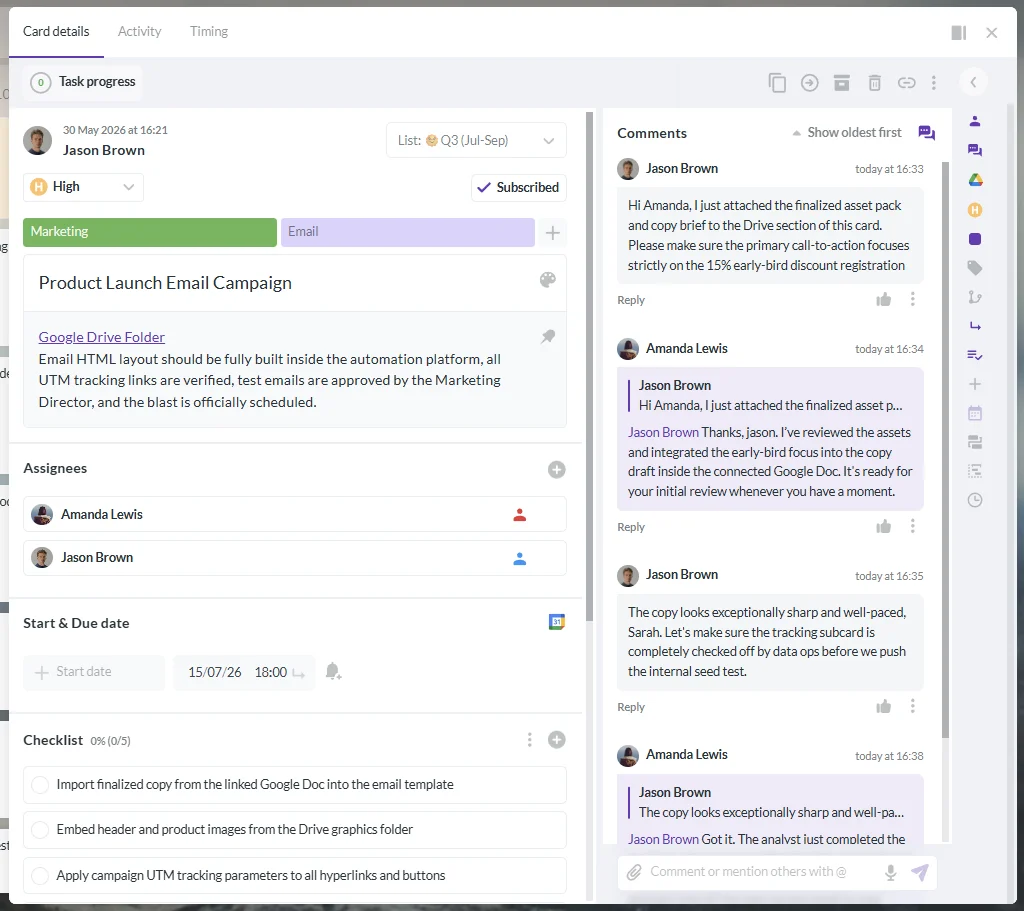
Cards in Kanbanchi can include assignments, descriptions, comments, checklists, tags, priorities, colors, attachments, dates, time tracking, and subcards. This makes the board more than a sticky-note wall. It becomes a structured workspace where execution happens.
One of the fastest ways to give a board meaning at a glance is to use color labels and tags deliberately. Tags in Kanbanchi are customizable per board, which means you can define a tagging system that reflects your team’s specific categories – whether that is by client, work type, priority tier, department, or risk level.
The key is to define what your colors and tags mean before the board grows. If every team member assigns colors differently, the visual system loses its value. Agree on a simple legend, document it somewhere visible, and apply it consistently. A color that means “blocked” should mean “blocked” on every card, every time.
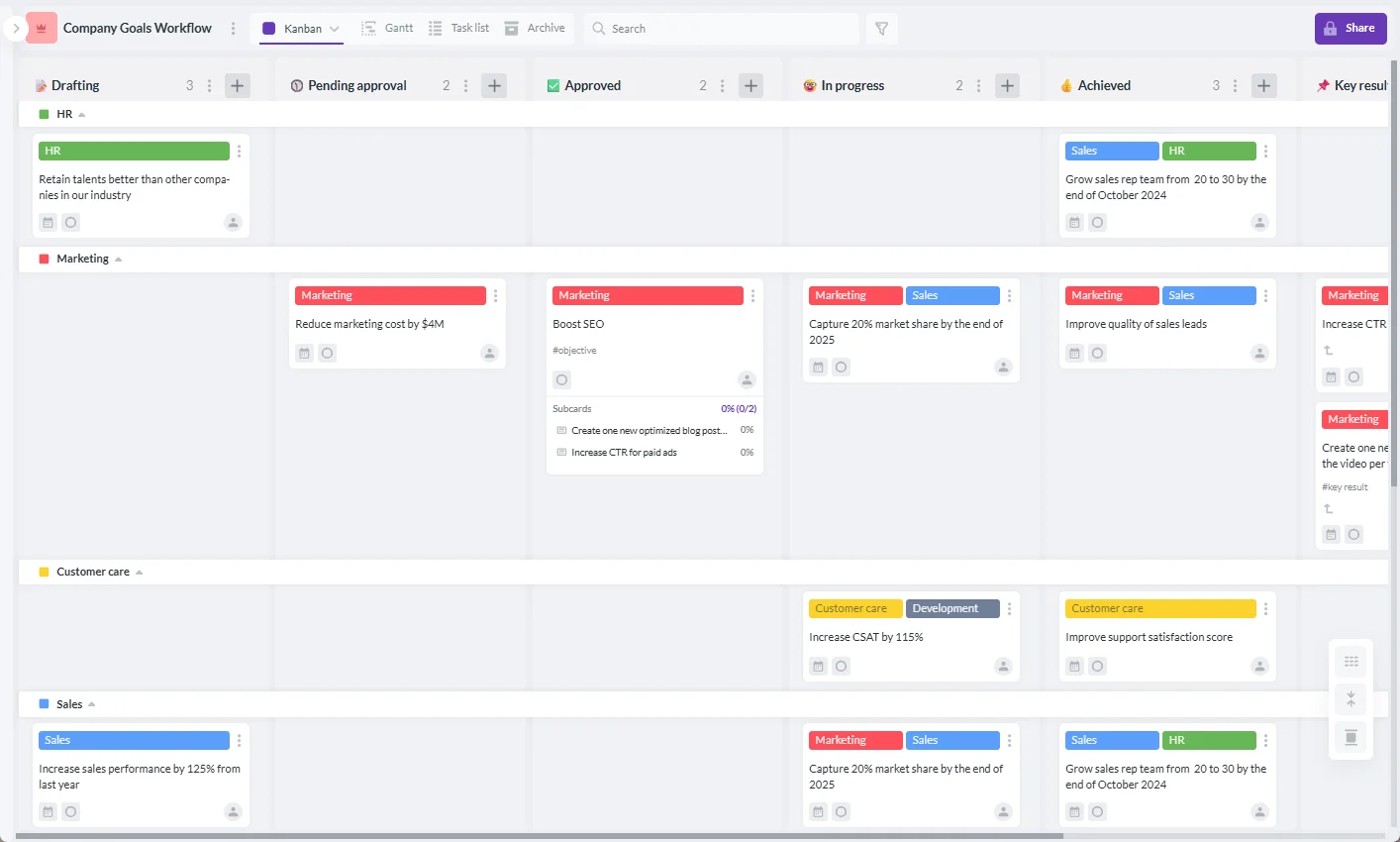
For teams managing several projects, clients, or departments simultaneously, swimlanes allow you to separate different streams of work within a single board. Instead of creating a separate board for every initiative – which can fragment visibility – swimlanes let leaders track multiple flows without losing the overall picture.
Swimlanes can group work by person, team, project, phase, or client. This is particularly useful for team leads who need to manage capacity and priorities across several streams at once, without context-switching between multiple boards. If your team is coordinating work across many projects simultaneously, the guide to multi-project management in Kanbanchi covers how to keep oversight clear without adding complexity.
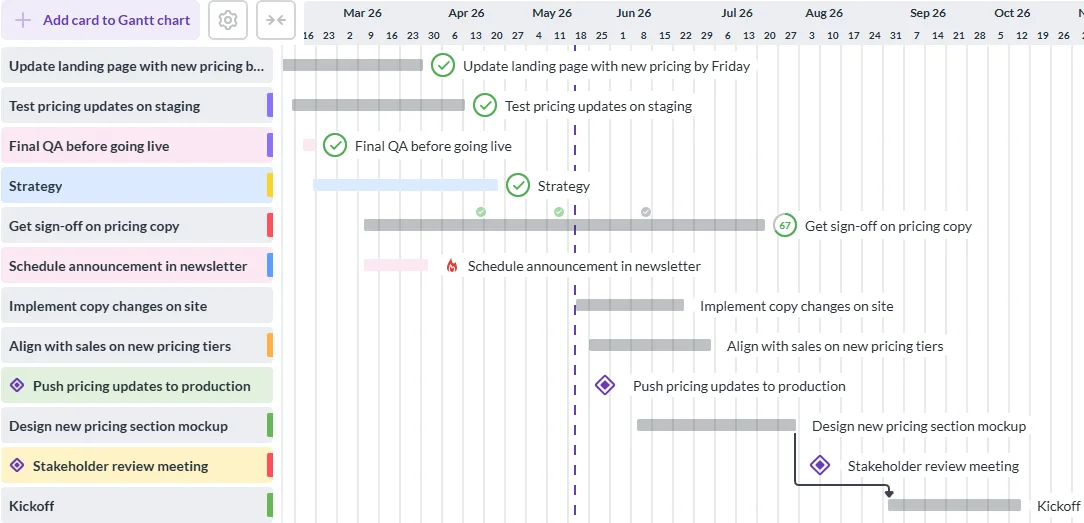
Kanban is excellent for managing flow and status. Some projects, however, require timeline planning: product launches, implementation projects, campaigns, construction phases, and client deliverables where sequencing and dependencies matter.
Kanbanchi lets teams convert a board to a Gantt chart with one click. The same work can be viewed as cards on a board or as tasks on a timeline. This matters because different roles often need different views of the same data. A project manager may need the schedule; contributors need the task board. Both should draw from the same source, rather than having a timeline in a spreadsheet that needs to be manually kept in sync with the team’s task board. For a closer look at why this kind of flexibility matters in practice, see the guide to hybrid project management: switching between Kanban and Gantt in one click.
Large cards often hide risk. A task called “Launch campaign” may contain copy approval, design sign-off, legal review, platform setup, final QA, and stakeholder notification. If all of that sits inside one card, it is difficult to understand what is actually complete and what is still in progress.
Kanbanchi checklists let teams list the specific steps within a card and check them off as they are completed. For more complex work, subcards allow individual components to be assigned, tracked, and commented on separately – while remaining visually connected to the parent task.
This is especially useful for team leads who need to understand progress at a granular level without having to ask for updates. The board shows what has actually been done, not just whether a task is “in progress.”
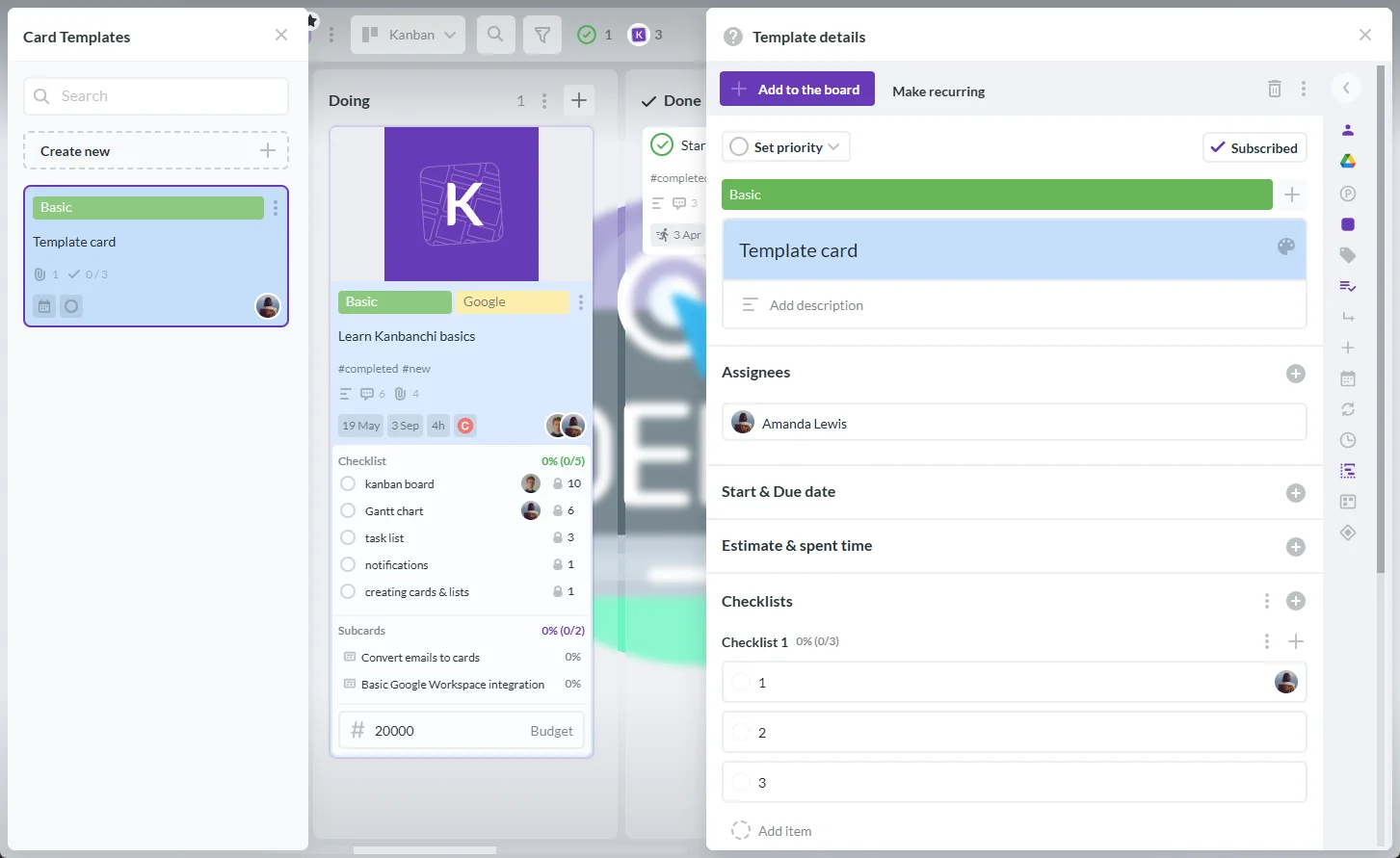
Many teams run the same types of projects repeatedly: client onboarding, campaign launches, hiring processes, audits, and procurement cycles. Each time, the same steps need to happen in roughly the same sequence – but without a template, teams rebuild the structure from scratch, skip steps under pressure, or do things inconsistently.
Kanbanchi offers a template gallery and the ability to create custom board and card templates. A good template defines the workflow stages, typical card fields, priority labels, standard checklists, and review steps for a given workflow type. It should be complete enough to be genuinely useful, but simple enough that people will actually use it.
Templates also help with onboarding. A new team member who picks up a templated board understands immediately how work flows, what is expected at each stage, and what a completed card looks like.
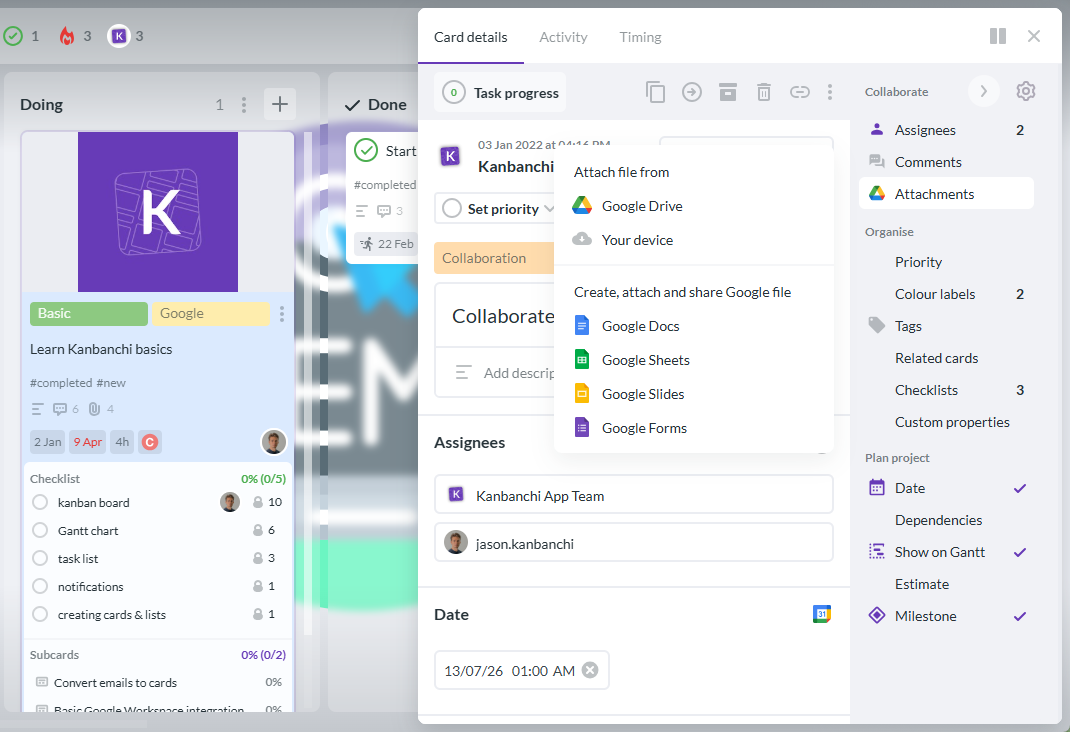
One of the quickest ways to improve project execution is to stop separating tasks from their working files. A card that says “Review contract” should include the contract. A design card should include the relevant mockup. A launch card should include the brief and the approval checklist.
With Kanbanchi, teams can attach files from Google Drive and Shared Drives directly to cards. Each task can carry its own context: documents, spreadsheets, presentations, images, PDFs, and other project materials.
For managers and reviewers, this reduces status-chasing. Instead of asking where a file is or which version is current, they can open the card, check the attached file, read the card comments, and see the task status in one place.
For teams looking to organize files more effectively within their workflow, this Google Drive Project Management: Step-by-Step Guide provides practical strategies for structuring, sharing, and managing project documents in Drive
Google Drive can become difficult to navigate when every project creates its own folder logic. A useful structure is to create a top-level folder or Shared Drive for each department, client, or major program, and keep project boards, working documents, and final deliverables close to that structure.
The more predictable your Drive structure is, the easier it becomes to onboard new team members, share work externally, and reconstruct project history when you need it later.
Gmail is where many projects begin. A client asks for a change. A stakeholder approves a plan. A vendor sends an update. A manager forwards a request. If these messages stay only in inboxes, project visibility suffers – and the person who received the email becomes a single point of failure for that piece of work.
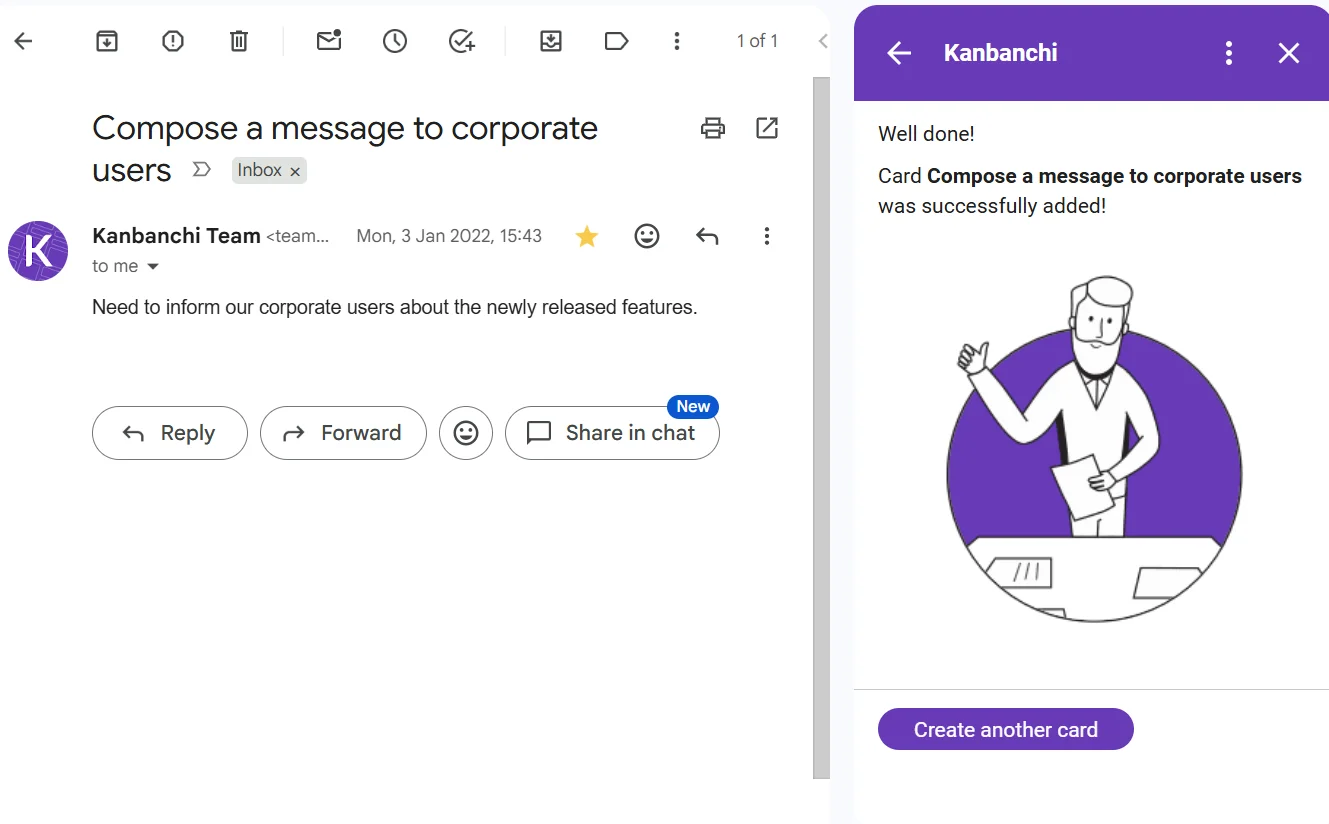
Treating Gmail as an intake channel rather than a task system changes this. When an email requires action, it becomes a card and moves into the project workflow where it can be assigned, prioritized, and tracked by the whole team.
Kanbanchi supports card creation from Gmail. Teams can create new cards by emailing a board’s unique address or by using the Gmail add-on to send information directly to an accessible board. This prevents actionable requests from disappearing inside individual inboxes.
Not every message should become a card. If teams convert every email into a task, boards become noisy and people stop trusting them. The solution is to define clear rules about what belongs on the board.
Good candidates include client requests, approvals, blockers, deliverables, change requests, meeting follow-ups, and any task that needs an owner or a due date. General FYI messages, newsletters, and one-off conversational replies do not usually belong there.
This small habit makes Gmail more manageable and gives managers real visibility into incoming work rather than a board cluttered with low-value cards.
Project boards show the work. Calendars show time. The best setup uses both, without duplicating every detail.
In Kanbanchi, teams can push card start dates, due dates, or entire task periods to Google Calendar. This is useful for deadlines, review windows, milestones, and meetings that people need to see alongside the rest of their schedule.
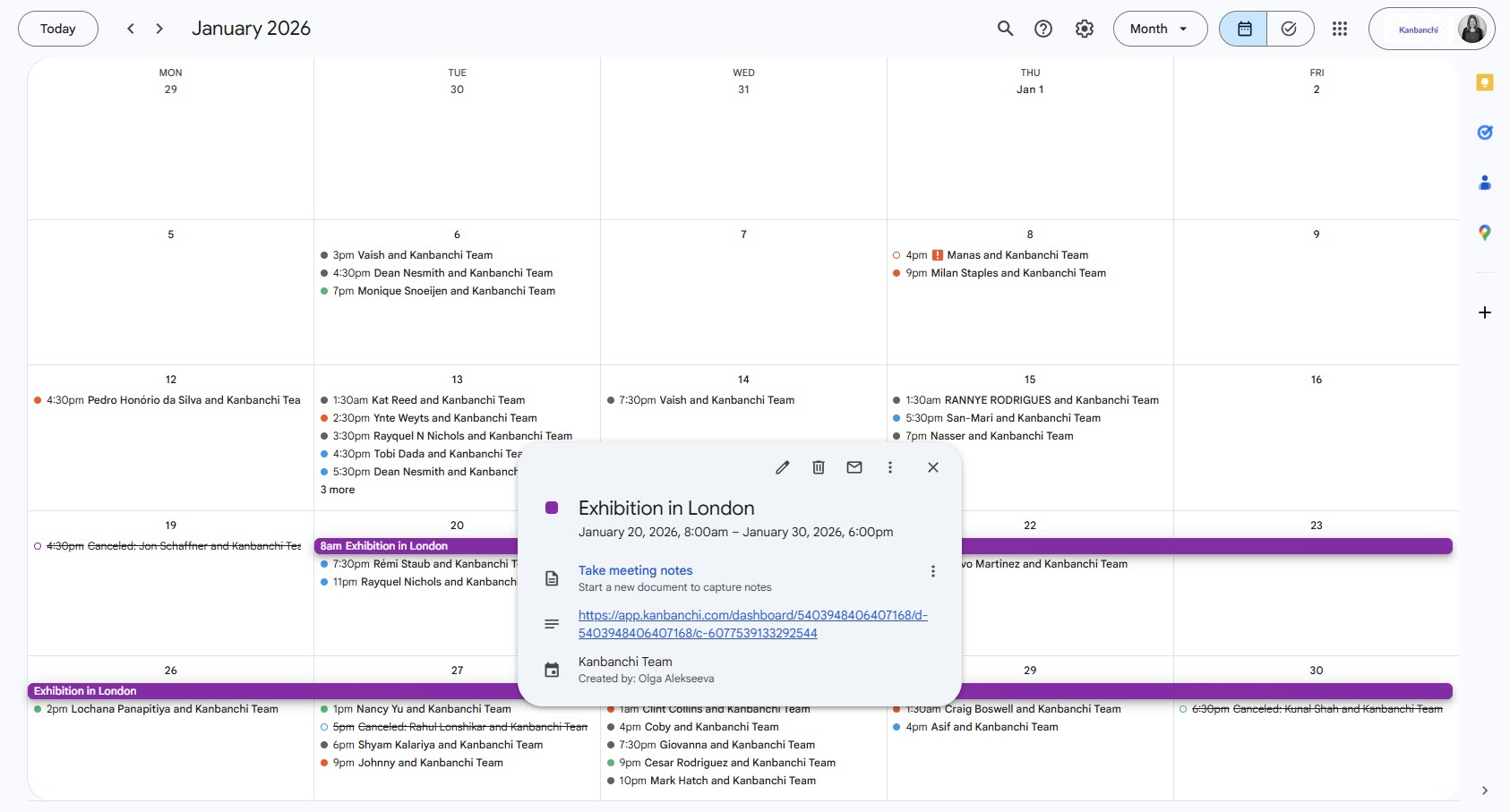
It is important to understand how the sync works: Kanbanchi’s Calendar synchronization is one-way. Changes made on the card update the calendar event, but changes in Google Calendar do not update the Kanbanchi card. The board remains the authoritative source.
Calendar integration works best when it highlights time-sensitive commitments, not every card on the board. If a board has hundreds of cards and everything gets pushed to Calendar, people stop noticing what matters.
A practical rule is to sync tasks that require attention at a specific time: deadlines, approval dates, scheduled reviews, and milestones. Keep the day-to-day workflow detail on the board, where it is easier to filter, update, and manage.
Project reporting often begins with simple questions: how many tasks are overdue, which team member has the most work, how much time has been spent on a project, and which deliverables are at risk? When project data is scattered, answering those questions requires manual collection and reconciliation.
Kanbanchi allows teams to export board data to Google Sheets, including assignments, dates, checklists, and comments. Teams can also connect this data to a reporting dashboard such as Google Data Studio. This gives leaders visibility without requiring every project owner to prepare a separate status update.
The project board remains the place where work happens. Sheets and dashboards support analysis and reporting, drawing on data that the board already contains.
Time tracking is most accurate when people record effort on the task itself, not in a separate tool that has to be updated from memory at the end of the day.
In Kanbanchi, users can start a timer directly from a card and review timing data in the card’s Timing tab. This makes it straightforward to understand actual effort by task, person, or project – which in turn supports more accurate estimates, better workload planning, and clearer reporting on where time is being spent.
If tasks live simultaneously in Gmail, Sheets, Docs, personal to-do lists, and a project board, nobody knows which source to trust. The project board should be the official record for task ownership and status. Gmail, Drive, and Calendar should support that workflow, not compete with it.
Sheets can be useful for lightweight tracking and reporting, but it creates friction as projects grow. Manual status updates, unclear ownership, limited task-level discussion, and weak timeline visibility are signs that a project has outgrown a spreadsheet. If your tracker requires a meeting to explain what it contains, it is time to move active project work to a board and use Sheets for reporting and analysis.
Calendar should highlight time-sensitive commitments. If every minor task becomes a calendar event, the signal-to-noise ratio drops until people stop looking at it. Sync milestones, deadlines, and scheduled reviews. Keep operational workflow detail on the board.
The best integration fails if people do not use it consistently. Define simple shared rules before rollout: where new tasks go, when cards are updated, how files are attached, what priority levels mean, and how often the board is reviewed. Start with one team or one project type, demonstrate that it works, and expand from there.
Read all articles connected with Google Workspace here
Document where work currently begins, where files are stored, how deadlines are tracked, and how updates are shared. Identify the biggest friction points: lost requests, unclear ownership, missed deadlines, or too many coordination meetings. Use that map to design your first board. Start with one project type that causes visible friction, not with every workflow at once.
Set up the board lists, invite the right collaborators, attach key Drive files, and define how Gmail requests become cards. Add due dates where they matter and push key dates to Calendar. If the project has a timeline, use Gantt view to check whether dates, dependencies, and milestones are realistic. Set up any templates that will save time on recurring work.
After a short pilot, ask the team what helped and what created friction. Adjust lists, tags, color labels, card templates, and notification settings. If the workflow works for this project, formalize it as a template for the next one. Decide what data should flow to Google Sheets or a reporting dashboard. The goal is not reports for their own sake – it is reliable visibility into work, capacity, and risk.
| Project need | Google Workspace connection | Kanbanchi capability |
|---|---|---|
| Shared task visibility | Google account and Drive-based access | Kanban boards with cards, lists, swimlanes, tags, and assignments |
| Flexible board structure | Google Drive file organisation | Classic Kanban, by-client, by-phase, or custom layouts |
| File context | Google Drive and Shared Drives | Drive file attachments on cards |
| Deadline awareness | Google Calendar | Push card dates or periods to Calendar |
| Email intake | Gmail | Create cards from email or Gmail add-on |
| Timeline planning | Workspace collaboration | Gantt chart connected to the same board data |
| Categorisation | Shared tagging conventions | Customisable colour labels and tags per board |
| Complex task breakdown | Shared checklists and subtasks | Checklists and subcards with individual assignments |
| Repeatable workflows | Shared Drive templates | Board and card templates from a template gallery |
| Reporting | Google Sheets and dashboards | Export board data to Sheets and Data Studio |
| Time and effort visibility | Workspace reporting | Task-level time tracking with the Timing tab |
| Security and access control | Google Drive permissions | Board sharing aligned with company Google policies |
It means connecting project tasks with the Google tools your team already uses – Drive, Gmail, Calendar, and Sheets. The goal is to reduce duplicate updates, keep files close to the tasks that need them, and give everyone a shared view of project progress without switching between disconnected systems.
Google Workspace supports simple project coordination through Sheets, Drive, Calendar, Docs, and Gmail. For growing teams – and for work that involves complex timelines, task ownership, reporting, and time tracking – teams benefit from a dedicated project management tool that integrates with Workspace rather than sitting outside it.
Kanbanchi lets teams create project boards inside a Google Workspace environment, attach files from Google Drive and Shared Drives directly to cards, and manage sharing in line with company Google policies. Enterprise users can create boards directly in Shared Drives.
Yes. Kanbanchi supports card creation from Gmail. Teams can create cards by emailing a board’s unique address or by using the Gmail add-on to send information directly to a board they can access.
Yes. Kanbanchi can push card start dates, due dates, or entire task periods to Google Calendar. The synchronization is one-way: changes on the Kanbanchi card update the calendar event, but changes in Google Calendar do not update the card.
Kanbanchi works for any team size – from small independent teams to large enterprise organizations – and across industries: agencies, corporate teams, non-profits, educational institutions, and remote-first companies all use it. Because the board structure is flexible, teams can adapt it to their specific workflow rather than working around a fixed template.
Start with the integrations that remove the most friction: Drive attachments for task context, Gmail-to-card intake for actionable requests, and Calendar sync for important deadlines. Once the team is using the board consistently, add templates, time tracking, Gantt planning, swimlanes, and reporting.
Also read: Kanbanchi Google Workspace Integration: How It Actually Works
Smoother project work does not come from adding more disconnected tools. It comes from connecting the tools your team already uses with a clear, shared workflow for task ownership, progress, and accountability.
If your team relies on Google Workspace and wants better visibility across tasks, timelines, files, and deadlines – without moving away from the environment you already use – Kanbanchi provides the project management layer that makes that connection work. Explore Kanbanchi to see how visual boards, Gantt planning, time tracking, flexible board structures, and deep Google Workspace integration can support your team’s project work every day.

In this Article:
Start using Kanbanchi now
Start your free trial