
In this Article:
Try Kanbanchi now
Start your free trial

Searching for a Google Workspace project management app can feel like walking into a party full of tipsy devs shouting that they are the best integration. But integration isn’t linear; it’s a spectrum, and everyone’s needs are different.
Let’s be honest: For loads of teams, Google Workspace is the backbone of our workday. We live in Gmail, breathe in Google Drive, and our heart beats to the rhythm of Google Calendar… all very poetic. To make a serious point, though, it’s a powerhouse for communication. That’s until it comes to managing a complex project with shifting deadlines, multiple stakeholders, and a mountain of dependencies. There are things you can do, of course.
This brings us to a critical crossroads that every growing team eventually hits:
How do you get professional-grade project management without leaving the Google ecosystem you already love?
Some apps just let you attach a file from Drive and call it a day. Others allow you to sign in with your Google account. But there’s also one that lives inside your Workspace, syncing in real time and using your Google infrastructure.
Don’t know where to begin? We hear you; that’s why Kanbanchi has put together this guide. We aren’t just going to list a bunch of tools, but will explore why a native-feeling integration is the secret to team productivity and how to identify the app that will actually stick with your team rather than become another unused subscription.
We’ll look at:
“Why hasn’t Google just built its own version of Trello or Asana yet?”
It’s the million-dollar question. The answer is both simple and a little frustrating: Google provides the building blocks, but they expect you to build the house. Annoying, but true. So, you have to look elsewhere for a one-size-fits-all type of tool, but there’s often a bewildering array of choices.
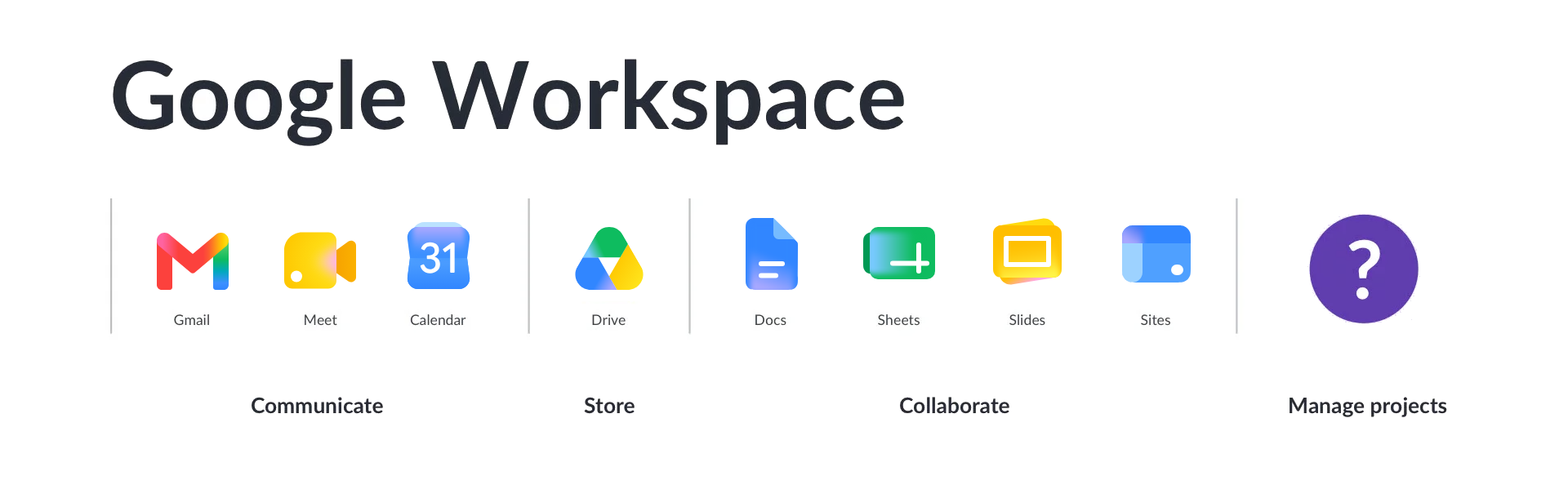
So, you go back to basics. If you look solely at the Google Workspace stable, you see a collection of incredibly powerful, specialized tools…
However, none of them were designed specifically to be a Google Workspace Project Management App out of the box. Instead, Google offers what we like to call Project Management Lite through a combination of several apps that should, on paper, work harmoniously: Google Sheets, Tasks, Keep, and Gmail.
Google’s own apps get you part of the way. Sheets works as a task tracker until the formulas break. Tasks handles personal to-do lists but can’t assign work to anyone else. Keep is good for ideas and nothing much else. Gmail labels organize an inbox without ever showing you a workflow.
That isn’t really a criticism. These apps were built for communication and documentation, not for orchestrating work. If you want the full walkthrough of how far you can push them, see How to Use Google Workspace for Project Management.
What follows is the other question: once native tools run out, what should you actually look for in an app?
While you can manage a project using only native Google tools, you are essentially asking your team to perform manual work to keep the system up to date. You spend more time managing the tool than you do managing the project.
Google knows this, which is why they created the Google Workspace Marketplace, a hub for specialized apps like Kanbanchi that build on Google’s building blocks to deliver a professional, high-performance project management platform.
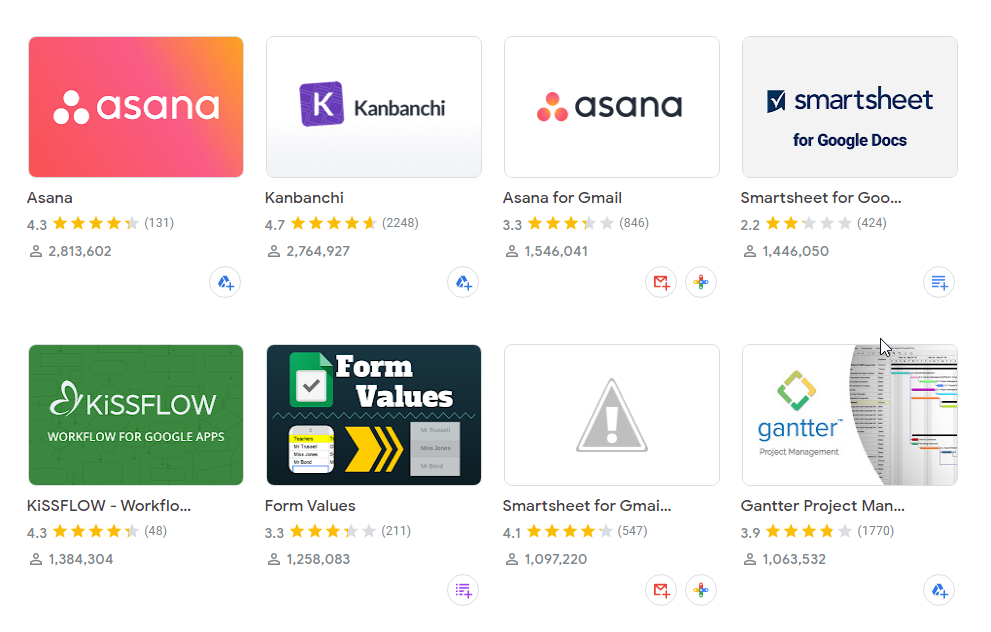
You may find Kanbanchi among the leading names in the project management category on Google Workspace Marketplace
If you’re currently managing projects using a patchwork of spreadsheets and email threads, you probably feel a constant sense of low-level anxiety. Did everyone see the latest update in the Sheet? Is that the final version of the Drive file?
When your team relies on makeshift tools, you aren’t just losing time; you’re losing clarity. Here is why a dedicated app is no longer a luxury, but a necessity for Google-first teams.
Studies suggest it can take up to 23 minutes to fully refocus after a distraction. Every time a team member leaves their Gmail to open a separate, non-integrated project management tool, they pay a context-switching tax.
A dedicated Google Workspace app eliminates this. It brings the project data to your team’s current location: no new tabs, no new logins, no friction.
In a standard Google environment, information is scattered. A client’s feedback is in an email, the project timeline is in a Google Sheet, and the assets are in a Drive folder.
A dedicated PM app acts as the glue. It pulls that email, that file, and that timeline into a single card. When a team member looks at a task, they see the whole story, not just a fragment.
Humans are visual creatures. While Google Sheets is great for data, it’s terrible for flow. A dedicated app provides:
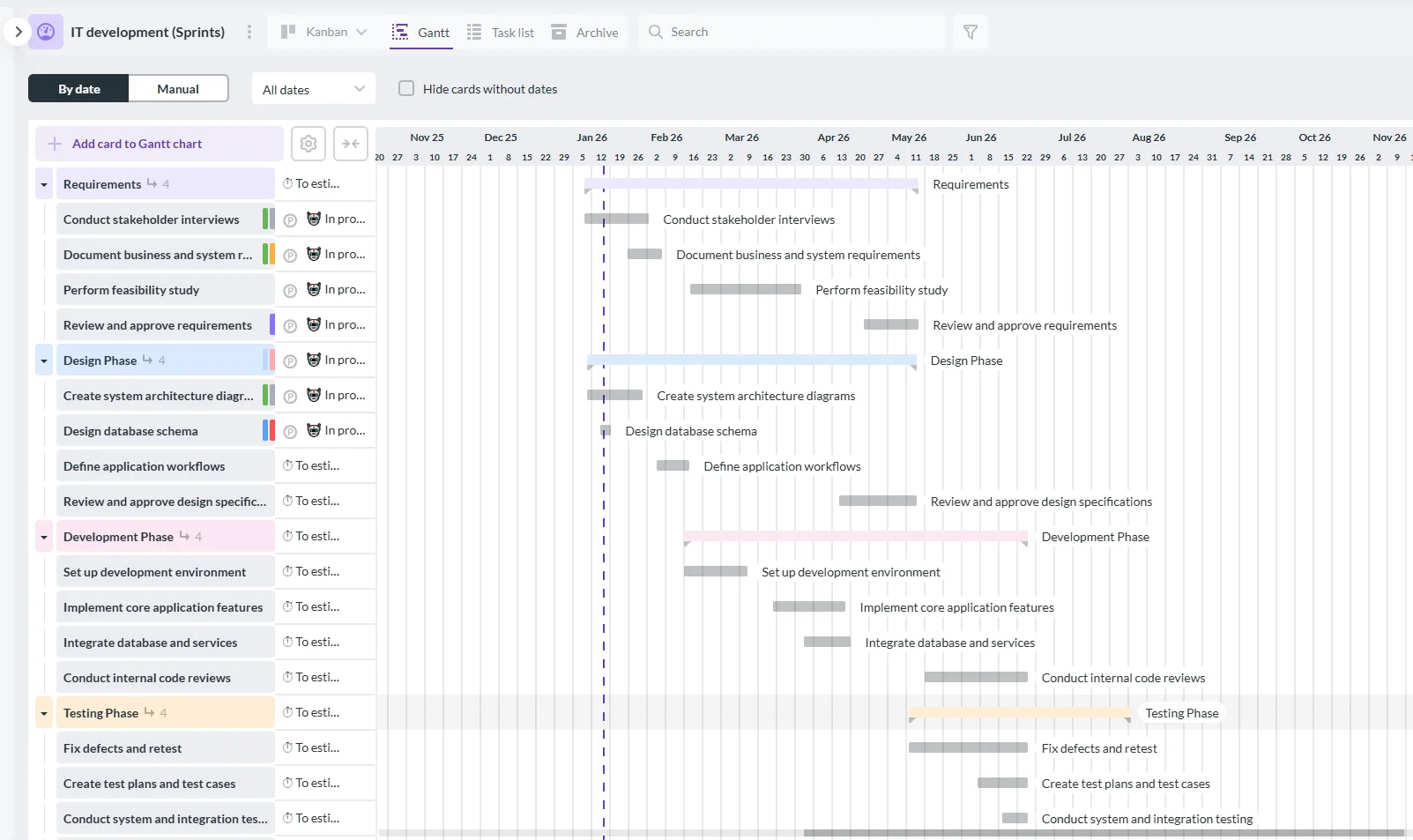
Gantt chart is a perfect tool for project visualization
In a spreadsheet, if a deadline passes, the cell just stays there, quietly turning red (if you set up the formatting right).
In a dedicated app, the system works for you. It sends a ping to the owner, updates the project manager, and adjusts the dependent tasks.
The reality is simple: Google Workspace is the engine, but a dedicated PM app is the dashboard. You wouldn’t drive a car without a speedometer and a fuel gauge, would you?
Read more articles on Google Workspace
Not all integrations are created equal. Some apps claim to be built for Google, but they feel like a stranger in the house. When you’re evaluating your options, look for these non-negotiable features.
This is more than just attaching a file. True integration lets you create Google Docs directly from the project card. It should use your existing Drive permissions so you don’t have to manage a whole new set of sharing settings.
If you move a deadline in your project management app, it should automatically update on your Google Calendar. If it doesn’t, you’re back to manual data entry, and that’s exactly what we’re trying to avoid.
Your team should log in using their Google account. Period. No new passwords to forget, and one-click access for the IT department to manage users.
The best PM apps integrate with Gmail’s sidebar. This lets you convert an incoming email into a task with one click, without leaving your inbox.
One of the best things about Google Docs is seeing others typing in real-time. Your PM app should feel the same. If a teammate moves a card, you should see it glide across your screen instantly.
So much more than “just” a list. Kanban boards provide a powerful visual representation of workflows. What is the Function of Kanban Boards? Task cards move logically through customizable columns. See this example:
Tell us the Value of Kanban Boards? Teams get instant clarity on the status of every task, and it immediately highlights bottlenecks. Kanban boards eliminate the need for status meetings just to understand what’s moving and what’s stuck.
Arguably, the most crucial feature missing from native Google Workspace. Gantt charts are essential for complex projects with interwoven timelines. What’s the Function of Gantt Charts? They offer a timeline view that displays:
Tell us the Value of Gantt Charts? It’s easier to link Task A to Task B. If Task A is delayed by 2 days, the entire subsequent schedule shifts automatically. This is vital for mitigating risks and ensuring accurate scheduling, making it a powerful component of Google project tracking software.
Simply assigning tasks is not enough; you must be able to see your team’s capacity and prevent burnout or underutilization. What’s the Function of Resource Management? You’ll get dedicated views that show all assigned tasks and their estimated effort/time, providing a quick visual of who is overloaded and who has bandwidth.
Tell us the Value of Resource Management? It allows project managers to balance workloads effectively, ensuring efficient resource utilization across the entire portfolio.
Accurate time tracking is essential for billing clients, evaluating project scope, and improving future estimations. What’s the Function of Time Tracking? It’s a brilliant built-in feature that lets team members log time spent directly on a task card.
What’s the Value of Time Tracking? Provides objective data to measure efficiency, ensure accountability, and accurately calculate the cost of project delivery. These features collectively turn a standard Google Workspace into an SME ready environment.
There are many project management tools that integrate with Google Workspace. But then there is Kanbanchi.
While most apps operate as third-party guests, Kanbanchi operates as if it were born there. It is the only app specifically designed to live inside the Google ecosystem. For teams that have gone all-in on Google, this isn’t just a preference; it’s a competitive advantage.

The biggest hurdle to any new software is adoption. If it looks or feels alien, your team will resist using it.
Kanbanchi mirrors the Google UI so closely that there is virtually no learning curve. It uses the same clean aesthetic and intuitive navigation your team already uses in Drive and Gmail.
Because Kanbanchi is a Google-first app, it leverages Google’s enterprise-grade security.
Integration shouldn’t just be a button; it should be a workflow. Kanbanchi goes further than any other app on the market by focusing on the Three Pillars of the Google experience, as outlined at the start of our guide.
How many projects start with a single email?
With the Kanbanchi for Gmail add-on, you can turn a client request into a task card without leaving the thread.
The email body becomes the task description, and the attachments are instantly linked. It’s the end of copy-paste project management.
In Kanbanchi, you don’t upload files to a separate cloud.
You link them directly from Drive. Better yet, you can create a brand new Google Doc, Sheet, or Slide from within a Kanbanchi card.
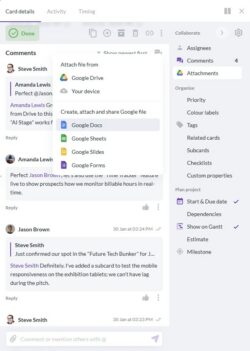
Kanbanchi allows teams to generate new Google Docs, Sheets, and Slides directly from a task card, ensuring assets are instantly linked and organized within Google Drive
It’s automatically saved in the correct project folder in Drive, keeping your digital filing cabinet perfectly organized.
Kanbanchi’s Google Calendar sync is a game-changer. When a project manager adjusts a timeline in the Gantt chart or Kanban board, the change is reflected in the team member’s Google Calendar. This ensures that work and project time are always aligned, preventing over-scheduling and missed milestones.
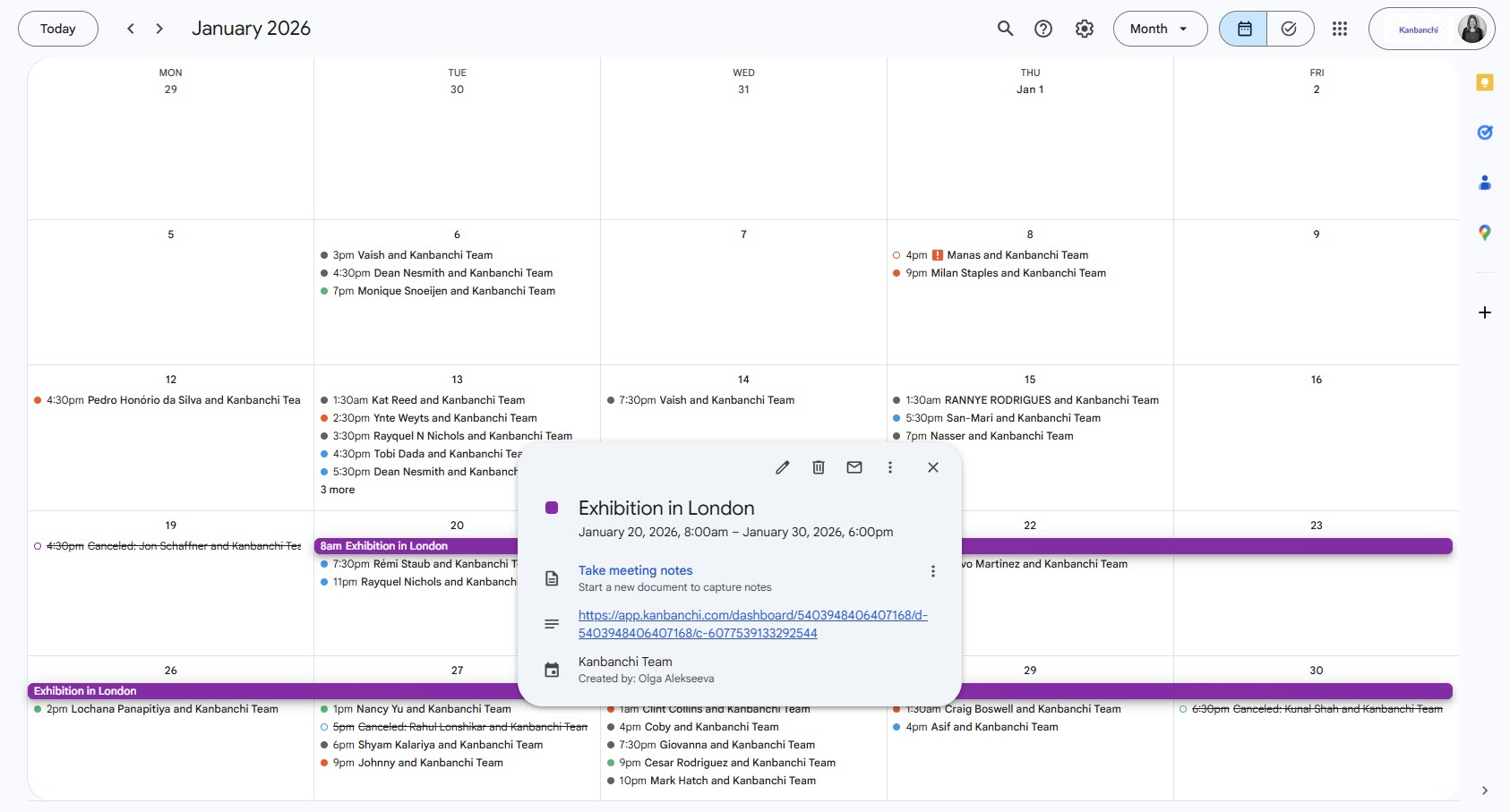
The event “Exhibition in London” contains a direct link to the corresponding Kanbanchi card, creating a seamless bridge between the team’s schedule and the project workflow
SIGN UP FOR A FREE TRIAL TODAY
Transitioning to a cohesive project management tool is easier than you think when using an integrated approach like the one Kanbanchi offers. Since Kanbanchi already operates within Google Drive, the setup feels intuitive and familiar. These next steps help establish an efficient Google project management program workflow for your team.
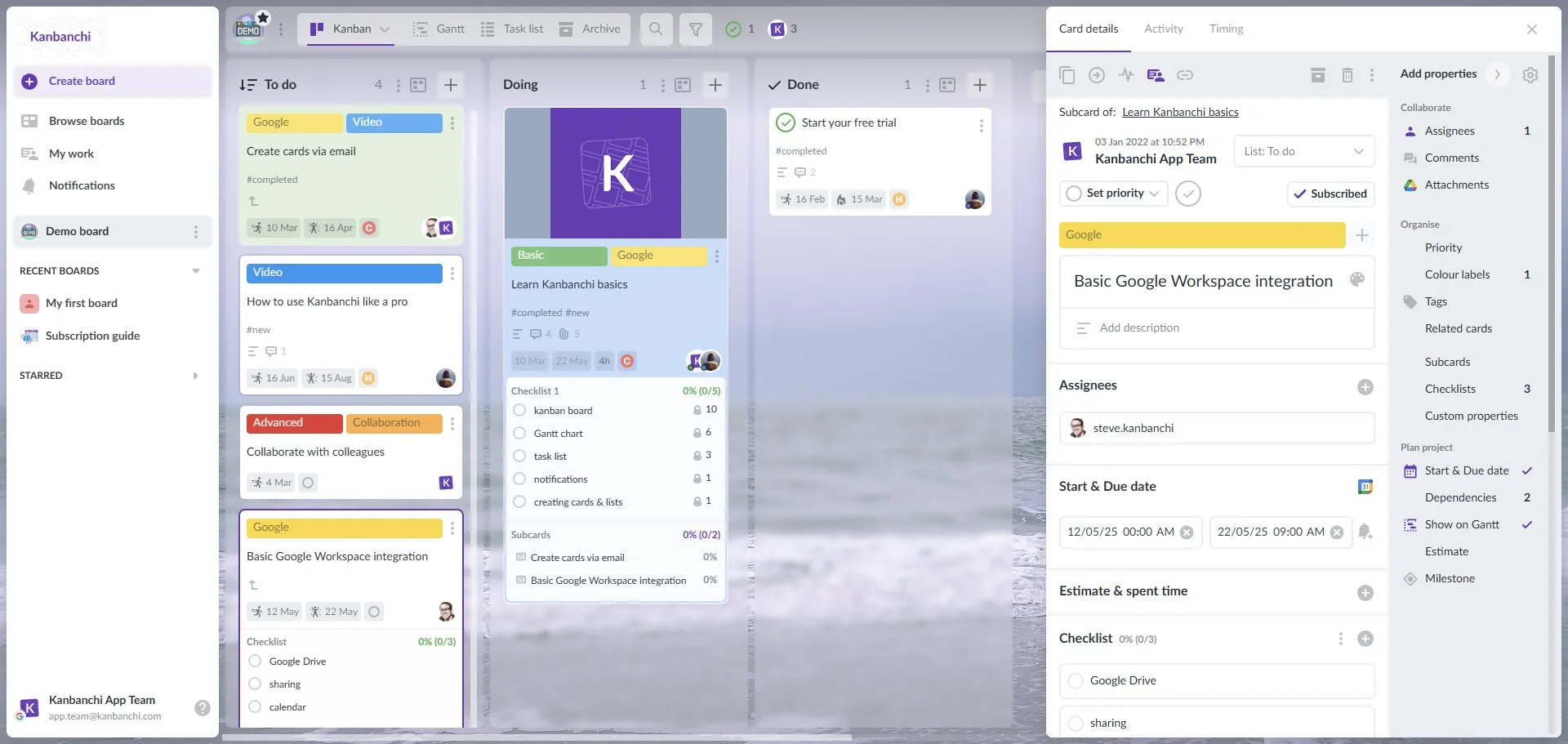
The best foundation for a successful Google Workspace project workflow is a clean, organized Drive.
Create a master folder for your project. Here’s an example:
A Software Product Website Launch would need you to establish subfolders for key assets. For instance, Drafts, Assets, Client Comms.
It centralizes all related documents, sheets, and presentations, making it easy to find and link them later.
Instead of switching applications, you create your project board right where your files reside.
The board file is now given the same priority as your other documents, simplifying sharing and security permissions.
The columns on your Kanban board represent the phases of your project lifecycle. Standard workflows are a great starting point.
Define lists such as:
Customize these to reflect your team’s process, for instance, by adding a Design or Testing column.
This establishes a “visual assembly line”. By dragging and dropping tasks between columns, the entire team instantly understands the current status.
Add tasks and ensure they are connected to the necessary assets.
Create a card for each key deliverable. Assign an owner and a due date. Use the attachment feature to link directly to the relevant Google Docs, Sheets, or Slides stored in your Drive folder.
Eliminates the “Where is that file?” question! All context and resources are consolidated on the task card itself.
Once your tasks are defined, switch to the timeline view to establish critical relationships.
Toggle to the Gantt chart view. Adjust timelines graphically by stretching the task bars. Add dependencies between cards for visualization and tracking.
Instantly calculate the project’s path and understand the ripple effect of any delay, ensuring proactive risk management.
Ensure that project deadlines appear automatically alongside daily meetings and appointments.
Connect your Kanbanchi board to your team’s Google Calendar. All cards with due dates can appear as all-day events or scheduled tasks.
It eliminates manual data entry, providing team members with a single, reliable calendar view of all their commitments, like meetings and project deliverables. This process keeps everything streamlined and easy to follow.
For many project teams, the project management process starts (and often gets stuck!) in the inbox. Client requests, feature ideas, and reports arrive as emails, which then must be manually transcribed into task cards. This process is inefficient and leads to missed communications.
With integrated Google project management software, teams can close the loop between email and the task board. Kanbanchi provides a powerful solution to automate this email process.
This simple automation achieves two critical goals:
By integrating Gmail directly into your workflow, you ensure that every incoming request, regardless of its source, is instantly channeled into your defined project process. This prevents information silos and keeps your team focused solely on the board for action items.
Choosing a Google Workspace project management app isn’t just about storing tasks. It’s about building an environment where your team can actually do their best work without the friction of tool fatigue.
While Google’s native tools are excellent for individual tasks, they lack the connective tissue required for professional project management. By choosing a solution like Kanbanchi, you aren’t adding another extra tool to your stack; you are simply unlocking the full potential of the Google Workspace you already pay for.
You get the power of Kanban and Gantt charts, but with the familiarity of a Google Doc. You get the security of Google Drive, but with the organization of a professional PM suite. The transition from managing by spreadsheet to managing by intent is the single biggest upgrade your team will make this year. Why wait?
Want to find the right Google Workspace Project management software tool for your team to turn every project into a complete success? We’re glad to hear it.
We hope your guide has covered everything you need to know about how Kanbanchi can help you transition seamlessly from workplace chaos to clarity. Below, we’ve answered some of the most frequently asked questions relating to Google Workspace Project Management apps, so every base is covered.
Google does not have a dedicated project management suite. It offers individual productivity apps like Google Tasks and Sheets, but for professional features such as Kanban boards, Gantt charts, and team time tracking, you need a third-party app from the Google Workspace Marketplace, such as Kanbanchi.
The best app depends on your needs, but for teams looking for the deepest integration, Kanbanchi is the premier choice. It is designed specifically for the Google ecosystem, meaning it lives in your Drive and syncs natively with Gmail and Calendar.
Two things, in this order. Integration depth first: does it store data in your own Drive, use your Google sign-in, and sync to Calendar both ways, or does it just let you attach a file and call that an integration? Then the features Google doesn’t have at all: Kanban boards, Gantt charts with dependencies, workload views, and time tracking.
Not always. For one small project with a handful of people, a well-built Sheet is genuinely fine. It breaks when you hit task dependencies, several projects at once, or anyone needing to see workload across the whole team. Our guide to using Google Workspace for project management shows where that line usually falls.


In this Article:
Try Kanbanchi now
Start your free trial