
In this Article:
Try Kanbanchi now
Start your free trial


If your company already runs on Google Workspace, it is natural to expect a built-in team task manager to be waiting inside Gmail, Drive, Calendar, or Chat. The tools are already there. Your team is already there. Your files, meetings, and conversations are already there.
That is why many business owners, managers, and team leads search for a Google Workspace task manager. They are not just looking for another checklist. They want a way to manage work without leaving the Google environment.
A task manager is an easy-to-use, visual planning app where you can quickly organize your tasks and projects using a timeline. It helps you get things done faster by visually organizing your ideas and actions into a task list or project management plan. You can then view this time-based list of tasks and projects on a timeline where you can track progress and achieve top performance.
Task managers are an essential aspect of any productive person’s life. These tools are designed with a single purpose: helping users stay focused and productive. They provide a great way for you to help people plan, schedule, prioritize and visualize their tasks efficiently. With this tool at hand, you’ll be able to pinpoint potential delays and see what tasks have been completed so far.
Being able to stay organized has always been one of the biggest struggles we all face. There is just so much information available on the internet, and so many demands on everyday people’s time. But there are many task manager tools that can help you out tremendously.
Using a single software for different tasks can be inefficient. For example, if you manage your marketing campaigns from one software and handle finances from another, it is hard to keep track of both as each task requires different knowledge and experience. Task managers help you to stay on top of your game with ease – you can see all tasks in one place and achieve the goals you set.
With the right tool, you can also keep track of how much time was spent on each specific task. Many task management tools are highly collaborative, which means more members of your team can work together on various tasks. They also feature a simple hierarchical structure which makes it easy to prioritize your most important tasks over others.
Google Workspace includes several apps that can support task management, but it does not include a dedicated project management app for teams in the same way it includes Gmail for email or Google Drive for file storage.
Google Tasks lets users create simple to-do lists, add due dates, and access tasks from Google apps. It works well for individual reminders and personal follow-ups. For example, a sales manager might use Google Tasks to remember to call a prospect, or a team lead might add a reminder to review a document.
However, Google Tasks is not designed to manage complex team workflows. It does not provide a shared Kanban board, a Gantt chart, workload visibility, time tracking, advanced reporting, or structured project boards with detailed task collaboration. In short, Google lacks the necessary tools to handle tasks and deliver results in an efficient manner at the team level.
Google Workspace gives teams strong collaboration foundations. You can use Gmail for communication, Drive for files, Docs for documentation, Calendar for deadlines, Sheets for lists, and Meet for discussions. That combination may be enough if your team is very small, your workflow is simple, and you do not need much reporting. But as soon as multiple people, deadlines, departments, and dependencies are involved, work often becomes scattered across too many places.
Before choosing a dedicated tool, it helps to understand what you can realistically do with Google Workspace alone. For lightweight work, the native apps can cover the basics.
Google Tasks is best for individual reminders and simple to-do lists. Use it when the task belongs to one person, does not need detailed collaboration, and does not require a shared project view.
Google Sheets is often the first workaround teams try. A simple sheet can include task names, owners, due dates, status, priority, and notes. However, a spreadsheet does not behave like a real task management system. People may forget to update statuses, comments can get buried, and as projects grow, the sheet becomes harder to trust.
Google Calendar is useful for due dates, meetings, reminders, launches, and project milestones, but it shows time rather than workflow. A deadline on a calendar does not automatically show whether the task is blocked, who is responsible, what files are attached, or what stage the work is in.
Google Drive and Docs are excellent for collaboration on content and planning materials, but files alone do not create task visibility. Without a task layer, teams may spend too much time asking, “What is the status?” or “Who owns this next step?”
| Google Workspace tool | Best for | Limitation for team task management |
|---|---|---|
| Google Tasks | Personal reminders and simple to-dos | Limited shared workflow visibility |
| Google Sheets | Basic shared task trackers | Manual updates and weak project structure |
| Google Calendar | Deadlines, meetings, and milestones | Does not show task status or dependencies |
| Google Drive | File storage and collaboration | Files are not tasks by themselves |
| Gmail | Communication and incoming requests | Tasks can get lost in inbox threads |
Native Google Workspace tools are excellent for communication and collaboration, but team task management requires a different kind of structure. The breaking point usually appears when work crosses people, teams, or timeframes. Traditional to-do lists and spreadsheets aren’t great for managing projects – the problem arises when the amount of tasks increases dramatically or the complexity of the schedules becomes an issue.
Common signs that your team has outgrown native workarounds include:
If these issues sound familiar, the problem is not Google Workspace itself – it is the missing project management layer.
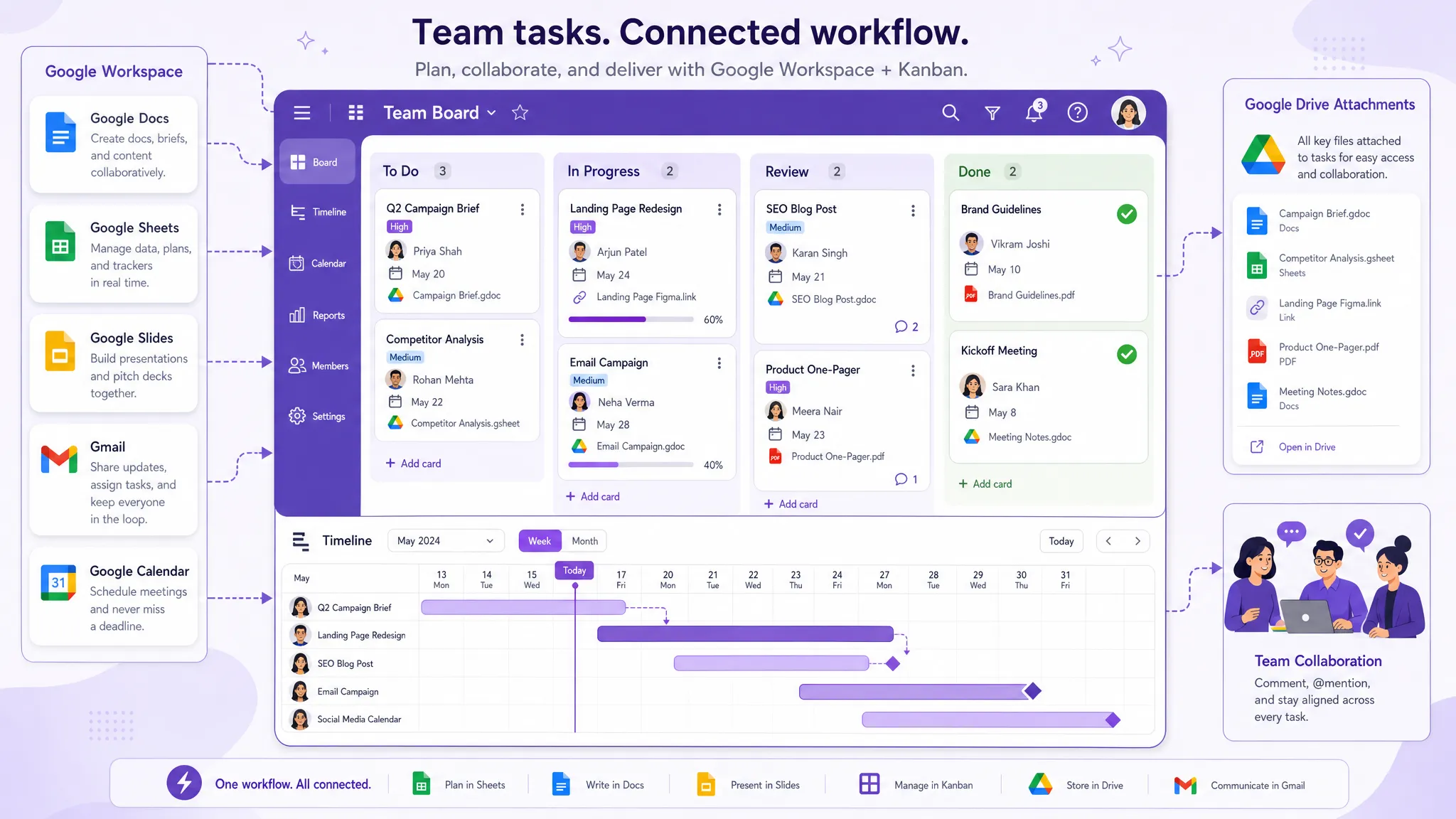
Luckily, Google Workspace users have a great alternative for a task manager. The practical answer is to use a task management tool that integrates with Google Workspace rather than replacing it. That way, your team keeps Gmail, Drive, Calendar, and Docs, but gains a structured place to plan, assign, track, and report on work.
A strong Google Workspace task manager should help teams answer these questions quickly:
Read all articles related to Google Workspace here
Kanbanchi is an easy-to-use task management system designed for teams that want project and task management inside their existing Google Workspace environment. Instead of forcing people to manage work in disconnected tools, Kanbanchi gives teams visual boards, task cards, timeline planning, and time tracking while keeping work connected to Google apps.

Kanban boards help teams organize work into columns such as To Do, In Progress, Review, and Done. Each task becomes a card that can include details, assignees, dates, checklists, comments, tags, and attached files. This gives managers a live view of team activity without needing to collect updates manually. A Kanban board – whether physical or digital – keeps all tasks visible at once, so you can see the overall progress of all projects in real-time.
Kanbanchi lets teams attach files from Google Drive and Shared Drives to cards. Boards are created as files in Google Drive, and Enterprise users can create boards in Shared Drives. This matters for businesses because project work often depends on files: contracts, briefs, reports, spreadsheets, screenshots, creative assets, and technical documents. With Kanbanchi, the task and the related file context stay connected.
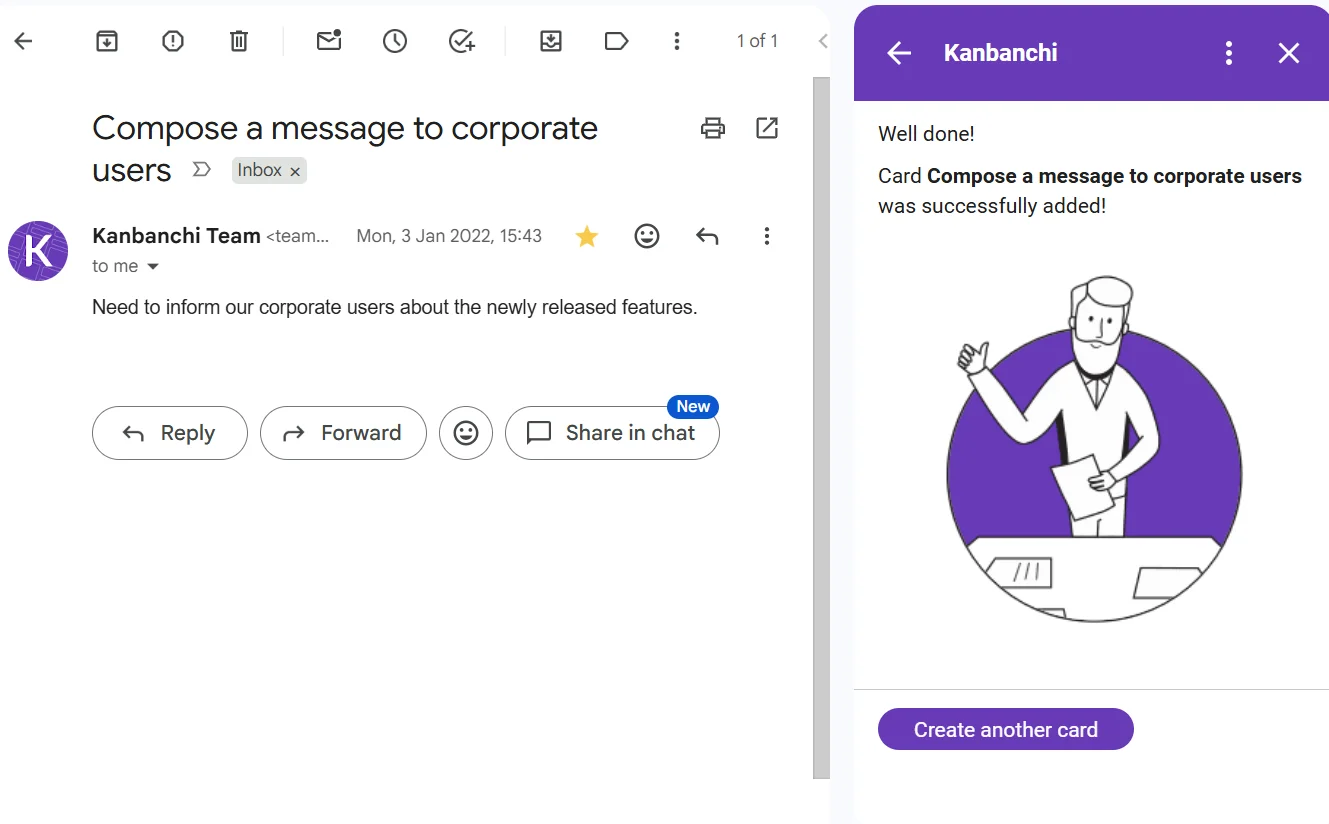
Many tasks begin as emails. Without a reliable capture process, these tasks can disappear inside inbox threads. Kanbanchi supports card creation from Gmail by emailing a board’s unique address or using the Gmail add-on to send information to an accessible board. This helps teams turn email requests into trackable work.
Kanbanchi can add events to Google Calendar, helping teams keep time-sensitive work visible alongside their schedules. Tasks often need to appear on calendars, especially when deadlines, meetings, launches, or review dates are involved.

Kanbanchi includes a Gantt chart that converts board cards into a visual schedule. This helps managers plan dates, understand how work relates over time, and adjust project timelines when priorities change. If your team currently tries to build timelines in a spreadsheet, a dedicated Gantt view can save time and reduce confusion.
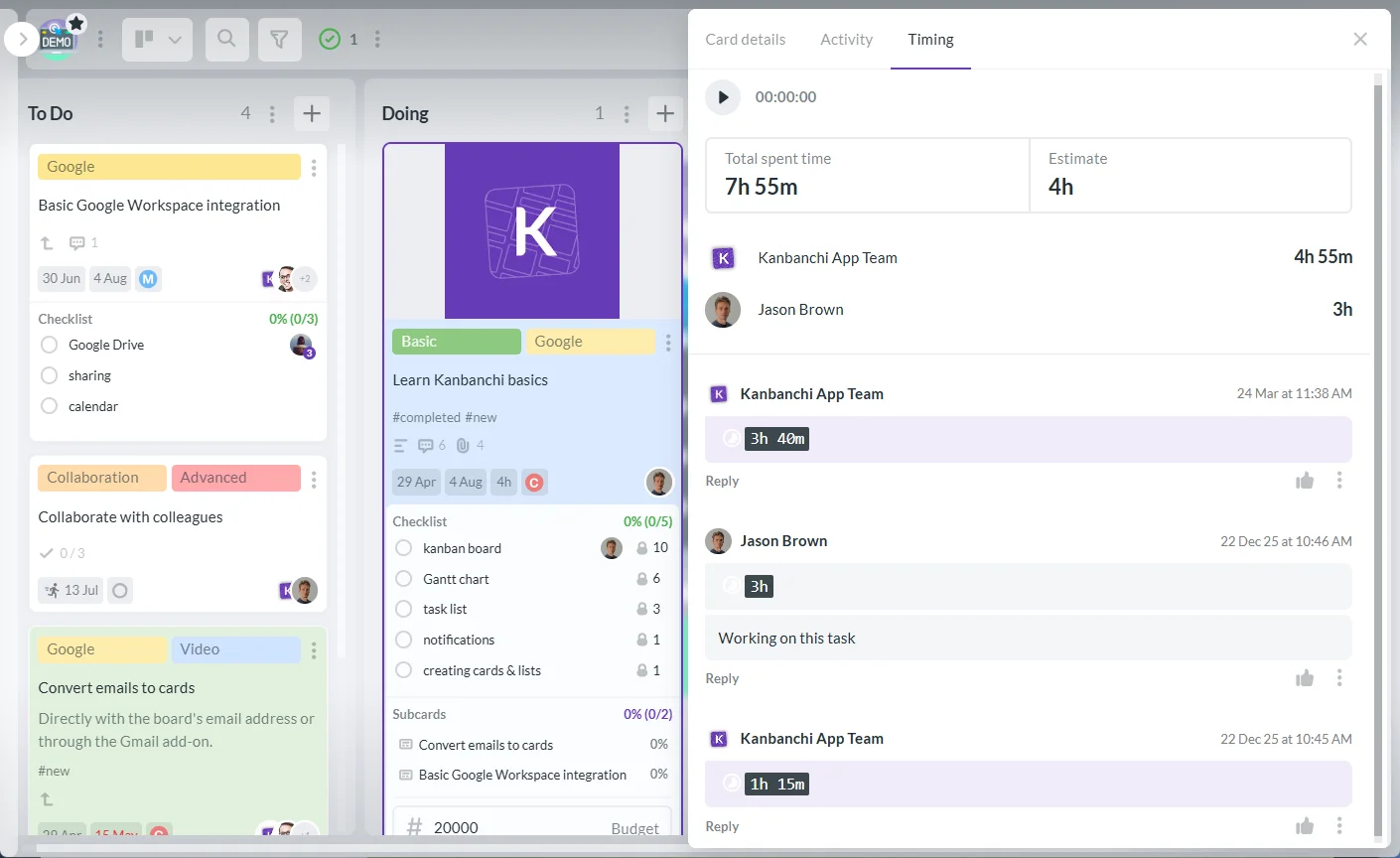
Kanbanchi includes a time tracker that lets users track time directly on cards. Managers can review timing data in the Timing tab, which helps teams understand how much time different tasks and projects actually take. This is especially useful for service teams, agencies, operations teams, consultants, and departments that need to compare estimates with actual work.
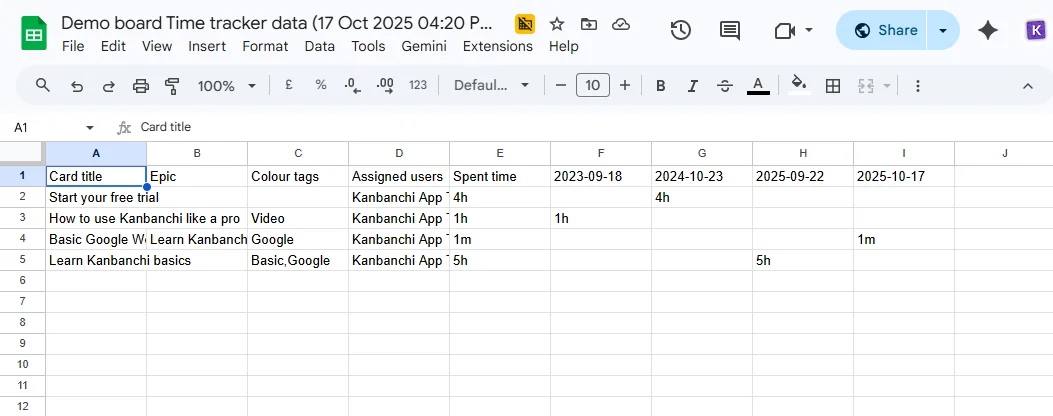
Kanbanchi supports exporting board data to Google Sheets, including assignments, dates, checklists, and comments. Teams can also extract data and connect it to reporting dashboards such as Google Looker Studio.
For repeatable work, Kanbanchi offers board templates and card templates. Teams can break complex tasks into subcards, organize multiple projects on one board with swimlanes, and prioritize tasks so the most important work is easier to find and act on.
The biggest difference is that Kanbanchi turns scattered work into a visible system. Google Workspace remains the productivity foundation, while Kanbanchi becomes the operational layer for tasks and projects.
| Need | Native Google workaround | Kanbanchi approach |
|---|---|---|
| Track task status | Status column in Google Sheets | Visual Kanban board with movable cards |
| Assign owners | Manual owner field in a sheet | Assignees on task cards |
| Manage files | Links in Docs, Sheets, or Drive folders | Google Drive and Shared Drive attachments on cards |
| Plan timelines | Calendar events or spreadsheet dates | Gantt chart connected to board tasks |
| Capture email tasks | Manual copy and paste from Gmail | Card creation from Gmail |
| Track time | Separate tracker or manual spreadsheet | Time tracking directly on cards |
| Report progress | Manual spreadsheet updates | Export to Google Sheets and connect data to dashboards |
| Manage complex work | Multiple sheets and documents | Subcards, swimlanes, templates, tags, filters, and priorities |
The best part is that Kanbanchi is perfectly integrated with Google Workspace. You can open the Kanbanchi app directly in Google Workspace, get easy access to all of your data and other files seamlessly, and access data in your Kanbanchi Projects from your Google Drive account. Importantly, Kanbanchi does not replace Google Workspace – it complements it. Your team can continue using Gmail, Drive, Calendar, Docs, Sheets, and other Google apps while using Kanbanchi to manage tasks, boards, timelines, and project progress.
Read this guide on how Google integration actually works in Kanbanchi to learn more.
If your team is ready to move beyond scattered task tracking, start with a simple rollout. The goal is not to build the perfect system on day one – it is to create one trusted place for work.
Because Kanbanchi is built on the Kanban method – one of the most intuitive ways to visualize work – the learning curve is low. Most teams can get a board up and running in minutes, and new members can understand what is happening without any training. The free trial lets you explore all features before committing, and the free tier gives you time to decide at your own pace.
Create a board for a department, project, client, campaign, or operational process. Keep the first structure simple. A basic workflow such as Backlog, To Do, In Progress, Review, and Done is often enough to begin.
A task card should contain enough information for a person to act without searching through emails and documents. At minimum, include a clear title, owner, due date, description, priority, and relevant Google Drive files.
When an email requires action, turn it into a card and track it on the board. This keeps the inbox from becoming the unofficial project management system.
A task board only works if the team trusts it. Add a short review cadence – such as a weekly team planning session and a quick daily check for blocked or overdue items. Managers should use the board during discussions rather than asking people to repeat information that should already be visible.
Not every task needs a Gantt chart or time tracking. Start with the board, then add more structure when it solves a real problem.
Does Google Workspace have a task manager? Google Workspace includes Google Tasks for personal task lists, but it does not include a full project management task manager for teams. Teams that need shared boards, timelines, time tracking, reporting, and structured collaboration usually use an integrated tool such as Kanbanchi.
Is Google Tasks enough for a business team? Google Tasks can be enough for personal reminders or simple individual to-do lists. It is usually not enough for business teams that need shared visibility, task ownership, project stages, file attachments, reporting, or timeline planning.
Can I use Google Sheets as a task manager? Yes, Google Sheets can work as a basic shared task tracker. However, it requires manual updates and can become hard to manage as projects grow. It does not provide the same workflow visibility as Kanban boards, Gantt charts, time tracking, or structured task cards.
What is the best way to manage team tasks in Google Workspace? The best approach is to keep using Google Workspace for communication, files, meetings, and documents, then add a task management tool that integrates with it. This gives your team structure without forcing people to leave the Google environment.
When should a team move from Google Tasks or Sheets to Kanbanchi? Move when your team needs shared visibility, clearer ownership, deadlines, file context, workflow stages, time tracking, or reporting. If managers are spending too much time asking for updates, a dedicated task management system is usually the next step.
Google Workspace gives your team the foundation for collaboration, but it does not provide a full team task manager by itself. Google Workspace apps offer the best combination of technology and innovation for many business requirements – but when it comes to managing projects at scale, a dedicated task management layer is essential.
If your work is scattered across Gmail, Sheets, Calendar, and Drive, Kanbanchi adds the missing project management layer. With Kanban boards, Gantt charts, time tracking, Google Drive attachments, Gmail task creation, Calendar sync, templates, swimlanes, and exports to Google Sheets, Kanbanchi helps teams manage tasks without leaving the tools they already use.

In this Article:
Start using Kanbanchi now
Start your free trial