
In this Article:
Try Kanbanchi now
Start your free trial


A project management tracker succeeds or fails on one simple question: will people use it when work gets busy?
Many teams start with the right intention. They want better visibility, fewer surprise deadlines, clearer ownership, and a reliable way to know what everyone is working on. Then the tracker becomes another place to update after the real work has already happened. Within a few weeks, leaders stop trusting the data, team members stop checking the board, and the organization is back to chasing status updates in meetings, chats, and email.
The best project management tracker is not the one with the longest feature list. It is the one that fits the way your team already works, makes responsibilities visible, and gives managers enough information to make decisions without turning every update into admin work.
Before comparing software, clarify what tracking means for your team. A five-person operations team, a marketing department, and an enterprise project office may all search for the same tool, but they do not need the same level of structure.
At a minimum, most teams need to track who owns each task, what stage it is in, when it is due, which files or conversations are attached, and whether anything is blocked. More mature teams may also need dependencies, workload visibility, time tracking, project templates, reports, and governance controls.
A good first step is to write down the recurring questions your tracker must answer. For example, managers often need to know what is overdue, what is at risk, who is overloaded, and which work is waiting on another team. Individual contributors need a simpler view: what should I do next, what information do I need, and how do I hand off work when I am done?
If a tool solves only the manager’s reporting problem, adoption will be weak. If it solves only the individual to-do problem, leaders will still need separate status reporting. The right project management tracker connects both needs.
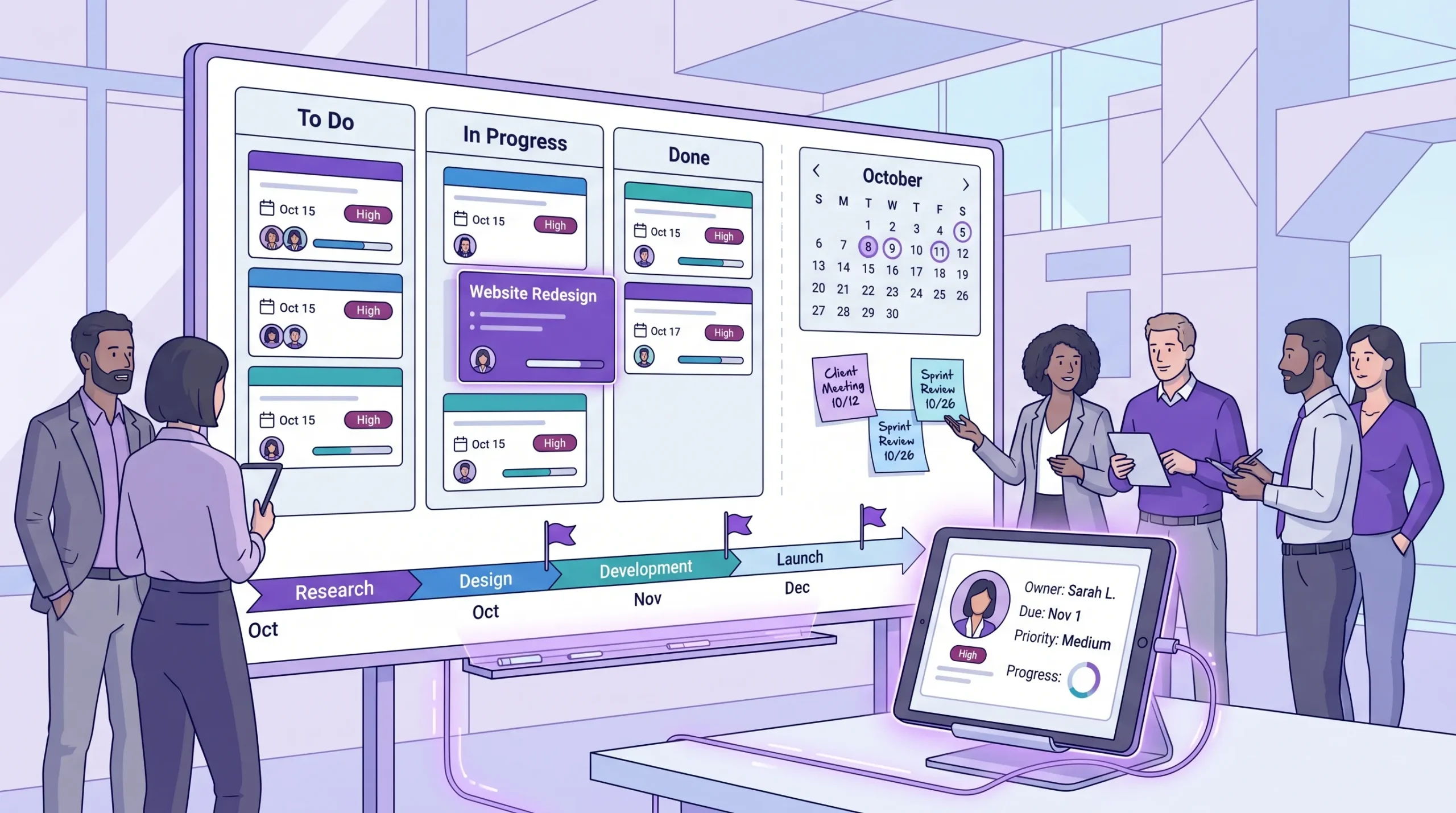
Feature checklists are useful, but they can hide the most important buying criterion: whether your team will update the system consistently. Adoption depends on usefulness, speed, and trust.
The tracker should be where work is planned, discussed, and completed, not a reporting layer added afterward. When team members can find files, ask questions, check due dates, and move work forward from the same place, updates become a natural byproduct of execution.
For example, if your team works in Google Workspace, a tracker that connects to Google Drive, Gmail, and Google Calendar reduces context switching. If your organization uses Microsoft 365, compatibility with OneDrive and SharePoint matters for the same reason. The less people need to copy information between systems, the more accurate your tracker becomes.
A project management tracker can support complex work without feeling complex. Team members should be able to create a task, assign it, add a due date, attach files, comment, and move it to the next stage without training sessions or a long internal manual.
This is especially important for cross-functional teams. A project manager may appreciate advanced dependency settings, but a sales manager, HR specialist, designer, or operations coordinator may only need a clear board and a list of their own tasks. The tool should support both levels of use.
A tracker is not meant to monitor people minute by minute. It should make the work visible enough that leaders can remove blockers, adjust priorities, and forecast delivery. If the system feels like surveillance, people will avoid it or update it defensively. If it helps them get support faster, they will keep it current.
Use the following criteria to evaluate any option you are considering. The goal is not to find a tool that does everything. The goal is to find one that does the right things for your team with the least friction.
| Criterion | What to check | Why it affects adoption |
|---|---|---|
| Visual task tracking | Can the team see work by status, owner, priority, or project? | People understand progress faster when work is visible. |
| Timeline planning | Can you see start dates, due dates, dependencies, and milestones? | Leaders can spot schedule risks before deadlines slip. |
| Personal task views | Can each person see tasks assigned to them across projects? | Team members need one reliable place to start their day. |
| File and email integration | Can tasks connect to the files, messages, and calendars the team already uses? | Fewer tool switches usually mean more consistent updates. |
| Time tracking | Can the team record effort against specific tasks? | Better time data improves estimates, staffing, and billing decisions. |
| Reporting and export | Can managers extract data for dashboards or reviews? | Leadership needs visibility beyond individual boards. |
| Security and permissions | Can sharing match company policies and external collaboration needs? | Trust and compliance matter as usage grows. |
| Templates and scalability | Can teams reuse workflows and manage larger projects? | Standardization reduces setup effort and improves consistency. |
Most teams already have a digital operating system, even if they do not call it that. It may be Google Workspace, Microsoft 365, a CRM, an ERP, or a mix of email, shared drives, and spreadsheets. Your project tracker should strengthen that environment, not compete with it.
If your primary need is to connect sales, invoicing, client records, and operational workflows in one business platform, an SME-focused system may be a better fit. If your main challenge is coordinating tasks, timelines, files, and accountability across project work, a dedicated project management tracker is usually the better choice.
For Google Workspace teams, integration depth is especially important because much of the project context already lives in Docs, Sheets, Slides, Gmail, Calendar, and Drive. A tracker that stores or connects project assets in the same environment helps teams keep context where they already collaborate. The same principle applies to Microsoft 365 teams that rely on OneDrive, SharePoint, and Outlook-centered workflows.
Teams rarely think about projects in only one format. A project manager may need a timeline. A department head may need a high-level workload overview. A team member may prefer a simple task list. A delivery team may work best from a Kanban board.
The key is to choose a tracker where these views are connected to the same underlying tasks. If a manager updates a timeline, the team board should reflect the change. If a task moves across a Kanban board, the reporting data should stay current. Separate trackers for boards, timelines, and status reports create duplicate work and conflicting versions of the truth.
Kanban boards are useful because they show the flow of work. Columns such as To Do, In Progress, Review, and Done make status visible at a glance. Cards can hold assignments, files, comments, dates, checklists, and priorities, which gives the team a shared view of what is happening.
For teams that manage many small tasks, visual boards reduce the need for status meetings. Instead of asking everyone what they are doing, leaders can review the board, identify stuck work, and focus meetings on decisions.
A Gantt chart helps when timing matters. It shows tasks across a calendar, making it easier to understand overlaps, deadlines, dependencies, and project phases. This is valuable for product launches, event planning, procurement, implementation projects, and any work where one delay affects the next stage.
The most useful trackers let teams switch between board and timeline views without recreating data. That keeps day-to-day execution connected to the overall schedule.
Not every user wants to scan a full board. Individual contributors often need a clean list of their own assignments. Managers may need to filter tasks by owner, priority, date, or project. A good tracker supports these focused views while preserving the shared project structure.
Reporting is often evaluated too late. Teams choose a tool because the board looks good, then discover that leadership needs data the tool cannot easily provide.
Decide in advance what reports matter. Common examples include overdue tasks, work completed by period, time spent by project, tasks by assignee, and progress by department. If your company uses a reporting dashboard, check whether the tracker can export data or connect to your preferred reporting workflow.
You do not need every report on day one. But you do need confidence that the data you capture today can support management decisions later.
For small teams, security may feel like an admin topic. For growing companies and enterprises, it becomes a core adoption factor. Users need to know who can see what, how external collaborators are invited, where files are stored, and whether sharing follows company policies.
If your team works with clients, contractors, confidential documents, or regulated information, ask security and IT stakeholders to join the evaluation early. A tool that seems convenient for one department can become difficult to approve later if it does not align with company data practices.
For Google Workspace organizations, it is particularly helpful when project boards and attachments follow familiar Google sharing patterns. For Microsoft 365 organizations, OneDrive and SharePoint compatibility can support similar governance expectations.
Read more articles about Project Management here
A trial should not be a casual experiment where a few people click around. Treat it like a short pilot with clear success criteria. Choose one active project, move real work into the tracker, and evaluate how it performs under normal pressure.
| Evaluation area | Suggested weight | What to test during the pilot |
|---|---|---|
| Team adoption | 30% | Do people update tasks without reminders? |
| Task tracking fit | 25% | Can the tool represent your real workflow clearly? |
| Integrations | 20% | Does it connect to your files, email, calendars, and existing workspace? |
| Reporting | 15% | Can managers get the visibility they need without manual cleanup? |
| Admin and security | 10% | Can permissions, sharing, and governance match company requirements? |
The exact weights can change based on your organization, but adoption should remain near the top. A powerful system that people avoid will not improve delivery.
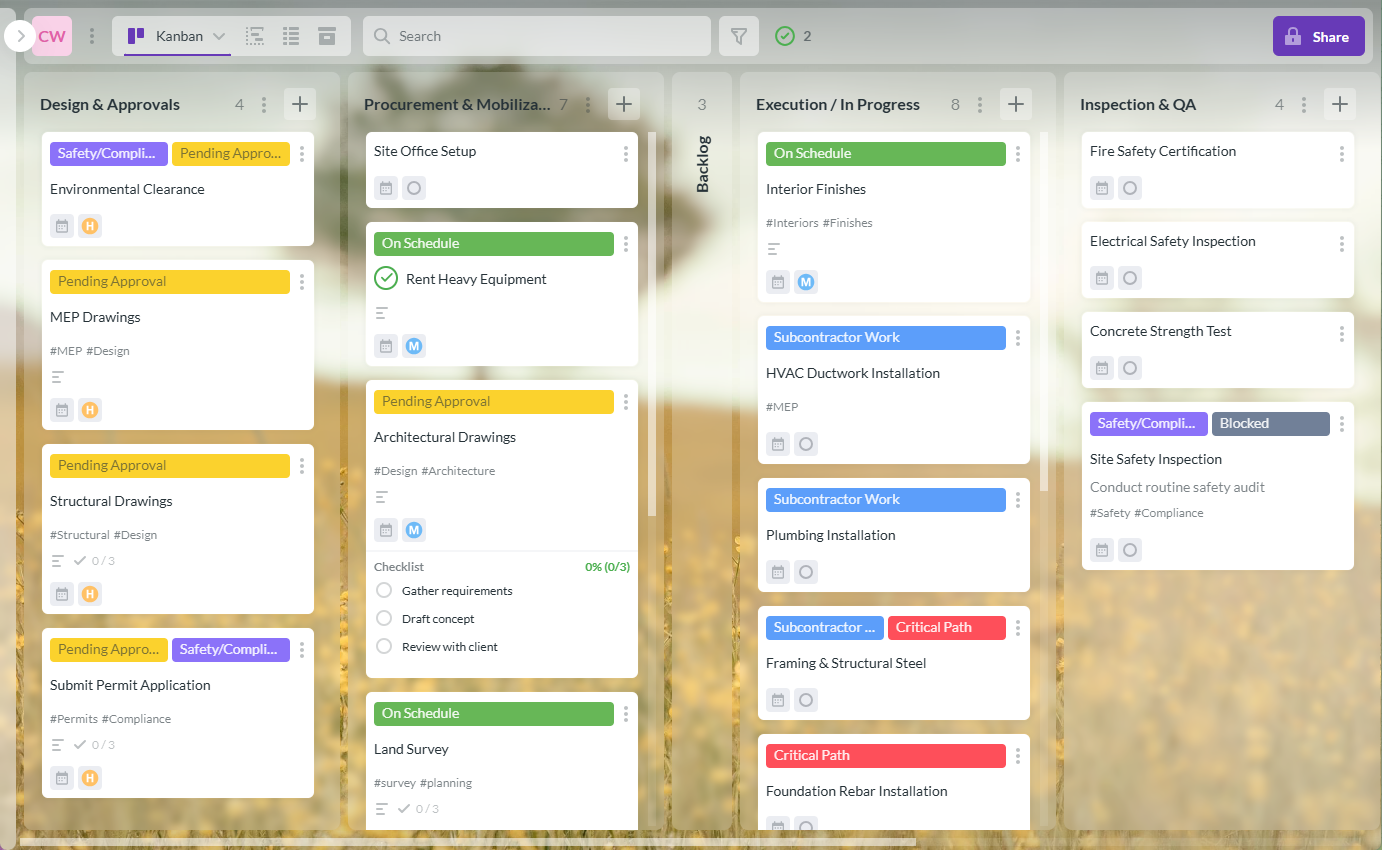
Kanbanchi is designed for teams that want visual project and task management inside the productivity environment they already use. For Google Workspace users, Kanbanchi connects project boards with Google Drive, Shared Drives, Gmail, Google Calendar, and Google Sheets. For Microsoft 365 teams, it is compatible with OneDrive and SharePoint.
Teams can manage tasks on Kanban boards, convert board work into a Gantt chart for timeline planning, and track time directly on cards. Managers can organize work with priorities, tags, color labels, swimlanes, templates, list views, and subcards. Teams can create cards from Gmail, attach files from Google Drive or Shared Drives, sync dates with Google Calendar, and export board data to Google Sheets.
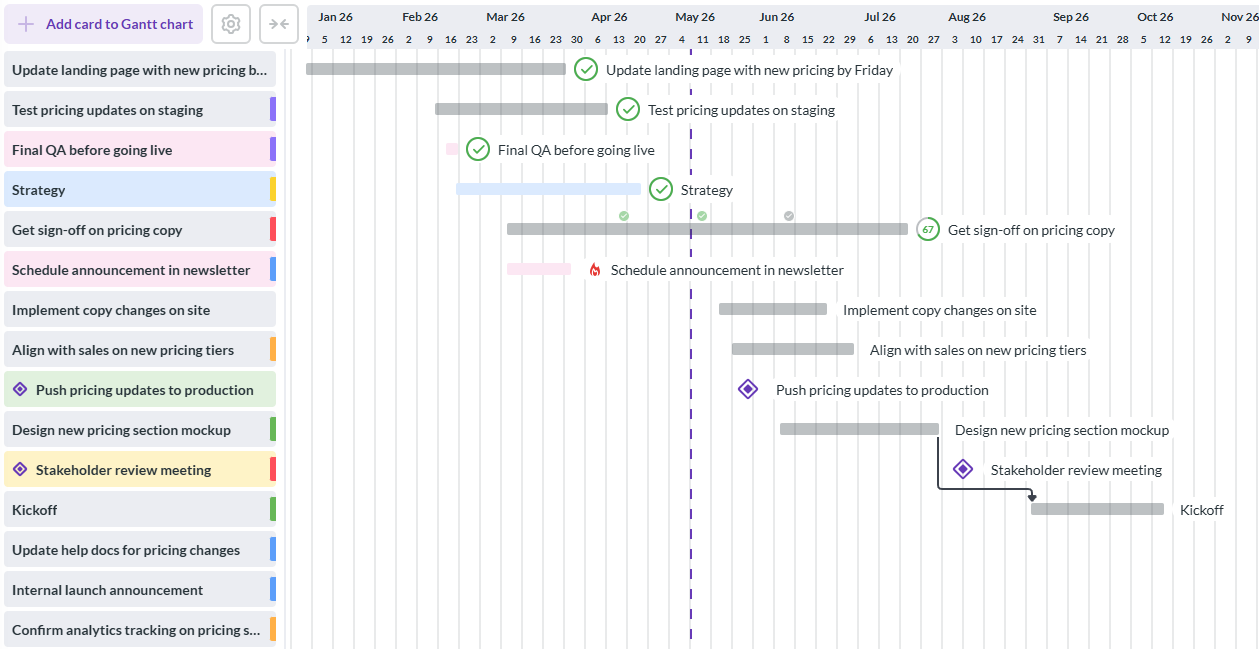
For growing organizations, these details matter because the tracker becomes part of the operating rhythm. Project files stay connected to tasks, deadlines are visible, and managers can track progress without building a separate reporting process from scratch. Enterprise users can also align board sharing and storage with company policies, including the use of Shared Drives where applicable.
Kanbanchi is not meant to replace every business system. It is best suited for teams that need a practical, visual way to plan, assign, track, and report on project work while staying close to Google Workspace or Microsoft 365.
Start free trial of Kanbanchi now
Once you choose a tracker, resist the temptation to roll it out to every team at once. Start with one workflow, prove that it helps, and expand from there.
This approach gives the team a reason to use the tracker from day one. It also helps leaders see whether the tool improves visibility before investing in a wider rollout.
Some problems appear quickly during evaluation. If basic task creation takes too many clicks, adoption will suffer. If the tracker does not connect to your documents or calendars, people will continue working elsewhere. If managers cannot filter or report on the data they need, they will recreate status reports manually. If permissions are unclear, IT and leadership may hesitate to approve broader use.
Another warning sign is excessive customization before the team understands the workflow. Custom fields, automations, and complex templates can be valuable, but they should support proven behavior. If you configure too much too early, the tracker may feel heavy before people experience its benefits.
The best implementation starts simple, then adds structure as the team matures.
A project management tracker should help your team answer everyday questions faster. What is due this week? Who owns the next step? Which tasks are blocked? What changed since the last meeting? Are we still on schedule? Where are the files? What should I work on next?
If the tracker answers these questions clearly, people will use it. If it becomes another place to duplicate updates, they will work around it.
For business owners and team leads, the right choice is a balance of usability, visibility, integration, and governance. Choose a tool your team can adopt quickly, but make sure it can support more advanced tracking as your projects grow.
A project management tracker is software that helps teams monitor tasks, owners, deadlines, progress, files, and project status in one shared place. It can be a visual board, a timeline, a task list, or a combination of views connected to the same work.
A spreadsheet can work for a small, simple project, but it usually becomes harder to manage as work grows. Spreadsheets often require manual updates, lack strong task ownership, and do not naturally connect discussions, files, dependencies, and real-time workflow changes.
The most important features are clear task ownership, visual status tracking, due dates, filters, personal task views, file integration, reporting, and permissions. For teams managing schedules, Gantt charts and dependency tracking are also important. For teams tracking effort, built-in time tracking is valuable.
Make the tracker useful for the people doing the work. Keep the workflow simple, connect tasks to files and conversations, review the tracker in meetings, and avoid asking for duplicate updates in email or spreadsheets. When the tracker becomes the easiest way to get work done, updates happen more naturally.
Kanbanchi is a strong fit for teams that use Google Workspace or Microsoft 365 and want visual task tracking, timeline planning, file integration, and time tracking in one tool. It works well for teams that need both day-to-day Kanban boards and higher-level project visibility.
If your team already works in Google Workspace or Microsoft 365, Kanbanchi gives you a practical way to track tasks, timelines, files, and time without moving project work into a disconnected system. Start with one active project, invite the people who do the work, and see whether your next status meeting becomes shorter, clearer, and more useful.
Start free trial of Kanbanchi now


In this Article:
Start using Kanbanchi now
Start your free trial