
In this Article:
Try Kanbanchi now
Start your free trial

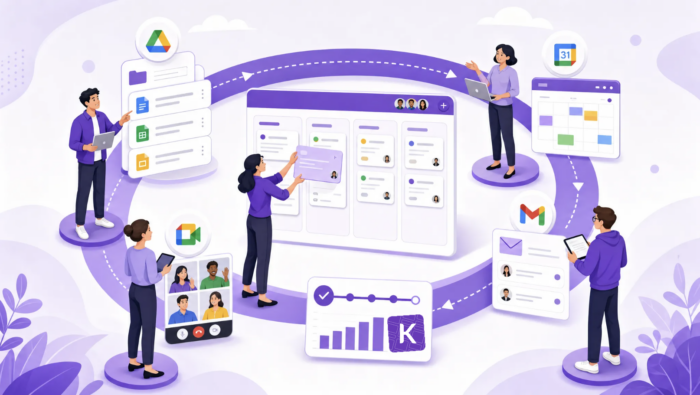
For many teams, Google Workspace is already where work happens. Emails arrive in Gmail, documents live in Drive, meetings are planned in Calendar, and decisions are captured in Docs or Sheets. But there is usually one piece missing: a clear, shared way to see every task moving from request to completion.
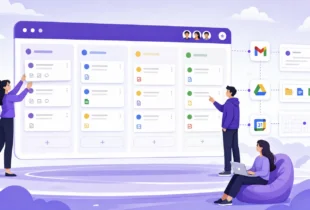
That is exactly why Kanban boards for Google Workspace users are so valuable. A visual board turns scattered activity into a workflow your whole team can understand at a glance. Instead of running yet another status meeting, team leads can see what is planned, what is in progress, what is blocked, and what is done, without asking anyone.
If you are comparing options, the key question is not only whether you can make a board. It is whether that board fits naturally into the Google Workspace environment your team already uses every day.
Read all articles related to Google Workspace here
Google Workspace is excellent for collaboration, file storage, communication, and scheduling. It was not designed as a full project management system, though, and that gap shows up fast when teams start dealing with multiple projects, shifting priorities, and handoffs between people.
For small teams, this gap may not be obvious at first. A shared Google Sheet, a few Gmail threads, and Calendar reminders can hold things together for a while. But as soon as more people, deadlines, approvals, or dependencies enter the picture, leaders start to lose visibility over what is actually happening.
A Kanban board gives teams a simple structure for managing that complexity. Work is represented as cards. Cards move through columns that match your real process: To Do, In Progress, Review, Done, making the status of every task visible without forcing anyone to dig through emails or send update requests.
If your question is whether Google provides one by default, “Does Google have a Kanban board?” has the short answer.
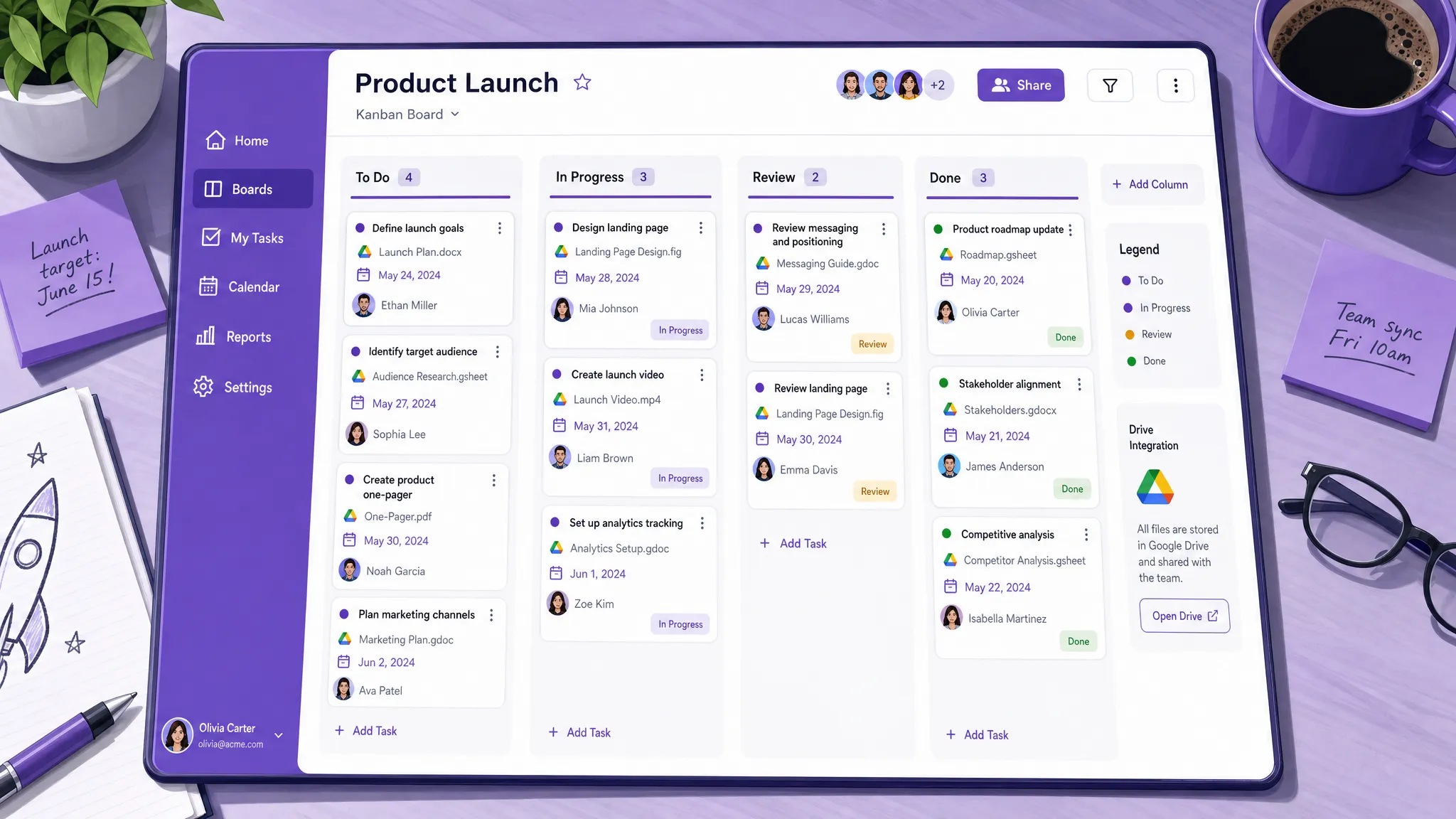
A Kanban board creates a single source of truth for work in motion. Instead of tracking tasks across personal inboxes, chat threads, spreadsheets, and meeting notes, the team can look at one board and understand what is happening right now.
For business owners, operations leaders, department heads, and project managers, this is the real value. A well-maintained board answers the practical questions that eat up time in meetings: Who owns this task? What is waiting for approval? Which items are overdue? Where is work getting stuck?
Kanban is not just a layout. It is a way of thinking about how work moves. When each column on your board reflects a real stage of your process, you can see where things slow down. And that visibility is where the improvement happens.
If too many cards are sitting in Review, the problem is probably not task execution. It might be approval capacity or unclear sign-off criteria. You would not know that from an email thread, but you can see it immediately on a board.
Many teams also use work-in-progress limits to keep the flow moving. The idea is simple: rather than constantly pulling in new tasks, the team focuses on finishing what is already in progress before starting something new. This prevents the overload that quietly kills project momentum, because starting ten things at once rarely means finishing them faster.
The best Kanban setup for a Google Workspace team does more than display tasks on a screen. It should connect those tasks with the files, meetings, and messages behind them.
| Google Workspace app | What teams commonly use it for | What a Kanban board adds |
|---|---|---|
| Gmail | Requests, approvals, client updates | Turns important messages into trackable tasks |
| Google Drive | Documents, briefs, assets, deliverables | Keeps task context and files connected in one place |
| Google Calendar | Meetings, deadlines, milestones | Connects due dates to the team’s schedule |
| Google Docs and Sheets | Planning, documentation, reporting | Links plans and outputs to live execution |
| Google Meet and Chat | Discussions and quick decisions | Reduces the risk that action items disappear after conversations |
Sheets is often the first place teams turn because it is already there, and everyone knows how to use it. You can set up columns for task status, assignee, priority, due date, and notes, and with some conditional formatting, it can look like a basic tracker.
The reality is that a spreadsheet is a document, not a workflow tool. As your project grows, the manual effort of keeping the sheet accurate increases to the point where the tracker itself becomes a task. It also does not tell you when something changes, does not show who is overloaded, and does not surface blocked work automatically.
Google Tasks works well as a personal reminder system. It connects to Calendar and shows up alongside your meetings, which is useful for individual follow-up items and lightweight to-do lists.
For team project management, it runs out of road quickly. There is no shared board view, no way to assign work across people with clear ownership, no file attachments connected to specific tasks, and no reporting on what has been completed or where things have slowed down. It was built for individuals, and that shows when more than one person needs to coordinate.
The strongest option for growing teams is a dedicated project management tool that integrates with Google Workspace. This gives you the visual structure of Kanban while keeping work connected to Drive, Calendar, Gmail, and the permission model your team already understands.
| Option | Best for | Main limitation |
|---|---|---|
| Google Sheets | Simple task lists and early-stage tracking | Manual maintenance and limited project management features |
| Google Tasks | Personal reminders and lightweight follow-up | Not designed for shared team workflows |
| Dedicated Kanban app | Team projects, approvals, deadlines, reporting, and visibility | Requires choosing and adopting the right tool |
For a broader comparison of planning options for Google Workspace teams, Google Workspace Planner Options for Teams That Need More covers the main choices and where each one fits.
If your company is using Google Workspace, the best way to improve project visibility and team productivity is a Kanban app like Kanbanchi. Kanbanchi is a task management platform that allows you to track the progress of projects, visualize your workflow, and share tasks with your team members, all within the Google environment you already use.
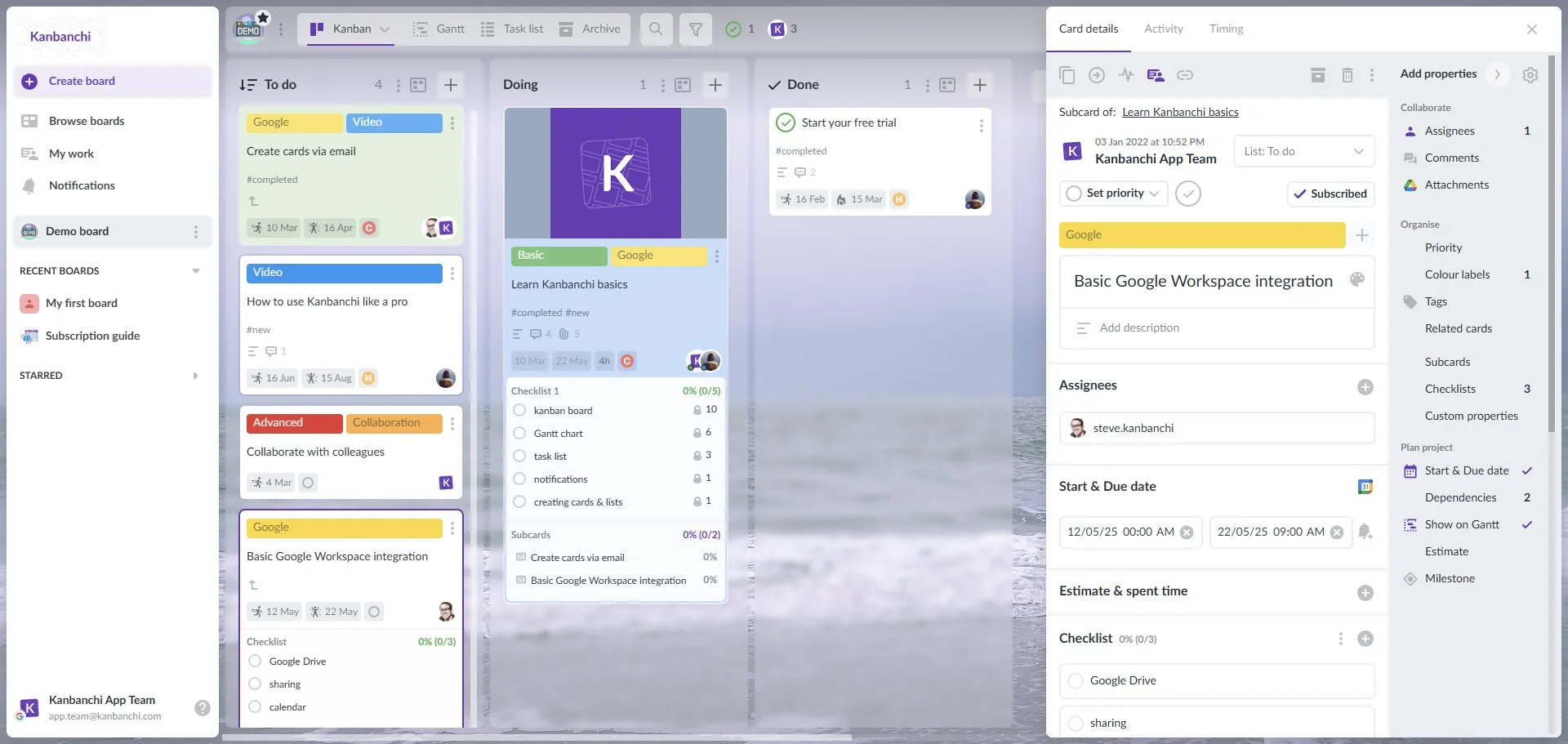
The best part is that Kanbanchi is deeply integrated with Google Workspace. This gives you full access to your data and other files on Google Drive. Should one of your colleagues need to work on a project, they can do so seamlessly – no separate login, no new file system to navigate, no extra permissions to manage.
Kanbanchi boards are created as files in Google Drive, with Shared Drives support for enterprise teams. This matters because Drive is already where most organizations manage access, ownership, and file structure. Kanbanchi simply becomes part of that existing system rather than creating a separate one alongside it.
Teams can attach files from Google Drive and Shared Drives directly to task cards. That means a card can hold the brief, contract, spreadsheet, or deliverable connected to the work, so team members can open the task and find what they need instead of hunting through folders.
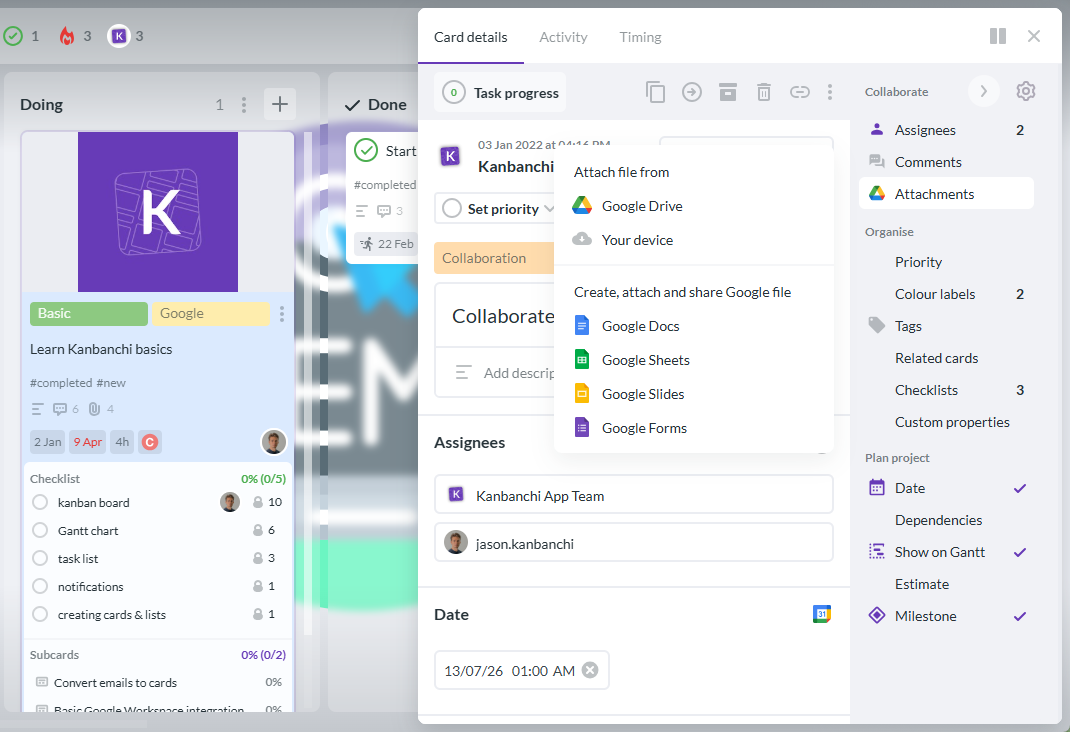
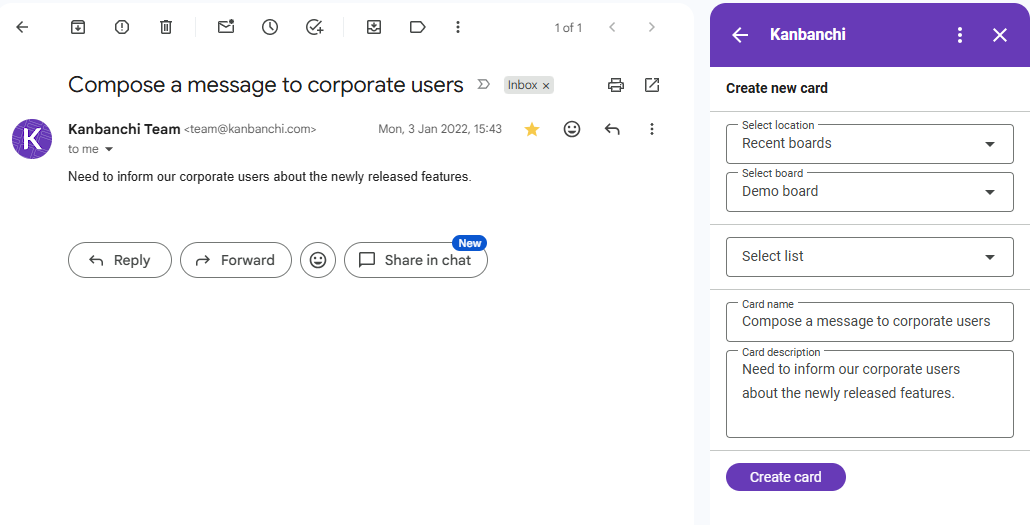
A large part of teamwork begins in email: a client request, an internal approval, a vendor question. Kanbanchi lets teams turn those messages into cards without copying anything manually, either through the Gmail add-on or by emailing a board’s unique address.
Once a request becomes a card, it has an owner, a deadline, comments, and a place in the team’s workflow. It is no longer dependent on someone remembering to act on an email they marked as unread four days ago.
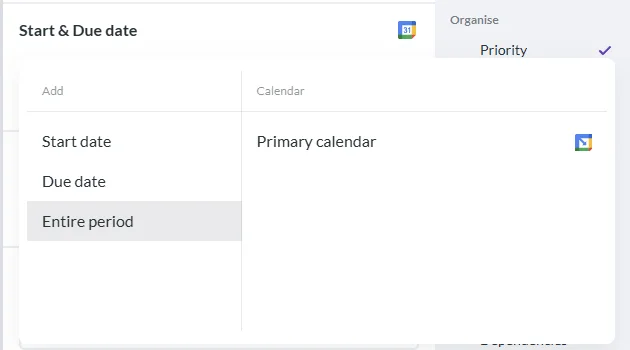
Kanbanchi can push card due dates to Google Calendar, connecting project milestones and delivery dates to the schedule that team members already check every morning. This is particularly useful for launches, review dates, and client-facing commitments that need to be visible alongside meetings.
The board gives the team the workflow view. The calendar gives the time view. Together, they close the gap between knowing what needs to happen and knowing when it needs to happen.
Kanban boards are excellent for workflow visibility, but some projects also need timeline planning across weeks or months. Kanbanchi lets teams switch any board to a Gantt chart view in one click, showing cards in chronological order with dependencies and delivery windows visible at a glance.
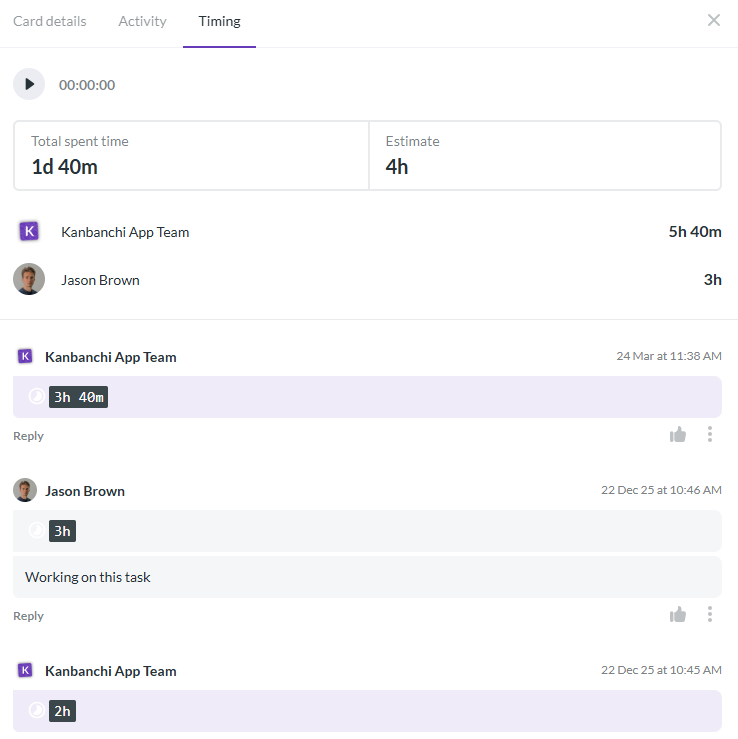
For teams that need to understand effort alongside timeline, Kanbanchi also includes time tracking directly on cards. This is useful for capacity planning, billing, and understanding how long different types of work actually take compared to how long they were expected to take.
Kanbanchi supports exporting board data to Google Sheets and connecting it to reporting dashboards such as Google Looker Studio. This gives managers a more reliable picture of project progress than asking everyone for a weekly update.
Teams can also build templates for repeatable workflows: a marketing team’s campaign process, an HR team’s onboarding checklist, an operations team’s standard intake flow. Templates reduce setup time and make it easier for new team members to follow an established process from day one.
Other capabilities include priorities, tags, filters, list view, subcards, swimlanes, backups, board notifications, Trello or CSV import, and corporate branding.
Sign up for a free Kanbanchi trial
A good board reflects how your team actually works, not how a textbook says you should work. Before inviting everyone in, take a little time to design a workflow that is simple enough to use consistently and specific enough to actually mean something.
Start with the path work takes from request to completion. A service team might use New Request, Planned, In Progress, Waiting, Review, and Done. A content team might use Ideas, Briefing, Drafting, Editing, Design, Scheduled, and Published. Avoid creating too many columns at the start. If the board is too detailed, people stop updating it. You can always add structure later once the team understands how work really moves.
A card should contain enough information for someone to act without asking basic questions. At minimum: a clear title, one owner, a due date where relevant, a description, and related files. The goal is not to document everything. The goal is to make the next action obvious to whoever picks it up.
This is where a dedicated tool becomes genuinely more useful than a spreadsheet. Attach the relevant Google Drive files to the task. Push important dates to Google Calendar. Use Gmail task creation when requests come in by email. This keeps work connected to the tools your team already uses every day.
A board only stays useful if the team keeps it current. Set simple expectations: cards move when status changes, owners flag blocked cards in the Waiting column, and completed work gets closed before the weekly review. For managers, the review should focus on flow, blockers, and priority decisions, not on monitoring every individual task.
After a few weeks, look for patterns. Are cards piling up in one column? Do you often miss deadlines because requests arrive too late? Are tasks too large to move smoothly? Small adjustments can make a board significantly more effective: a new column, a WIP limit, subcards for complex tasks, or swimlanes for separate projects running on the same board.
Different departments can use the same Kanban principles while customizing boards to match their own work.
| Team | Example workflow | Useful Google Workspace connection |
|---|---|---|
| Marketing | Ideas, Brief, Draft, Design, Review, Scheduled, Published | Attach Docs, Slides, and assets from Drive |
| Operations | Request, Triage, Assigned, In Progress, Waiting, Complete | Link process documents and SOPs from Drive |
| HR | New Hire, Documents, Equipment, Training, Check-in, Complete | Attach onboarding files and push key dates to Calendar |
| Sales or customer success | Lead Handoff, Discovery, Proposal, Review, Follow-up, Closed | Turn Gmail requests into cards and attach proposals |
| IT | Reported, Prioritized, In Progress, Testing, Resolved | Use priorities, owners, and comments to coordinate fixes |
The right setup is the one your team will actually use. Start with a workflow you recognize, then build from there.
A Kanban board improves visibility quickly, but only when it becomes part of the team’s operating rhythm rather than a tool that gets checked occasionally.
A simple task list can work for a team of two or three people on a single project. But as coordination grows, the cost of unclear work grows too. Missed handoffs, duplicated effort, forgotten approvals, and late deliverables add up quickly.
A dedicated Kanban board becomes the right choice when your team needs to coordinate multiple projects at once, track work across departments or functions, attach files directly to tasks, manage deadlines with real accountability, report progress to leadership, or reduce the number of meetings that exist only to ask for updates.
For organizations already using Google Workspace, the best solution is usually not a system that competes with Google tools. It is a project management layer that connects to them. That is exactly what Kanbanchi is built to do.
No. Google Workspace includes Gmail, Drive, Calendar, Docs, Sheets, and Tasks, but it does not include a full native Kanban board for team project management. Teams typically use a spreadsheet workaround or adopt a dedicated tool that integrates with Workspace.
Yes, you can create a basic Kanban-style tracker in Google Sheets using columns for workflow stages and rows for tasks. This can work for simple tracking, but it becomes limited when teams need visual task cards, file attachments, comments, progress tracking, timeline planning, and reporting.
Kanbanchi gives Google Workspace teams a dedicated visual board with task cards, owners, deadlines, Drive attachments, Gmail card creation, Calendar sync, Gantt chart planning, time tracking, and export options. A spreadsheet is a flexible but manual workaround that requires increasing maintenance effort as the work grows.
Yes. Remote and hybrid teams benefit from Kanban boards because work status is visible asynchronously. Team members do not need to wait for a meeting to understand what is active, blocked, or complete. They can check the board at any time from wherever they are working.
Yes. Many teams use Kanban boards to manage day-to-day workflow and Gantt charts to plan timelines. Kanbanchi supports both views, so teams can manage the same work visually and chronologically without switching tools.
If your team already runs on Google Workspace, your project management system should fit that environment. A connected Kanban board helps you turn Gmail requests, Drive files, Calendar deadlines, and team discussions into organized, trackable work with clear ownership and visible progress.
Kanbanchi gives Google Workspace teams a practical way to manage projects with Kanban boards, Gantt charts, time tracking, Drive integration, Gmail task creation, Calendar sync, and reporting-ready data. All without leaving the Google environment you already use every day. Try Kanbanchi and start building a workflow that actually matches the way your team works.

In this Article:
Start using Kanbanchi now
Start your free trial