 Kanbanchi
Kanban board online: set up one your team will actually use
If you're looking for a kanban board online, you probably want two things: a board you can try right now, and a straight answer about which tool is worth moving your team onto. This page has both. A little further down there's a working board where you can drag cards around and break a WIP limit on purpose. After that, I walk through how I set up boards for real teams, and where Kanbanchi is and isn't the right pick.
The short version
What is a kanban board online?
A kanban board online is the whiteboard with sticky notes, moved into your browser. You get lists (columns) for the stages your work goes through and cards for the pieces of work. A card moves from left to right as it gets done. That's the whole idea. It's also why kanban has outlived every methodology trend I've watched come and go: anyone gets it in thirty seconds.
The online part matters more than it sounds. A wall board works while everybody sits in the same room. Once one person works from home, or the team spreads across time zones, the wall goes stale by Tuesday and the sticky notes start curling at the corners. An online kanban board is the one place everyone can see from a laptop or a phone, and it remembers what moved and when.
Here are the words I use for the rest of this page, so we mean the same thing:
Online kanban board vs a whiteboard vs a to-do list
People usually compare an online board with one of two things they already use. Here's how the three stack up for a team:
| What you need | Whiteboard | To-do list | Online kanban board |
|---|---|---|---|
| See every stage at a glance | Yes | No, it's one long list | Yes |
| Works for remote people | No | Yes | Yes |
| Shows where work is stuck | Yes, if someone updates it | No | Yes |
| Limits work in progress | Only by agreement | No | Yes, with a counter per list |
| Files, comments and history on the task | No | Sometimes | Yes |
The to-do list is the one people underestimate. A list tells you what's left. A board tells you where things are stuck, and for a project manager that's the more useful question. If half your list says "in progress," you don't have a plan, you have a pile.
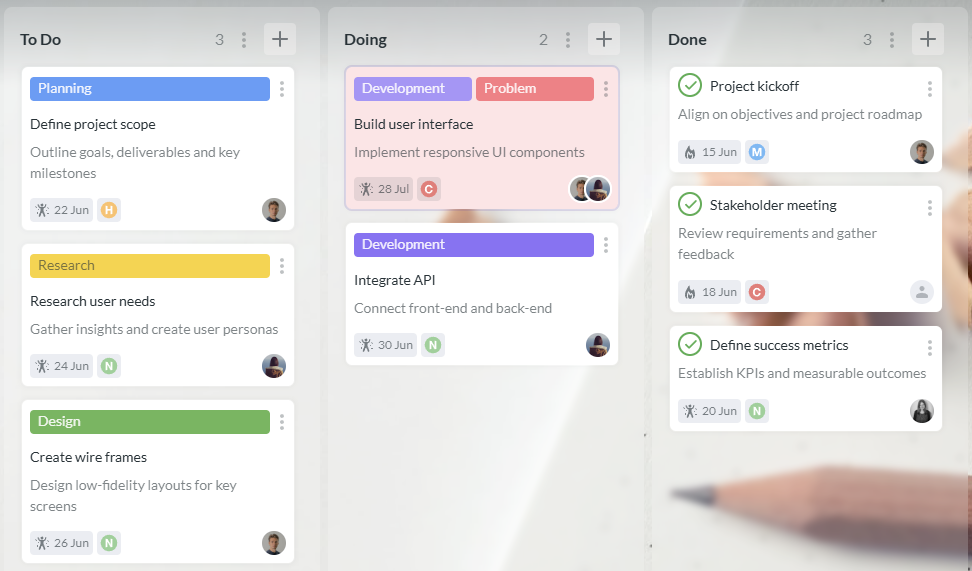
This is what a plain three-list board looks like in Kanbanchi. Color labels show the type of work, dates sit at the bottom of each card, and the avatars tell you who owns what.
 View full size
Try a kanban board online right here
You can read about kanban all day. Moving one card teaches you more. The board below is an interactive demo of a Kanbanchi board for a website launch: five lists, with card limits on To Do, Initiation and Planning. Try it. It takes a minute.
Interactive demo
Move a card, add a card, break a limit
This is an interactive demo of a Kanbanchi board, built for this page with the same lists, labels and card limits as a real website-launch board. Drag a card to another list, or open its ⋮ menu and pick where it goes. Add a card with + on any list, then push one more card into Initiation and watch its counter. Nothing here is saved: reload the page and the board starts over.
To Do
5/10- Marketing
Marketing campaign launch
Jan 18 Official website launch
Feb 10Review and approve designs
Code website features and functionality
Final adjustments
Initiation
3/3Develop project plan and timeline
Jan 8Jan 16Kickoff meeting with stakeholders
Jan 10- ContentDesign
Integrate design and content
Planning
3/4Define project objectives, scope
Jan 9Requirements gathering
Jan 11Jan 23Develop content strategy
Jan 13Jan 21
Execution
4- Content
Content creation and integration
2Jan 5Jan 19 - Content
Develop engaging content
Jan 9Jan 22 Design wireframes and prototypes
2/3Jan 10Jan 17- Development
Development phase
Testing
2Identify and fix bugs
- Development
Conduct thorough testing
Jan 15Jan 25
To move this card to the next or previous list, press the right or left arrow key. Press Enter, or use the card's Move button, to pick a list from a menu. Up and down arrows go to the next card.
What just happened
Nothing yet. Move a card and I'll tell you what it means for the team.
Why the counter changes color
A list with a limit shows cards against the limit, like 3/3. The counter turns amber when the list is full and red when it goes over.
In Kanbanchi you open List details and check Limit card number. It's a warning, not a lock: you can still add or move cards.
Try this next
Open the ⋮ menu on Execution, check Limit card number and set it to 3. The counter turns red right away: 4 cards against a limit of 3.
Then move a card from Execution to Testing. Clearing the list on the right is what keeps a board moving.
How to set up an online kanban board for your team
This is the order I follow every time a team asks me for a board. It takes about twenty minutes. Most of that goes on the conversation in step 1. The clicking is the quick part.
Map the stages your work really goes through
Ask the team what happens to a request from the moment it arrives until it's finished. Write the stages down in their words, not in textbook words. If people say "waiting for legal," that's a list. Start with four to six lists. If you end up with ten, some of them are probably statuses that belong on the card as a label rather than as a list.
Decide what one card means
One card is one piece of work that one person can finish in a few days. "Website" is not a card. "Write the pricing FAQ" is. Bigger things become a card with a checklist inside it, or, on Kanbanchi Premium and above, a card with subcards.
Set WIP limits on Doing and Review
Start low. My rule of thumb is the number of people who work on that stage, plus one. If the limit hurts in the first week, good. It's showing you exactly where work piles up. In Kanbanchi you set it per list in List Details with Limit card number, and the counter turns red when a list goes over, so it nudges people rather than blocking them.
Add owners, dates and the actual files
Every card in Doing needs one owner. Dates are optional in To do but useful once work starts. What saves me the most time is attaching the real thing, the Doc, the Sheet or the email, so nobody asks "where's the latest version?" again. On every Kanbanchi plan you can attach files from My Drive and Shared Drives, turn emails into cards and see due dates in Google Calendar.
Invite the team and agree on three rules
Mine are short. Pull, don't push (you take the next card when you have room); if it isn't on the board, it isn't happening; and Done means done, not "done apart from the review." I write the rules on a card at the top of the first list, so new people see them on day one.
Walk the board together, right to left
Ten minutes a day, standing up or on a call, ideally before anyone opens their inbox. Start with the cards closest to Done and work back to the left, because finishing beats starting. Ask about the card that hasn't moved, not about the person. After a few weeks, look at how long cards take from start to finish; the Kanbanchi guide to cycle time vs lead time shows how to read those numbers.
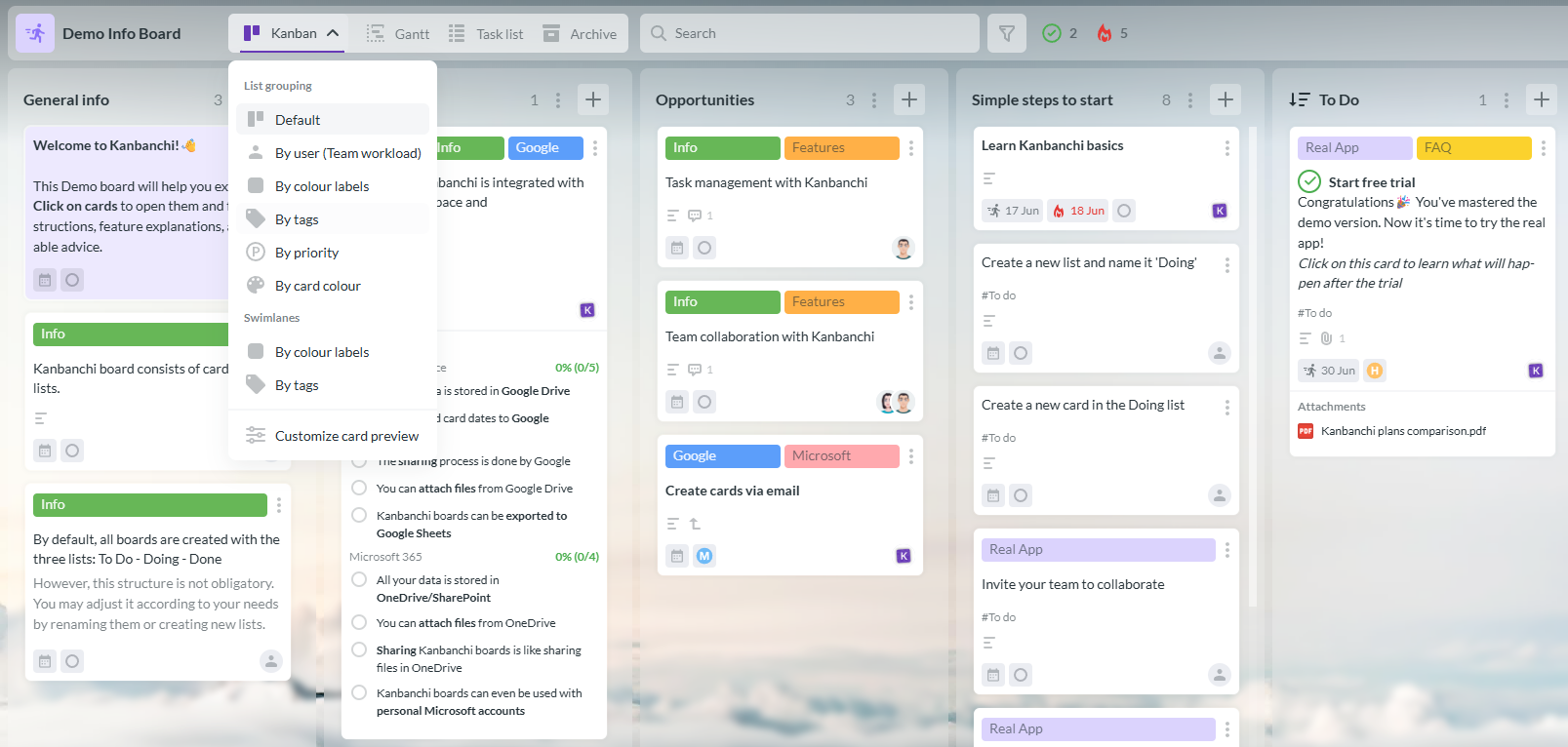
When a board gets busy, I group it instead of making it longer. In Kanbanchi you can group cards by person, color label, tag, priority or card color, and split the board into swimlanes by color labels or tags. That's how one board can serve a whole team without turning into a wall of cards.
 View full size
Moving over from another tool? You don't have to retype anything: Kanbanchi imports boards from Trello and from CSV files.
Free online kanban boards and other options
Plenty of people who search for a free kanban board online don't need a team tool at all. They need a board for this week, right now, without creating an account. That's a fair need. When a simpler tool fits, I'll say so.
Online kanban board without login: when that's enough
Boards you can open without signing up are great for a solo sprint plan, a workshop or a quick demo to a colleague. The catch is what they leave out. There's usually no sharing with named people, no history of who moved what, and you should check where the board is stored and for how long. I use them for throwaway boards. I'd never put client work on one.
The main kinds of kanban tools
Most of the results you'll see for "kanban board online" fall into one of five groups:
| Kind of tool | Good for | Watch out for |
|---|---|---|
| No-login browser boards | One person, one week, a workshop | Sharing, history and where your data is stored |
| General board apps, such as Trello | Small teams that want a simple board fast | Another login, and files living somewhere other than your Drive |
| Whiteboard tools with kanban templates, such as Miro | Workshops, mapping and sticky-note sessions | Turning a workshop canvas into day-to-day tracking |
| Developer trackers, such as Jira | Software teams with sprints, bugs and releases | More setup than most non-developer teams need |
| Boards built into your workspace, such as Kanbanchi | Teams that already live in Gmail, Drive and Calendar | Built around Google and Microsoft accounts, so not for teams that use neither |
Any of these can work. What decides it is where your team already spends its day, because the board that sits next to your email and files is the one people actually open. A board in a separate tab that nobody visits is just a nicer-looking to-do list.
What "free" means in Kanbanchi
Straight answer: Kanbanchi is a paid tool. You get a 7-day free trial with every feature, because the trial runs on the Enterprise plan. When the week is up, nothing is deleted. You drop to a free plan that keeps all the features but caps each board at 36 cards, and a board that goes over the cap turns read-only. Thirty-six cards covers a personal board; a busy team outgrows it fast. Every paid plan has unlimited boards and cards, and the cheapest one, Essential, is $5.99 per seat per month, or $47.64 per seat per year ($3.97 a month).
Where Kanbanchi fits, and where it doesn't
Short version: if your team already works in Google Workspace, Kanbanchi is hard to beat. Here is why, plus the few things worth knowing first. It comes from what project managers write in reviews and what I run into myself.
Where it's strong
It lives inside Google Workspace
You sign in with Google, and every board is stored as a Drive file.
Good fit if your team already lives in Gmail and Drive.
Google tools on every plan
Drive attachments, cards from email, the Gmail add-on and Google Calendar dates. No upsell.
Good fit if most of your work arrives by email.
Teams get going fast
Reviewers like the real-time view of who's doing what. Support gets a lot of thank-yous for answering quickly.
Good fit if you need the board running this week.
Reports are built in
Open a board's Reports for a team performance chart, a burndown chart or a cumulative flow diagram.
Good fit if someone asks you for progress every Friday.
It grows with you
Gantt chart, task dependencies, time tracking and Team Workload come with Professional.
Good fit if your board is turning into a project plan.
Worth knowing
No built-in dashboard yet
Export the board to Google Sheets and build one in Looker Studio or Power BI.
Advanced features take a little learning
Start with lists and one WIP limit. Add the Gantt chart later.
Per-seat pricing adds up
For a big team, run your numbers in the price calculator first.
My take: for a Google Workspace team, it's the board people will actually open. Still unsure? The decision guide settles it in a few clicks.
One reviewer on the Google Workspace Marketplace liked that people without a license can still see the tasks assigned to them, which suits collaborators who come and go.
Paraphrased from a Google Workspace Marketplace reviewWhere Kanbanchi doesn't do this
If your team doesn't sign in with Google Workspace or Microsoft accounts, most of Kanbanchi's advantages disappear, and a general board app will feel simpler. If you need some cards hidden from some people, for example HR work and everyone else's on one board, you'll need separate boards. And if you want a board without creating any account at all, Kanbanchi isn't it: it's built for teams who sign in.
For everyone else, the deciding factor is usually how much more than a board you need. That's what the guide below sorts out.
Which kanban board online should you start with?
Three quick questions. The guide won't push you toward Kanbanchi if it's the wrong fit: one of the four outcomes is a different kind of tool.
Still in the running
- Is this board just for you, for a few days? If yes: a quick no-login board is enough. If no, go to question 2.
- Does your team sign in with Google Workspace or Microsoft accounts every day? If no: a general board app or a developer tracker will suit you better. If yes, go to question 3.
- Do you need a Gantt chart, task dependencies or time tracking on top of the board? If yes: Kanbanchi Professional. If no: Kanbanchi Essential or Premium; use the price calculator to choose.
Four online kanban board examples worth copying
Kanban isn't only for software teams. These are the four boards I end up building most often, with the lists I'd start from. Copy them, then rename anything that doesn't sound like your team.
Content calendar
Put the publish date on each card, so the whole team sees the schedule in Google Calendar.
Sales pipeline
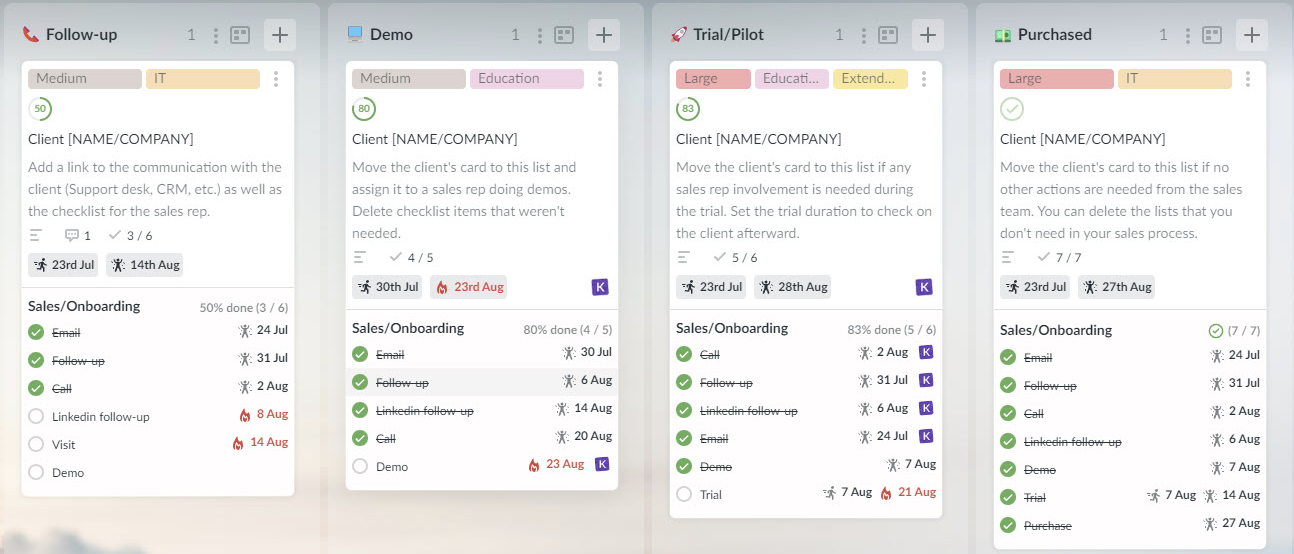
One card per client, with a checklist of every touchpoint inside the card.
Employee onboarding
Save it as a board template and copy it for every new hire.
IT and ops requests
Let people email requests straight onto the board, and put a WIP limit on Doing.
The sales board is the one I like showing sceptics, because it proves kanban isn't just a developer thing. Each client is a card, the lists are the stages of the deal, and the checklist inside the card is your sales process. You can see at a glance which client has been sitting in Trial for too long.
 View full size
If you'd rather not start from a blank board, templates come with every Kanbanchi plan, and the guide to kanban board templates has more layouts to borrow. If you're still unsure what a board should look like for your kind of work, what is a kanban board covers the basics.
What a kanban board online costs in Kanbanchi
Everything the set-up steps above rely on comes with every plan: boards, lists, cards, owners, due dates and Drive files. So I start most teams on Essential. I only move a team up when it asks for subcards, recurring cards or exports (Premium), or for a Gantt chart, dependencies, swimlanes and time tracking (Professional). Set your team size, check what you need, and the calculator picks the cheapest plan that has it.
Billing
25% off Premium, Professional and Enterprise with yearly billing. Kanbanchi applies it after you send their education or non-profit form; it isn't automatic.
What you need
The 7-day free trial includes every feature, and your boards stay when it ends.
Kanban board online: FAQ
Is there a free kanban board online?
Yes. Several tools have free plans, and some no-login boards cost nothing at all. Check the current limits on each tool's own pricing page, because they change often. Kanbanchi has a 7-day free trial with every feature. After it, your data stays on a free plan capped at 36 cards per board; paid plans, Essential included, have no card limit.
Can I use an online kanban board without signing up?
Some browser boards work without an account, and they're handy for one person or a workshop. For a team, you want named accounts, so you know who changed what and can remove access when someone leaves.
Does Google have a kanban board?
Not as a dedicated app. Google Workspace has Tasks, Sheets and Calendar, but no team kanban board built in. You can build a rough one in Sheets or add a Marketplace app such as Kanbanchi. There's more in Does Google have a kanban board?
What are the six rules of kanban?
They come from Toyota's production system. The next step takes only what the kanban card asks for; the step before produces only that amount, in that order; nothing is made or moved without a card; every item keeps its card with it; defects are never passed on; and the number of cards is cut down carefully to expose problems. On an office board, that boils down to: pull work, limit work in progress, fix problems where they show up, and keep improving.
Is a kanban board good for ADHD?
Many people find it helps, because the board holds the plan so your head doesn't have to, and a WIP limit of one or two stops you starting five things at once. Keep cards small and the board short. It's a planning habit, not a treatment, so keep whatever works for you and drop the rest.
Is an online kanban board safe for client work?
Check three things: who can open the board, where the files live, and what happens when someone leaves. Kanbanchi boards are Google Drive files and sharing is handled by Google, so your Workspace admin rules apply. The security page has the details.
Can I move my Trello board to Kanbanchi?
Yes. Kanbanchi imports from Trello and from CSV files, so you don't have to retype your cards. The import options post shows how.
Does it work on my phone?
Kanbanchi works in the browser, and its Marketplace listing also mentions a Chrome extension and an Android app on Google Play.
Put your team's kanban board online this week
Map your lists, set one WIP limit, invite the team. Twenty minutes, inside the Google Workspace you already use.
Start your free trial