
In this Article:
Try Kanbanchi now
Start your free trial

Over 430 million people already use Microsoft 365’s cloud-based apps, from productivity tools like Word and Excel to the Copilot AI companion. Many of these platforms appear to be free, including Microsoft Planner, a task board that’s already sitting right there in your Teams app, ready to be used.
But is it really free, especially once projects get complicated? And is it worth switching to a dedicated board tool once you’ve hit Planner’s ceiling? If you’re already searching for a Microsoft Planner alternative, keep reading as we compare features, pricing, ease of use, customer support, and more in this Kanbanchi vs Microsoft Planner review.
Don’t want to pay for an extra plan on top of your Microsoft 365 bill? Kanbanchi is the best choice, especially if you’re looking for Gantt chart scheduling, time tracking, subcards, and workload views all in one pricing package. Microsoft Planner is a good choice if you already work with Teams and Outlook and only require light task tracking rather than full project planning. The overall Kanbanchi vs Microsoft Planner decision comes down to whether task tracking is enough or whether your team needs real project management underneath it.
| Platform | Kanbanchi | Microsoft Planner |
|---|---|---|
| G2 | 4.7 / 5 | 4.2 / 5 |
| Capterra | 4.5 / 5 | 4.3 / 5 |
G2 users praise Microsoft Planner for how well it integrates with other Microsoft 365 apps, from Teams and Outlook to SharePoint. Ease of use and value score a strong 4.5 on Capterra, though features are rated slightly lower. A recurring theme is that while reviewers like the bundled pricing, they dislike the thin reporting and missing dependencies on the basic tier. They also highlight the mobile app, which is often called “less polished” than the web version.
Kanbanchi’s ease of setup and use both score 9.4/10 on G2, with reviewers pointing to onboarding speed and the support team’s product knowledge as reasons they stuck with it.
Microsoft Planner is Microsoft’s task and project management app. It’s built into Microsoft 365 and can be accessed directly through Teams or the web. The app organizes your work into plans, buckets, and tasks, with Grid, Board, Schedule, and Charts views included at no extra cost for anyone on an eligible subscription.
Microsoft folded Planner, To Do, and Project into one product line in late 2025, and a January-February 2026 update added task chat, a Goals view, and custom templates, while retiring older features such as classic task comments and the whiteboard tab.
Paid tiers add everything from Gantt-style timelines and task dependencies to deeper reporting, ideal if your Microsoft 365 project management needs outgrow the basic board.
Kanbanchi’s project management software is built around boards, lists, and cards, with native support for Google Workspace and a Microsoft 365 version. Rather than treating task tracking and project planning as separate products, Kanbanchi layers Kanban, List, Gantt, Swimlane, and Team Workload views on one shared set of cards, so any task you create on the board already has the right dates on your timeline.
Its clearest strength is that it scales with your team instead of forcing an upgrade path through separate products. You can run the platform as a simple board with three columns, then grow into subcards, dependencies, time tracking, and Gantt scheduling without switching tools.
| Feature | Kanbanchi | Microsoft Planner |
|---|---|---|
| Primary view | Kanban board (plus List, Gantt, Swimlanes, Workload) | Board (plus Grid, Schedule, Charts; Timeline on Plan 1+) |
| Task dependencies | Yes (Professional plan and above) | No (basic tier); yes (Plan 1 and above) |
| Gantt chart | Yes (Professional plan and above) | Timeline view (Plan 1 and above only) |
| Subcards / subtasks | Yes (Premium and above) | Checklists only, no true subtasks |
| Custom Fields | Yes (Professional+) | Limited custom fields (Plan 1 and above) |
| Time tracking | Yes (Professional plan and above) | No native time tracking |
| Team workload view | Yes (Professional plan and above) | Resource requests (Plan 3 only) |
| Free Plan | Yes (unlimited users, unlimited projects, 36 active cards per project) | Included with an eligible Microsoft 365 work/school subscription; not available on personal accounts |
| Mobile App (iOS or Android) | Yes | Yes |
| Google Workspace integration | Native (Drive, Calendar, Gmail, Forms, Groups, SSO) | None; Microsoft ecosystem only |
Microsoft Planner’s board features a default bucket structure the first time you open it inside Teams. Tasks appear as cards you drag between buckets, and adding one takes a click and a title. It’s great for anyone who already uses Teams daily, since the interface has the same visual setup.
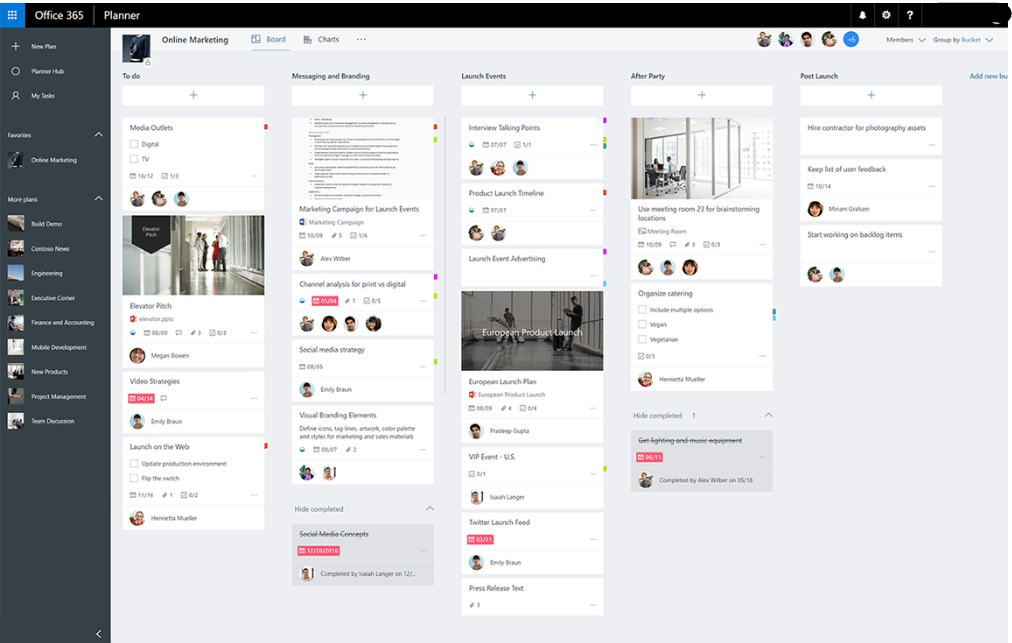
Microsoft Planner interface with tasks organized for project management
Kanbanchi opens to a board, too, but the view switcher along the top is visible from the first screen. Kanban, List, and Gantt views are all just one click away. Every card face has color labels, due dates, and assignees on the card face, meaning you can get all the information you need immediately without opening anything.
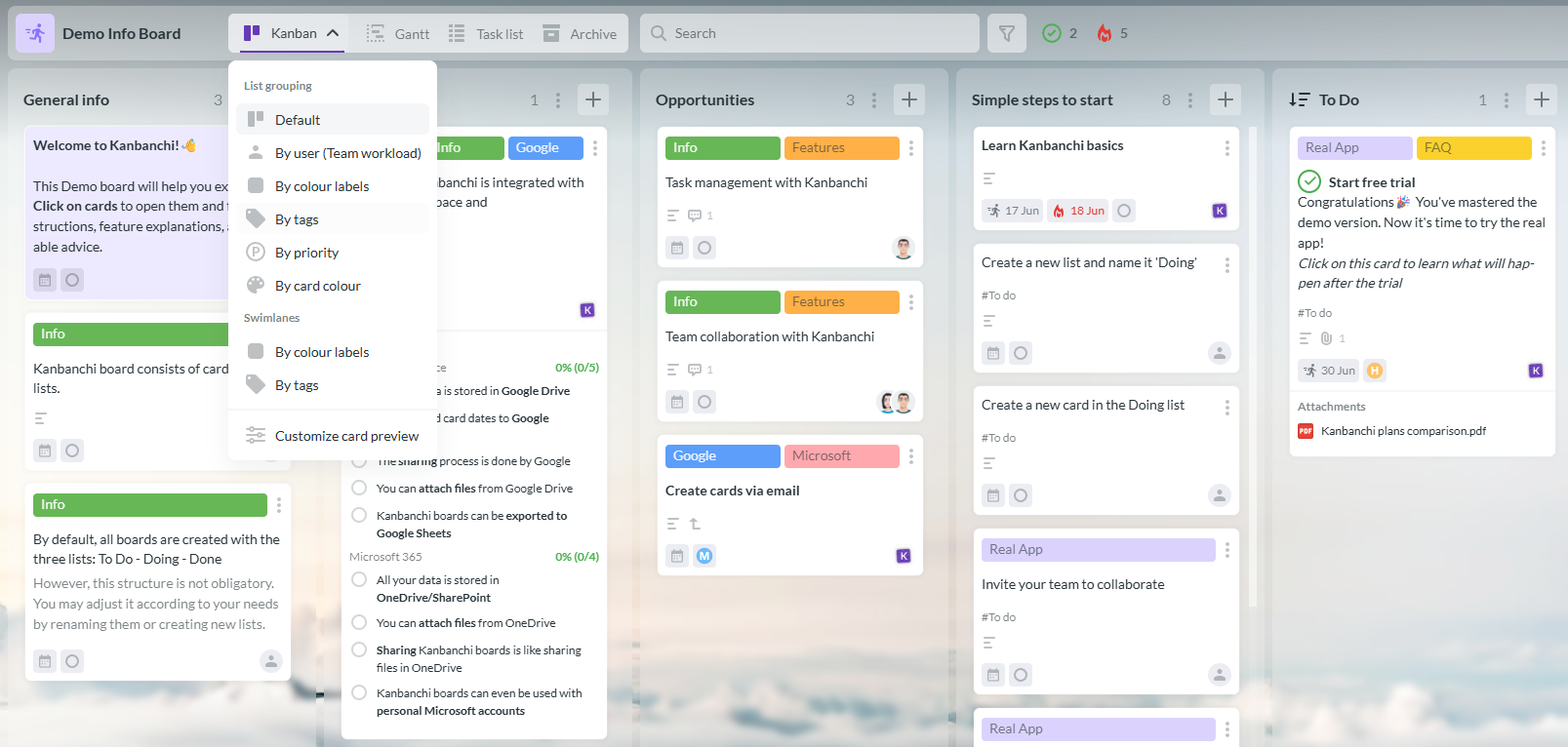
Kanbanchi demo board for organizing tasks and tracking project progress
Both interfaces are undoubtedly clean, but Planner’s simplicity comes from doing less, while Kanbanchi’s comes from organizing more into the same visual model.
Setting up Microsoft Planner is an incredibly simple process, as it works with infrastructure you already manage. Creating a plan and a bucket structure with an eligible Microsoft 365 takes minutes, since identities and permissions already exist.
The bad news is that if you have just a personal or family account, Planner won’t work. So, freelancers without a business-tier subscription can’t use this tool at all.
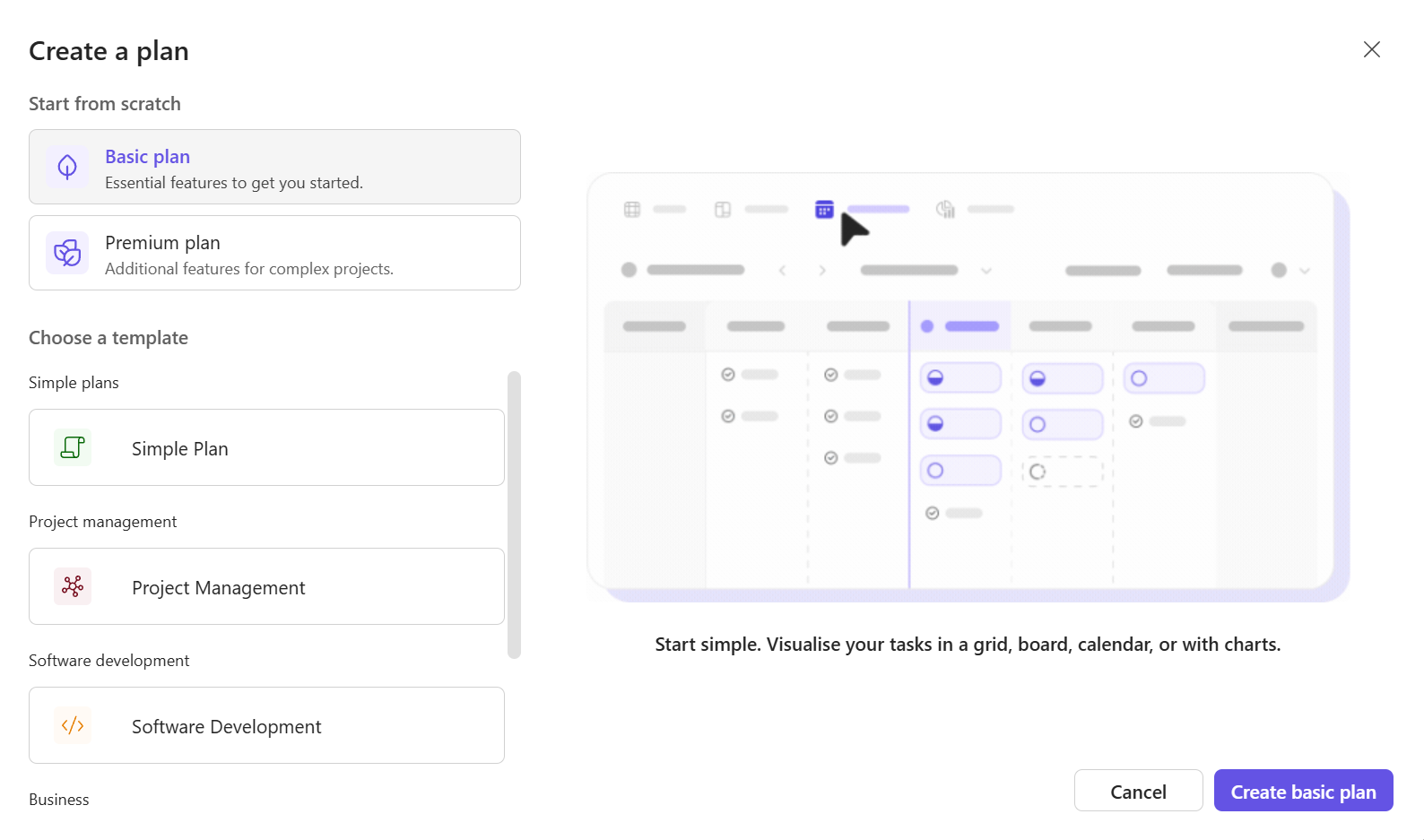
Microsoft Planner setup interface for configuring a project and organizing tasks
Kanbanchi’s setup is more similar to creating a shared spreadsheet than provisioning enterprise software. Begin by adding a board and lists, then invite people by email or existing sign-in, and, finally, start adding cards. This means you can have a board live and shared within just an hour. You may create your first board from a template, too.
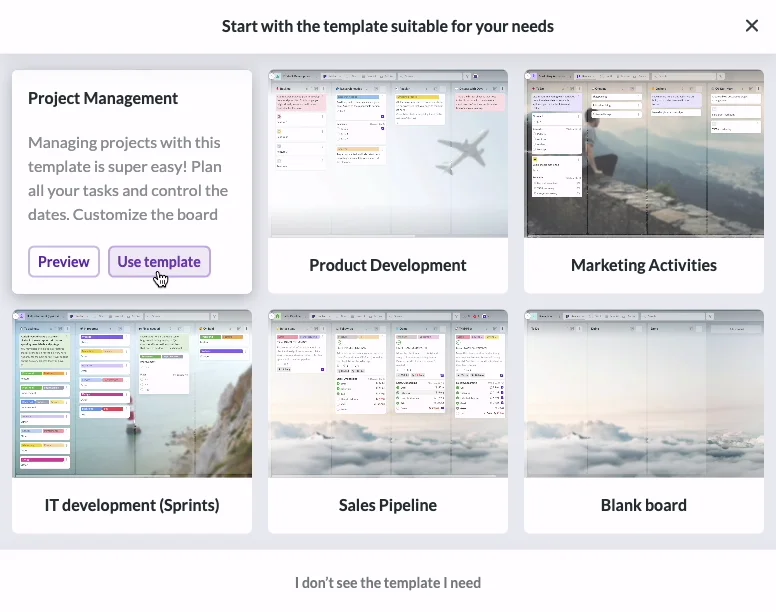
Board templates in Kanbanchi help teams get started quickly with ready-made project workflows
Kanbanchi often appears in Microsoft Planner alternative searches for those who have outgrown Planner’s basic board. Let’s have a closer look at why:
Grid, Board, Schedule, and Charts views are all included on the Microsoft Planner basic tier: task lists, boards, a calendar-style schedule, and simple progress charts. A genuine Gantt chart, shown as a Timeline view, only appears once you add Plan 1, setting you back $10 per user per month on top of your Microsoft 365 subscription.
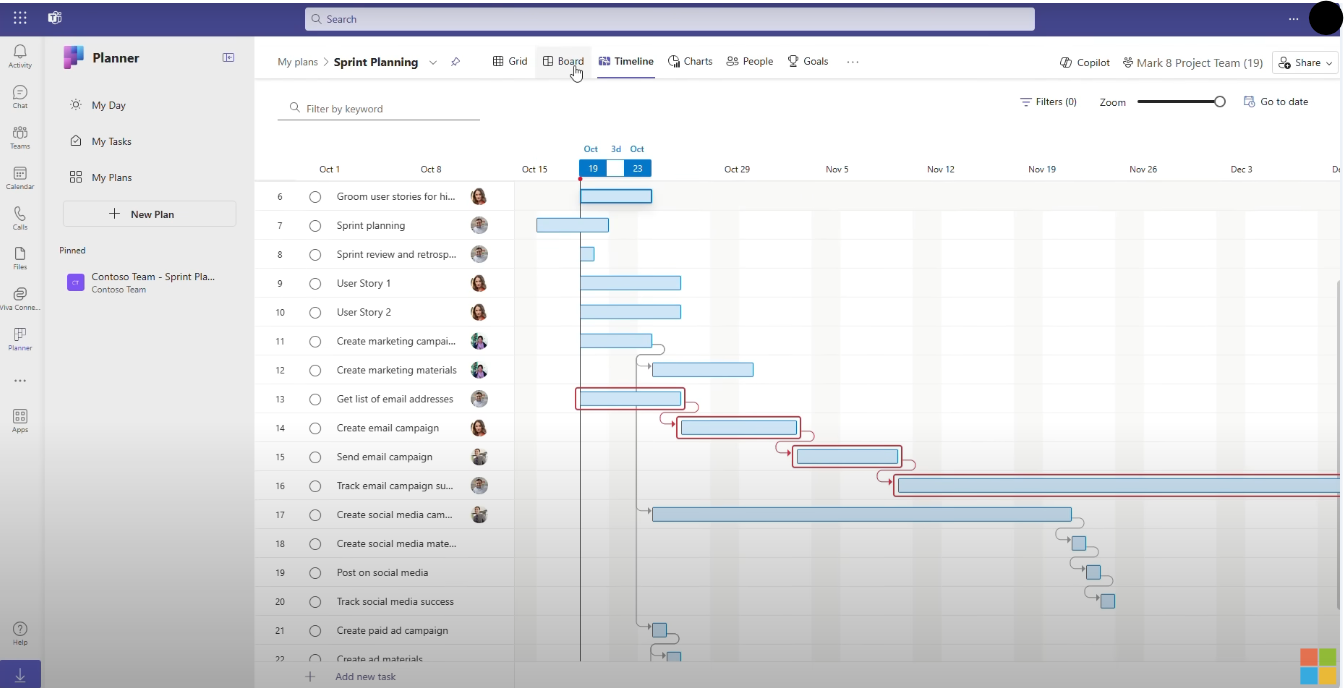
Microsoft Planner timeline view for planning tasks and project schedules
Kanbanchi’s Gantt chart is available on the Professional plan and synchronizes with your board automatically, so a date change on a card updates the timeline without a separate entry.
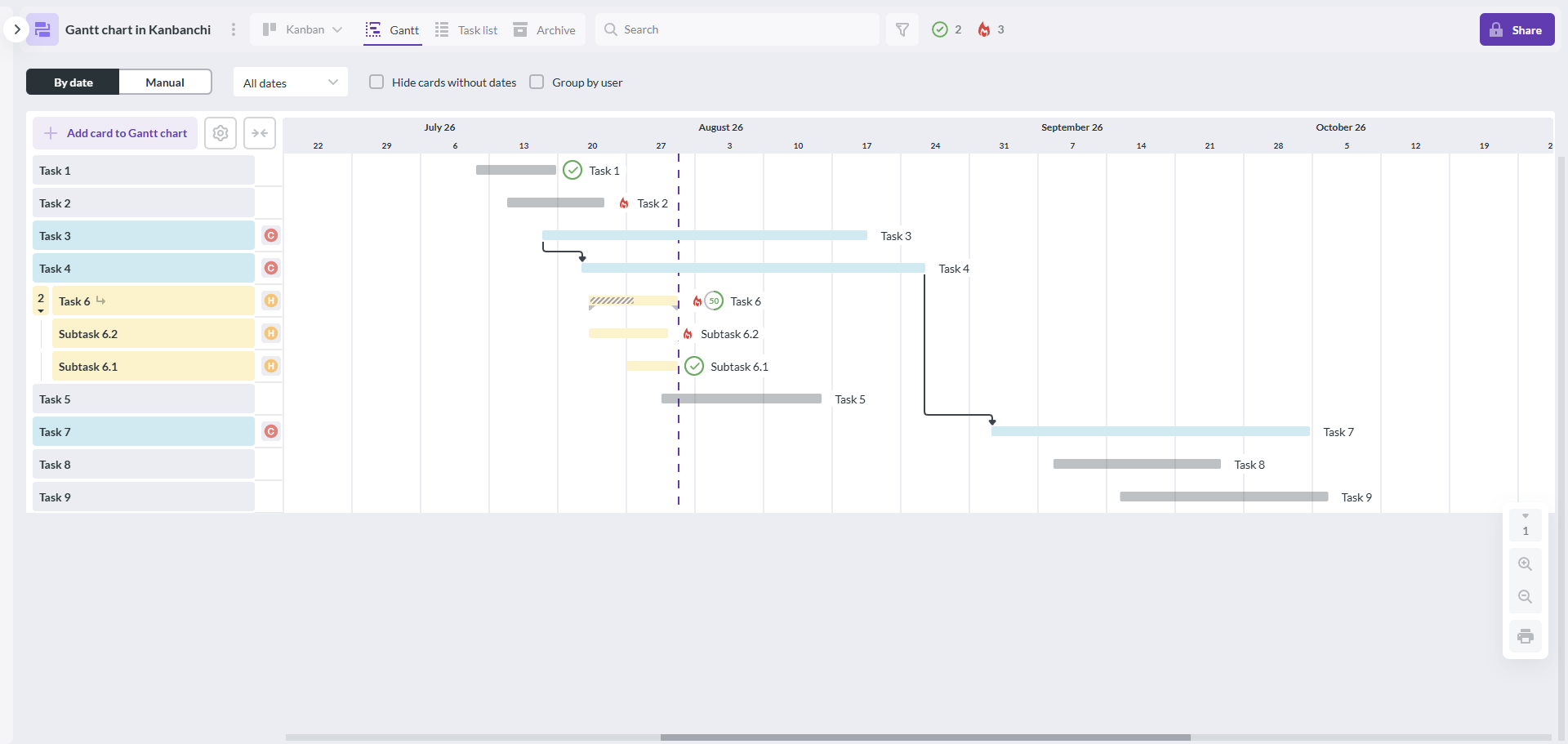
Kanbanchi Gantt chart for visualizing project timelines and task schedules
Overall, you’ll need to invest in both tools’ paid tiers to access Gantt charts. The difference is that Kanbanchi’s comes from the same product and account, not a separate license on a separate subscription.
Planner organizes work as tasks inside buckets inside a plan. Task dependencies, the ability to say one task can’t start until another finishes, only exist from Plan 1 upward, with lead-and-lag dependencies reserved for Plan 3. Checklists exist on tasks, but there’s no way to turn an item into a fully independent task with its own assignee and dates.
Kanbanchi structures work as cards inside lists inside boards, with subcards available from Premium upward. A subcard is a genuine card in its own right, with its own assignee, dates, and comments rather than a checklist row, a distinction that matters once a project grows past a handful of tasks.
Microsoft’s 2026 update added a Goals view to basic plans, which connects tasks to broader objectives. There’s also now a Project Manager agent, a Copilot-powered assistant for organizations holding Copilot licenses. These additions show that Planner is headed towards less manual configuration and more AI-assisted planning, assuming you also pay for Copilot.
Kanbanchi’s automation works through recurring cards, board templates, required properties, and status mapping that moves cards based on changes you make. It’s also rule-based rather than AI-driven, so it works the same way regardless of which extra licenses you have.
You can check task status by either bucket or person with Planner’s Charts view. Upgrade to Plan 1 or Plan 3 to access custom reports and dashboards, too.
Kanbanchi has a built-in reporting module, and boards can be exported directly to Google Sheets or Excel. Most users then build stakeholder reports in Google Data Studio or Power BI from that data, with more control over formatting than either tool’s native charts.
Microsoft Planner works best here if you want a quick build-in chart, though if you’re already building reports elsewhere, you may prefer Kanbanchi’s export path.
We already know that Planner works inside Microsoft 365. That’s why its permissions inherit directly from Microsoft Entra ID and the admin center, meaning only admins control who can create plans. They also control whether these plans can be shared outside of your organization and how data is retained, through the same console used for Teams and SharePoint.
Kanbanchi’s permissions follow Microsoft 365 sharing model (or Google Workspace if you’re using this version).
So, when comparing Kanbanchi vs Microsoft Planner directly on permissions, Planner is the best pick if you’re looking for no additional setup, and if your security policy is already based in the Microsoft 365 admin center. But Kanbanchi’s approach means you won’t need to create a second, unrelated permission system if your boards follow OneDrive’s sharing rules.
Integrations on Microsoft Planner are limited to its own ecosystem, including Teams, Outlook, SharePoint, OneDrive, Power Automate, and Microsoft Loop components, plus the Project Manager agent for Copilot-licensed accounts. This covers everything if you’re looking for a Microsoft 365 project management platform, but there’s no connection to Google Workspace tools at all.
Kanbanchi’s integrations cover the following areas for Microsoft Project Management:
Additionally, Kanbanchi integrates with Google Workspace. Planner offers no equivalent option outside Microsoft.
If you’re hoping to take project management on the go, Microsoft Planner and Kanbanchi offer iOS and Android apps. However, it’s clear when comparing both platforms that the desktop or web experience gets the full feature set first.
You can view tasks and update statuses on Planner’s mobile app, while also attaching files from your device or OneDrive. But to get real project work done, you’ll need to switch back to a laptop.
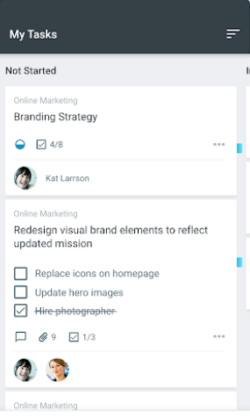
Microsoft Planner mobile interface for managing tasks and projects on the go
Kanbanchi’s mobile app is closer to the desktop board. You can view boards, update cards, add comments, and check due dates, all on a similar visual structure.
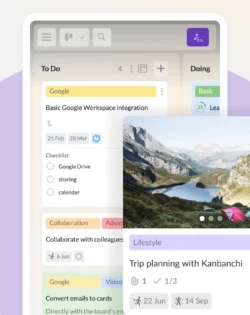
Kanbanchi mobile interface for managing project tasks and boards from a smartphone
There’s no dedicated support line for Microsoft Planner. You’ll need to contact Microsoft 365’s general admin channels, which are tied to your subscription tier, or use the Planner community forum and self-service help articles. Response times and access to phone or chat support depend on your Microsoft 365 plan rather than anything specific to Planner.
On the flip side, all Kanbanchi plans receive quality customer support. Reviewers consistently mention that the team understands the product well enough to solve real workflow problems, not just point to a help article.
Kanbanchi vs Microsoft Planner pricing is more complicated than the other categories we’ve covered so far.
With Microsoft Planner pricing, there are three main plans:
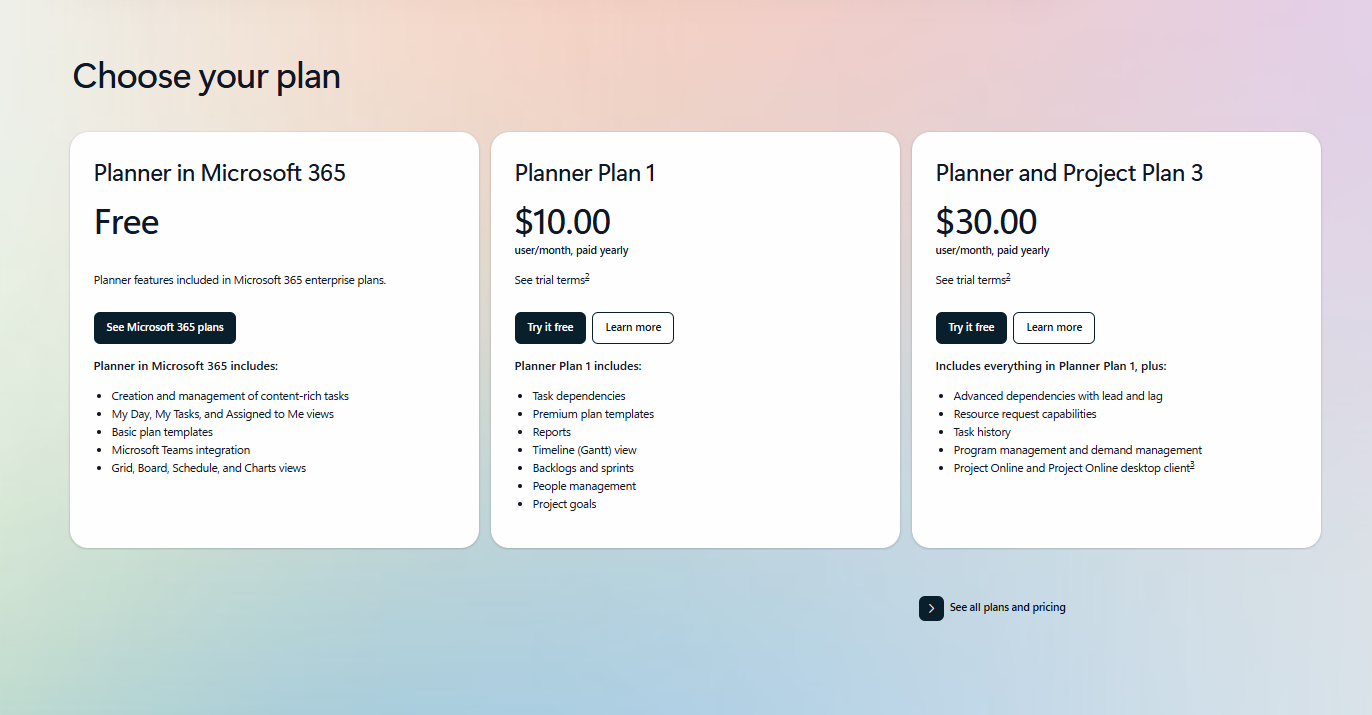
Microsoft Planner pricing options for task and project management
Kanbanchi’s pricing is more straightforward.
The free plan is permanent, with no time limit, unlimited users, and unlimited projects, capped at 36 active cards per project. The paid tiers are priced per seat, from 2 seats, with the cost dropping as your team size grows:
Nonprofits and schools get a 25% discount on annual plans other than Essential.
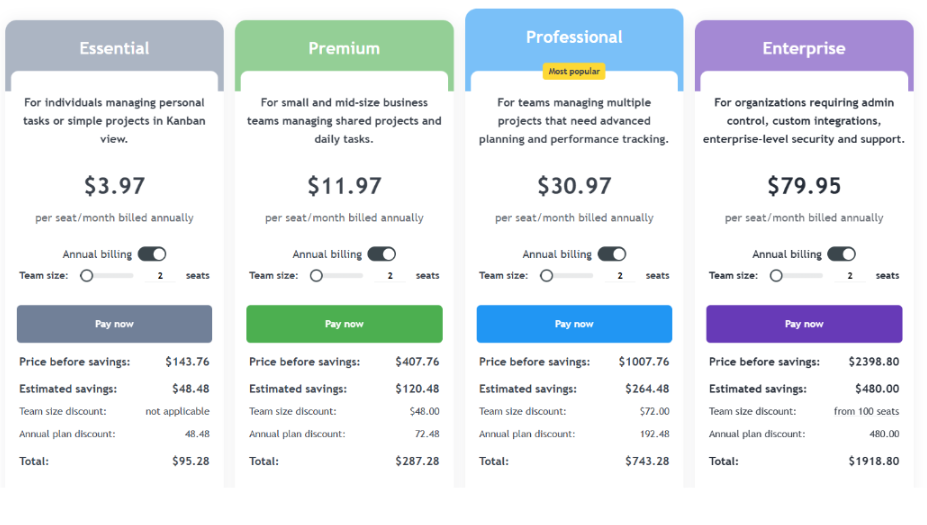
Kanbanchi pricing options for project management and task tracking
The key difference between Kanbanchi and Microsoft Planner pricing is how the per user cost grows.
Planner’s Plan 1 and Basic combined come to $17. This is arguably a fairer figure than Kanbanchi Professional’s starting rate of $24.47, since Kanbanchi’s per-seat rate is a custom quote that drops further with more seats. Planner’s combined cost may look cheaper if you’re already on Basic, but that’s not the case on a pricier Microsoft 365 tier, since Plan 1’s $10 layers on top regardless.
| Choose Kanbanchi if… | Choose Microsoft Planner if… |
|---|---|
| You want Gantt scheduling, dependencies, and time tracking without paying for a separate license tier | Your team is fully committed to Teams, Outlook, and SharePoint |
| You need real subtasks, not just checklists, for complex projects | You only need lightweight task tracking, not full project planning |
| You run on Google Workspace, or want an option that works without a costly bundled subscription | Your organization already has Microsoft 365 Business or Enterprise licenses |
| You want support quality that doesn’t depend on your plan tier | You want Microsoft’s AI-assisted Project Manager agent |
Our final verdict on Kanbanchi vs Microsoft Planner rests on the specific needs and existing setup of your team.
Already using Microsoft 365 project management tools or apps and want just lightweight task tracking inside Teams? Consider Microsoft Planner. It’s well integrated, and if you’re only looking for a shared board, the bundled version costs nothing extra. You’ll just need to budget for Plan 1 if dependencies or a real timeline become necessary, and confirm everyone holds an eligible subscription, since personal accounts won’t work.
But if you want Gantt scheduling, subcards, time tracking, and workload views in one product, choose Kanbanchi as a Microsoft Planner alternative. You won’t have to pay for a second license on top of a subscription, and the permanent free plan lets you test it before spending anything.
If you want project planning that doesn’t depend on which Microsoft 365 tier you’re on, why not start a free Kanbanchi board today?
Kanbanchi is better if you’re looking for Gantt scheduling, time tracking, subcards, and workload views without an added license fee on top of Microsoft 365. Microsoft Planner is better for light task tracking that’s already bundled into your subscription. Many searching for a Microsoft Planner alternative land on Kanbanchi for that reason.
The free Basic Planner is included with an eligible Microsoft 365 work or school subscription, but it isn’t available on personal or family accounts. Kanbanchi’s free plan is permanent, with unlimited users and projects, capped at 36 active cards per project, and needs no other paid subscription to work.
Microsoft Planner pricing starts at $10 per user per month for Plan 1, layered on an existing Microsoft 365 Business subscription, which is itself at least $7 per user per month. Kanbanchi charges per seat starting at $3.97 per user per month on Essential, with no separate subscription required.
No, Microsoft Planner requires an eligible work or school subscription and doesn’t work with personal or family accounts, even paid ones, which rules it out for many freelancers and very small businesses. Kanbanchi has no equivalent restriction. The free plan works for individuals and teams with no other subscription required.
Both are easy if you already have an existing Google or Microsoft setup. Microsoft Planner sets up fastest inside organizations that already have Microsoft 365 identities and groups configured. Kanbanchi sets up just as quickly through Google or Microsoft sign-in, without needing IT to provision a tenant first.
Kanbanchi was built first for Google Workspace, but a Microsoft 365 version is also available, using the same board, list, and card model for teams signing in through Microsoft instead. This makes it a genuine option for Microsoft 365 project management, not just a Google-only tool.
Read more articles related to Project Management

In this Article:
Start using Kanbanchi now
Start your free trial