
How to Store and Manage Project Assets in Google Drive with Kanbanchi
Managing project assets effectively remains one of the biggest challenges facing modern teams. With files scattered across multiple platforms, version control issues, and collaboration bottlenecks, teams often waste valuable time searching for documents instead of focusing on their core work.
Google Drive project management has emerged as a powerful solution for teams seeking centralized storage and seamless collaboration. When combined with Kanbanchi’s intuitive project management capabilities, organizations can transform their chaotic file management into a streamlined, efficient system.
The integration of project files management with visual project boards creates a unified workspace where every team member knows exactly where to find what they need. This comprehensive guide will show you how to leverage Google Drive integration with Kanbanchi to create a robust project asset management system that scales with your team’s needs.
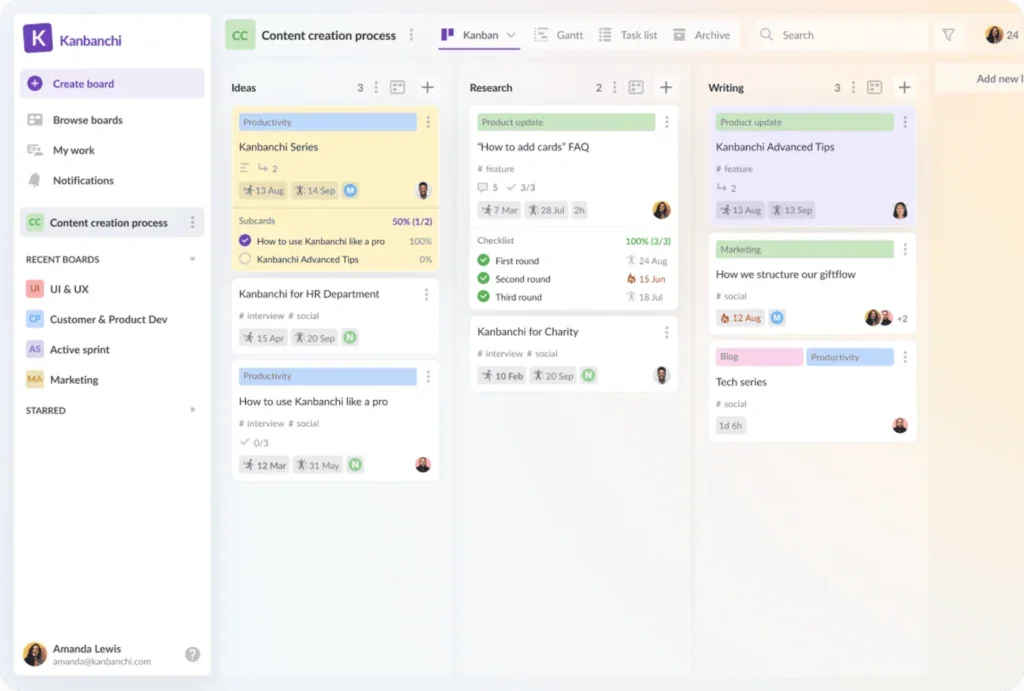
Kanbanchi board with task cards organized in columns, showing statuses, labels, deadlines, and assigned users
Understanding Project Asset Management in Google Drive
Project assets encompass all digital materials created, collected, or used throughout a project’s lifecycle. These include documents, spreadsheets, presentations, images, videos, design files, contracts, and any other resources that contribute to project completion.
Effective asset management ensures that team members can quickly locate resources, maintain version control, and collaborate seamlessly. Without proper organization, teams spend up to 20% of their time searching for information, according to recent productivity studies.
The challenges teams face without organized file storage are significant:
Poor version control leads to confusion about which document version is current. Team members accidentally work on outdated files, creating duplicated effort and potential errors. Email attachments multiply file versions, making it nearly impossible to maintain a single source of truth.
Access control issues prevent the right people from finding the necessary resources when they need them. Critical project files become buried in personal folders or shared drives without proper permissions. New team members struggle to understand existing file structures and naming conventions.
Collaboration bottlenecks emerge when multiple team members need to work on the same resources simultaneously. Traditional file storage solutions often lack real-time collaboration features, forcing teams to work in silos and merge changes manually.
Google Drive addresses these challenges through several key capabilities:
Cloud-based accessibility ensures team members can access project assets from anywhere, on any device. Real-time collaboration features allow multiple users to work simultaneously on documents, spreadsheets, and presentations without version conflicts.
Robust sharing controls enable project managers to set appropriate permissions for different team members and stakeholders. Advanced search functionality helps locate specific files quickly, even within large project repositories.
Google Drive storage integrates seamlessly with other Google Workspace tools, creating a cohesive ecosystem for project work. Automatic syncing ensures that changes are saved and distributed immediately across all team members.
Benefits of Using Kanbanchi with Google Drive for Project Assets
The integration of Kanbanchi with Google Drive creates a powerful project asset management system that addresses common workflow challenges. This combination leverages the strengths of both platforms to deliver a unified project management experience.
You may also be interested in this article: Best Project Management App to Use in 2025/2026
Native Google Workspace Integration
Kanbanchi works seamlessly within the Google Workspace ecosystem, eliminating the need to switch between different applications. Team members can attach Google Drive files directly to project cards, maintaining context and reducing the risk of losing important documents.
The integration automatically syncs with Google Calendar, ensuring that project deadlines and asset delivery dates are aligned across all team members. Real-time notifications keep everyone informed about file updates and project progress without overwhelming their workflows.
Automatic File Synchronization
Changes made to Google Drive files are instantly reflected in associated Kanbanchi cards. This eliminates confusion about which version of a document is current and ensures that all team members are working with the latest information.
File attachments maintain their connection to the source documents in Google Drive, preserving the collaborative editing capabilities while keeping project context intact. Team members can edit files directly from Kanbanchi cards without losing their place in the project workflow.
Enhanced Search and Organization Capabilities
Kanbanchi’s project structure, combined with Google Drive’s powerful search functionality, creates multiple pathways for locating project assets. Team members can find files through project boards, card attachments, or direct Google Drive searches.
Custom labels and tags within Kanbanchi complement Google Drive’s folder structure, providing additional organizational layers. This dual approach accommodates different working styles and makes it easier for team members to locate resources using their preferred methods.
Real-Time Collaboration Features
Visual project boards in Kanbanchi show the status of all project assets at a glance. Team members can see which files are in progress, awaiting review, or completed, reducing the need for status meetings and email updates.
Comments and discussions within Kanbanchi cards maintain context around specific files and decisions. This creates a project history that helps future team members understand the reasoning behind asset choices and modifications.
Version Control and Access Management
Google Drive’s native version history combines with Kanbanchi’s project timeline to create comprehensive audit trails. Project managers can track not only what changes were made to files but also how those changes affected project progress.
Permission management through Google Drive ensures that sensitive project assets remain secure while still being accessible to authorized team members. Kanbanchi respects these permissions, maintaining security protocols without sacrificing usability.
Security and Compliance Benefits
Enterprise-grade security features from Google Workspace extend to project assets managed through Kanbanchi. This includes data encryption, access logging, and compliance with industry standards such as GDPR and HIPAA.
Centralized asset storage in Google Drive reduces the risk of data loss from local storage failures or employee turnover. Automatic backups and Google’s infrastructure reliability provide additional protection for critical project resources.
Setting Up Your Project Asset Management System

Creating an effective project asset management system requires careful planning and systematic implementation. The following steps will guide you through establishing a robust foundation that scales with your team’s needs.
PM Tools That Help Teams Plan and Deliver Better
Creating a Folder Structure in Google Drive
Step 1: Establish a Master Project Folder
Create a dedicated folder in Google Drive for your project, using a clear naming convention that includes the project name and year. For example: “2025 Website Redesign Project Assets” or “Marketing Campaign Q1 2025 Files.”
Within the master folder, create standardized subfolders that reflect your team’s workflow stages. Common subfolder structures include: “01 Planning Documents,” “02 Design Assets,” “03 Content Materials,” “04 Review Feedback,” and “05 Final Deliverables.”
Step 2: Implement Consistent Naming Conventions
Develop file naming standards that include relevant information such as date, version number, and content type. For example: “2025-01-15_BrandGuidelines_v2.3_DRAFT.pdf” provides immediate clarity about the file’s content and status.
Create a naming convention guide document within your master folder so all team members follow the same standards. Include examples for different file types and project stages to ensure consistency across the entire project lifecycle.
Setting Up Kanbanchi Project Boards
Step 3: Create Your Project Board Structure
Open Kanbanchi within Google Workspace and create a new board for your project. Design columns that reflect your asset workflow stages, such as “Asset Planning,” “In Progress,” “Review Required,” “Approved,” and “Published.”
Customize card templates to include standard information fields relevant to your project assets. Common fields include asset type, deadline, assigned team member, review status, and Google Drive files.
Step 4: Establish Card Organization Systems
Create cards for each major asset category or deliverable within your project. Use consistent naming that aligns with your Google Drive folder structure to maintain clarity across both platforms. Add relevant team members to each card based on their roles in asset creation, review, or approval. This ensures that notifications reach the right people at the appropriate times in the workflow.
Connecting Google Drive to Kanbanchi
Step 5: Link Assets to Project Cards
Attach relevant Google Drive files directly to their corresponding Kanbanchi cards. This creates a direct connection between project tasks and their associated resources, eliminating the need to search through folder structures.
Add links to entire folders when multiple files relate to a single project component. This maintains organization while providing quick access to comprehensive asset collections.
Configuring Access Permissions
Step 6: Establish Security Protocols
Review and set appropriate Google Drive sharing permissions for all project folders and files. Ensure that team members have the minimum access level necessary to complete their work while maintaining security protocols.
Create different permission levels for various stakeholder groups. For example, core team members might have edit access, while clients or executives receive view-only permissions for specific asset categories.
Step 7: Document Access Procedures
Create a team access guide that explains how to request permissions for different project assets. Include contact information for project administrators and clear procedures for emergency access situations.
Regularly audit access permissions to ensure that former team members or external collaborators no longer have unnecessary access to project assets. Schedule quarterly reviews to maintain security standards.
Best Practices for Organizing Project Assets
Effective organization systems reduce friction and improve team productivity. These proven strategies help maintain order throughout project lifecycles while accommodating different working styles and team sizes.

Example of a best-practice project folder structure with numbered main and subfolders
File Naming Conventions
Implement a standardized naming structure that includes essential information in a consistent format. Use the pattern: YYYY-MM-DD_ProjectComponent_Version_Status.extension for maximum clarity and searchability.
Include relevant keywords in file names that team members are likely to use when searching. For example, “2025-02-10_Homepage_Wireframe_v3.2_ClientReview.pdf” contains multiple search terms that different team members might use.
Avoid special characters, spaces, and extremely long file names that can cause technical issues across different platforms and devices. Use underscores or hyphens to separate elements within file names for better compatibility.
Folder Structure Strategies
Create hierarchical folder structures that mirror your project workflow and team organization. Main folders should represent major project phases or asset categories, with subfolders providing additional granularity as needed.
Limit folder depth to no more than four levels to prevent navigation complexity. Deep folder structures become difficult to navigate and increase the likelihood of files being saved in incorrect locations.
Use numbered prefixes (01, 02, 03) for folders that should maintain a specific order. This prevents alphabetical sorting from disrupting logical workflow sequences and makes navigation more intuitive.
Version Control Methods
Establish clear version numbering systems that indicate the significance of changes. Use major.minor formatting (v2.1) where major numbers indicate substantial revisions and minor numbers represent incremental updates.
Maintain previous versions in designated archive subfolders rather than deleting them entirely. This provides fallback options if newer versions encounter issues and maintains a complete project history.
Include status indicators in file names (DRAFT, REVIEW, APPROVED, FINAL) to communicate the current state of each asset. This prevents team members from accidentally working on inappropriate versions.
Tagging and Metadata Usage
Leverage Google Drive’s built-in description and comment features to add searchable metadata to important files. Include project phases, responsible team members, and key deliverable dates in file descriptions.
Create consistent tagging systems using comments or file descriptions that help categorize assets across multiple dimensions. For example, tag files by department, priority level, or client requirements.
Use Google Drive’s color-coding features to distinguish different asset categories or status levels visually. Consistent color schemes help team members quickly identify file types and current states.
Regular Maintenance Routines
Schedule weekly file organization reviews to ensure that new assets are properly categorized and named according to established conventions. Address organizational issues promptly before they compound into larger problems.
Implement monthly archive procedures for completed project phases, moving finished assets to designated archive folders while maintaining access for reference purposes. This keeps active working areas uncluttered.
Conduct quarterly access reviews to update permissions, remove outdated files, and optimize folder structures based on team feedback and usage patterns.
Team Collaboration Guidelines
Establish clear protocols for file sharing and editing that prevent conflicts and maintain asset integrity. Define when to use editing permissions versus commenting permissions based on team member roles and responsibilities.
Create standardized communication procedures for asset updates, including required notification methods and approval processes. Ensure that all team members understand their responsibilities in maintaining organizational standards.
Provide training resources and quick reference guides that help team members understand and follow established organizational systems. Regular reinforcement helps maintain consistency as teams grow and change.
Advanced Tips for Project Asset Management
Power users can leverage advanced features and techniques to maximize efficiency and create sophisticated asset management workflows that adapt to complex project requirements.
Using Google Drive Search Operators
Master advanced search operators to locate files quickly within large project repositories. Use quotation marks for exact phrase searches, such as “brand guidelines” to find files containing that specific term combination.
Leverage file type filters by adding “type:pdf” or “type:image” to searches when looking for specific asset categories. Combine operators using “type:pdf owner:username” to find files created by specific team members.
Use date range operators like “before:2025-01-01” or “after:2025-02-15” to locate files within specific time periods. This is particularly useful for finding recently updated assets or archived materials from previous project phases.
Automation Techniques
Set up Google Drive automation using Google Apps Script to automatically organize files based on naming conventions or metadata. Create scripts that move files to appropriate folders when they’re uploaded or modified.
Implement automated backup procedures that create copies of critical project assets at regular intervals. Use Google’s built-in version history combined with automated export functions to maintain comprehensive backups.
Integration with Other Google Workspace Tools
Connect Google Sheets with your asset management system to create dynamic project dashboards that track file status, completion rates, and team workload distribution. Use formulas to automatically calculate project progress based on asset completion.
Integrate Google Calendar to create deadline reminders and milestone alerts related to specific project assets. Link calendar events directly to relevant Kanbanchi cards and Google Drive folders for seamless navigation.
Utilize Google Forms for standardized asset review and approval processes, automatically populating responses into Google Sheets for tracking and analysis. This creates consistent feedback loops and maintains approval documentation.
Backup and Recovery Strategies
Implement multi-layered backup approaches that include local downloads of critical assets in addition to Google Drive’s native redundancy. Create automated download scripts for essential files that require offline access.
Document recovery procedures that team members can follow if files become corrupted or accidentally deleted. Include step-by-step instructions for accessing version history and restoring previous file versions.
Establish external backup procedures for projects with long-term archival requirements, including periodic exports to secondary cloud storage or local server systems as needed for compliance or security reasons.
Performance Optimization Tips
Optimize large file handling by using Google Drive’s streaming features and avoiding unnecessary local synchronization of huge asset libraries. Configure selective sync settings to improve system performance.
Implement file compression strategies for archived assets that maintain accessibility while reducing storage consumption. Use consistent compression standards that preserve file integrity while optimizing storage usage.
Monitor storage usage patterns and implement cleanup procedures that remove duplicate files and outdated versions while maintaining necessary project history and reference materials.
Common Challenges and Solutions
Even well-designed asset management systems encounter predictable challenges. Understanding these common issues and their solutions helps teams maintain productivity and avoid frustrating delays.
Storage Limit Issues
Google Drive storage limits can become constraints for asset-heavy projects involving large media files or extensive documentation. Monitor storage usage regularly through Google Drive’s storage management tools to anticipate capacity issues before they impact workflows.
Solution: Implement tiered storage strategies that move completed project assets to archive folders with compressed versions. Maintain working file versions in active storage while archiving full-resolution assets in secondary locations.
Optimize file formats for storage efficiency without compromising quality. Convert oversized images to appropriate web formats and use Google’s built-in compression for documents and presentations while preserving editability.
Access Control Problems
Permission conflicts arise when team members cannot access necessary files or when unauthorized users gain inappropriate access levels. These issues typically stem from inconsistent sharing practices or inadequate permission reviews.
Solution: Establish standardized permission templates for different roles and project phases. Create documented procedures for granting and revoking access that all team members can follow consistently.
Implement regular permission audits using Google Drive’s sharing reports to identify potential security issues or access gaps. Schedule monthly reviews during active projects and quarterly reviews for ongoing initiatives.
Version Conflicts
Multiple team members working on the same assets can create version conflicts, especially when offline editing occurs or when files are downloaded and re-uploaded rather than edited directly in Google Drive.
Solution: Emphasize cloud-based editing workflows that leverage Google Drive’s real-time collaboration features. Train team members to work directly within Google Drive rather than downloading files for local editing.
Establish clear checkout procedures for files that require exclusive editing access. Use Kanbanchi card assignments and comments to communicate when files are being actively modified by specific team members.
Search Difficulties
Large project repositories can become difficult to navigate, especially when files accumulate over time and naming conventions aren’t consistently applied. Team members waste time searching for assets instead of focusing on productive work.
Solution: Implement consistent metadata practices that make files discoverable through multiple search approaches. Use file descriptions, comments, and folder structures that support different search strategies.
Create searchable project indexes within Google Sheets that catalog major assets with descriptions, locations, and responsible team members. Link these sheets to Kanbanchi boards for easy reference.
Collaboration Bottlenecks
Review and approval processes can create delays when multiple stakeholders need to provide input on project assets. Traditional email-based review cycles often result in lost feedback and unclear approval status.
Solution: Establish structured review workflows within Kanbanchi that clearly define approval stages and responsible parties. Use card assignments and due dates to maintain momentum through review processes.
Implement standardized feedback collection methods using Google Forms or comment systems that consolidate input from multiple reviewers. Create templates that ensure comprehensive feedback while streamlining the collection process.
Measuring Success: KPIs for Project Asset Management
Effective measurement helps teams understand the impact of their asset management improvements and identify areas for continued optimization. These metrics provide objective data for evaluating system performance.

Digital asset management dashboard showing user activity metrics, template performance, workflow breakdown, and uploads versus downloads trends
File Retrieval Time
Track the average time team members spend locating specific project assets. Establish baseline measurements before implementing organizational improvements, then monitor changes over time to quantify efficiency gains.
Use time-tracking tools or team surveys to gather data about search and retrieval experiences. Focus on frequently accessed asset types and measure improvements in average location time as organizational systems mature.
Set target benchmarks such as locating any project file within two minutes or less. Monitor progress toward these goals and adjust organizational strategies based on actual usage patterns and team feedback.
Version Control Accuracy
Measure the frequency of version conflicts, outdated file usage, and duplicated work caused by poor version management. Track incidents where team members worked on incorrect file versions and the resulting time costs.
Monitor the adoption rate of standardized naming conventions and version control procedures. Calculate the percentage of files that follow established standards and identify areas where additional training or process refinement is needed.
Evaluate the effectiveness of automated version control features by tracking the reduction in manual version management tasks and the improvement in team confidence about file currency.
Team Collaboration Efficiency
Assess the impact of integrated asset management on overall team collaboration patterns. Measure changes in email volume related to file sharing and location requests as teams adopt more efficient collaborative workflows.
Track the frequency and duration of project meetings dedicated to file organization and status discussions. Effective asset management should reduce the need for meetings focused on locating resources or clarifying file status.
Monitor team satisfaction with asset accessibility and organization through regular surveys or feedback sessions. High satisfaction scores correlate with improved productivity and reduced frustration in collaborative work.
Storage Optimization
Calculate storage efficiency improvements through duplicate file reduction, appropriate file format usage, and effective archival processes. Track storage cost savings achieved through better organization and cleanup procedures.
Measure the percentage of storage space occupied by active versus archived assets. Optimal ratios depend on project types, but most teams benefit from keeping active working files under 60% of total storage allocation.
Monitor backup and recovery effectiveness by testing file restoration procedures and measuring recovery times for critical assets. Ensure that storage optimization doesn’t compromise data security or accessibility requirements.
User Satisfaction
Gather regular feedback from team members about their experience with the asset management system. Use standardized surveys that measure satisfaction with organization, accessibility, and collaboration features.
Track user adoption rates for new organizational tools and procedures. High adoption rates indicate that systems are meeting user needs, while resistance may signal the need for training or process adjustments.
Monitor support requests and help desk tickets related to asset management issues. Declining support needs over time indicate that team members are becoming proficient with established systems and procedures.
Getting Started with Kanbanchi and Google Drive
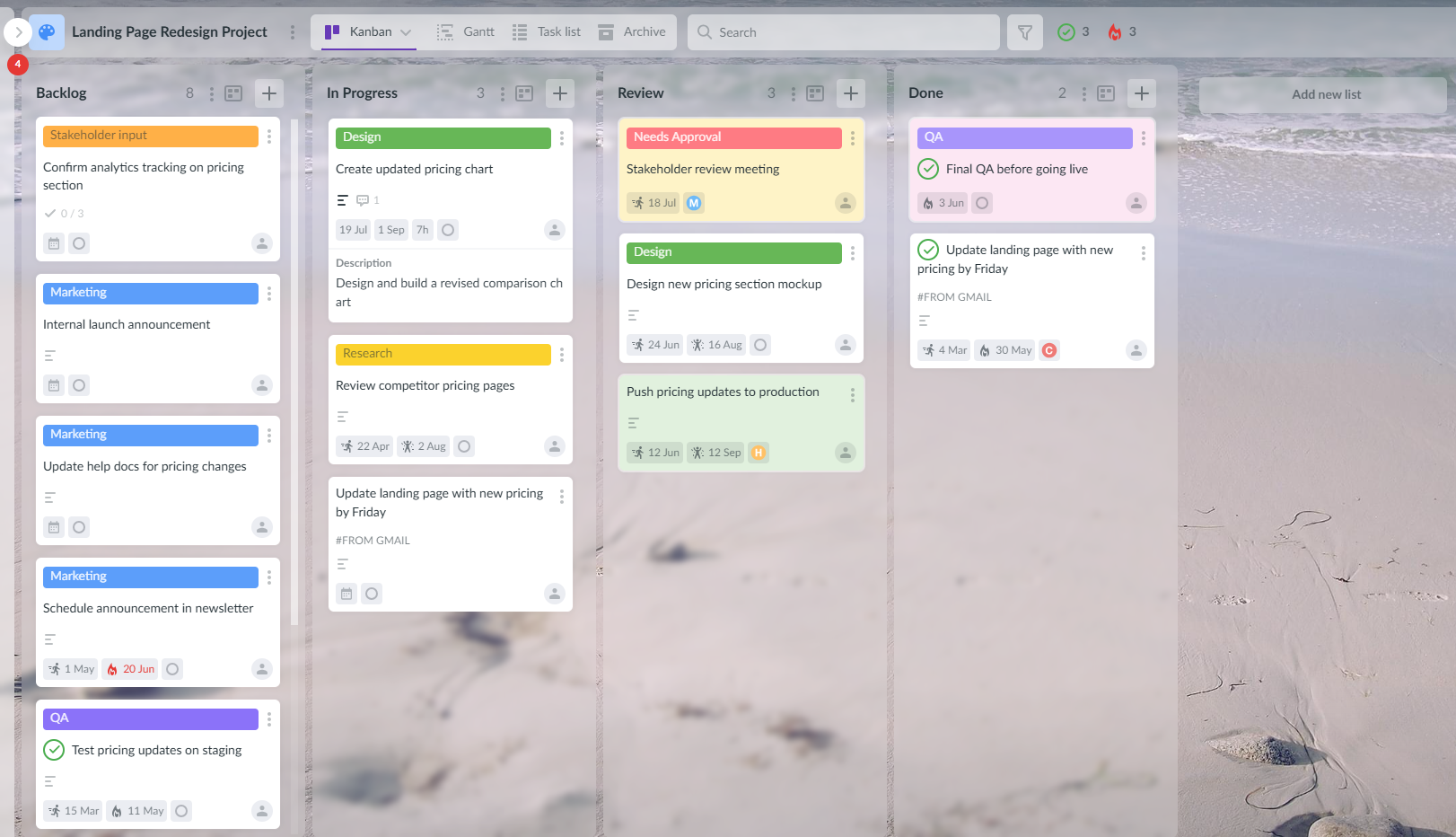
Kanbanchi’s integration with Google Drive creates a unified workspace where project management and asset storage work seamlessly together. Teams gain visual project tracking, automated file organization, and streamlined collaboration without learning complex new tools.
The combination eliminates common pain points such as lost files, version conflicts, and unclear project status. Real-time updates ensure that all team members work with current information while maintaining the flexibility to accommodate different working styles and preferences.
Cost-effective pricing makes Kanbanchi accessible for teams of all sizes, from small startups to large enterprises. The solution scales naturally as teams grow, adding new members and projects without requiring significant configuration changes or additional training.
How Kanbanchi Simplifies Project Asset Management
Unlike generic project management tools, Kanbanchi is designed specifically for Google Workspace users, eliminating compatibility issues and reducing the learning curve for teams already familiar with Google’s interface and workflows.
The visual kanban board approach makes project status immediately clear to all team members, reducing the need for status meetings and email updates. Asset attachments maintain their connection to Google Drive while providing project context that generic file storage cannot offer.
What Makes It Better Than Alternatives
Kanbanchi’s deep Google Workspace integration surpasses basic file attachment features offered by other project management platforms. Real-time synchronization, native collaboration tools, and seamless permission management create a truly integrated experience.
The solution balances simplicity with powerful features, providing advanced capabilities without overwhelming interface complexity. Teams can start with basic kanban boards and gradually adopt more sophisticated features as their needs evolve.
How Readers Can Get Started Today
Begin by identifying your most challenging project asset management pain point, whether it’s file organization, team collaboration, or version control. Start with a single project or team to test Kanbanchi’s capabilities before expanding to larger implementations.
Sign up for your free Kanbanchi trial at kanbanchi.com and experience firsthand how integrated project asset management can transform your team’s productivity. Within minutes, you’ll be creating organized project boards that connect directly to your Google Drive assets, setting the foundation for more efficient and collaborative project work.
Take the first step toward better project asset management today. Your team’s productivity and satisfaction depend on having the right tools to manage the growing complexity of modern project work. Kanbanchi provides the solution that grows with your needs while maintaining the simplicity that keeps teams focused on their most important work – Google Drive project management.