
In this Article:
Try Kanbanchi now
Start your free trial


Are you looking for ways to bring the organization of your project to the next level? Take advantage of card colors and color labels to increase the visibility of information in your Kanban card system. Using color can be a quick and easy way to prioritize and facilitate the processing of cards.
Color is the fastest signal on a board. It registers before anyone reads a card title, which makes it the most valuable and most easily wasted piece of visual real estate you have.
Most teams waste it. They color every card, or they color all the lists, or six people pick colors independently and nobody can remember what green meant. This guide covers a scheme that works, what color should actually encode, and how color labels and card colors differ from each other.
If you want a scheme to copy, this one works for most boards. It runs cool to warm as work moves right, with two exceptions that matter more than the rest.
| Stage | Color | Why |
|---|---|---|
| Backlog | Grey | Not committed yet. Deliberately low contrast so it recedes. |
| To Do | Blue | Committed but not started. Calm, no action needed today. |
| In Progress | Yellow | Active work. Yellow draws the eye without raising an alarm. |
| Review or Approval | Purple | A waiting state, not a working state. Distinct from both. |
| Testing | Orange | Still active, further along. Reads as adjacent to yellow. |
| Blocked | Red | The only red on the board. |
| Done | Green | Universal, and it should be the least interesting color you see. |
The two exceptions are the useful part.
Kanban card colors can be used to indicate priority, red being urgent or green showing everything is in a normal state. You can also use color to categorize cards. For example, you can use colors to identify different roles within your project teams, such as mobile developers and graphic designers.
You can use colors to reflect the type of work or to create a visual to focus on what is critical. It really is open to your imagination.
To create a card, simply click the + icon, type the title of the card, and hit Enter. Then select this card to edit. Select the palette icon for your card color. It’s as simple as that!
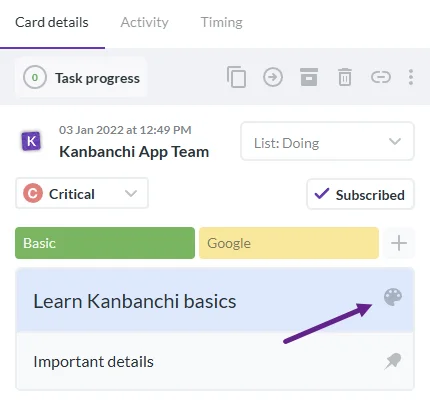
In the Card Details section, you can use subcards to split tasks, set a priority, and assign the card to anyone who has access to the board. You can add a tag to easily filter the card for search purposes.
When you are done, a glance at the dashboard gives a clear view of work progress and a visualization of the workflow. It is an opportunity to continuously improve the workflow and produce quality work faster.
In Kanbanchi, you can easily sort and filter cards by comments, attachments, title, or tags.
You can use color tags (color labels) in your cards to help support organizing your project. In Kanbanchi, click the card to open the Card Details, and then select Color Labels.
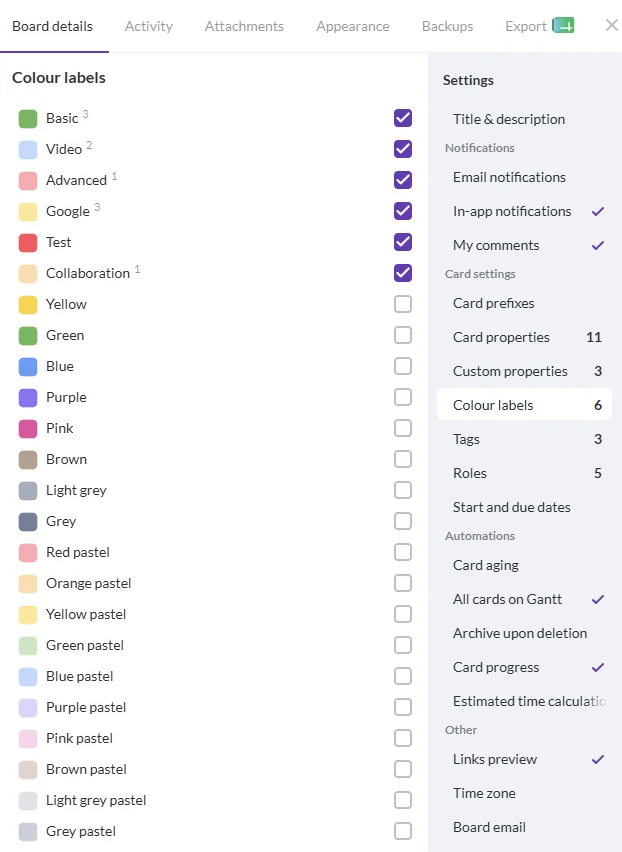
These labels add another layer of visuals to your dashboard. Let’s say you want to create a ticketing system to enter requests for issues, customizations, and new product features. You can use color labels to identify these key components of your ticketing system.
Three different things get called “labels” across kanban tools, and mixing them up is why color systems fall apart. Kanbanchi keeps them separate on purpose.
Card color is the background of the card itself. It’s one color per card, it’s visible from across the room, and it’s the strongest signal you have. Because it’s exclusive, it should carry one thing and one thing only. Pick priority, or work type, or team, and never two.
Color labels are board-defined markers you attach to a card. The board owns the set: you name each color, and you can turn individual colors off so the palette stays small. A card can carry several. This is where a second dimension goes, once card color is already spoken for.
Tags are freeform text labels. No color, no board-defined list, just words you reuse. They’re for anything you’ll want to filter on later but don’t need to see at a glance: a client name, a release number, a source.
The rule of thumb: card color is for seeing, tags are for finding, color labels are for both.
This is the practical difference, and it’s the reason to choose deliberately rather than by habit.
Swimlanes can be built from tags or from color labels. Each becomes a horizontal row, so you can look at the same board split by client, by workstream, or by work type instead of by stage.
List grouping can rebuild the board’s lists around tags, color labels, card color, assignee, or priority.
Filters and filter presets work across all of them, and a preset can be saved and reused by the team.
So if you think you’ll ever want to see the board sliced a second way, put that dimension in a tag or a color label rather than in card color. Card color is the one you can’t reorganize around as flexibly.
Studies have shown that people tend to be more visual, so incorporating color in your card system can be a quick and easy way to relay and facilitate the processing of information. With color cards and color tags, you can:
Kanban is about learning what works best for your project. It’s about improving and evolving to manage your workflow effectively.
Check out more Kanban-related blogs here
Pick one thing for color to mean, write it down where the team can see it, and reserve red for blocked. Most color systems fail because two people started using green for different things in the same week. The test is whether a new team member can look at the board and correctly guess what a color means without asking.
Usually none. A card sitting in the Testing list is already visibly in testing, so coloring the list repeats information you can already see. Color earns its place when it encodes a second dimension the position doesn’t show: priority, work type, blocked status, or which client the work belongs to. If you do color by stage, the scheme above runs grey through green with red held back for blocked.
A color label is a board-defined marker with a color and a name, chosen from a fixed set the board controls. A tag is freeform text you type. Labels are for things you need to see at a glance; tags are for things you need to filter by later. Most boards need only a handful of labels and can carry many more tags.
Four or five, plus red for blocked. Beyond that, people stop reading the colors and start reading the titles, which means you have spent your fastest signal on nothing. If you need more categories than that, the extra ones belong in tags rather than in color.
Trello uses labels with colors and optional names, so the same scheme transfers: keep the palette small, give every color a written meaning, and reserve one color for blocked. The main difference is that Trello’s labels and card color are the same system, so you get one dimension rather than two.
Incorporating the use of color in your Kanban system is an effective and efficient way to increase the processing of information in your project. With its ease of use and rich features, Kanbanchi makes it easy for team members to identify key card information so they can keep their focus on the task at hand.



In this Article:
Start using Kanbanchi now
Start your free trial