
In this Article:
Try Kanbanchi now
Start your free trial

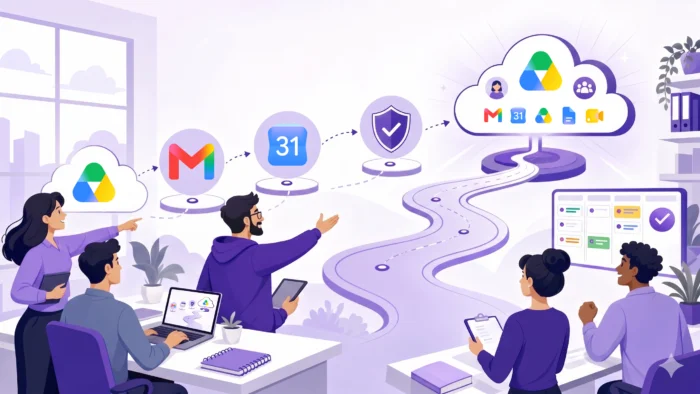
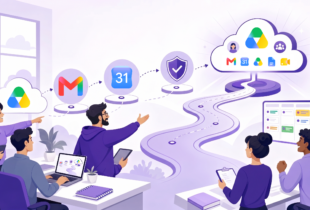
Google’s 2020 introduction of Workspace was more than a rebrand of G Suite. It signaled a clearer direction for business work: documents, meetings, messages, calendars, and files should flow together in one connected environment. For many organizations, that makes a Google Workspace migration attractive, especially if teams are remote, hybrid, fast-growing, or simply tired of scattered files and disconnected processes. This is still so in 2026, and the tendency to migrate will even be higher.
Why use Google Workspace? The top benefits are covered in our other guide, Why Use Google Workspace? Top Benefits for Teams and Businesses, and this article will help you better understand a successful migration.
Successful migration is not just a technical copy job. Moving email and documents is the visible part. The real goal is to make sure people know where work lives, how to collaborate, how to find files, and how to track tasks after go-live. Without that plan, a team can move to better software and still feel disorganized on Monday morning.
This guide gives team leads, business owners, IT stakeholders, and department heads a practical Google Workspace migration plan that protects continuity, reduces confusion, and adds the missing project management layer teams often need after making the switch.
The main reason teams migrate to Google Workspace is to improve how the company handles data, documents, communication, and day-to-day processes. Instead of local files, personal folders, email attachments, and separate meeting tools, teams get a central, browser-based workspace built around Gmail, Google Drive, Docs, Sheets, Slides, Calendar, Meet, and a suite of connected apps.
A secure central storage point, such as Google Drive or Shared Drives, is one of the biggest immediate advantages. Team documents can live in a predictable place, permissions can be managed more consistently, and people can collaborate in real time instead of trading file versions back and forth. This is especially valuable for distributed teams that need to work together without waiting for someone to send the latest attachment.
Google has also continued to strengthen integration across Workspace apps. A user can open a document, comment on a section, share it with teammates, schedule a meeting, or discuss the work without leaving the ecosystem. The familiar interface reduces the learning curve, which matters when you are migrating a whole team and need adoption quickly.
For companies that have gone remote or hybrid, the browser-first nature of Google Workspace is often a practical advantage. Employees can work from different locations and devices while using the same set of files and collaboration tools. The migration becomes less about replacing software and more about giving the team a shared operating system for work.
| Business need | How Google Workspace helps | Migration planning note |
|---|---|---|
| Centralized documents | Google Drive and Shared Drives create a common file hub | Decide folder ownership and access rules before moving files |
| Faster collaboration | Docs, Sheets, and Slides support real-time editing | Train teams on comments, suggestions, and sharing etiquette |
| Remote teamwork | Browser-based apps work across locations and devices | Test mobile access, offline needs, and external sharing policies |
| Easier onboarding | New users can access apps through their Google account | Prepare groups, aliases, and role-based access in advance |
| Better governance | Admin controls and security settings support company policies | Align settings with compliance and retention requirements |
This applies across team types. Business teams, enterprise departments, educational institutions, and nonprofits all migrate for similar reasons. The specific workflows differ, but the underlying need is the same: one connected environment where work does not get lost.
More articles related to Google Workspace here
The first comparison many decision-makers make is Google Workspace versus Microsoft 365, formerly known as Office 365. Both ecosystems are mature, cloud-based business suites. Both support custom domains, business email, shared calendars, cloud storage, video meetings, internal communication, admin controls, and productivity apps for documents, spreadsheets, and presentations.
Because plan names, storage limits, security features, and pricing change over time, the most reliable approach is to compare the current details on the official Google Workspace pricing page and Microsoft 365 business pricing page. Direct price comparison can be misleading because the plans are not identical.
| Area | Google Workspace | Microsoft 365 |
|---|---|---|
| Business email | Gmail with a custom domain | Outlook and Exchange with a custom domain |
| File storage | Google Drive and Shared Drives | OneDrive and SharePoint |
| Meetings and communication | Google Meet and Chat | Microsoft Teams |
| Productivity apps | Docs, Sheets, Slides, Forms, and more | Word, Excel, PowerPoint, Forms, and more |
| Collaboration style | Browser-first, real-time editing is central | Strong cloud collaboration with deep desktop app heritage |
| Best fit for many teams | Teams that want simple browser-based collaboration | Teams that rely heavily on desktop Office workflows |
The decision usually comes down to operating style. Google Workspace can feel simpler and more intuitive for teams that want fast browser-based collaboration, lightweight administration, and easy movement between email, files, meetings, and documents. Microsoft 365 remains a strong choice for organizations that depend heavily on desktop Office apps, advanced Excel workflows, or existing Microsoft infrastructure.
If your company already uses Microsoft 365 deeply, a Google Workspace migration needs a clear business reason. That reason might be simpler collaboration, lower training friction, better fit for remote work, or a strategic decision to standardize on Google tools. It is also worth noting that switching back is rare.
In our experience at Kanbanchi, the overwhelming majority of teams that migrate to Google Workspace stay. The one exception we have seen was a very large global company that returned to Microsoft, but that was driven by an internal political decision rather than dissatisfaction with the platform itself.
If your company has not yet committed to either ecosystem, focus less on brand preference and more on how your team actually works day-to-day.
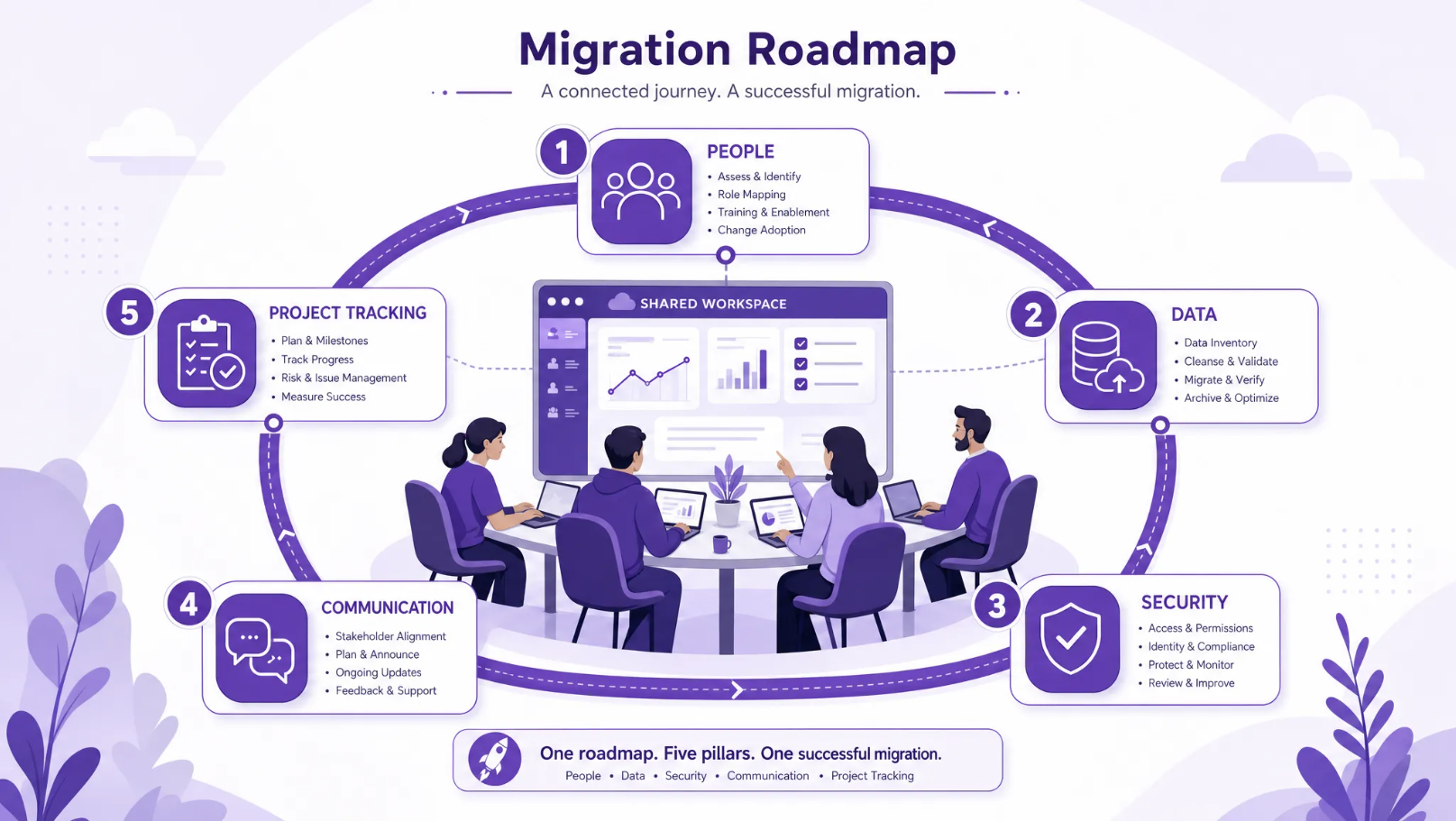
Technically, migration is much easier than it used to be. Google provides official migration documentation for email, calendar, contacts, files, and other data sources through Google Admin Help. A lot of work has clearly gone into making the process accessible. Emails, calendars, and contacts can all be moved over smoothly using this guide for businesses with 100 or fewer users. You can also find guidance on how to carry out a Google Workspace migration between different accounts and with more than 1,000 users.
Smaller organizations may be able to use the Admin console data migration service for common email, calendar, and contact moves. Larger organizations often use staged migrations, Google Workspace Migrate, third-party migration tools, or specialist partners.
That said, no migration is instant if you care about permissions, data quality, compliance, and user adoption. This data migration guide lets you see how to migrate different types of data, including email from Outlook or Gmail, as well as collaboration products, file systems, and enterprise servers.
Migration options depend on your source system, plan, and migration method. Common sources include Microsoft Exchange, Outlook, Gmail, IMAP servers, local file systems, cloud storage, and other collaboration platforms. Always validate your exact scenario against Google’s current documentation or with your migration partner.
| Data type | Common source | Key risk to manage |
|---|---|---|
| Outlook, Exchange, Gmail, IMAP | Missing labels, folder mapping issues, or old mail noise | |
| Calendars | Exchange, Outlook, Google accounts | Recurring events, room calendars, and external attendees |
| Contacts | Outlook, Exchange, Gmail | Duplicate contacts and outdated distribution lists |
| Files | Local drives, OneDrive, SharePoint, other cloud storage | Broken permissions, duplicate folders, and unclear ownership |
| Groups and aliases | Existing directory or mail system | Incorrect access after go-live |
| Project data | Trello, spreadsheets, legacy task tools | Lost context, missing owners, and untracked deadlines |
Most teams can move technical data with the right toolset. The harder part is deciding what the new working model should be. If every messy folder, stale file, and unclear permission is moved exactly as-is, the migration simply preserves old chaos in a new environment.
A better approach is to use the migration as a cleanup point. Archive what is no longer needed, create team-owned Shared Drives where appropriate, document access policies, and decide which tools will become the system of record for files, meetings, and project tasks, including where task and project tracking will live after go-live.
A calm migration has phases. Each phase should have an owner, a clear output, and a way to validate that the team is ready to move forward.
Start with the reason for migration. Do you want fewer file versions, better remote collaboration, simpler onboarding, stronger security controls, or less dependence on desktop apps? The answer affects every later decision.
Define success in practical terms: users can send and receive mail, key files are accessible, calendars work, external sharing follows company policy, and active projects are visible in a shared project management tool. The migration should not be considered complete until people can do their actual work.
Create an inventory of users, aliases, shared mailboxes, groups, departments, external collaborators, file locations, and business-critical workflows. Include people who are easy to forget: contractors, executives, seasonal users, and service accounts.
Assign data owners before migration. A folder with no owner becomes a support ticket later. A project with no owner becomes a risk to deadlines. A group with no administrator becomes an access problem.
There is no single best migration model. The right choice depends on team size, risk tolerance, technical complexity, and the degree of coexistence you can manage.
| Migration model | Best for | Trade-off |
|---|---|---|
| Pilot first | Teams that want to reduce risk before company-wide rollout | Takes longer, but reveals issues early |
| Staged migration | Larger companies or departments with different needs | Requires careful coexistence planning |
| Big bang cutover | Small teams with simple data and limited integrations | Faster, but support demand is concentrated |
| Hybrid transition | Companies that must keep some systems temporarily | Reduces disruption, but can create duplicate work if unmanaged |
For teams of 3 to 250 people, a pilot followed by a short staged rollout is often enough. For enterprises with thousands of users, staged migration with department-level champions and detailed support processes is safer.
Before moving production data, configure the foundations: domain verification, DNS planning, user provisioning, group structure, admin roles, single sign-on if needed, multi-factor authentication, sharing policies, mobile device settings, and retention requirements.
Security should be part of the migration design, not a cleanup task after go-live. Google publishes Workspace security information and trust resources on its Google Workspace security page, which can help IT and leadership align on controls available across plans.
A migration is the best time to reduce clutter. Ask every department to identify active files, archive material, sensitive data, obsolete folders, and files that should move to Shared Drives instead of individual My Drive locations.
Avoid migrating everything simply because storage is available. Unnecessary data increases migration time, search noise, permission complexity, and compliance risk. A clean file structure makes adoption easier because people can find what they need on day one.
A pilot should include real users, real files, real meetings, and real projects. Ask pilot users to test Gmail, Calendar, Drive sharing, Docs collaboration, Meet, mobile access, external collaboration, and project tracking.
The goal is not to prove that migration tools work in theory. The goal is to expose the small issues that frustrate teams: missing deadlines, unclear Drive permissions, duplicate folders, or tasks that remain trapped in old spreadsheets.
People handle change better when they know what is happening, when it happens, and where to get help. Send a simple change calendar with key dates, expected downtime if any, support contacts, training links, and instructions for common first-day tasks.
Tell users how to log in, where files will be, what happens to old email, how to share documents, how to request access, and where project tasks will live. A short live training session and office hours can prevent dozens of repetitive support tickets.
After go-live, validate mail flow, calendar events, file access, sharing rules, mobile access, and business-critical workflows. Keep a short hypercare period where users know they can get fast help.
Do not leave old systems half-active indefinitely. If old file storage, email, or task tools remain editable with no rules, people will split work across platforms. Set a clear retirement plan: read-only access for a defined period, then archive or decommission according to company policy.
| Phase | Typical focus | Main output |
|---|---|---|
| Discovery | Users, data, integrations, risks, business requirements | Migration scope and owner list |
| Design | Security settings, groups, Drive structure, migration method | Approved migration architecture |
| Pilot | Small group testing with real work | Issues log and refined process |
| Cleanup | Archive old data, fix ownership, prepare Shared Drives | Clean data ready for migration |
| Cutover | Mail routing, data transfer, user launch | Workspace becomes the primary environment |
| Hypercare | Support, validation, training, old system retirement | Stable adoption and reduced support load |
The more complex the organization, the more important it is to treat migration as a project with visible tasks, owners, dates, and dependencies. A spreadsheet can work for a very small team, but it becomes fragile when multiple departments, external collaborators, and deadlines are involved, which is exactly when a dedicated project management tool earns its place.
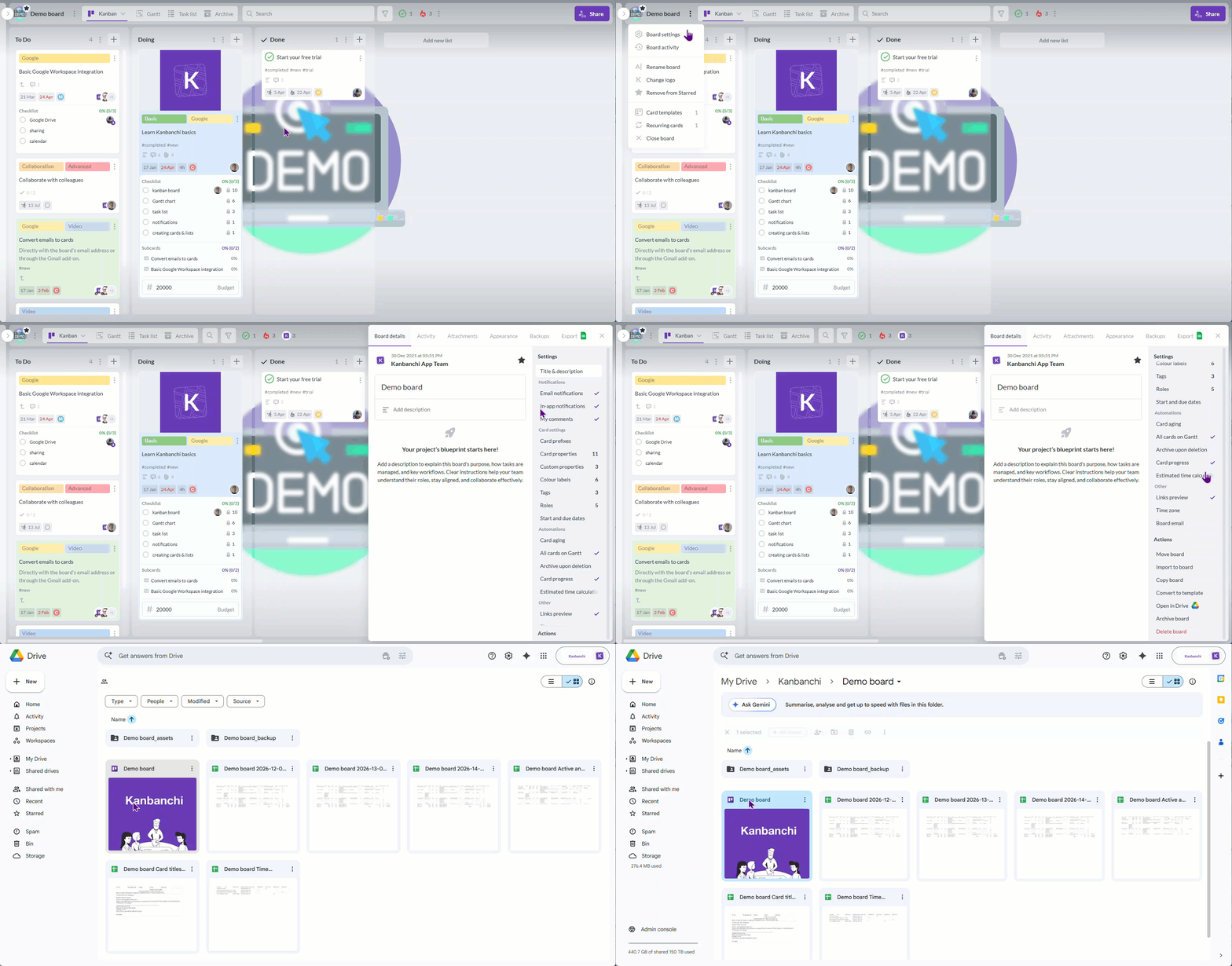
Ready to plan your migration? Kanbanchi helps teams track every phase of a Google Workspace migration with shared boards, clear task ownership, and timeline views. All inside Google Workspace.
Many teams plan email, calendars, and files carefully, but forget the work management layer. Google Workspace is excellent for communication and collaboration, but it is not a full project management system on its own. Teams often discover this only after go-live, when people start asking where tasks, deadlines, dependencies, and project status should live.
Common post-migration problems include:
This is why your Google Workspace migration plan should include project tracking from the very start. If the company is moving to a more connected workspace, task and project visibility should be part of the same operating model, not an afterthought discovered two weeks after go-live.
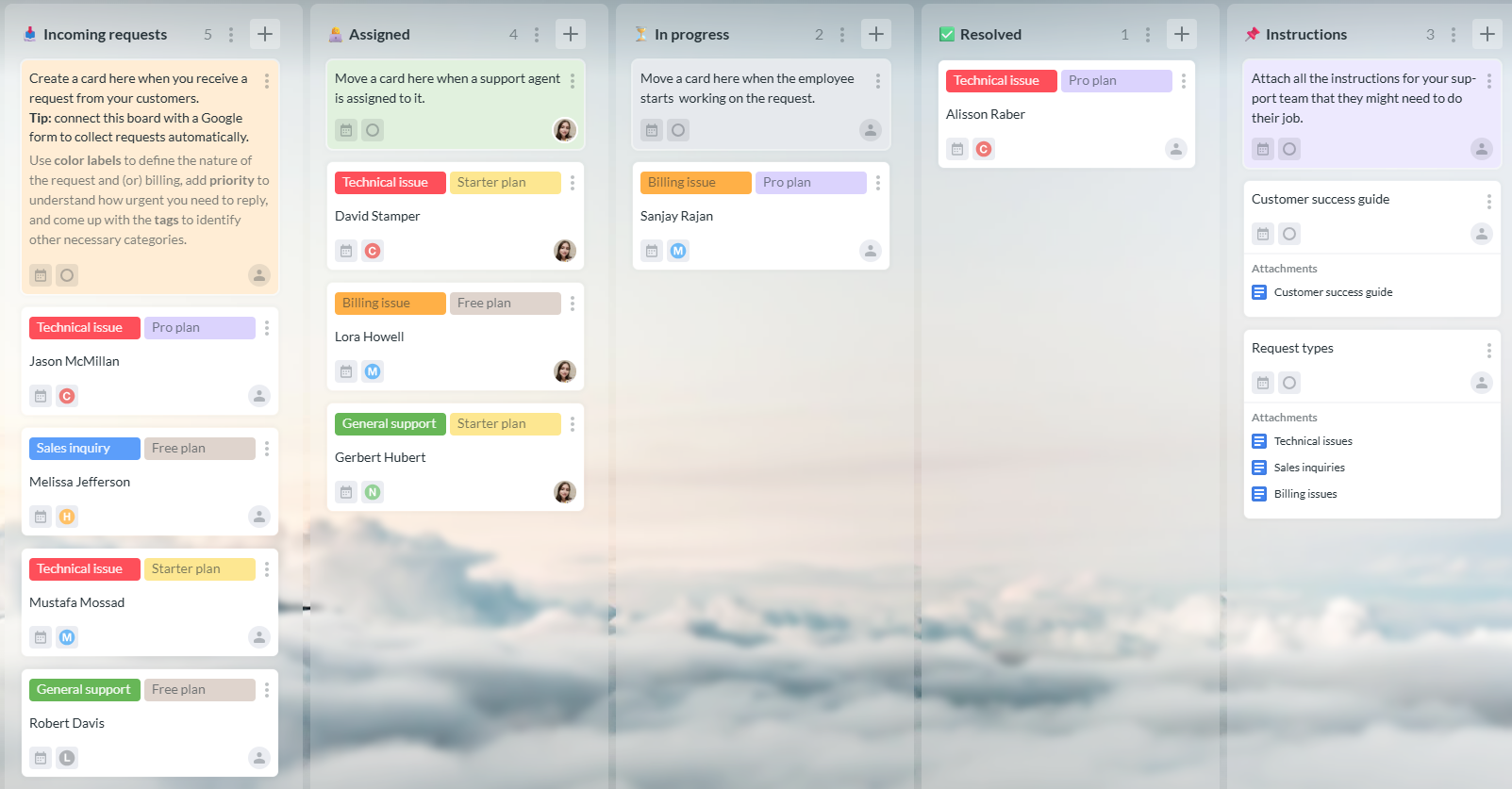
The main issue companies face after migrating to Workspace is the lack of a built-in tool for tracking tasks and projects. This often leads teams to create manual workarounds: spreadsheets, shared Docs, and color-coded calendars, which go against the whole idea of a smoothly integrated workspace.
Kanbanchi is built specifically for this gap. It is designed for teams that want visual project boards, timeline planning, time tracking, and full collaboration while staying inside the Google Drive, Gmail, and Google Calendar ecosystems. It is also one of the most common reasons teams find us. They have just moved to Google Workspace, everything is working well, and then they realize they need somewhere for actual project work to happen.
| Migration need | How Kanbanchi supports it |
|---|---|
| Project visibility | Kanban boards show tasks, owners, priorities, and status |
| Timeline planning | Gantt Chart turns board cards into a visual schedule |
| Time accountability | Time Tracker records time spent on cards |
| File context | Google Drive and Shared Drive files can be attached to cards |
| Email-to-task flow | Gmail messages can be turned into actionable cards |
| Calendar awareness | Card dates can be pushed to Google Calendar |
| Reporting | Board data can be exported to Google Sheets |
| Migration from task tools | Trello boards and CSV data can be imported into Kanbanchi |
If your team is currently using Trello, Jira, or spreadsheets to manage work, plan how that data will move during the migration, too. Kanbanchi supports Trello and Jira boards and CSV import, making project migration smoother during your Workspace move.
You can explore Kanbanchi’s full Google Workspace capabilities in more detail in Kanbanchi’s FAQ on Google integration.
Start free trial of Kanbanchi now
To keep the new environment clean and prevent the slow return of chaos, define the system of record for each type of work. This one decision prevents the common problem where the same task, file, or update appears in three places at once.
| Work item | Recommended system of record |
|---|---|
| Company files and shared documents | Google Drive and Shared Drives |
| Formal email communication | Gmail |
| Meetings and availability | Google Calendar and Google Meet |
| Project tasks and workflow status | Kanbanchi boards |
| Project timelines and dependencies | Kanbanchi Gantt Chart |
| Time spent on project work | Kanbanchi Time Tracker |
| Data analysis and exports | Google Sheets or reporting dashboards |
The rule is simple: documents live in Drive, conversations happen in Gmail, and then can be converted to task cards in Kanbanchi. All further communications about the task can happen in the comments in Kanbanchi. Google Meet is used for live meetings and standups. All actionable project work lives in Kanbanchi. If there’s a need to ask questions that are not directly related to any task, Google Chat can be used. That clarity reduces friction after migration and makes it easier for managers to see what is actually happening across the team.
Use this checklist before, during, and after the migration to reduce surprises.
| Stage | Confirm before moving on |
|---|---|
| Strategy | Business goals, success criteria, budget, and executive sponsor are clear |
| Inventory | Users, groups, aliases, files, calendars, and integrations are documented |
| Data cleanup | Obsolete files are archived and ownership is assigned |
| Security | Domain, admin roles, MFA, sharing policies, and retention needs are configured |
| Pilot | A real team has tested mail, files, meetings, sharing, and project tracking |
| Communication | Users know the timeline, login process, support path, and training schedule |
| Cutover | Mail routing, data migration, and access validation are complete |
| Project tracking | Active tasks, deadlines, owners, and timelines are visible in a dedicated tool |
| Post-launch | Support tickets are reviewed and old systems have a retirement plan |
Google Workspace migration is the process of moving users, email, calendars, contacts, files, and work processes from another system into Google Workspace. It can involve moving from Microsoft 365, Exchange, Gmail accounts, local file servers, or other cloud tools.
It depends on user count, data volume, permissions, integrations, and compliance requirements. A small team with clean data may move quickly, while an enterprise migration can require phased planning, pilots, validation, and support. The safest plan focuses on readiness, not just transfer speed.
Yes. Many teams migrate from Microsoft 365 to Google Workspace, but the plan should cover email, calendars, files, permissions, user training, and business workflows. It is also important to decide what will happen to existing Word, Excel, PowerPoint, OneDrive, SharePoint, and Teams content.
Not automatically. A migration is a good time to archive stale content, remove duplicates, fix permissions, and move active team files into a clearer Drive or Shared Drive structure. Migrating everything without cleanup can recreate the same clutter in a new system.
Google Workspace includes strong collaboration tools, but it does not include a full built-in project management system with Kanban boards, Gantt charts, and time tracking. Teams that need structured task and project visibility often add a Google-integrated tool such as Kanbanchi.
Kanbanchi helps teams turn Google Workspace into a clearer project environment. It adds Kanban boards, Gantt charts, Time Tracker, Google Drive attachments, Gmail task creation, Google Calendar sync, templates, swimlanes, and more, so work does not disappear into email threads or spreadsheets after migration.
A Google Workspace migration can improve collaboration, simplify access, and give your team a more connected way to work. But the migration is complete only when people can also clearly see tasks, owners, deadlines, and project progress, and know exactly where to find them.
Kanbanchi helps teams add that missing project layer inside the Google environment. If you are planning a migration, include project tracking in your rollout from the beginning. It is much easier to have this conversation before go-live than after.

In this Article:
Start using Kanbanchi now
Start your free trial