
In this Article:
Try Kanbanchi now
Start your free trial


The best project scheduler software is not always the tool with the longest feature list. It is the tool your team will actually update when work gets busy, priorities change, and deadlines move.
That distinction matters. Many teams buy scheduling software to improve visibility, then slowly drift back to spreadsheets, chat threads, and status meetings because the tool feels separate from real work. The schedule becomes a document someone maintains for leadership instead of a shared operating system for the team.
If you are choosing software for a growing business, department, or enterprise team, your goal should be simple: select a scheduler that makes planning clearer and daily execution easier. Here is how to evaluate project scheduler software with adoption in mind.
Project scheduler software helps teams plan, sequence, assign, and track work over time. It should answer practical questions without forcing managers to chase updates manually:
That means a good scheduler is more than a calendar. It connects timeline planning with task ownership, collaboration, workload visibility, and file context.
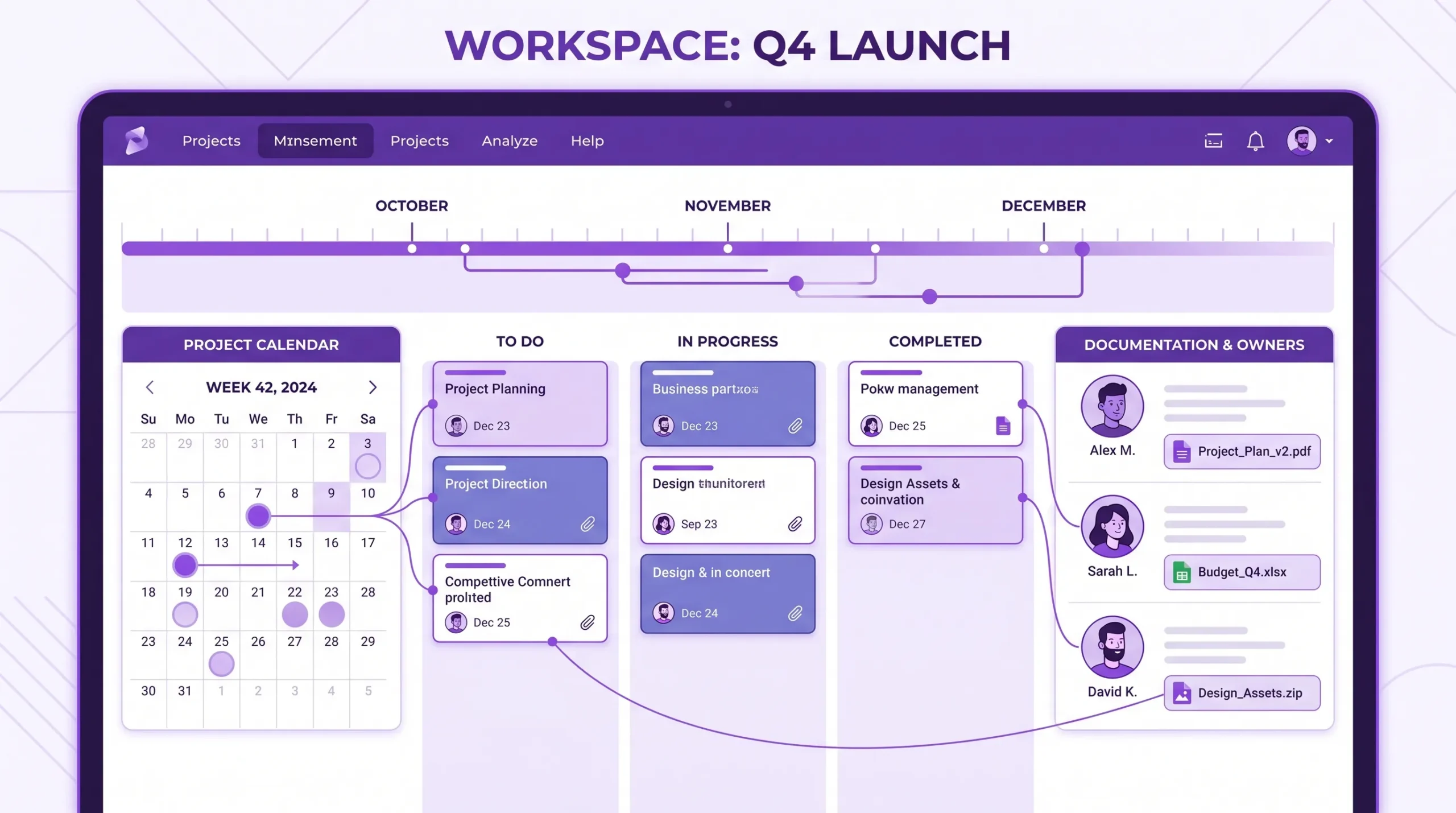
For many teams, the ideal setup combines multiple views of the same work. A Kanban board helps people manage today’s tasks. A Gantt chart helps managers understand project timing. A task list view helps with filtering, auditing, and bulk review. When these views stay connected, the team can work in the format that suits the moment without duplicating updates.
Before comparing products, look at why scheduling tools fail in the first place. Most failures are not caused by a missing advanced feature. They happen because the software adds friction to everyday work.
If the timeline lives in one place and the task details live somewhere else, people must update both. That duplication rarely survives a busy week. The schedule becomes outdated, and trust in the tool declines.
Look for project scheduler software where the task card, owner, start date, due date, checklist, comments, files, and timeline position are part of the same object. When someone updates the task, the plan should reflect that change.
A sales team, HR team, product team, and operations team may all need scheduling, but they will not all use the same workflow. Some teams think in stages, such as To do, In progress, Review, and Done. Others think in phases, milestones, or client deliverables.
Adoption improves when software supports the team’s natural workflow instead of forcing everyone into a rigid structure.
Executives want reliable status. Team members want clear next steps. The right software serves both groups. If the tool only helps managers create reports, the team may see it as administration. If it only helps individuals manage tasks, leadership may not get the visibility they need.
Choose a platform that makes status reporting a byproduct of normal work.
A scheduling tool that does not connect with files, email, calendar, or your existing workspace creates extra switching. For Google Workspace teams, this often means project files are in Google Drive, tasks are in another app, dates are in Google Calendar, and conversations are split across Gmail and chat.
A better scheduler reduces those gaps. It should fit into the tools people already open every day.
Read more articles about Project Management here
The phrase project scheduler software can mean different things depending on the team. Some buyers need simple due-date tracking. Others need Gantt charts, cross-functional dependencies, and time tracking.
Before building a shortlist, define your real scheduling problem.
A marketing team may schedule campaigns, approvals, assets, and launches. An HR team may schedule hiring plans, onboarding tasks, training programs, and policy rollouts. An operations team may schedule recurring process improvements or procurement workflows. A software team may schedule releases, sprints, testing, and documentation.
The more cross-functional the work is, the more important it becomes to connect schedules with ownership and collaboration.
Not every team needs heavy project controls. A small team might only need due dates, priorities, and weekly visibility. An enterprise team may need timeline dependencies, board templates, external sharing controls, data exports, and compliance-ready permissions.
The key is to choose enough structure to create clarity without overwhelming users.
A practical shortlist should focus on capabilities your team will use weekly. For most business teams, must-haves include task ownership, timeline planning, collaborative updates, file context, notifications, calendar visibility, and secure sharing.
Advanced automation and customization can be useful, but they should not come at the cost of day-one usability.
Use the table below to compare project scheduler software through an adoption lens, not only a feature checklist.
| Evaluation area | Why it affects adoption | What to look for |
|---|---|---|
| Ease of daily updates | People abandon tools that take too long to maintain | Fast task editing, drag-and-drop movement, clear owners, simple date changes |
| Multiple connected views | Different roles need different ways to see the same project | Kanban board, Gantt chart, list view, calendar-connected dates |
| Workspace integration | Teams resist switching between disconnected tools | Google Workspace or Microsoft 365 compatibility, Drive or OneDrive file access, calendar and email links |
| Timeline clarity | Managers need to understand deadlines and sequencing | Start dates, due dates, milestones, task dependencies |
| Collaboration | Scheduling fails when updates stay in private messages | Comments, notifications, mentions, shared boards, external access controls |
| Reporting and exports | Leaders need visibility without manual status decks | Filtered views, export options |
| Security and permissions | Adoption depends on trust, especially in larger companies | Admin controls, policy alignment, secure file storage, enterprise-grade compliance |
| Scalability | A tool that works for five people may break at 500 | Templates, shared drives or team storage, consistent permissions |
The best scheduler should remove coordination work, not create more of it. Pay special attention to the features that reduce meetings, follow-ups, and duplicate status updates.
A Kanban board gives teams an immediate view of work in progress. This is especially useful for teams that manage many parallel tasks, such as marketing requests, support escalations, hiring pipelines, content production, finance processes, or implementation projects.
Boards also make adoption easier because the workflow is visible. People can see where tasks stand without reading a long report.
A Gantt chart is useful when timing matters. It helps project leads see whether tasks overlap, where deadlines are tight, and how changes affect the broader plan.
For adoption, the Gantt view should not feel like a separate planning artifact. It should be connected to the same tasks the team updates on the board. If a card moves or a date changes, the schedule should stay aligned.
Calendar visibility turns project dates into part of the team’s normal rhythm. This is particularly valuable for milestones, reviews, launches, meetings, and due dates.
For Google Workspace teams, Google Calendar sync can help people see project commitments where they already manage their workday.
Time tracking helps teams compare estimated effort with actual effort. This is useful for improving future schedules, understanding workload, and identifying tasks that consistently take longer than expected.
The adoption rule is simple: time tracking should live close to the task. If people must open a separate time system, compliance drops.
Many project delays happen because people cannot find the latest file, request, or approval. Project scheduler software should keep task context close to the work itself.
For example, teams working in Google Workspace benefit when they can attach files from Google Drive or Shared Drives, create tasks from Gmail, and keep project boards aligned with company sharing policies.
A three-person team and a global enterprise do not need the same rollout model. But both need software that fits their current habits and can grow with them.
For teams of 3 to 15 people, adoption depends on quick setup. They need to create a board, assign work, set dates, and start moving tasks without a long implementation project.
Avoid tools that require too much configuration before the first useful board is ready. Small teams usually benefit from templates, simple task cards, and flexible viewsю
As teams grow, informal coordination starts to break. Different departments create their own trackers, naming conventions, and status habits. Project scheduler software should help standardize common workflows without making every team identical.
Useful capabilities include board templates, tags, priorities, subcards, swimlanes, and filtered views. These features let teams create repeatable structure while still adapting boards to their work.
Enterprise adoption depends on more than usability. IT and operations leaders need confidence around permissions, storage, access, backup, and compliance.
If your company uses Google Workspace, consider whether the scheduler can work with Google Drive, Shared Drives, Google Calendar, and existing sharing policies. If your company uses Microsoft 365, check compatibility with OneDrive or SharePoint workflows.
Enterprise teams should also consider external collaboration. Vendors, agencies, clients, contractors, and partners may need access to project work. The tool should support collaboration without bypassing company policies.
A demo can make almost any tool look good. A realistic trial shows whether people will use it when no one is watching.
Run a week pilot with one real project, one manager, and a small group of active contributors. Do not choose a fake project. Use work that has deadlines, handoffs, and files.
Here is a simple pilot structure:
The best sign is not that the pilot board looks beautiful. The best sign is that people keep it current without constant reminders.
Use this table at the end of your pilot to judge whether the tool is likely to stick.
| Trial signal | Healthy sign | Warning sign |
|---|---|---|
| Task updates | Team members update their own tasks | One manager maintains everything manually |
| Timeline accuracy | Date changes are reflected quickly | The schedule is outdated after a few days |
| Meeting efficiency | Reviews are shorter and more focused | Meetings still rely on separate notes or spreadsheets |
| File access | People find project files from the task | Links are copied manually across tools |
| Status visibility | Leaders can understand progress without interrupting the team | Managers still ask for updates in chat |
| User sentiment | Contributors say the tool clarifies work | Contributors describe it as extra admin |
| Reporting | Data can be filtered, exported, or reviewed easily | Reporting requires manual cleanup every time |
A schedule is only realistic if the right people are available to do the work. When choosing project scheduler software, consider how it supports ownership and capacity conversations.
Every task should have a clear assignee. If work has multiple contributors, the tool should still make accountability visible. For complex tasks, subcards or checklist assignments can help separate responsibility without losing the overall schedule.
Capacity does not have to be complicated. Even simple signals, such as assigned cards, due dates, time tracked, and workload views, can help managers spot overload before deadlines slip.
Many teams choose the wrong tool because they evaluate software in isolation instead of in context. Watch for these mistakes.
A tool that works for a software company may not fit an HR, education, nonprofit, manufacturing, or professional services team without adjustment. Use templates as a starting point, not a rulebook.
Too many fields, statuses, labels, and approval steps can slow adoption. Start with a simple workflow, then add structure when the team understands why it is needed.
If the spreadsheet remains the trusted plan, the scheduler becomes optional. During rollout, define where dates, owners, and status updates officially live.
Security friction can derail adoption. Review internal and external sharing, file access, admin requirements, and data storage before the rollout reaches a large team.
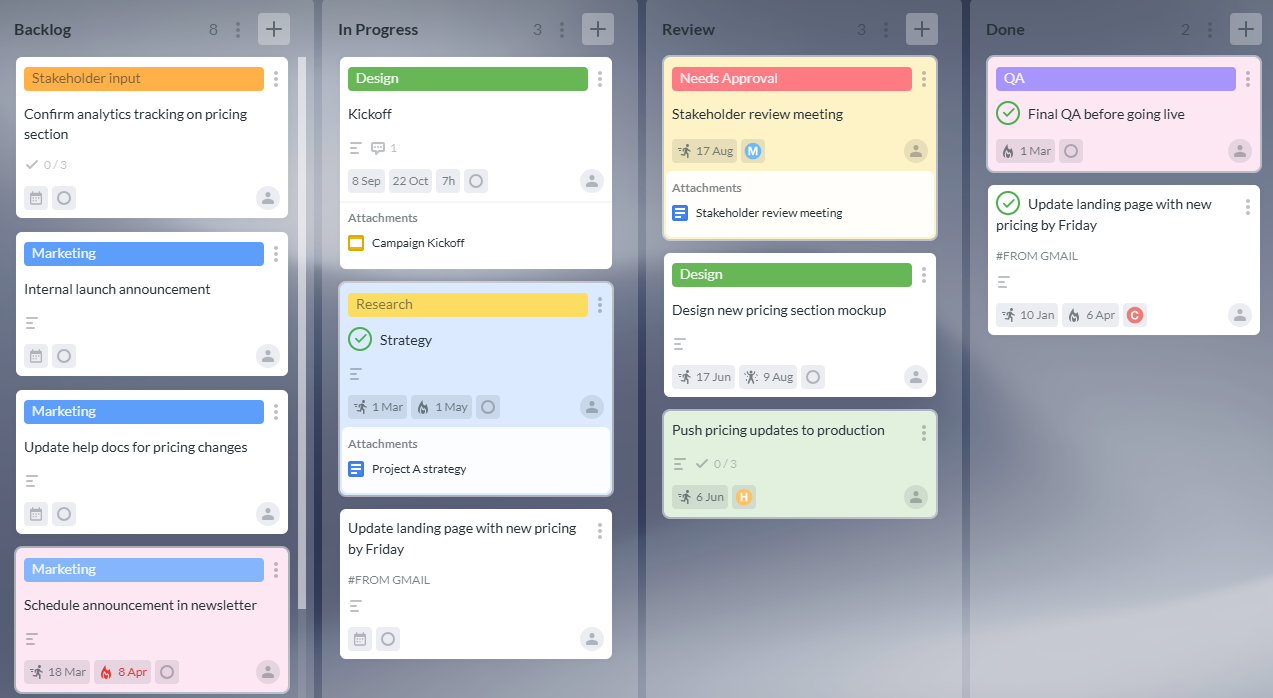
Kanbanchi is designed for teams that want scheduling, task tracking, and collaboration in one workspace. It combines Kanban boards, Gantt charts, time tracking, and task organization features with strong integration for Google Workspace and compatibility with Microsoft 365.
For Google Workspace teams, Kanbanchi helps keep project work close to the tools people already use. Teams can attach files from Google Drive and Shared Drives, create cards from Gmail, sync dates with Google Calendar, export board data to Google Sheets, and create boards as files in Google Drive. Enterprise users can work with Shared Drives, which helps align project boards with company storage and sharing practices.
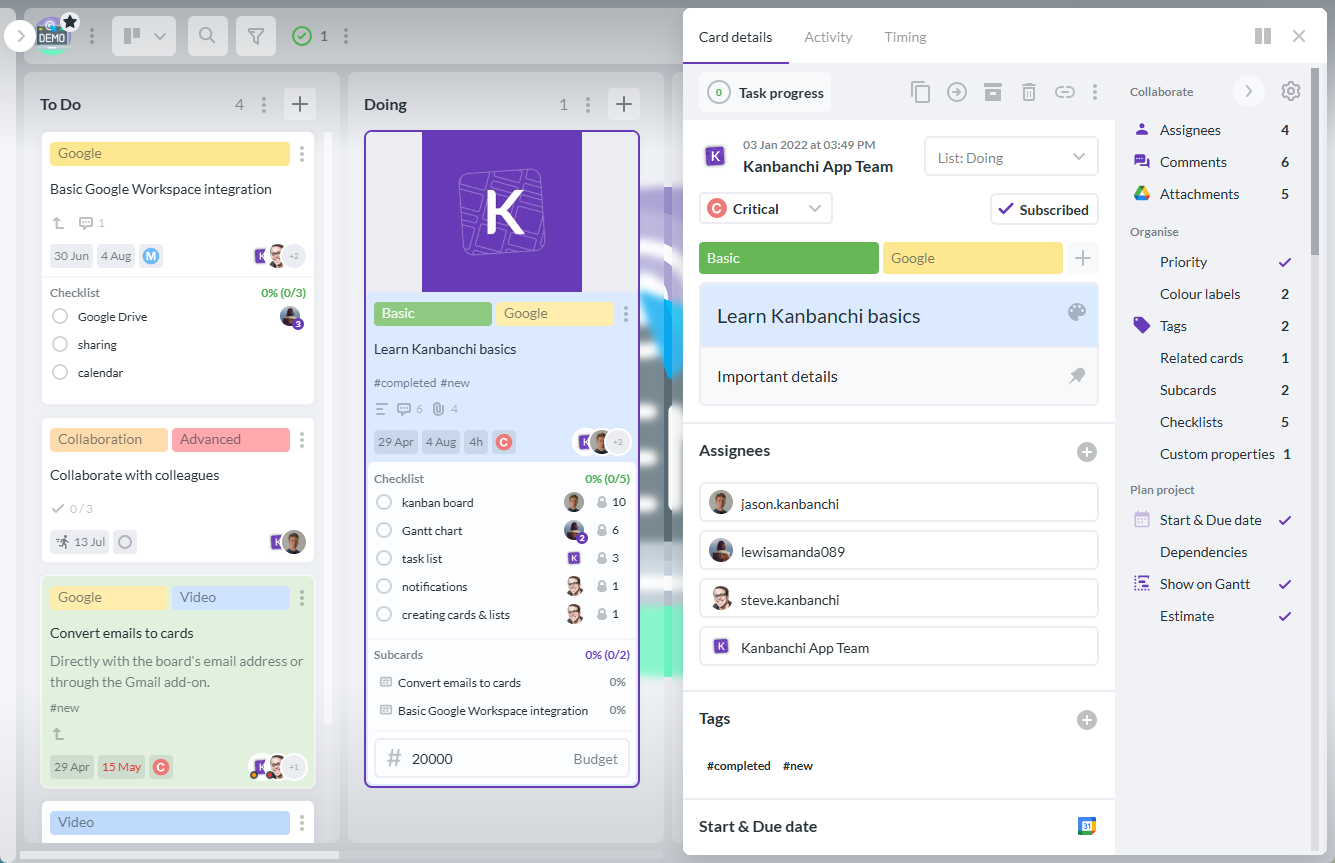
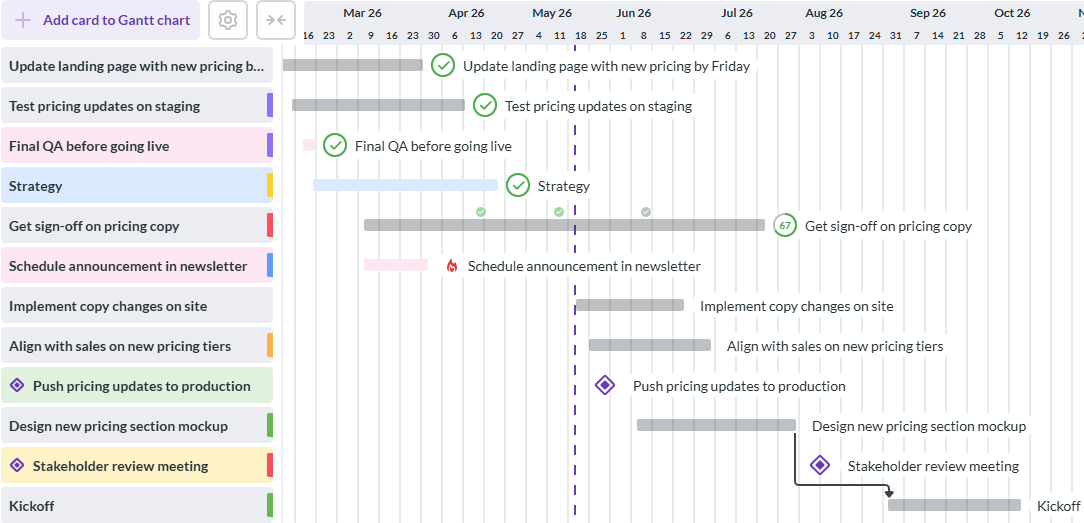
For teams that need timeline visibility, Kanbanchi lets you see a board as a Gantt chart so project schedules can be planned visually. For execution, teams can use boards, task cards, tags, priorities, checklists, subcards, swimlanes, templates, notifications, and task list. For accountability, the built-in time tracker records timing data on cards, helping managers compare work plans with actual effort.
Kanbanchi also supports reporting workflows by allowing teams to extract project data and connect it to reporting dashboards such as Google Looker Studio. For companies with brand and governance needs, features such as backups, secure collaboration, and enterprise-grade compliance can support broader rollout.
If your team already works in Google Workspace, Kanbanchi is especially useful because it reduces the gap between planning and execution. Instead of managing tasks in one tool, files in another, and dates in another, teams can centralize the project workflow in a familiar environment. Run a 7-day trial in Kanbanchi.
Start free trial of Kanbanchi now
Before signing off on project scheduler software, review these questions with project leads, contributors, and IT or operations stakeholders.
If the answer is yes to most of these, you are evaluating the right kind of scheduler. If the answer is no, the software may look good in procurement but fail in practice.
Project scheduler software focuses on timing, dates, sequencing, milestones, and schedule visibility. Project management software is broader and may include collaboration, task management, files, reporting, time tracking, and workflow automation. In practice, many modern tools combine both, which is often better for team adoption.
The most important features are easy task updates, clear ownership, connected timeline and board views, calendar integration, file access, and notifications. If these basics are difficult, advanced features will not save adoption.
Yes, if work involves deadlines, multiple owners, or recurring handoffs. Small teams do not need heavy configuration, but they benefit from a shared board, due dates, priorities, and a simple timeline that prevents work from being tracked only in memory or chat.
A one or two-week trial is usually enough to reveal adoption issues for a small team. For enterprise rollouts, run a phased pilot across different departments or project types so you can test permissions, reporting, integrations, and workflow flexibility. Ask for an extended trial if your company’s decision-making process needs more time.
If your team already uses Google Workspace, integration reduces tool switching. A scheduler that connects with Google Drive, Gmail, and Google Calendar helps teams keep files, tasks, dates, and communication closer together.
The right project scheduler software should make work easier to plan, easier to update, and easier to trust. It should help leaders see the schedule without forcing contributors into duplicate admin work.
If your team uses Google Workspace or Microsoft 365 and wants connected boards, timelines, time tracking, files, and reporting, Kanbanchi is built for that workflow. Start with one real project, test adoption with your team, and see whether your schedule becomes a living source of truth instead of another document to maintain.
Start free trial of Kanbanchi now


In this Article:
Start using Kanbanchi now
Start your free trial