
In this Article:
Try Kanbanchi now
Start your free trial

Do you need a specialist Gantt chart tool? Or are you looking for a visual board that also handles scheduling well? That’s the key distinction between TeamGantt and Kanbanchi, and one we consider in this guide.
Both tools are built for planning projects with dependencies and deadlines, but we’ll break down the biggest Kanbanchi vs TeamGantt differences in pricing, features, setup time, and support to help you make the right decision.
As a popular TeamGantt alternative, Kanbanchi is the stronger choice for teams that want a single visual workspace covering boards, Gantt scheduling, workload, and time tracking, especially in Google Workspace. TeamGantt is the better pick if you primarily need critical path analysis, RACI assignments, or construction-specific workflows. If your firm has a smaller headcount, you’ll get more value from Kanbanchi’s per-seat model. But teams with many collaborators working on a few shared projects may find TeamGantt’s per-project pricing more affordable.
| Platform | Kanbanchi | TeamGantt |
|---|---|---|
| G2 | 4.7 / 5 | 4.8 / 5 |
| Capterra | 4.5 / 5 | 4.6 / 5 |
On G2, TeamGantt scores strong marks for Gantt chart functionality (9.7) and customer support (9.2). It’s considered one of the cleanest dedicated Gantt tools available, though users often say that reporting could go further. Capterra reviewers note dependency tracking and drag-and-drop scheduling as some of its best features.
Kanbanchi is rated highly for ease of setup and use, with reviewers pointing to onboarding speed and the support team’s product knowledge as reasons they stuck with the platform.
TeamGantt was launched after its founders struggled to find software that combined scheduling and collaboration in one place, particularly for construction projects. The Gantt chart is its main view, allowing users to drag and drop tasks along a timeline, set dependencies, assign work, and track progress from that same view.
TeamGantt now serves general project teams across marketing, software, and professional services, but it remains primarily construction scheduling software. It offers general project management features, though there have been recent investments in a dedicated Builder Edition, Procore integration, and cost-loaded scheduling.
Kanbanchi is project management software built natively for Google Workspace, with a Microsoft 365 version also available. It organizes your work around boards, lists, and cards, then layers a variety of other views on the same underlying data, from Kanban to List, Gantt, Swimlane, and Team Workload. Any tasks you create on a board show up correctly on the Gantt chart without duplicate entry.
Ecosystem fit is Kanbanchi’s clearest differentiator. Boards are stored directly in Google Drive, and sign-in runs through your existing Google account. Permissions also follow the sharing rules your team already understands. It’s ideal for SMBs that need one tool covering day-to-day task management and project scheduling, which is why this software so often comes up in TeamGantt alternative searches.
| Feature | Kanbanchi | TeamGantt |
|---|---|---|
| Primary view | Kanban board (plus List, Gantt, Swimlanes, Workload) | Gantt chart (plus Calendar, List) |
| Task dependencies | Yes (Professional plan and above) | Yes (all paid plans) |
| Critical path highlighting | No | Yes (Business plan and above) |
| Subcards / subtasks | Yes (Premium and above) | Yes (all plans) |
| Custom Fields | Yes (Professional+) | No dedicated custom fields |
| Time tracking | Yes (Professional plan and above) | Yes (all paid plans) |
| Team workload view | Yes (Professional plan and above) | Yes, as resource management (Business and above) |
| RACI assignments | No | Yes (Business plan and above) |
| Free Plan | Yes (unlimited users, unlimited projects, 36 active cards per project) | Yes (1 project, 40 tasks, no card required) |
| Mobile App (iOS or Android) | Yes | Yes |
| Google Workspace integration | Native (Drive, Calendar, Gmail, Forms, Groups, SSO) | Calendar feed only |
| Construction-specific tools | No | Yes (Builder Edition) |
A Gantt chart is the main view as soon as you open TeamGantt, with tasks appearing as bars along a timeline. Adding one is as easy as clicking an empty row and dragging to set the duration. Dependencies connect with a simple drag-and-drop between two bars, though the timeline can get visually dense once a project has more than 40 or 50 tasks.
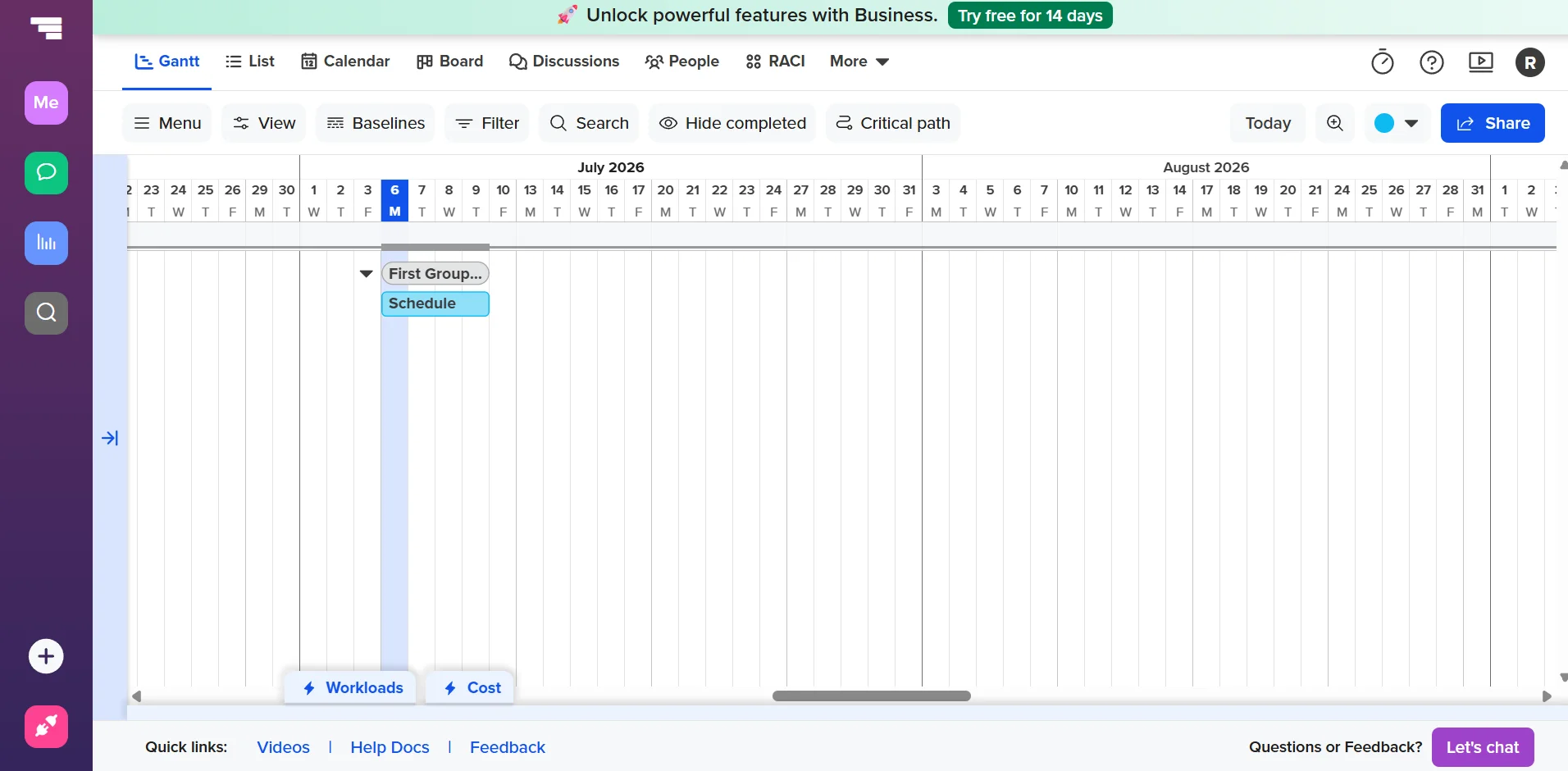
TeamGantt’s Gantt chart helps teams plan project schedules, manage dependencies, and monitor progress in a visual timeline.
Kanbanchi opens straight to a board, and you’ll see cards organized neatly into columns. Color labels are visible at a glance, and switching to the Gantt chart is just one tab away, meaning there’s no new mental model to learn.
Tasks assigned on the board appear with correct dates on your timeline without re-entry, since the same card exists across all views. This approach allows you to learn more about scheduling before you need to do it, which is beneficial if you’ve never scheduled a Gantt chart before.
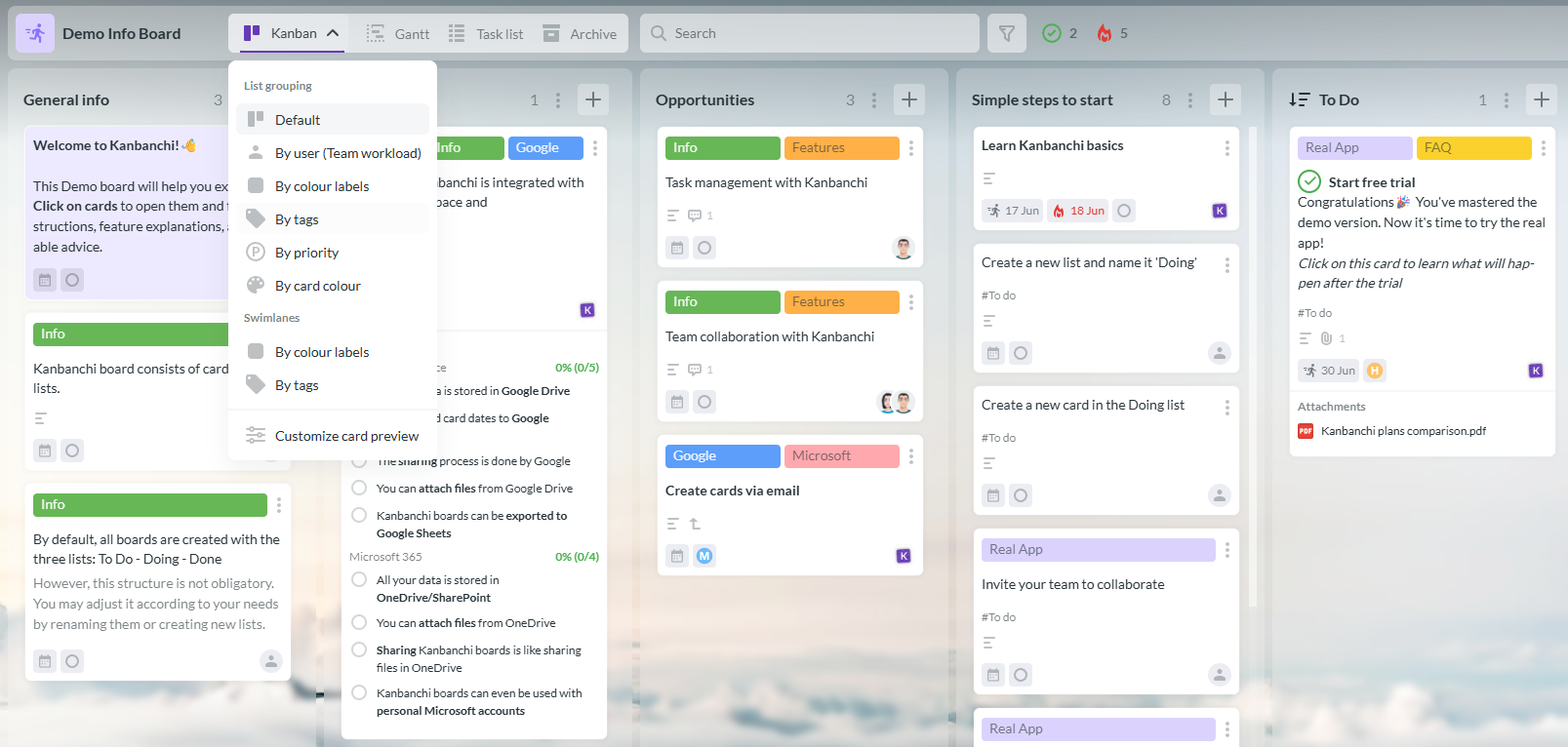
Kanbanchi combines Kanban boards, Gantt charts, time tracking, and Google Workspace integration in a single project management interface.
It’s easy to forget about setup time when you’re investing in a new tool like Kanbanchi or TeamGantt. But if your team has no dedicated project manager to guide the rollout, the simplicity of the setup process can determine whether the tool is properly adopted or abandoned quickly.
Setting up TeamGantt involves building your first schedule, from adding tasks and setting durations to connecting dependencies, which works well if you already use timelines. Teams without someone comfortable scheduling dependencies and milestones may need a session or two to get the structure right, particularly since the Basic plan caps a project at 150 tasks and one manager.
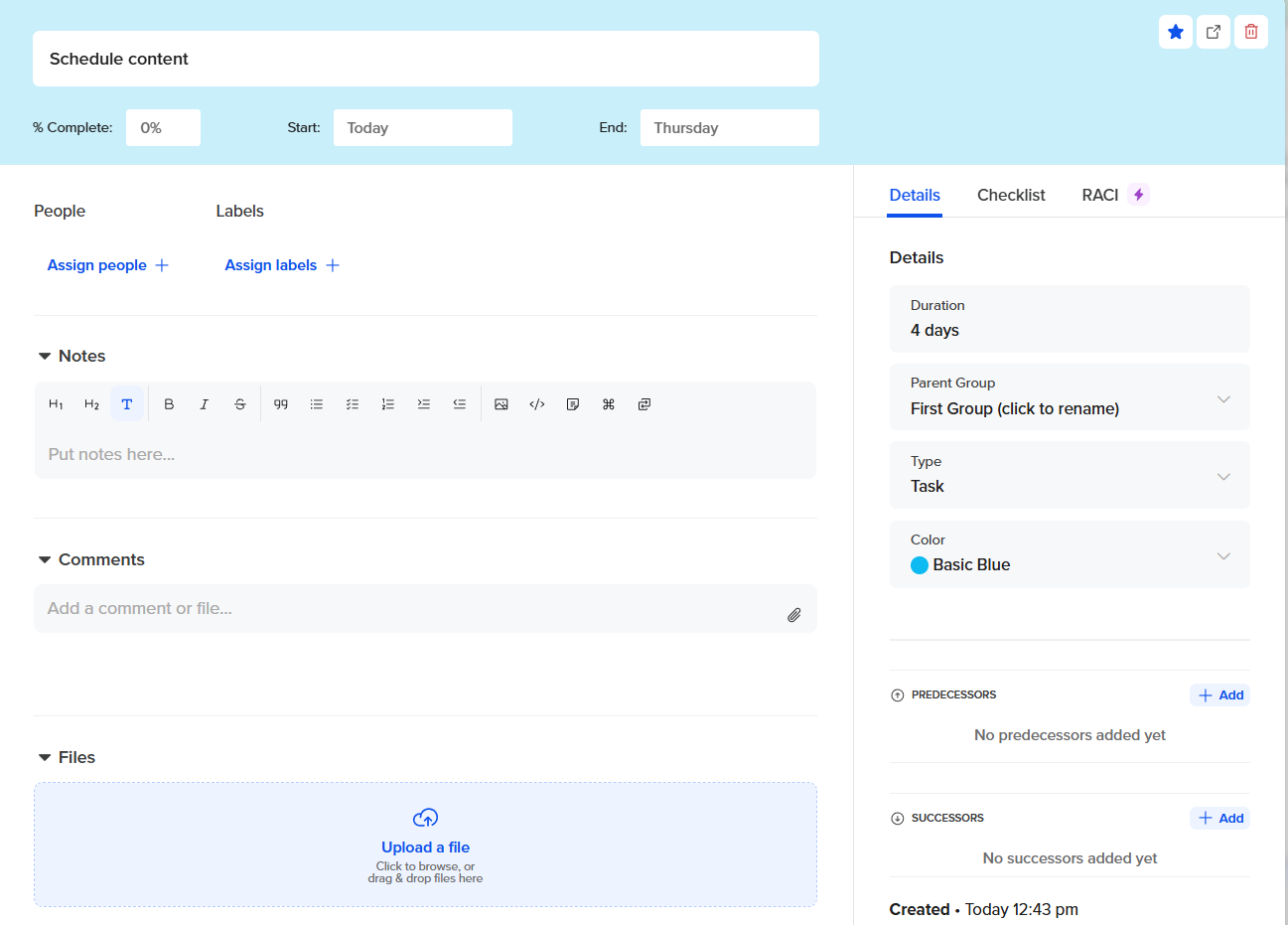
TeamGantt provides a dedicated task editor for planning work, assigning ownership, and scheduling project activities.
If you’ve ever created a shared spreadsheet, Kanbanchi’s setup should feel more familiar and require no formal training. You’ll add a board with lists and cards, then invite the team through the Google Drive sharing you already use daily, all of which can happen within one afternoon.
As the name suggests, TeamGantt is designed primarily as Gantt chart software. This shows in the depth of this feature, with dependencies supporting the standard set of relationships. Critical path highlighting is available from the Business plan, and lockable milestones prevent accidental date changes on fixed deadlines. If your entire job involves sequencing work against a deadline, this depth is hard to match.
Kanbanchi’s Gantt chart is available from the Professional plan. It covers dependencies and milestones, which stay synchronized with the board automatically, so a date change on a card updates the timeline without a separate step. It doesn’t include critical path highlighting, though this isn’t a real issue if your scheduling needs are mostly about seeing what tasks are overdue and what’s next.
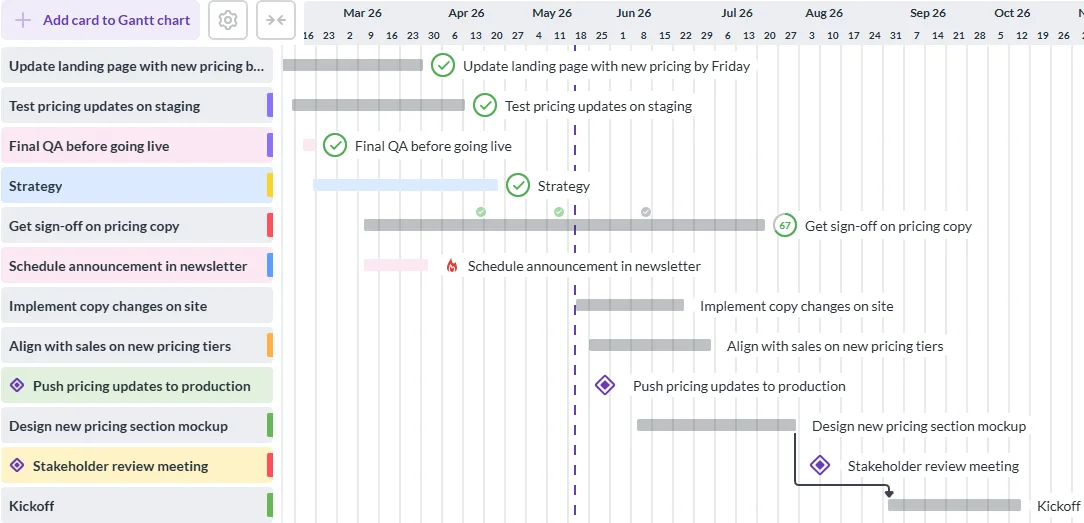
Kanbanchi’s Gantt chart provides a visual timeline for planning tasks, managing dependencies, and tracking project progress alongside Kanban workflows.
The way that each tool structures tasks and projects is completely different, and is an important factor to consider when choosing a TeamGantt alternative if you manage several concurrent client accounts.
TeamGantt structures work as tasks within a project, with subtasks nested underneath, while Kanbanchi uses cards, inside lists, inside boards; subcards are available from Premium upwards. TeamGantt’s Basic plan caps each project at 150 tasks, which is generous for a single project. However, once you’ve reached that limit, you’ll need to create separate projects. And since projects drive pricing, each new one has a direct cost.
With Kanbanchi, there’s no per-project task ceiling to plan around, and one account can run multiple projects simultaneously without an extra charge for each new one.
Both Kanbanchi and TeamGantt offer workload management features, but it’s TeamGantt’s that are much more in-depth here. The resource management feature is available on Business and above, and shows how hours are distributed across people. It also flags overallocation before it becomes a problem, which is incredibly beneficial if you have shared staff across schedules.
Kanbanchi’s Team Workload view is part of the Professional plan and is a lighter version of the resource management feature. It groups cards by assignee so a manager can quickly see who’s carrying too much at a glance, with less quantitative modeling of hours.
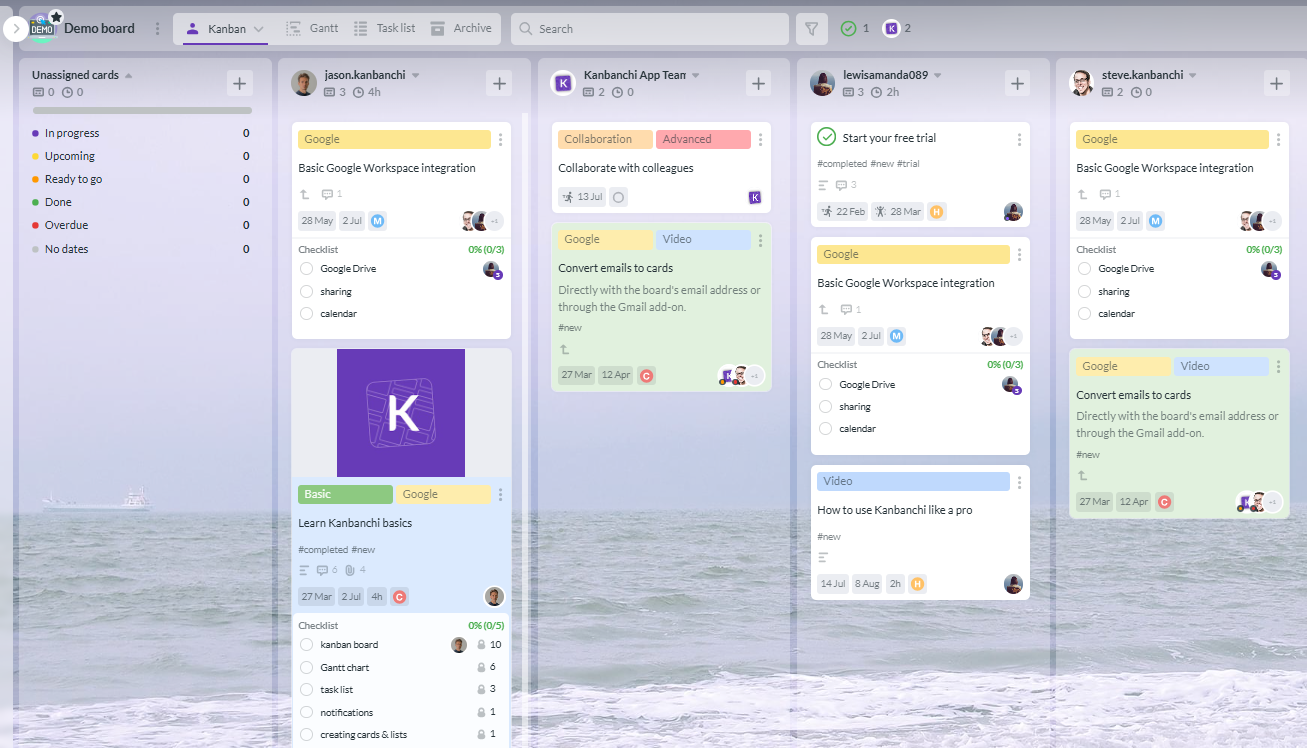
Kanbanchi’s Team Workload view helps managers balance assignments by visualizing team capacity, planned work, and task distribution.
TeamGantt is better for planning hour-by-hour capacity, but if you just need to catch an overloaded person before a deadline slips, you’ll get the answer just as fast from Kanbanchi.
Both platforms track time directly against your tasks on paid tiers. TeamGantt’s time tracking is included from the Basic plan up, letting collaborators log hours as they work.
Kanbanchi’s time tracker records time spent per card (alongside the original estimate) on the Professional plan and above. This allows you to see planned versus actual effort without pulling data into a separate spreadsheet. Kanbanchi’s edge here is unifying that time data with comment threads and file attachments on the same card, rather than a standalone log elsewhere.
Permissions are pretty simple on TeamGantt. Managers get full project control and can create, edit, and assign tasks, while collaborators can only view and update tasks assigned to them. Both roles are unlimited on Business, so adding people doesn’t increase the cost, but keep in mind that only managers get full scheduling control.
Kanbanchi’s permissions are the same as Google’s own sharing model, and most likely the same as how your team already shares Drive files: Owner, Editor, Commenter, and Viewer. This means there’s no second permission system for an admin to maintain.
TeamGantt has a wide variety of integrations, including Trello, Slack, Dropbox, and Basecamp. It also connects to the construction management platform Procore and Zapier’s automation software, which opens hundreds of workflow connections for teams willing to build them. There’s no dedicated Google Drive or Gmail integration, though, so Google users get a calendar feed rather than native two-way sync.
What’s so unique about Kanbanchi’s integrations is that they’re designed especially for Google Workspace project management, covering six specific points:
This native depth is perfect if you already use Gmail and Drive daily, and means you won’t need to complete the additional integration work that TeamGantt leaves to Zapier.
Both platforms offer iOS or Android apps, but TeamGantt’s Companion app is much more scaled back.
It shows tasks in a list view and lets you update statuses, but it doesn’t feature the Gantt chart itself. So, while TeamGantt is Gantt chart software, it quickly becomes desktop-only if you need to review a dependency chain from your phone.
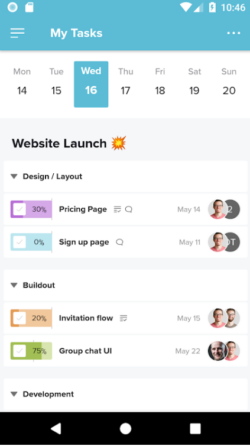
TeamGantt’s mobile app allows users to access project timelines, review tasks, and stay updated on project progress from anywhere.
Kanbanchi’s mobile app mirrors the desktop board experience more closely. You can view boards, update cards, add comments, and check due dates. And what’s so great about this visual card format is that it scales down to a smaller screen without losing the board’s core layout.
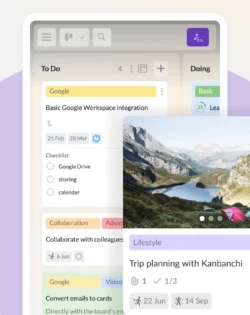
Kanbanchi mobile app helps users manage tasks, update cards, and collaborate on projects while working on the go.
TeamGantt’s main support channel is live chat through Intercom (Monday to Friday, 7am to 7pm Eastern), plus email support and a detailed help center. Reviewers consistently mention fast response times. Business and Builder Edition customers even get a dedicated account manager and training sessions that those on a lower-tier don’t receive.
What makes Kanbanchi different in this category is that it doesn’t matter which plan you choose – those on the free plan receive help as Enterprise customers. Users also regularly point to Kanbanchi’s team understanding the product deeply enough to solve an actual workflow problem rather than referring to a help article.
| Plan tier | Kanbanchi | TeamGantt |
|---|---|---|
| Free | Permanent (unlimited users/projects, 36 cards per project) | 1 project, 40 tasks, no card required |
| Entry paid | Essential: $3.97/user/mo (annual) | Basic: from $10/project/mo (annual, 2–5 projects) |
| Mid tier | Premium: from $11.97/mo | Business: from $19/project/mo (annual, 5–20 projects) |
| Advanced tier | Professional: from $24.47/mo | Builder Edition: from $199/mo (construction) |
| Top tier | Enterprise: from $9.95/mo | Enterprise: custom quote |
TeamGantt pricing starts from the free plan, which includes 1 project and 40 tasks with Gantt, Calendar, and List views. You don’t need a credit card to sign up, either, making it a genuinely free Gantt chart tool that’s ideal for a single small project. Paid plans bill per project rather than per user, and Business includes unlimited managers and collaborators for 5 to 20 projects.
Kanbanchi’s free plan is permanent, with no time limit, unlimited users, and unlimited projects, capped at 36 active cards per project. The paid tiers are discounted from 2 seats, with per-user cost dropping as the number of users grows.
Premium adds subcards, card templates, recurring cards, an activity feed, and export to Google Sheets, while the Gantt chart, time tracker, task dependencies, Team Workload view, swimlanes, and archive are all available on Professional. But no matter which plan you choose (even the free one!) Google Drive integration is always included. Educational institutions and nonprofits also qualify for a 25% discount on annual plans, other than Essential.
So, if you’re thinking of purchasing a plan, what’s the difference between the two models?
A 10-person team running 3 active projects will typically pay less on TeamGantt Business than on Kanbanchi Professional, since TeamGantt doesn’t charge per user. But if you have 8 active projects, TeamGantt’s per-project fees add up past what Kanbanchi charges per seat.
This means there’s no real winner on cost, as it depends on whether your team has more people or more projects running at once.
| Choose Kanbanchi if… | Choose TeamGantt if… |
|---|---|
| You want one tool for boards, Gantt, and workload without switching mental models | You need critical path analysis and lockable milestones |
| Your team already runs on Google Workspace and wants native Drive and Gmail integration | Your team works in construction or trades and wants Procore sync |
| You have a lean team running several concurrent projects | You have many collaborators working on a few shared projects |
| You want support quality that doesn’t depend on your plan tier | You want a Gantt-first tool with a simple two-role permission model |
There’s no single right answer in this Kanbanchi vs TeamGantt comparison on which is the best platform. However, there is a right answer depending on which type of software you’re looking for.
Choose TeamGantt if scheduling is your priority. The Gantt chart handles critical path, milestones, and dependencies in depth, with reliable human live chat support along the way. Its Builder Engine is also a good pick for construction and trades firms.
On the flip side, choose Kanbanchi if you want a single visual workspace that covers boards, scheduling, and workload without needing to learn a specialist tool. It’s also a great TeamGantt alternative if Google Workspace already runs your organization day to day. The permanent free plan means you can test it with a real project before paying anything, and pricing stays predictable as your team grows, rather than climbing with every new project you open.
Want to discover the benefits for yourself? Start a free Kanbanchi board today.
Kanbanchi is better for teams that want one visual tool covering boards, Gantt scheduling, and workload management, especially inside Google Workspace. TeamGantt is better if you’re mainly looking for Gantt chart software functionality, critical path analysis, or construction-specific scheduling.
Yes, TeamGantt pricing includes a free plan that you can access without a credit card, which includes 1 project and 40 tasks, with Gantt, Calendar, and List views. Kanbanchi also has a free plan, but it’s permanent rather than limited to one project, offering unlimited users and projects capped at 36 active cards per project.
TeamGantt pricing is set per project, starting at $10 per project per month on the Basic annual plan, while Kanbanchi charges per user, starting at $3.97 per user per month on Essential. You’ll pay less with TeamGantt if you have many users on fewer projects, but teams running many projects with a small team often pay less with Kanbanchi.
You can use TeamGantt and Kanbanchi on mobile, since both offer mobile apps. TeamGantt’s mobile app shows tasks in a list view but doesn’t display the Gantt chart itself, so scheduling work is best done on desktop. Kanbanchi’s mobile app mirrors the board experience closely, letting users view cards, update status, and track due dates from a phone.
Kanbanchi is generally faster to set up, since boards mirror the Google Drive sharing your team already uses and require no scheduling expertise to start. TeamGantt’s setup takes a little longer if you haven’t built Gantt charts before, since dependencies and milestones need to be configured correctly straight away.
Yes, Kanbanchi offers native single sign-on through Google, Calendar sync for task dates, a Gmail add-on for creating cards from emails, direct Drive and Shared Drive attachments, Google Sheets export, Google Groups sharing on Enterprise, and card creation from Google Forms. TeamGantt offers only a calendar feed for Google users, without this native depth.
Read more articles related to Project Management
In this Article:
Start using Kanbanchi now
Start your free trial