
Does Google Workspace project management tool exist?
There’s continued growth in Google Workspace users worldwide. It’s inevitable that the question arises about a project management tool within a corporate suite. Large companies switch to Google Workspace and ask: “Is there a Google Workspace project management tool within the space?” They need an app that works in cohesion with their Workspace.
If you are asking the same question, you aren’t alone in that search!” Thousands of project managers, agency owners, and team leads like you are seeking that missing piece. A way to manage projects with professional-grade features, like Gantt charts and Kanban boards, without having to export their work into a separate, disconnected software island.
It seems like a straightforward request, but it doesn’t really exist… Google Workspace is a project management powerhouse, but it isn’t a project management tool out of the box.
In this guide, we’re going to explore how you can bridge that gap. We’ll look at
- The DIY methods using native apps.
- The inherent challenges of staying “strictly Google.”
- How a dedicated Google Workspace project management tool like Kanbanchi can finally give you the professional structure you’ve been looking for.
Does Google Workspace Have a Project Management Tool?
It’s the million-dollar question…Many businesses rely on Google Workspace for everything. In fact, statistics show that companies that use it every day see a 35% increase in productivity and a 40% reduction in email overload. If you go looking through your Waffle icon (otherwise known as the App Launcher) in the top-right corner of your screen, you’ll see Drive, Meet, Chat, Keep, and other Google Apps. But you won’t see an app called Google Projects. So, the direct answer? No, Google does not have a single, dedicated native project management tool.
Before you click away, please wait. Don’t close the tab just yet!
While there isn’t one overarching God-app for projects, Google’s philosophy has always been about modularity. They provide the building blocks, and they expect you to build the house. For very small teams or solo freelancers, you can technically piece together a project management system using:
- Google Sheets: For tracking tasks and basic timelines.
- Google Tasks: For personal to-do lists that sit inside your sidebar.
- Google Calendar: For visualizing deadlines and milestones.
- Google Keep: For rapid-fire brainstorming and notes.
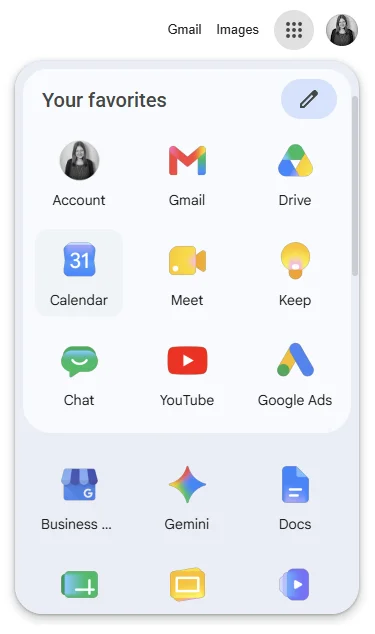
App Launcher reveals tools for everything from chat to storage, but confirms there is no dedicated project management tool in Google Workspace
There is a Native Illusion…but…
Many users assume that because Google is a tech giant, it must have a built-in Gantt chart or a complex resource management tool. In reality, Google Workspace is designed for communication and documentation, not specifically for workflow orchestration. Does Google have a project management tool? Yes, it does, but not strictly in the way a professional PM needs it.
If you need to track dependencies (Task A must finish before Task B starts), monitor team workflow, or see a high-level bird’s-eye view of five projects at once, the native apps will quickly feel very small. You’ll find yourself spending more time updating your manual sheets than actually doing the work.
This gap is exactly why the Google Workspace Marketplace exists. It’s for people who love the Google ecosystem but need the heavy-lifting capabilities of a professional project management tool in Google Workspace.
More blogs on Google Workspace
Can You Build a DIY Project Management Tool in Google Workspace…?
Yes, and it means that if you aren’t ready to invest in a dedicated project management tool within Google Workspace, you can build a manual version. In fact, many small teams do start this way. By combining the right apps, you can create a surprisingly functional (though labor-intensive) system. This DIY approach relies on three main pillars:
- Sheets for tracking
- Tasks for individual action items
- Calendar for the timeline
1. Google Sheets: Your Team’s Engine Room
Google Sheets is the closest thing to a native project management tool. Most people use it as a simple list, but with a bit of formula magic, it can do much more.
- The Timeline View: Google recently introduced a Timeline view feature for eligible Workspace accounts. This allows you to select a range of dates and task names and instantly generate a horizontal bar chart that looks like a Gantt chart.
- Custom Statuses: You can use data validation to create dropdown menus for Status (Not Started, In Progress, Review, Done) and Priority (Low, Med, High).
- A Shared Progress Update: Because it’s cloud-based, your entire team can update their progress in real-time.
2. Google Tasks: Your Team’s Sidebar Assistant
Google Tasks is great for the micro level of project management. It lives in the side panel of your Gmail and Calendar, making it easy to see your personal to-do list without switching tabs.
- Email to Task: You can drag and drop an email directly into your Task list. This creates a task with a link back to the original email, a lifesaver for tracking client requests.
- Subtasks: You can break larger project milestones down into smaller, bite-sized steps.
3. Google Calendar: The Overall Vision
The Calendar is where your deadlines become real. Any task with a date and time will automatically appear on your Google Calendar.
- Shared Calendars: Create a dedicated Project Calendar and share it with your team. This allows everyone to see major milestones and heads-down work blocks in one view.
Beware: Here’s a Manual Effort Warning
While building this DIY Google Workspace project management software is free, it isn’t cheap. You pay for it with your time. Since these apps don’t talk to each other perfectly, for example, updating a status in a Sheet won’t automatically mark a Google Task as complete, you become the human integration. You need to manually sync data across three interfaces.
For one small project, it’s manageable. For three or more projects? It’s a recipe for burnout.
Core Challenges of Using Native Google Apps for Projects
The DIY approach is a great starting point, but eventually, every growing team hits a wall. The wall usually sets in when you realize you are spending more time updating your project tracker than working on the project itself.
While Google Workspace project management via Sheets and Tasks is cost-effective, it lacks the centralized connective tissue required for professional operations. Here is why the manual method eventually breaks down:
1. There’s a Disconnection Gap
Google Apps are built to be great at one thing.
- Sheets are for data.
- Tasks are for lists.
- Drive is for files.
The problem? Projects are all of those things at once. In a native-only setup, your project’s brain is scattered, which can lead to confusion.
- Your file is in Drive
- Your deadline is in the Calendar
- Your discussion is buried in a 50-reply Gmail thread.
There is no single place where all these elements meet.
2. There’s a Lack of Visual Overview
Can you see your team’s total workload across five different Google Sheets at once? Not easily. Native apps don’t offer a high-level dashboard. This leads to over-allocation, where one person is drowning in work while another is waiting for a task, and you can’t see the bottleneck until it’s too late.
3. There’s an Absence of Professional PM Features
If you’ve ever tried to build a real Gantt chart in Sheets, you know it’s a struggle. Professional project management requires specific tools that Google simply doesn’t provide natively:
- Task Dependencies: If a designer is sick, how do you automatically reschedule the entire project? You can’t. You need to manually update every date.
- Time Tracking: How many hours did that campaign actually take? You’ll need a separate app for that.
- Kanban Boards: While you can mimic a board in Sheets, it lacks the drag-and-drop simplicity and visual cards that make Kanban so effective.
4. There’s Version Control Nightmares
We’ve all been there: Project_Tracker_v2_FINAL_FINAL_FINAL_v3.xlsx.
Even with Google’s version history, having multiple people editing a complex sheet can lead to accidental deletions or broken formulas. It’s a fragile way to run a business.
At a certain point, the Does Google Workspace have a project management tool? The question changes from a search for a native app to a search for a professional upgrade.
Kanbanchi: The Only Native Project Management Tool for Google Workspace
If you’ve reached the limits of DIY spreadsheets, it’s time to stop looking for workarounds and start looking at a solution that actually lives where you do. While many project management tools claim to integrate with Google, they often feel like third-party guests, clunky, separate, and requiring yet another password.

Kanbanchi is different. It wasn’t just built for Google Workspace; it was built on it. Think of Kanbanchi as the missing PM layer for your favorite apps. It’s the professional Google Workspace project management tool that turns your Drive documents and Gmail threads into a centralized, high-performance command center.
Why Native Matters for Your Team
When a tool is native, the friction disappears.
- You don’t upload files to Kanbanchi; you simply attach them from your existing Google Drive.
- You don’t invite users to a new platform; you use the same Google permissions you already trust.
Let’s look at some of the main reasons why this matters so much for your team members (and for you, too).
- One Login: Use your Google account (SSO). No new passwords to forget.
- Drive Integration: Your project boards are stored directly in your Google Drive as files. You can organize them into folders and share them as you would a Google Doc.
- Familiar UI: The interface is clean, intuitive, and follows Google’s design language. If your team already uses Drive, they can start using Kanbanchi in minutes.
The Powerful Features You’ve Been Missing
Kanbanchi fills the professional gaps that native Google apps leave behind:
- Professional Kanban Boards: Drag and drop tasks across customizable columns. Add priorities, color-coded tags, and detailed checklists to every card.
- Built-in Gantt Charts: Visualize your entire project timeline. Map out dependencies so that when one task shifts, the rest of your schedule updates automatically.
- Integrated Time Tracker: Know exactly how long tasks are taking. Start a timer directly on a card and generate reports to see team productivity at a glance.
- Gmail-to-Task Conversion: With the Kanbanchi Gmail add-on, you can turn a client request into a task without leaving your inbox. The email serves as the task description, keeping all context in one place.
By consolidating these tools into a single interface, Kanbanchi eliminates the constant need to switch between tools to update, view deadlines, or modify spreadsheets. Your team stays focused, your data stays secure in Google Drive, and your projects finally have the professional structure they deserve.
How to Set Up Professional Project Management with Kanbanchi in 5 Steps
Transitioning from messy sheets to a professional Google Workspace project management tool doesn’t have to be a weekend-long project. Why? Because Kanbanchi is built specifically for the Google ecosystem, the setup process feels like adding a new feature to your existing suite rather than installing complex enterprise software. Follow these five steps to get your team up and running in under ten minutes.
Step 1: Install from the Google Workspace Marketplace
The beauty of a native tool is that you don’t need a separate installer.
- Navigate to the Google Workspace Marketplace
- Search for Kanbanchi
- Click Install
That really is all you need to do. This connects the app to your Google account, enabling it to access your Drive and Calendar seamlessly.
Step 2: Create Your First Board in Google Drive
In Kanbanchi, every project is a Board. When you create a new board, a corresponding file is generated directly in your Google Drive.
Step 3: Populate and Prioritize Your Tasks
Start by building your columns (To Do, Doing, Done) and adding cards for your active tasks.
Pro Tip: If you have an existing project list in Google Sheets, you can import it directly to save time.
Use color-coded labels to distinguish between different work streams (e.g., Marketing, Development, Urgent).
Step 4: Attach Files and Sync Calendar
Open a task card and click the Attach from Google Drive icon. You can link relevant Docs, Slides, or Sheets so your team doesn’t have to hunt for information.
Finally, toggle the Google Calendar button. You can add the start date, due date, or the entire event from Kanbanchi to your personal or team calendar.
Step 5: Invite Your Team
Since Kanbanchi uses Google permissions, adding your team is as simple as sharing a Google Doc. Enter their Gmail addresses, and they’ll receive an invitation. Because the interface is so familiar, they’ll be dragging and dropping cards before your first cup of coffee is cold. By choosing a tool that mirrors the interface you already use every day, you ensure high team adoption. After all, the best Kanban board in the world is the one your team actually uses.
Ready to make the switch? Don’t keep relying on a collection of disconnected tools that create more problems than they solve. No more confusion, no more delays. Ensure your projects are completed to perfection and on time every time with Kanbanchi.
Try Kanbanchi today.
Other Frequently Asked Questions about Google PM Tools
When searching for the perfect Google Workspace project management tool, it’s natural to have questions about what Google provides natively versus what requires an upgrade. Here are the most common queries we address to round out our guide.
Does Google have a native project management tool?
Not as a single, standalone application. While Google offers Project Management Lite, through the combination of Sheets, Tasks, and Calendar, it lacks a dedicated professional PM tool that includes built-in Gantt charts, time tracking, and advanced workload management in one place.
What is the best project management tool for Google Workspace users?
For teams that want to stay entirely within the Google ecosystem, Kanbanchi is widely considered the premier choice. Unlike other tools that merely link to Google, Kanbanchi is natively integrated, meaning your project boards are stored as files in your Google Drive, and it uses your existing Google account for a seamless single sign-on experience.
Does Google Workspace have a Gantt chart tool?
Standard Google Sheets includes a Timeline view for specific plans, but it is not a fully functional Gantt chart. For professional needs such as managing task dependencies, milestones, and critical paths, you will need a dedicated project management tool in Google Workspace, like Kanbanchi, which offers these features out of the box.
How do I integrate project management with Gmail and Drive?
The most effective way is through a workspace add-on. For example, Kanbanchi’s Gmail add-on lets you convert an email directly into a task card, while its Drive integration lets you attach any file from your folders to a task with one click, keeping all your context in one dashboard.