
In this Article:
Try Kanbanchi now
Start your free trial

With the growing need for efficient, cloud-based project management systems in organizations, many teams have adopted Google Workspace for help.
Gmail, Drive, Sheets, Calendar, Meet, Forms…Google seems to provide it all, with simple-to-use, collaborative business tools that many people are already familiar with.
But Google alone is not perfect for more complex project management and tracking needs. You can’t create or assign tasks effectively or view project progress. Scattered communications, poor overall project visibility, and “tool overload” can escalate the need for more dedicated project management tools.
Fortunately, dedicated platforms offering enhanced project management capabilities have sprouted up for use within the Google ecosystem.
Want to find out more about how to use Google Workspace for project management? Let’s consider more about the pros and cons of Google environments for project management. We’ll also look at how one dedicated tool (Kanbanchi) was purpose-built for use by teams deeply embedded in Google Workspace.
There’s a lot to love about Google when it comes to project management, even though there is no dedicated project management tool.
Google Workspace provides a collection of apps that can be integrated into an organization’s workflow management. The familiarity and ease of use of these apps are key reasons why teams choose them to collaborate on projects. Anyone with a Google or Gmail account can access these tools with virtually zero learning curve, bringing teams “instant” collaboration and organizational tools.
Google Workspace tools, like Docs, Sheets, Calendar, Chat, and Gmail, are a natural fit for collaboration and provide a superb “backbone” for project management, with easy accessibility, cloud synchronization, and real-time editing. As well as collaborating on projects through Docs, Sheets, and Slides, it’s easy to set up video calls, send messages via Chat, and share screens at the click of a button.
However, using Google Workspace for project management is not without its limitations. Coordinating remote work can be challenging without using other tools alongside the Google apps. The number of different apps required can lead to tool fragmentation. It can also be challenging to assign tasks, while tracking projects effectively in real time usually requires the use of supplemental tools alongside the apps.
So, how to manage projects in Google Workspace better?
Many project management tools boast “seamless” Google Workspace integration. However, when push comes to shove, it’s anything but seamless. Users may find themselves with multiple browser tabs open, manual syncs, or limited data sharing. This confusing setup is, actually …full of seams!
True, seamless Google Workspace integration is really only provided by tools that were designed from the ground up for use in Google environments, like Kanbanchi
Want to convert an email into a task on a Kanban board? Tick!
Want to sync an important meeting in Google Calendar directly from your project management software? Tick!
Want to gather feedback automatically from your project management platform using Forms? Tick!
There’s more about Kanbanchi below, but unless your project management software can integrate seamlessly with Google Workspace apps, it involves extra clicks, windows open, and potential clutter. That can lead to mistakes and lost productivity.
Let’s take a closer look at the main project management apps provided by Google Workspace.

Google Drive provides a structured, shared workspace for storing project documents with real-time version control and secure access permissions.
Google Drive allows teams to cost-effectively and securely organize, store, and distribute documents, files, and other digital assets.
One of the key issues for teams when collaborating on documents is version control. Ensuring that everyone is working off the latest version of the document is easy with Google Drive. Google Docs, Sheets, and Slides automatically save and sync edits across all users, ensuring everyone sees the most recent version without needing to manually upload or merge changes.
However, if your team is using supplementary, third-party project management tools that do not integrate natively with Drive, this may not be the case. Links, attachments, or version tracking may not sync automatically—which can create confusion over document versions or access permissions.
Make sure your PM tools offer native Google Workspace integration if you rely on Drive for collaborative editing of files. Remember, Workspace offers many useful tools and apps but is not a dedicated project management platform.
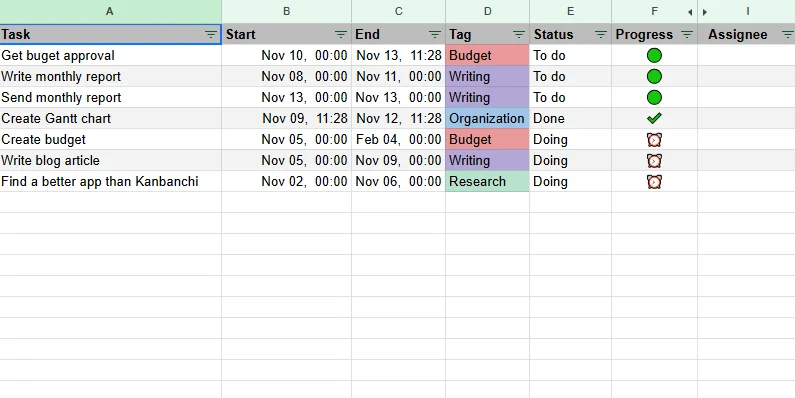
Teams can create task lists, timelines, and priority tags in Google Sheets to monitor project progress in a simple, collaborative format
Google Sheets is a secure, intuitive, easy-to-use, cloud-based spreadsheet app, similar to Microsoft Excel, used by many individuals and teams.
Sheets is especially useful for monitoring project plans, storing and manipulating data, and creating reports collaboratively and in real-time. Again, users with access can work on the latest versions of spreadsheet documents while project managers can plan and manage projects with task lists and timelines, using templates or personalized versions.
Spreadsheet-based project tracking and planning can be effective for organizing work for small teams but is limited and can get confusing for more complex needs or remote work on mobile devices. Identifying bottlenecks, managing workloads and resources, notifying users, and generating rich report data, for instance, requires dedicated project management software.
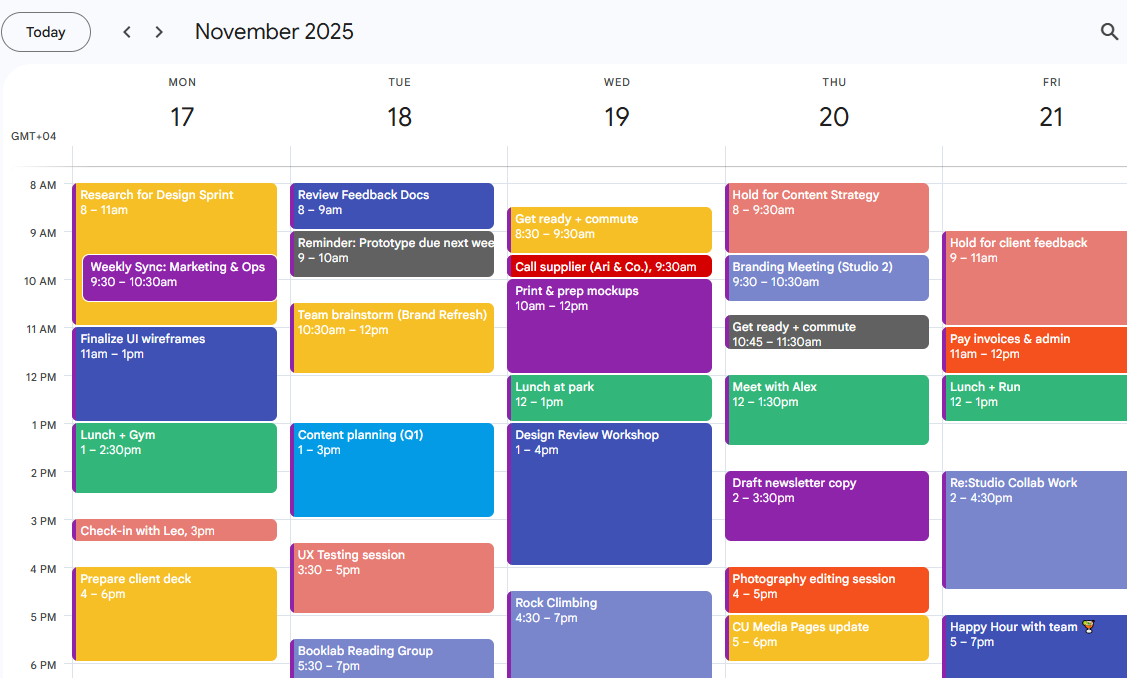
Google Calendar helps teams coordinate key deadlines, schedule meetings, and stay aligned with shared milestone reminders
Google Calendar allows project managers and team members to create meetings and project-related events, send invitations, and receive reminders about upcoming deadlines.
Daily and weekly agendas help ensure that important meetings are never missed. The flexible features of Calendar can enhance collaboration, accountability, and productivity when seamlessly integrated with your project management software. Tasks can be linked to projects, while goals, milestones, and other deliverables can be tracked efficiently.
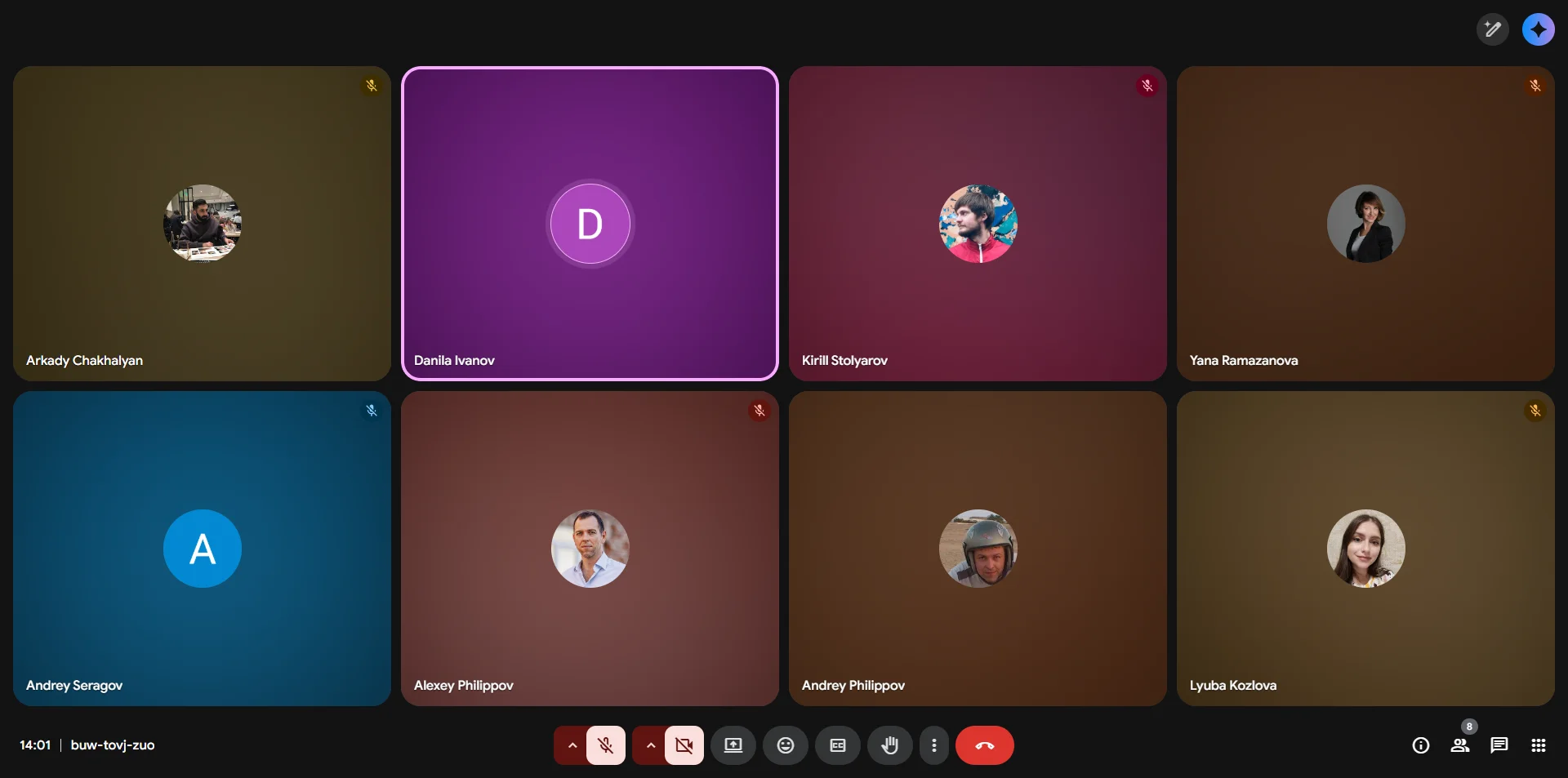
Google Chat and Meet enable real-time collaboration through organized conversations, video calls, and integrated file sharing
Google Chat provides a centralized space for project managers and team members to communicate in real time, share files, and collaborate on project updates. Organized chat rooms and threaded conversations help keep discussions focused and easy to follow.
When integrated with Google Workspace tools like Drive and Docs, Chat enables teams to streamline communication, reduce email clutter, and maintain transparency across projects. This integration fosters faster decision-making and strengthens team coordination.
Google Meet enables project managers and team members to connect through high-quality video meetings, fostering real-time collaboration and effective communication regardless of location. With features like screen sharing, live captions, and meeting recordings, teams can present updates, review documents, and align on project goals seamlessly.
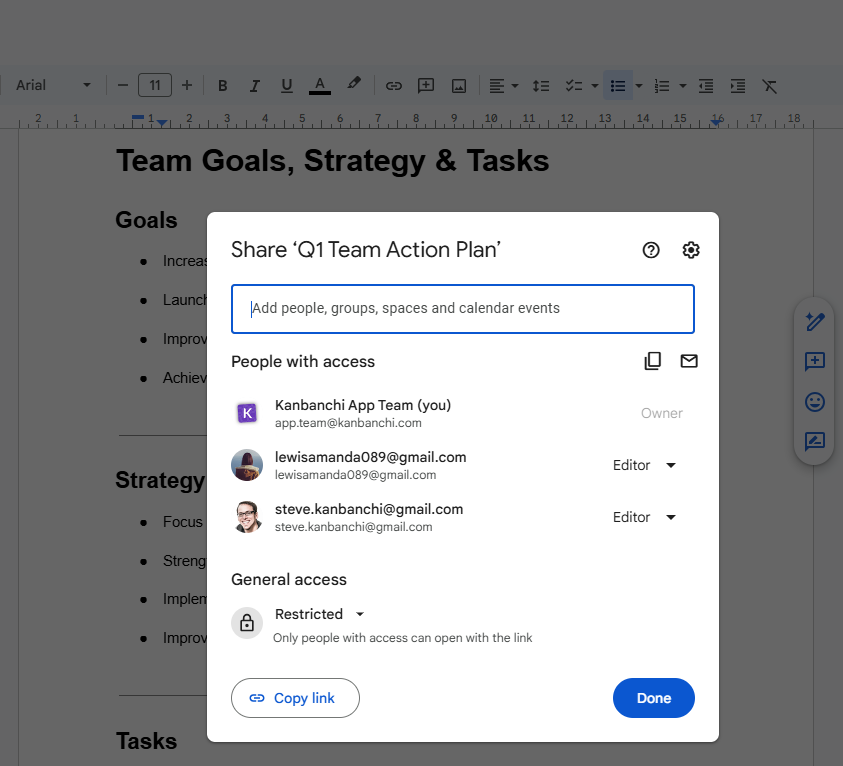
Docs and Slides allow teams to create and edit project documentation and presentations together in real time
Google Docs is an essential planning, productivity, and creativity tool for Google-based remote work, allowing individuals and teams to collaborate in real-time on text documents in various formats, including .docx, .pdf, etc.
Google Slides, on the other hand, allows teams to plan, design, and collaborate on presentations, proposals, and other visual, slide-based documents. It also supports screen sharing and live presentations during online meetings through Google Meet.
Teams can use these tools to create, edit, and collaborate on content in real time, but their true power is unlocked when integrated with dedicated project management software—allowing seamless planning, tracking, and reporting on projects from start to finish.
Seamless integration among Google’s tools enables users to streamline workflows and enhance productivity. For instance:
To understand more about how to use Google Workspace for project management, let’s cover a few practical steps to incorporate the main Google tools into your workflows. These will help you build a simple, lightweight project management system using Google Workspace.
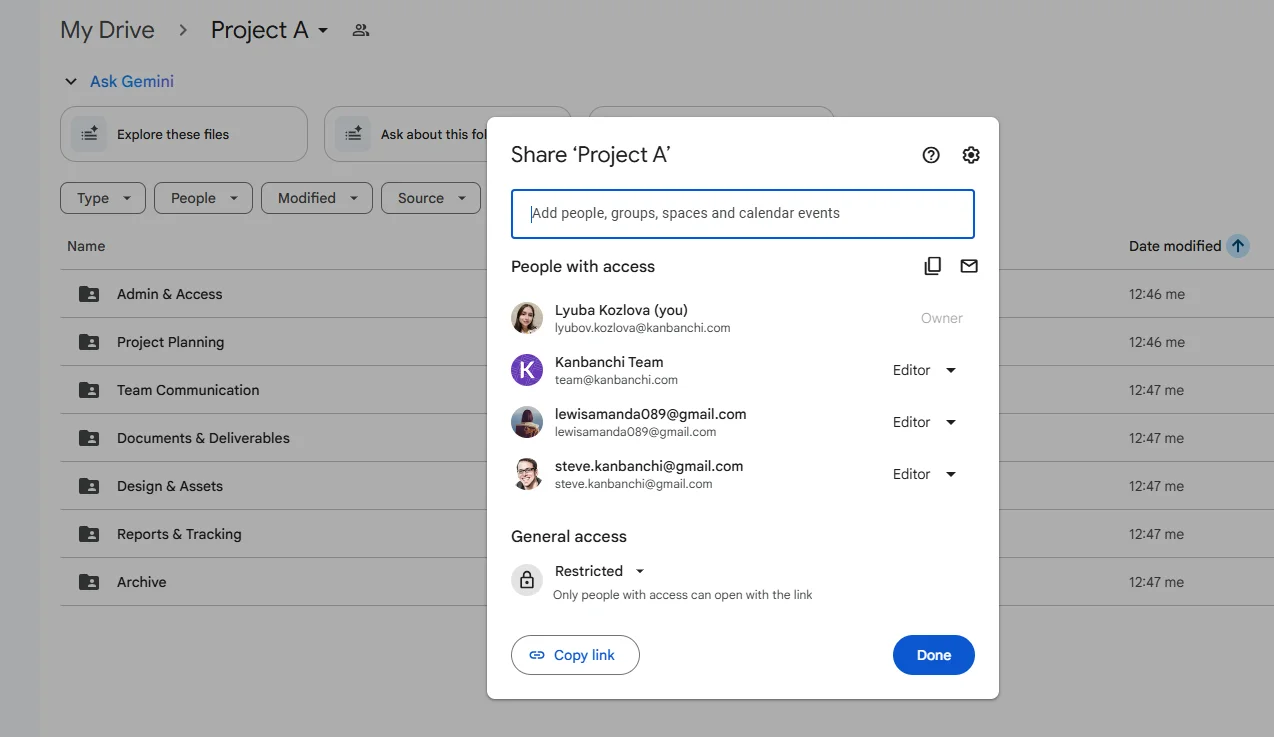
A shared folder structure in Google Drive helps teams organize project files, set access levels, and maintain a clear workflow.
The first step is to set up a shared Google Drive folder structure for your team. This will help organize files clearly, control access, and make collaboration easy and secure. How you do this will partly depend on team preferences but it generally involves three or four main tasks:
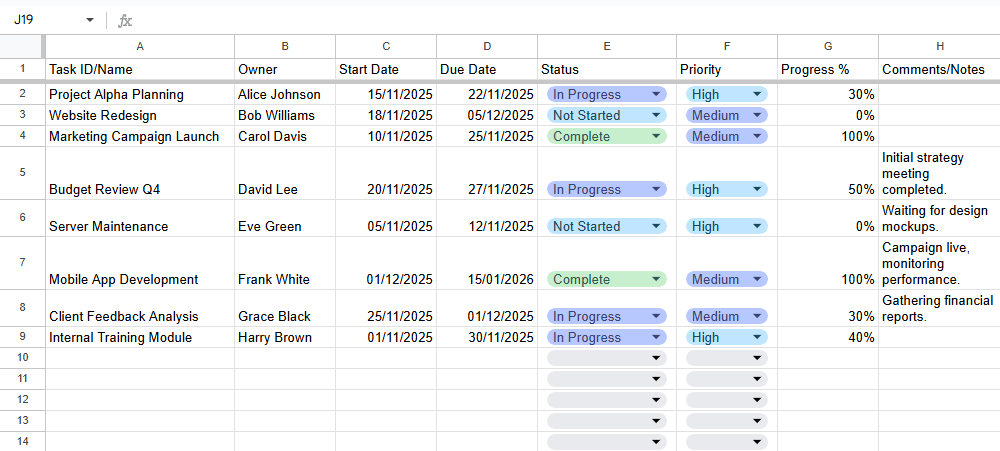
A project tracker built in Sheets enables teams to manage tasks, statuses, priorities, and deadlines in one centralized document
When working out how to manage projects in Google Workspace, project tracking is essential. Creating a project tracker in Google Sheets is an easy and flexible way to monitor tasks, deadlines, progress, and team responsibilities in real time.
o Status = Complete → Green background
o Status = In Progress → Yellow
o Status = Not Started → Red
o Priority = High → Light red text
o Priority = Low → Light gray text
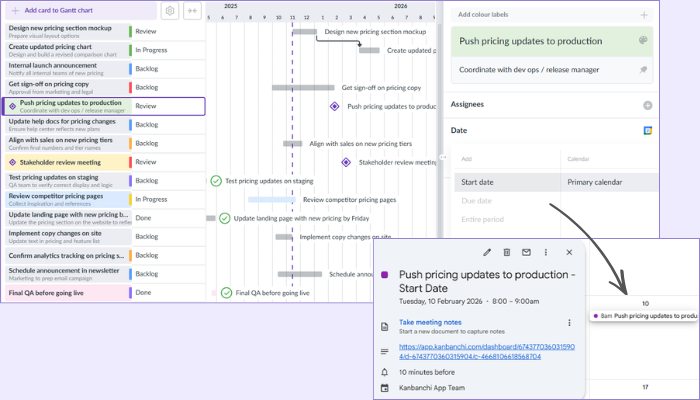
Project milestones can be added to Google Calendar for easy timeline visualization and automated reminders
Scheduling project milestones in Google Calendar is a great way to visually track key deadlines, sync them with your team, and receive reminders when using Google Workspace for project management.
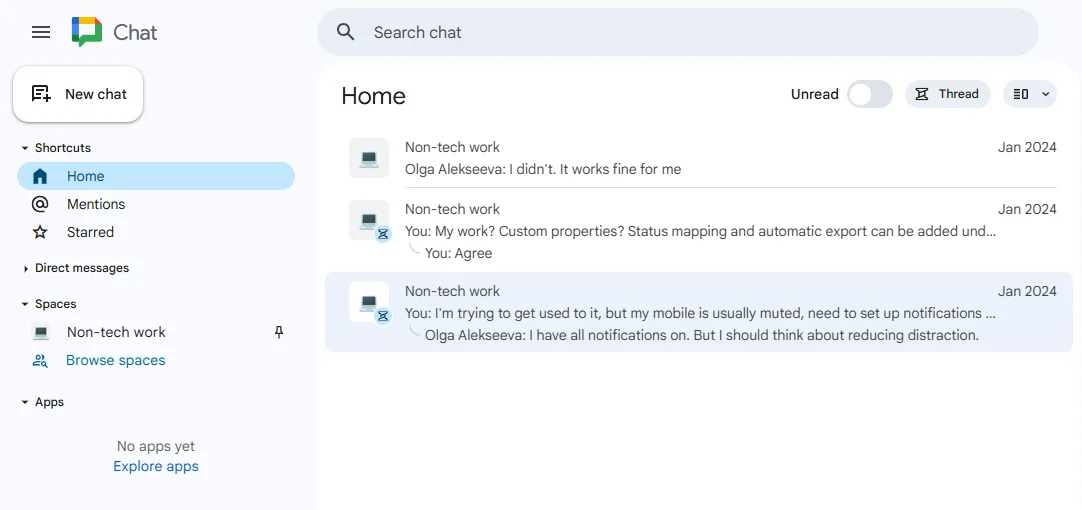
Dedicated Spaces and scheduled Meet calls help teams maintain organized communication and consistent collaboration
Setting up team communication channels using Google Chat and Google Meet helps teams stay connected, share updates, and collaborate in real time when using Google Workspace for project management.
Google Chat is for day-to-day messages, team discussions, and topic-based spaces, while Google Meet allows you to manage video meetings, 1:1s, and virtual collaboration. Both tools integrate with Gmail, Calendar, and Drive—so everything stays synced.
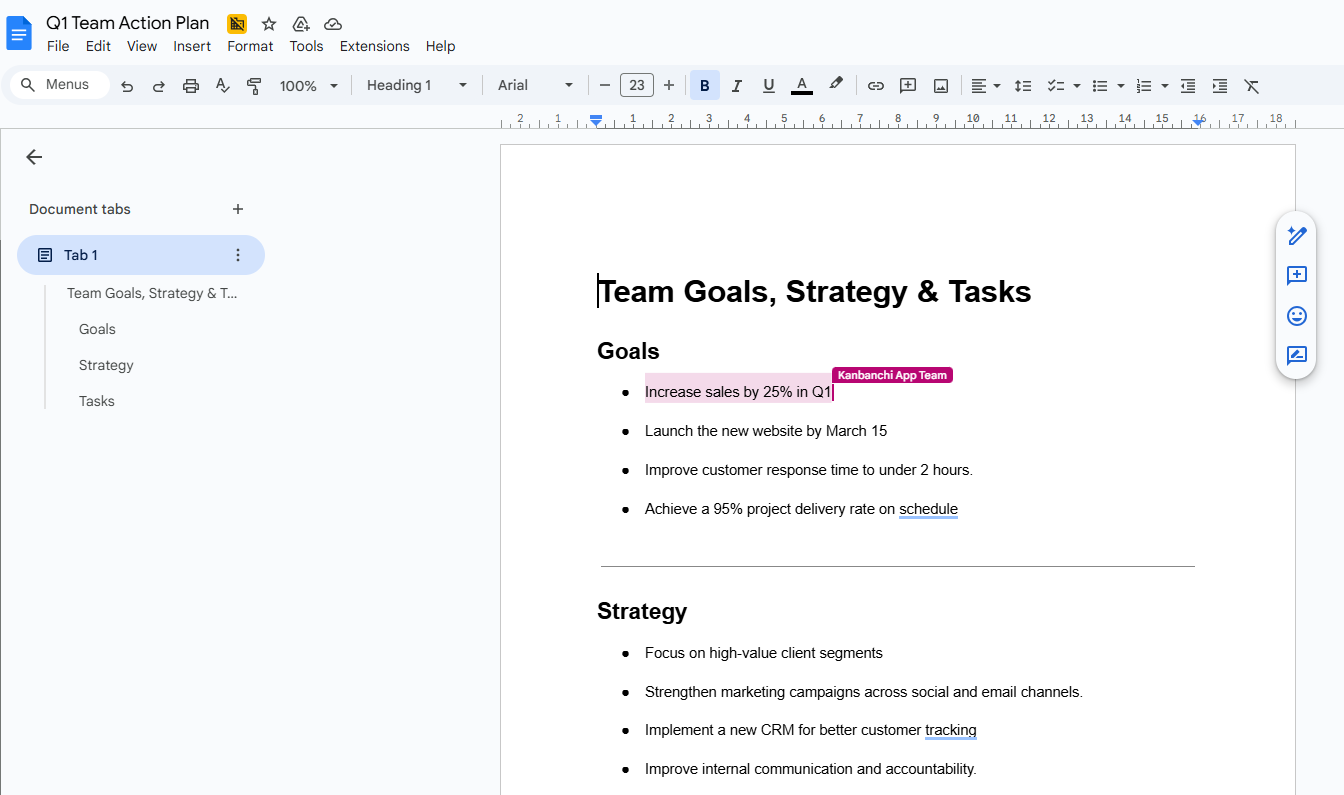
Google Docs allows multiple users to edit simultaneously, leave comments, assign tasks, and track document history effortlessly
Another key component of using Google Workspace for project management is collaborating on documents and sharing updates. This allows teams to work together in real time, without endless email threads or version confusion.
Read more articles related to Google Workspace here
More articles about managing projects here
If you’re wondering how to use Google Workspace for project management, bear in mind that the Google tools alone will NOT provide a complete project management solution. They are not designed to do that, but are best used as collaboration tools within a more comprehensive project management software environment.
Although they are convenient, powerful, and cost-effective, Google Workspace tools are mainly limited by the following:
So, can you use Google Workspace apps alone? It’s possible to cost-effectively manage tasks with the Workspace apps but most organizations require a more advanced project management solution that integrates with these apps. This is where Kanbanchi comes into its own as a seamless extension for Google Workspace…
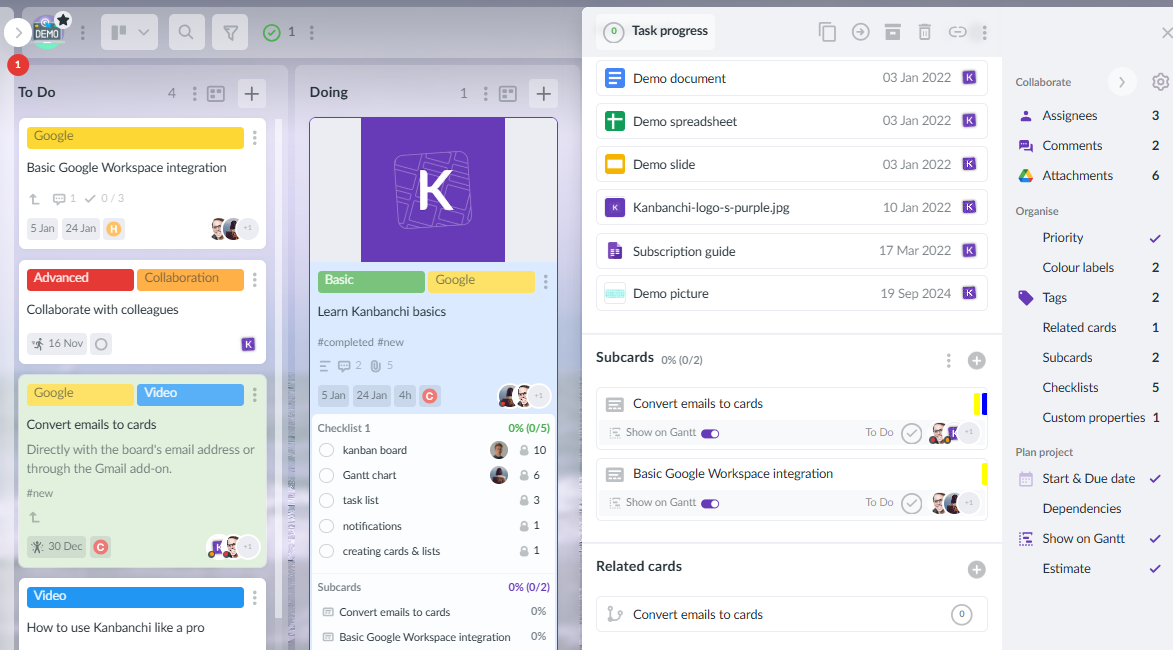
Kanbanchi provides Kanban boards, Gantt charts, dashboards, and native Google Workspace integration to create a unified project management hub
To develop a project plan with Google Workspace, you need at least the following apps:
So, basic project management tasks can be done with Google Workspace—but with a non-unified, patchwork system.
Kanbanchi helps you pull all these apps together in one unified system, with a central platform to work from, and with dedicated project management tools that compensate for the limitations of Google Workspace.
The platform does not replace anything in Google Workspace. Kanbanchi works within the Google ecosystem to create a more unified, scalable approach for project management—from consultants and small businesses up to the enterprise level.
With Kanbanchi as your project management platform, you can:
Unlike most dedicated project management solutions, Kanbanchi integrates natively with the Google apps. It was built that way from the start and works seamlessly with the Google tools covered above. Everything can be managed from one centralized platform.
Kanbanchi has evolved into one of the most trusted platforms by Google Workspace users. With a G2 rating of 4.7 and a similarly impressive rating on the Google Workspace Marketplace, it is consistently ranked as one of the best project management apps by users.
The bottom line?
Google Workspace offers a powerful set of collaboration tools that can be of great use to project managers and teams embedded within the Google ecosystem.
You can elevate that to full-scale project management with a unified and scalable approach using Kanbanchi, increasing productivity without switching platforms. Simply add Kanbanchi to your existing platform as the missing project management layer to enhance overall team performance.
Want to learn more about how to use Google Workspace for project management with Kanbanchi? Explore your options in a free trial!


In this Article:
Start using Kanbanchi now
Start your free trial