
In this Article:
Try Kanbanchi now
Start your free trial

We’ve all been there. The workday starts with a simple plan. You have three major things to accomplish. But then, the Google ecosystem gets in the way… Joy!
By 11:00 AM, your task list isn’t a list anymore. It’s a recipe for a very long coffee break…Of about five years.
If you’re using Google Workspace task management, you know you’re already sitting on a goldmine of productivity.
But there’s a massive difference between having the tools and having a system. Most professionals treat Google Workspace like a collection of separate apps; now it’s time to recognize that the real winners are those who treat it as a unified engine.
Whether you’re a freelancer trying to stay afloat or a project manager overseeing a department of fifty, this guide is your roadmap.
Kanbanchi is going to explore how to master the native tools you already pay for, and more importantly, how to recognize the exact moment those tools start holding you back.
At its core, task management in Google Workspace is the art of capturing, tracking, and completing work within the Google Cloud environment. It’s not just one app; it’s a pretty decent mash-up of a few, and that’s why it’s got 44% of the market share for office software tech in the USA and the UK.
Google’s philosophy has always been modular.
Instead of giving you one giant, heavy project management tool that takes six months to learn, they provide specialized tools that are exceptionally good at one specific thing. To master your workflow, you first need to understand the roles of the three main players:
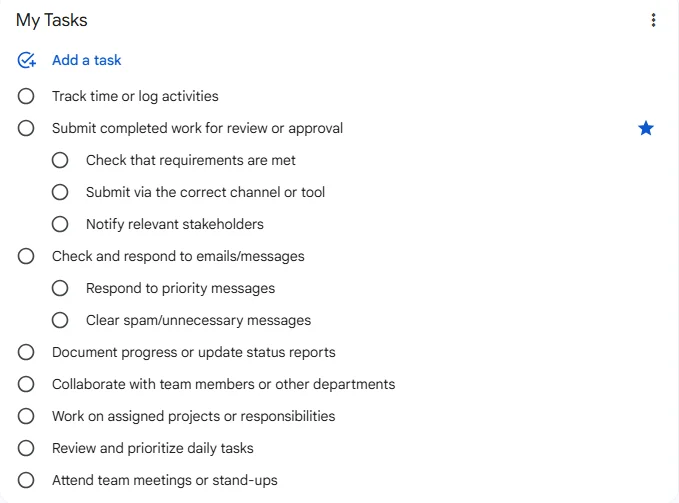
View and manage your tasks efficiently with Google Tasks.
This is your digital back pocket.
It is built directly into the side panels of Gmail, Drive, and Calendar. It’s designed for quick, ephemeral to-dos, like. Call Sarah at 4 pm or review the Q3 draft.
It is the ultimate list-maker.
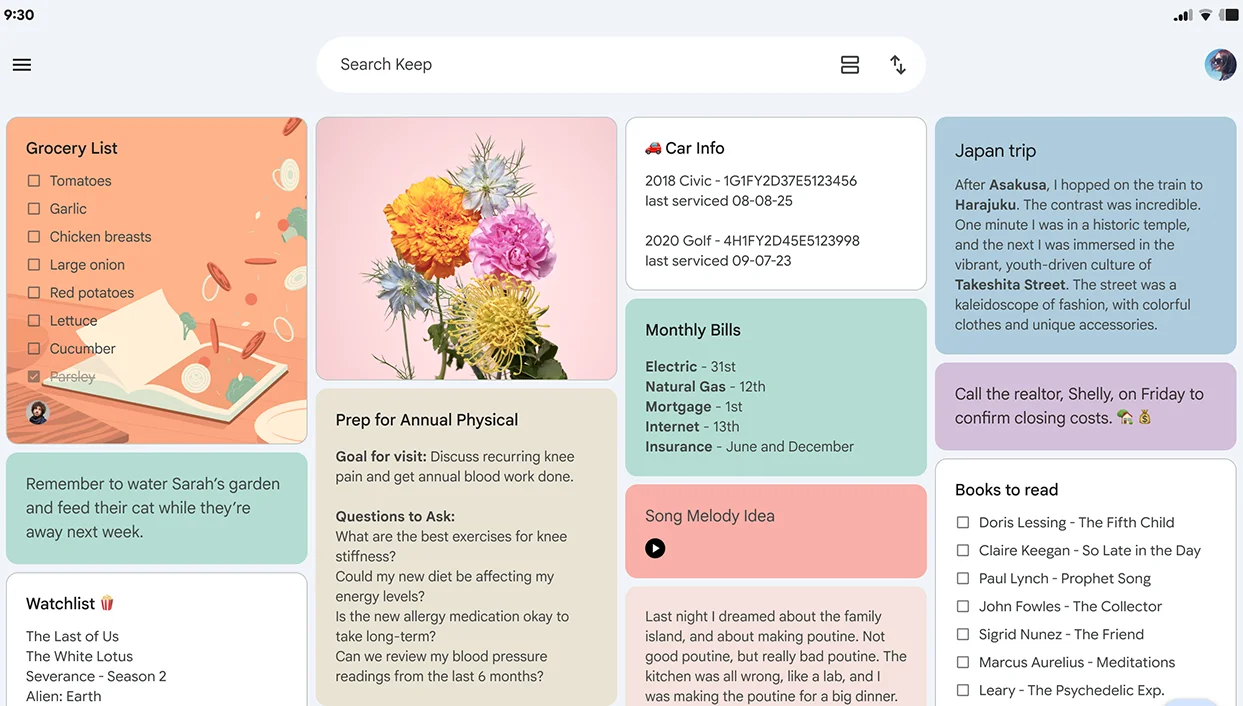
Organize your notes and reminders easily with Google Keep.
While Tasks is for actions, Keep is for ideas.
It’s a digital corkboard. If you have a task that requires a photo, a quick voice note, or a color-coded checklist that feels more like a thought than a deadline, Keep is your destination.
This is the where and when.
In the Google ecosystem, a task without a time slot is just a wish. The integration between Tasks and Calendar ensures that your to-dos aren’t just invisible lists, but blocked-out commitments on your schedule.
The real magic of Google task management isn’t in any single app. It’s in the Glue.
You’ve got to think about your workspace, which isn’t just a physical desk anymore. It’s an interconnected web of data.
However, as we’ll explore, there is a ceiling to these native Google Workspace task management features. They are perfect for individuals, but for teams? That’s where things get interesting.
When you start looking at Google Workspace task management features, it’s easy to get overwhelmed.
At first glance, Google Tasks and Google Keep seem to do the same thing: they both let you make lists.
But if you’re using them for professional work, using the wrong one is like trying to drive a nail with a screwdriver. It might eventually work, but it’s going to be a messy process.
Google Tasks is built for one thing: getting stuff done.
It is a structured, hierarchical to-do list that lives inside your Gmail and Calendar.
Best for: Deadlines, subtasks, and specific deliverables.
Key Advantage: It’s the only tool that truly time-blocks your day. When you add a date and time to a Task, it physically occupies space on your Google Calendar.
Google Keep is the digital equivalent of the sticky notes around your monitor. It’s a flat system, meaning there’s no complex hierarchy, just cards and labels.
Best for: Brainstorming, meeting notes, and on-the-go checklists.
Key Advantage: Multimedia support. You can add photos, voice memos, and even drawings to a Keep note. Unlike Google Tasks (which is strictly personal), you can share a Keep note with a teammate for real-time co-authoring.
| Feature | Google Tasks | Google Keep |
|---|---|---|
| Primary Use | Execution & Deadlines | Brainstorming & Notes |
| Hierarchy | Tasks & Subtasks | Flat cards with Labels |
| Calendar Sync | Full (blocks time) | Reminders only |
| Collaboration | No (Personal only) | Yes (Shared notes) |
| Media | Text only | Photos, Voice, Drawings |
The most effective task management in Google Workspace actually uses both in a Hybrid System.
Capture your raw ideas and meeting minutes in Keep. Once those ideas turn into concrete actions with a deadline, move them into Tasks.
This keeps everything separate and stops that feeling of looking at a 50-item list and not knowing where to start.
Read more Google Workspace articles here.
If you’re just opening the Tasks sidebar and typing a few words, you’re only using about 10% of the system’s power.
The true beauty of Google task management is its invisible connectivity. It allows you to capture work at the moment of impact without the friction of switching apps.
Here is how you can transform Google Tasks from a simple list into a streamlined workflow engine.
This is the single most important habit for task management in Google Workspace. Stop leaving emails unread as a reminder to do something later.
Top tip: Drag and drop an email directly into the Tasks sidebar.
Google creates a task with the email’s subject as the title and, crucially, a direct link back to the original email. You now have context and action in one place.
If you are on an eligible Business or Enterprise plan, you can assign tasks directly within a Google Doc.
Top tip: Use the “@” menu or highlight text and click the “Task” icon in the sidebar.
The task will automatically appear in the assignee’s personal Google Task list. When they check it off in their list, it marks it as complete in the document. No more “who was supposed to do this?” follow-ups.
A task without a time is pretty much just a pipedream.
When you add a date and time to a task in the sidebar, it automatically adds it to your Google Calendar.
You can even add a duration to these tasks, allowing you to physically block out busy time so teammates don’t book meetings over other work sessions.
The Google Tasks mobile app is deceptively simple. Its real power lies in the widgets.
By placing a Tasks widget on your home screen, you ensure that your to-dos are the first thing you see when you pick up your phone, preventing them from being buried under social media notifications.
More articles related to Task Management here
Native Google Workspace task management features are excellent for organizing your own day. They are simple, fast, and free.
But there is a specific moment, usually right after a team grows or a project becomes more complex, when these tools stop being a help and become a hindrance.
If you’ve ever felt like you’re spending more time updating lists than actually doing the work, you’ve likely hit a wall.
The biggest limitation of Google task management is its personal nature. Google Tasks is essentially a private island.
Native tools provide a micro view. They tell you what is next, but they don’t tell you how it fits into the overall strategy.
Ask yourself: Is my team constantly asking, ‘What’s the status of this?’ in Slack or email?
If the answer is yes, your native Google Workspace task management tools have reached their limit.
You don’t need more tools; you need a more powerful tool that lives in the same house.
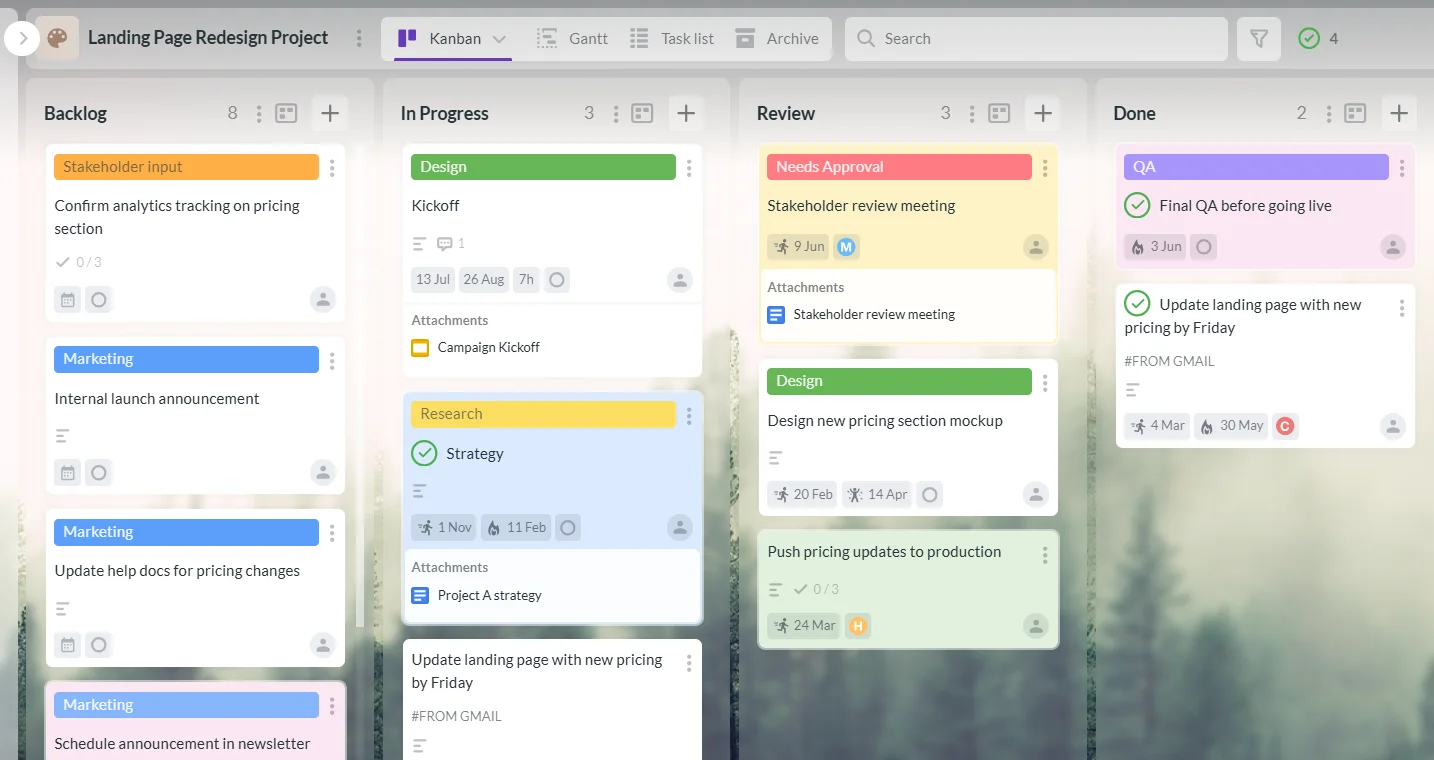
Kanbanchi is an advanced, integrated alternative to Google Tasks for streamlined task management.
You’ve mastered Google Tasks. You’ve color-coded your Google Keep notes.
Yet, you still find yourself:
This is where the personal tools of Workspace reach their ceiling, and Kanbanchi takes over.
It is the only professional Google Workspace task management tool designed to live entirely inside your Google Drive, using the same infrastructure, security, and interface your team already trusts.
Sick of staring at lists of checkboxes? A Kanban board is your solution.
For those managing complex timelines, a list isn’t enough; you need to see the flow.
In a professional environment, the job done is only half the story. You also need to know the cost.
The biggest hurdle to new software is adoption. Because Kanbanchi uses your Google Account (SSO), you don’t need to remember any new passwords.
Your project boards are files in your Google Drive, making sharing as easy as sharing a Google Doc.
By adding Kanbanchi, you aren’t leaving Google Workspace; you are finally unlocking its full potential as a professional-grade management engine.
Start a free Kanbanchi trial now
Managing single tasks is easy. Managing them as a group? That’s where things get complicated.
Without a clear set of rules, your Google Workspace task management system will quickly dissolve into a mess of duplicate tasks and missed deadlines.
To maintain a high-performance environment, you need more than just software; you need a shared culture of productivity. Here is how the world’s most efficient teams stay synchronized.
The biggest mistake teams make is spreading tasks across Gmail, Chat, and Sheets without a primary home.
Key Rule: Decide where all your tasks live. If they’re not on the shared Kanbanchi board or the designated Chat Space task list, they don’t exist.
This eliminates the ‘I thought you were doing that’ conversations. Everyone knows exactly where to look for their next priority.
A task titled ‘Update the file’ is useless to a team. In six months, no one will know which file or what the update was.
Key rule: Use a [Action] + [Project] + [Detail] formula. So, instead of ‘Report,’ use ‘Review’: Q3 Marketing Spend – Draft v1.
Using consistent tags (e.g., #Urgent, #Internal, #Client-Facing) means your team can filter their view in seconds.
Individual task management often fails because the supporting files are locked in a personal My Drive.
Key rule: Always host project-related task attachments in a Google Shared Drive.
In a Shared Drive, the organization owns the files, not the individual. If a team member leaves or is on vacation, the task remains actionable because the data is accessible to the whole team.
Silos are the silent killers of productivity. When tasks are private, work overlaps.
Key rule: Make your project boards and task lists visible to your team.
When someone has a light workload, they can proactively pull a task from a teammate who is overwhelmed. Transparency fosters a culture of support rather than just individual survival.
The best Google task management systems still require human oversight.
Key rule: Hold a 15-minute weekly get-together. Review the Doing column. Is anything stuck? Are deadlines realistic?
To ensure the digital tool aligns with the team’s actual capacity.
What are you waiting for? Switch to Kanbanchi to get the very best task management software for your SME.
Start a free Kanbanchi trial now
Got any final questions you’d like answered? Our FAQ section should help. You can always get in touch with us if you have any specific things to ask.
Yes, Google Workspace offers Google Tasks as its primary built-in task manager. It is integrated into the side panel of Gmail, Calendar, Drive, and Google Docs. For more visual note-taking and checklists, Google Keep also serves as a lightweight task tool.
Natively, you can assign tasks using the @-mention feature in a Google Doc or by creating a task in a Space in Google Chat.
However, for full-scale team assignments across a project board, you will need a dedicated tool like Kanbanchi, which allows for multiple assignees and workload tracking.
Think of Google Tasks as your To-Do list and Google Keep as your Digital Notebook.
Tasks is better for specific deadlines and calendar integration, while Keep is superior for brainstorming, capturing images, and collaborative note-taking.
Yes. Any task in Google Tasks with an assigned date and time will automatically appear in your Google Calendar.
Start a free Kanbanchi trial now

In this Article:
Start using Kanbanchi now
Start your free trial