
How can I export my board data to a Google Sheet?
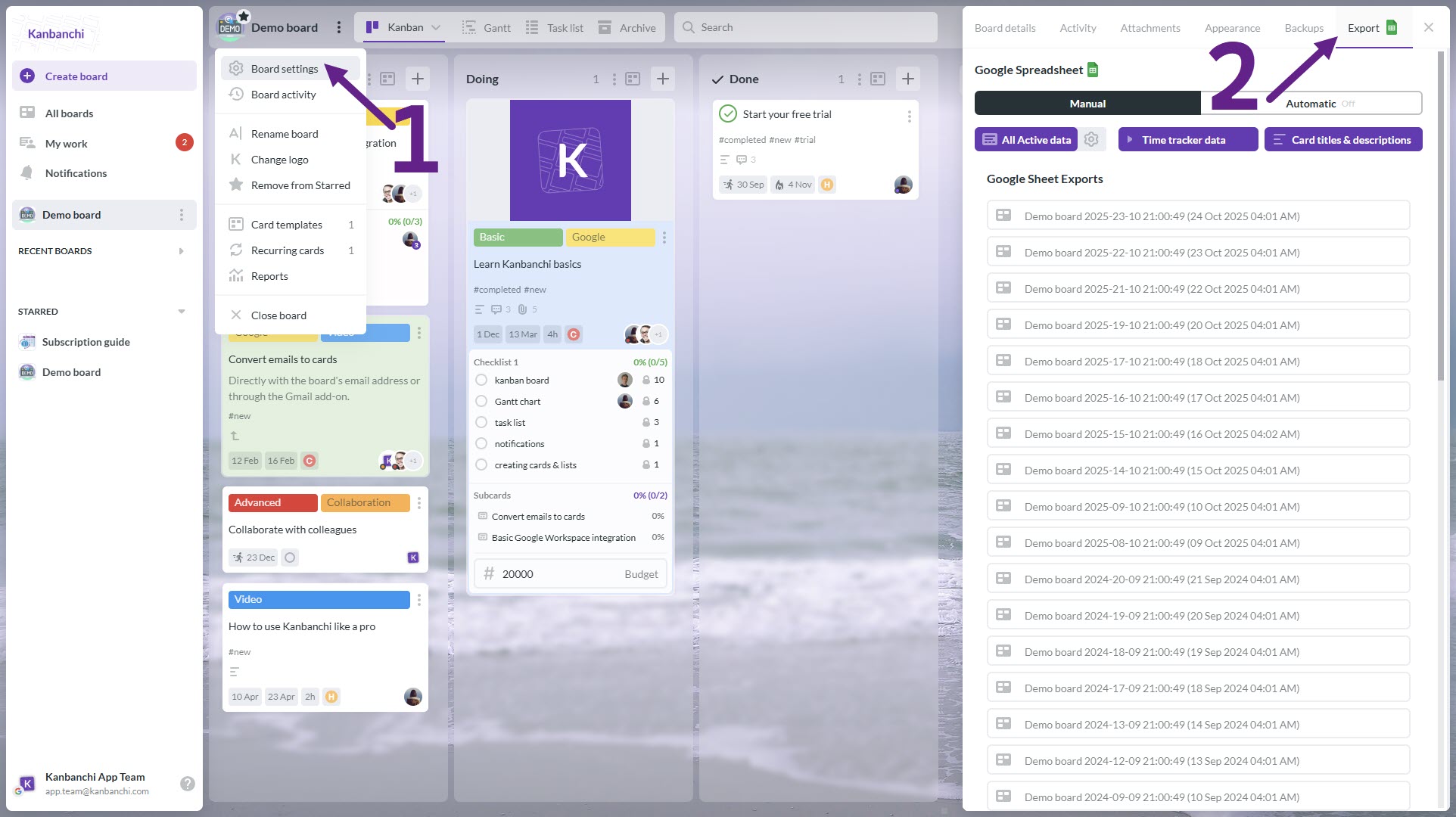
To export data from a board, click on the board’s title on the top panel (or the three dots menu on the right of the title) and choose Board settings from the drop-down list. Board Details will open. Choose the Export tab at the top of the right panel. Choose the type of export you need:
- All Active Data. This will provide you with all the data that you have on cards from this board, excluding archived cards. Alternatively, you can choose to include the archived data when you come to the export settings.
- Time Tracker data. This will only export the time logged by collaborators on your board. Learn more about this export type here.
- Card titles and descriptions. This will pull out only card titles and descriptions of all cards on your board, including archived cards. This export will be made in the form of a Kanban board (columns and rows).
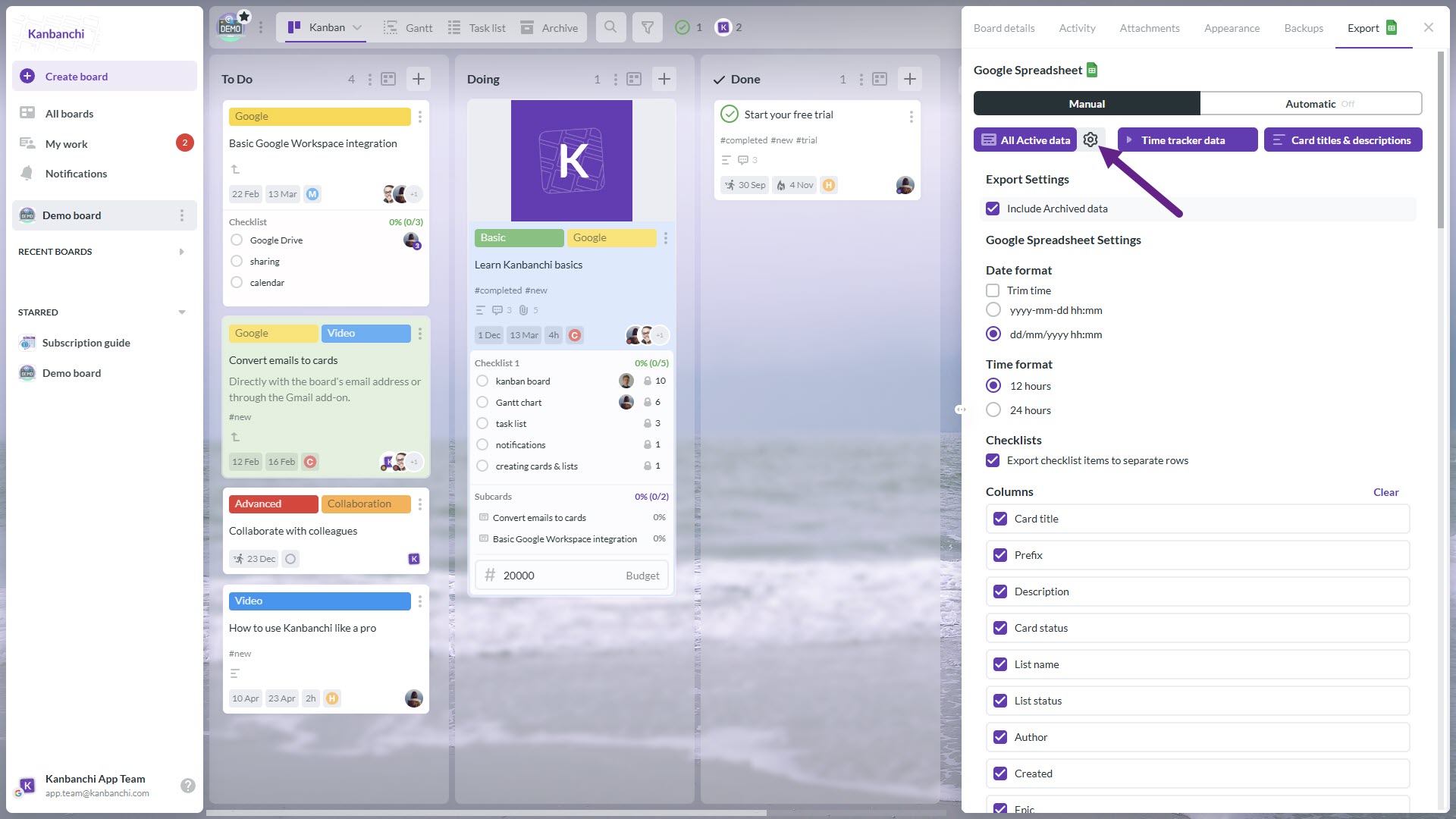
Additionally, you can choose your export settings for the active data. Click the gear icon, then select the settings you need based on what you want to see in your exported spreadsheet. Right after initiating the export, you will see a visual progress indicator. Please keep this tab open in your browser – the export will take some time.
When the export is complete, we’ll send you an email with a link to a new spreadsheet containing the exported data. You can also open it from your Google Drive. The file will be created in the folder for your board, inside the Kanbanchi folder in your Google Drive, with the board name and export date in the title. Depending on your board location, it may be a folder inside the Shared Drive.