
How does Kanbanchi integrate with Google Forms?
Collect information from several sources in one place. Have as many Google Forms as you need linked to one Kanbanchi board.
Getting requests from clients via Google Forms? People applying to work for you via Google Forms? Performing the research and need the data in one place? The Kanbanchi board will work perfectly for this purpose. You may link your forms to a board and receive answers in the form of Kanbanchi cards.
It will require you to open the Script editor in your Google Form and make a few changes to the code. But don’t worry, with our instructions, you will be able to do it even if you are way too far from coding.
Here are detailed instructions.
- First, create a blank Google Form.
- Copy the Apps Script from this Doc
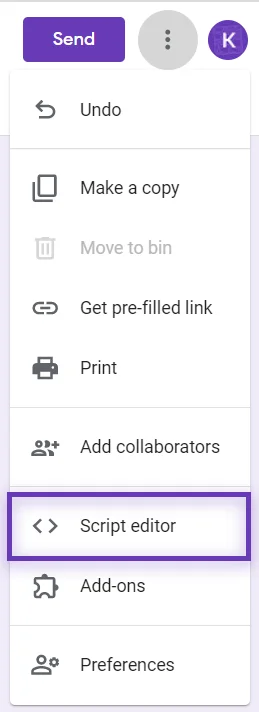
- Open your Form, click the three dots in the upper right corner, and choose Apps Script. Paste the code from the Doc
Open Kanbanchi in another tab and open the board you would like the cards to be sent to. Find the URL of the board in the browser address bar and copy its ID (marked with green in the example link below).
E.g https://app.kanbanchi.com/dashboard/6683447989633024/d-6683447989633024
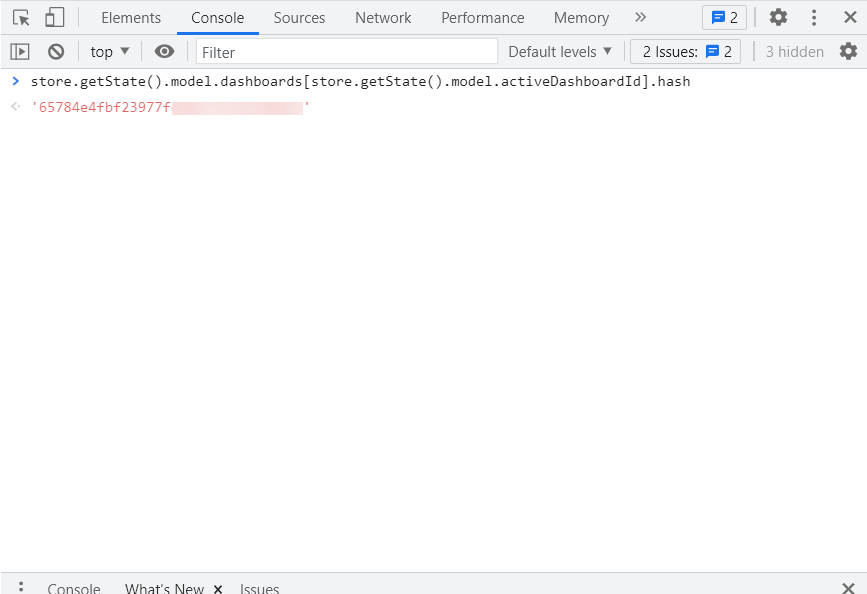
Then open the console of your browser (F12) in the same tab, switch to the Console tab, paste store.getState().model.dashboards[store.getState().model.activeDashboardId].hash and hit Enter. You will be provided with the dashboard hash number.
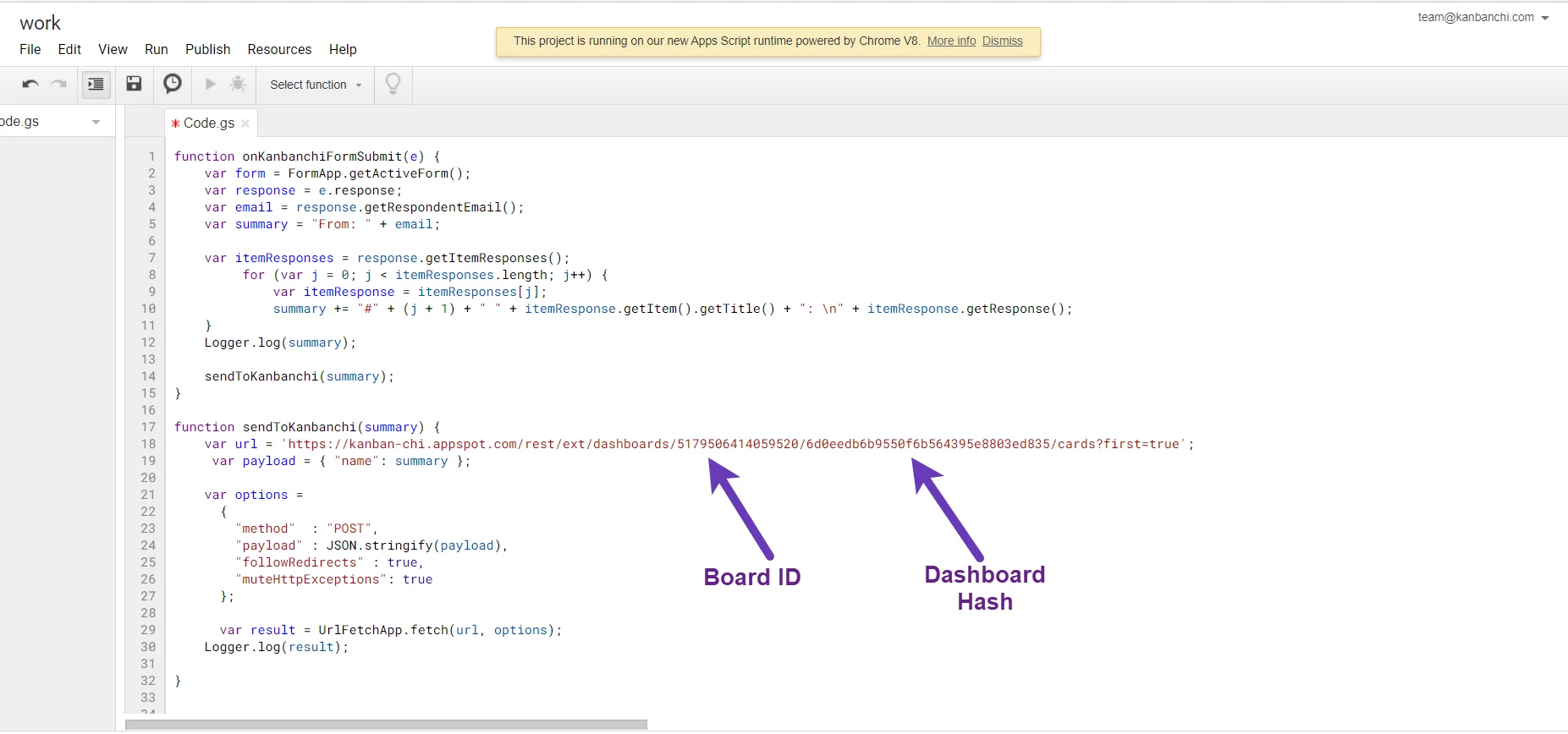
Go back to the Script Editor and change the given ID (the first purple arrow) to the ID of your board. Paste the dashboard hash of your board instead of the hash given under the second purple arrow mark.
Click File and choose Save.
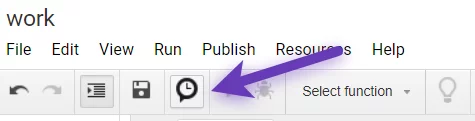
Click the clock icon (current project’s triggers).
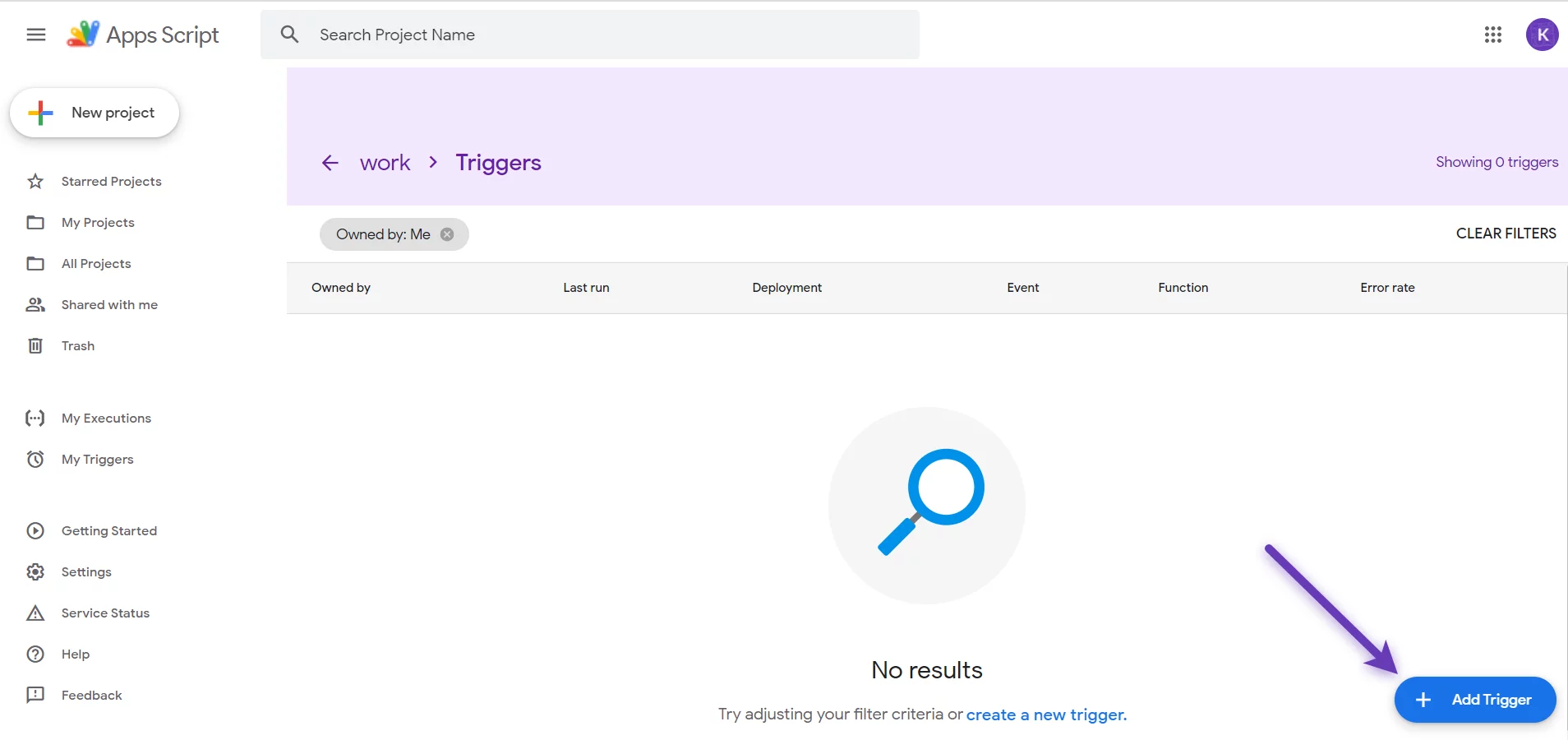
Click Add trigger in the lower right corner.
In the “Select event type” field, choose “On form submit” and save changes. You will be asked to give permissions. Please click Allow.
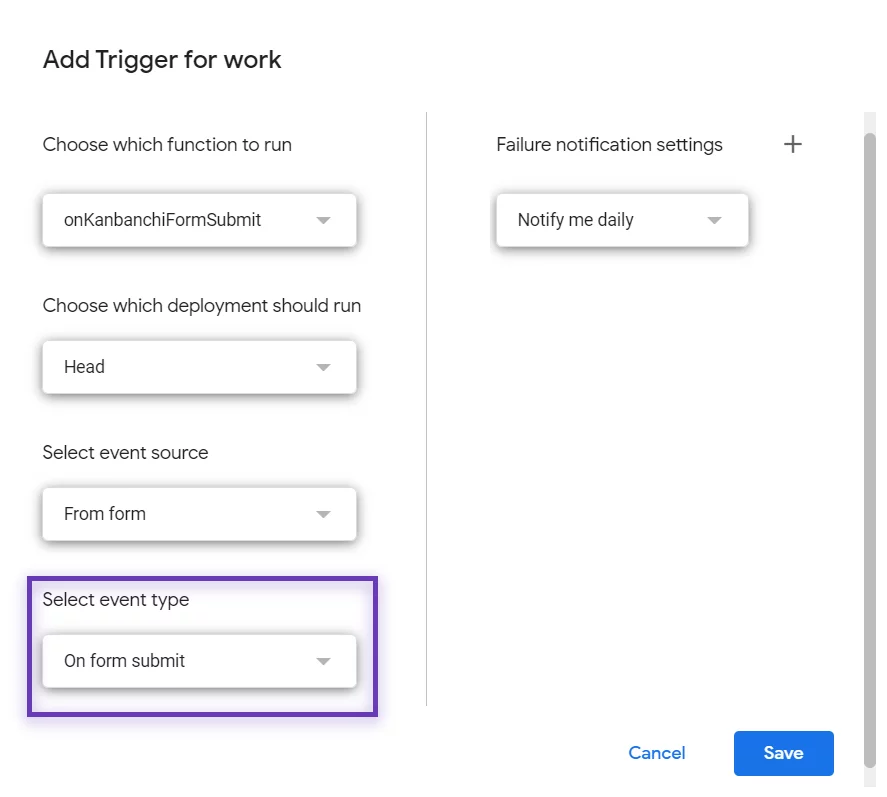
Click Save. Now your form should work. Please test it and check if data is pushed correctly to your designated board.