
How to Import Projects from Trello, Asana, Monday, Jira, and Other Tools to Kanbanchi – Project Management Migration Guide
Project teams today frequently outgrow their current project management migration tools, seeking better integration, enhanced features, or more cost-effective solutions. Whether you’re experiencing limitations with Trello’s basic structure, Asana’s pricing model, or Monday.com’s complexity, migrating to Kanbanchi offers a seamless path to enhanced productivity. This comprehensive guide covers everything you need to import from Trello, import from Asana, import from Monday, and migrate from other popular project migration platforms to Kanbanchi’s powerful Google Workspace-integrated environment.
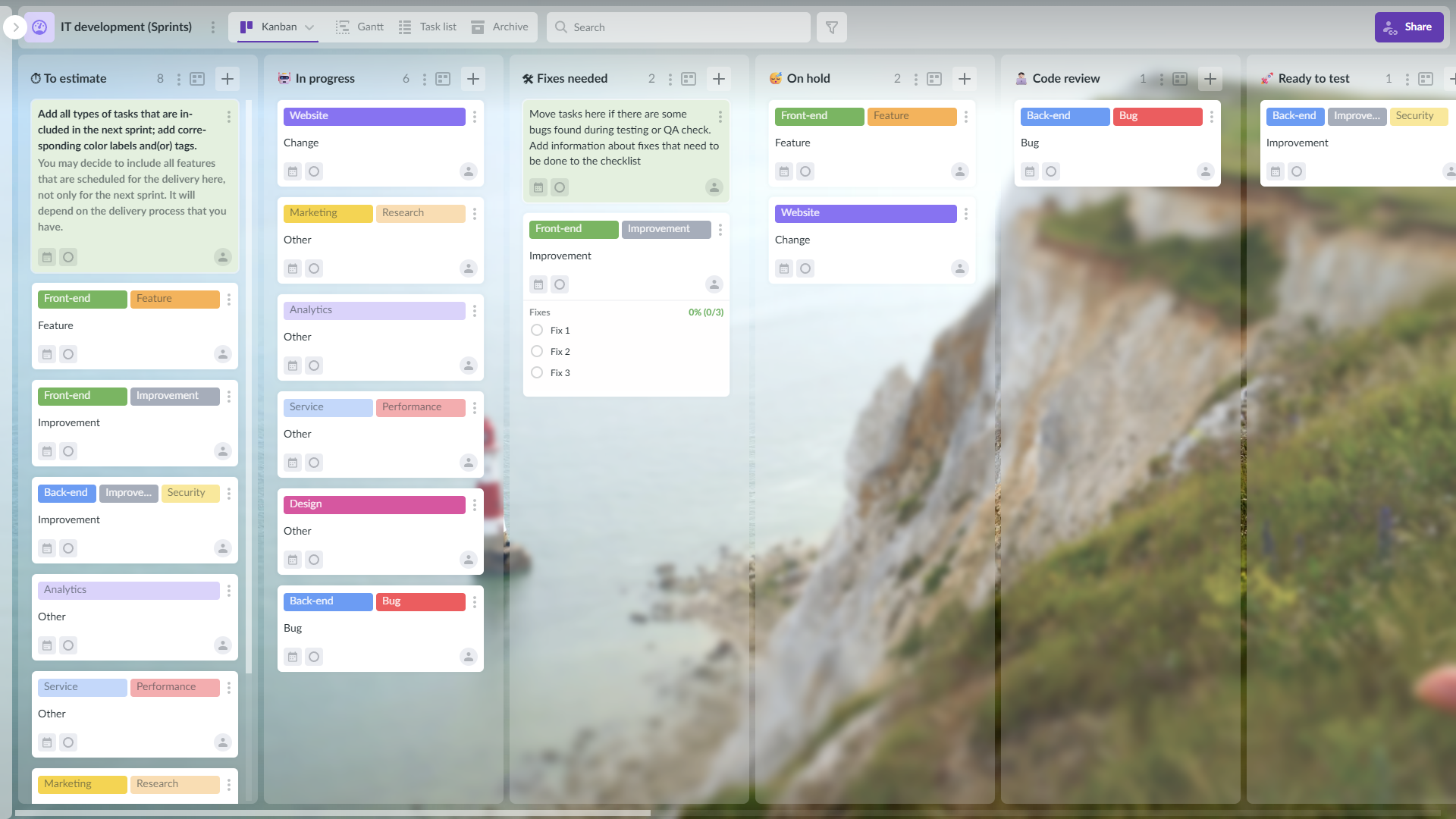
Example of the development team board in Kanbanchi
Kanbanchi stands out as a unique Trello alternative that combines visual project management with deep Google Workspace integration. Unlike other tools that require separate logins and data silos, Kanbanchi stores your project boards directly in your Google Drive, ensuring security and accessibility while maintaining the familiar Google ecosystem experience. This guide will walk you through step-by-step migration processes, troubleshooting techniques, and optimization strategies to ensure a successful transition.
Why Teams Migrate to Kanbanchi from Other Project Management Tools
Organizations migrate project management tools for various compelling reasons, with Google Workspace integration being the primary driver. Teams using Google’s ecosystem need seamless connectivity between their productivity tools and project management platform. Kanbanchi’s native integration with Google Drive, Gmail, Calendar, and Forms eliminates the friction of switching between different applications and maintaining multiple login credentials.
Cost effectiveness represents another significant migration factor. While competitors often increase pricing as teams grow, Kanbanchi offers transparent pricing starting at $3.97 per user per month with educational discounts of 25% for qualifying institutions. This pricing structure makes it particularly attractive for budget-conscious organizations seeking enterprise-level features without premium costs.
The visual project management approach resonates strongly with teams transitioning from traditional task lists to more intuitive workflows. Kanbanchi’s implementation goes beyond basic Kanban boards, offering integrated Gantt charts, time tracking, and comprehensive reporting all within a single interface. This eliminates the need for multiple subscriptions to different project management tools.
Enhanced collaboration capabilities drive teams to switch from Trello and other platforms. Kanbanchi enables real-time collaboration with comment threads, file attachments from Google Drive, and automated notifications. Unlike Trello’s limited free tier or Asana’s user restrictions, Kanbanchi offers unlimited collaborators, even on its basic plans, making it ideal for growing teams.
Recent surveys indicate that 73% of organizations plan to switch project management tools within the next two years, primarily due to inadequate integration with their existing tech stack. Kanbanchi addresses this challenge by functioning as a native Google Workspace application, rather than an external service that requires complex integrations.
Pre-Migration Checklist: What You Need Before Starting
Successful project management migration requires thorough preparation to minimize disruption and ensure data migration tools preserve all critical information. Before initiating any migration process, teams must complete a comprehensive audit of their current project management setup.

Data inventory and backup forms the foundation of migration planning. Export all boards, cards, attachments, and user permissions from your current platform before beginning the transition. Most project data migration failures occur due to incomplete backups or missing dependencies. Create multiple backup formats, including JSON exports, CSV files, and screenshot documentation of complex board structures.
Team communication and training ensures smooth adoption of the new platform. Schedule training sessions for key team members and establish a timeline that allows for parallel operation during the transition period. Users familiar with Trello, Asana, or Monday.com will find Kanbanchi’s interface intuitive, but allowing time for exploration prevents resistance to change.
Access permissions and security require careful mapping before migration. Document current user roles, board permissions, and sharing settings. Kanbanchi inherits Google Drive permissions, which may differ from your current tool’s permission structure. Plan how external collaborators will gain access through Google accounts or guest permissions.
Integration dependencies must be identified and addressed. Catalog all current integrations with tools like Slack, Microsoft Teams, or custom applications. While Kanbanchi offers robust Google Workspace integration, third-party connections may require reconfiguration or alternative solutions.
Timeline and resource allocation prevents migration-related disruptions. Establish realistic timeframes based on project volume and team size. Small teams can typically complete migration in 1-2 days, while enterprise implementations may require 2-4 weeks for proper testing and optimization.
Advanced Migration Techniques and Data Preservation
Project migration success often depends on preserving complex data relationships and historical information that standard imports might not capture. Advanced techniques ensure that comprehensive data migration tools maintain project continuity while maximizing Kanbanchi’s capabilities.
Preserving Project History
While basic CSV imports transfer current task states, preserving project history requires additional strategies. Export activity logs, comment threads, and change histories as supplementary documentation. Consider creating dedicated archive boards in Kanbanchi for historical reference, using card descriptions to capture timeline information and decision points.
Attachment and File Management
Large file collections require systematic migration planning. Kanbanchi’s Google Drive integration provides advantages for file management, but attachment migration from other platforms needs careful handling. Download all attachments locally, then re-upload to Google Drive for seamless integration with Kanbanchi boards.
Complex Relationship Preservation
Dependencies, subtasks, and cross-project relationships may not transfer through standard CSV imports. Document these relationships manually and recreate them using Kanbanchi’s card linking features and dependency tracking capabilities. The platform’s subcards functionality can effectively recreate hierarchical task structures from more complex source systems.
API-Based Migration Solutions
For enterprise-scale migrations requiring custom development, Kanbanchi’s API capabilities enable sophisticated project data migration scenarios. Organizations with technical resources can develop custom scripts that preserve intricate data relationships while automating the migration process for multiple projects simultaneously.
Data Integrity Verification
Implement systematic verification processes to ensure migration accuracy. Create checklists comparing source and destination data, verify user assignments, and confirm that all critical attachments and comments transferred successfully. This verification step is crucial for maintaining project management migration integrity.
Rollback and Recovery Planning
Maintain source platform access during initial migration phases to enable rollback if issues arise. Export comprehensive backups before initiating migration and establish clear rollback procedures. This safety net ensures that migrating project management tools initiatives can recover quickly from unexpected challenges.
How to Import from Trello to Kanbanchi
Import from Trello to Kanbanchi through a streamlined process designed to preserve all board structures, cards, and attachments. Kanbanchi’s direct Trello import functionality ensures comprehensive project data migration while maintaining organizational workflows.

Step 1: Export Your Trello Data
Navigate to your Trello board and access the Board Menu. Select “More” followed by “Print and Export,” then choose “Export JSON.” This generates a comprehensive file containing all board data, including cards, lists, labels, due dates, and attachments. Save this JSON file to your computer or Google Drive for easy access during the import process.
Step 2: Prepare for Import
Sign in to Kanbanchi using your Google account. The platform’s Google Workspace integration eliminates the need for separate credentials, ensuring that your migrated boards remain secure within your Google Drive ecosystem.
Step 3: Execute the Import Process
From the Kanbanchi dashboard, select “Import Your Trello Board” option. Upload the JSON file exported from Trello, either from your computer or directly from Google Drive. Kanbanchi automatically processes the file structure and creates corresponding boards, preserving the card hierarchy and content.
Step 4: Verify Migration Accuracy
Review the imported board to ensure all cards, lists, and attachments transferred correctly. Kanbanchi maintains Trello’s visual structure while adding enhanced features, such as integrated time tracking and Gantt chart views. Verify that due dates, card assignments, and labels are displayed accurately.
Step 5: Optimize and Customize
Take advantage of Kanbanchi’s advanced features, which are not available in Trello. Configure Google Calendar integration for deadline tracking, set up automated email notifications, and explore the built-in reporting capabilities. The Trello alternative offers superior collaboration tools, including real-time commenting and file sharing through Google Drive.
For teams managing multiple Trello boards, repeat this process for each board or contact Kanbanchi support for bulk migration assistance. The platform’s customer service has received praise for responsive support during migration projects.
How to Import from Asana to Kanbanchi
Import from Asana requires a different approach since Kanbanchi doesn’t offer direct Asana connectivity. However, the CSV import functionality provides an effective migration path for project data migration while preserving essential task information and project structures.
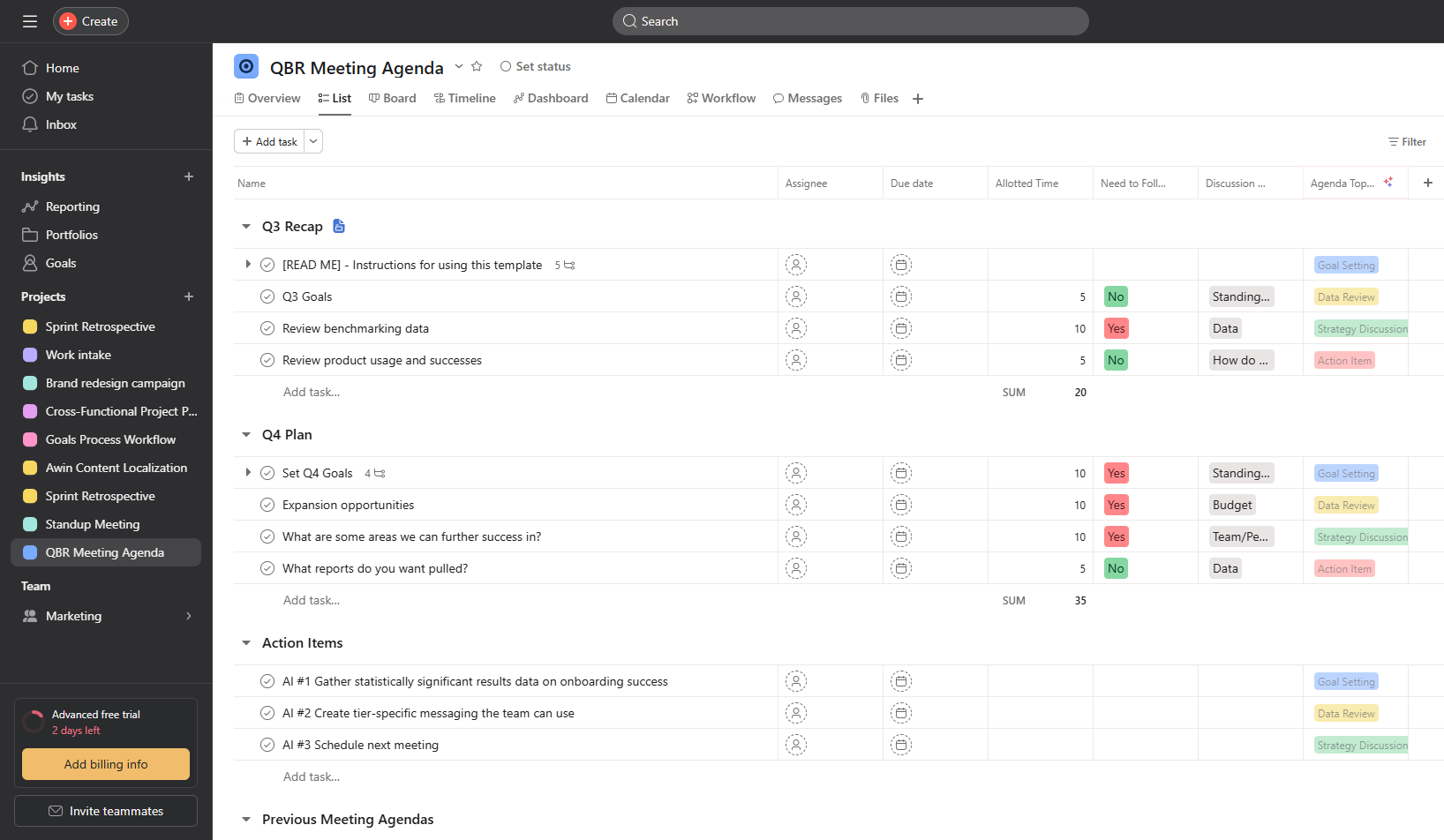
Step 1: Export Asana Data to CSV
Access your Asana project and navigate to the export options. Generate a CSV export that includes all tasks, assignees, due dates, project sections, and custom fields. Asana’s CSV export provides comprehensive data that translates well to Kanbanchi’s board structure.
Step 2: Prepare CSV for Kanbanchi Import
Review the exported CSV file to ensure proper UTF-8 encoding, as Kanbanchi only supports this format. The CSV should include columns for task names, descriptions, assignees, due dates, and project sections. Kanbanchi provides a template spreadsheet to guide proper formatting for optimal import results.
Step 3: Execute CSV Import
In Kanbanchi, select “Import board from” and choose the CSV option. Upload your prepared file, and Kanbanchi will create a new board using the imported data. The platform automatically maps CSV columns to corresponding card fields, creating an organized board structure.
Step 4: Map Custom Fields and Sections
Asana alternative features in Kanbanchi may handle certain Asana-specific elements differently. Review how custom fields, project sections, and subtasks appear in the new environment. Kanbanchi’s card structure accommodates most Asana data types while offering additional functionality like Google Drive file attachments.
Step 5: Configure Team Access and Permissions
Migrate team member access by sharing the imported board with relevant collaborators. Kanbanchi’s Google Workspace integration simplifies this process, as users can access boards through their existing Google accounts without additional setup requirements.
Step 6: Enhance with Kanbanchi Features
Explore advanced capabilities not available in Asana, including integrated Gantt charts for timeline visualization and comprehensive time tracking. The migrate from asana process opens opportunities for improved project visibility and enhanced Google ecosystem integration.
Consider using Kanbanchi’s board templates for future projects, as they provide optimized structures based on common project management methodologies and can significantly accelerate project setup compared to starting from scratch.
How to Import from Jira to Kanbanchi
Import from Jira follows a streamlined XML-based process that preserves issue structures and project hierarchies. Kanbanchi provides dedicated Jira import functionality that handles the platform’s complex issue tracking system more effectively than generic CSV approaches.
Step 1: Export Jira Project Data
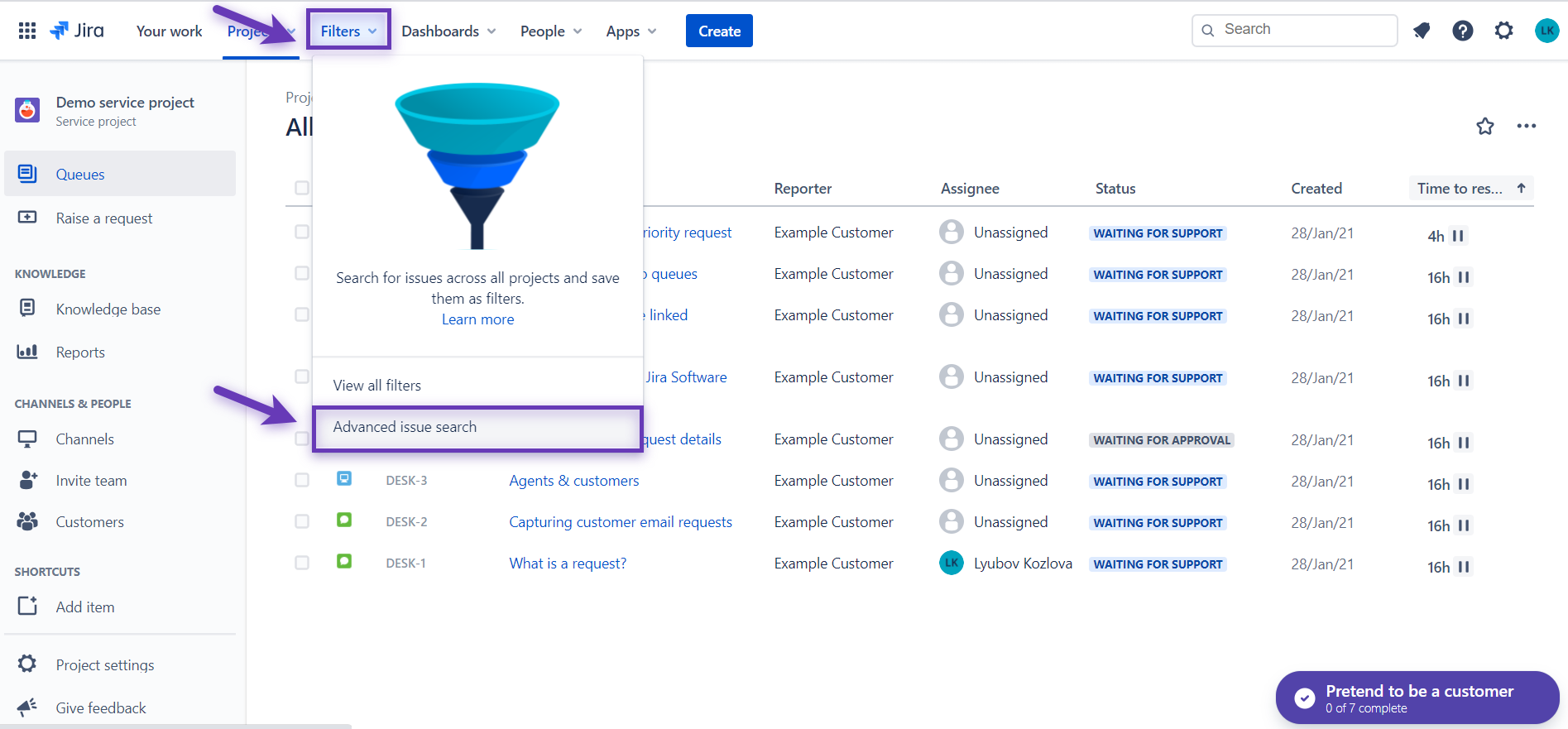
Log into Jira and navigate to the project you want to migrate. Access Filters and select Advanced issue search to reach the comprehensive search interface. Click Export and choose Export XML to generate a complete data export including all issues, custom fields, and project metadata.
Step 2: Save XML File
The exported data opens in a new browser tab displaying XML format content. Right-click and select Save as… to download the file to your computer. For complex boards with extensive customization, you may need to first select View page source before saving to ensure complete data capture.
Step 3: Import to Kanbanchi
From your Kanbanchi boards list, locate the Import board from option and select Jira. Upload the saved XML file, and Kanbanchi automatically processes the Jira data structure to create a new board with preserved issue information, assignees, and project organization.
Jira-Specific Advantages
Unlike CSV-based migrations, Jira’s XML export maintains issue relationships, epic structures, and sprint information that translate effectively to Kanbanchi’s board organization. This direct import method ensures project data migration preserves Jira’s sophisticated issue tracking while gaining Kanbanchi’s Google Workspace integration benefits.
Importing from Monday.com, Wrike, ClickUp, and Other Project Management Tools
Migrating project management tools beyond the major platforms requires adaptable strategies that accommodate diverse data formats and feature sets. The universal CSV approach serves as the most reliable method for importing projects from Wrike, ClickUp, Basecamp, and other platforms to Kanbanchi.
Universal CSV Migration Strategy
Most professional project management platforms provide CSV export capabilities. This standardized format ensures data migration tools can process information regardless of source platform complexity. Export all critical data, including task names, descriptions, assignees, due dates, project categories, and status information.
Data Cleaning and Standardization
Different platforms organize data uniquely, requiring standardization before import. ClickUp’s hierarchy of spaces, folders, lists, and tasks may need flattening into Kanbanchi’s board and card structure. Wrike’s folder-based organization translates well to Kanbanchi’s board categories, while maintaining task relationships through clear naming conventions.
Field Mapping Techniques
Create mapping documents that translate source platform fields to Kanbanchi equivalents. Common mappings include status columns to list names, priority levels to labels, and custom fields to card descriptions or comments. This systematic approach ensures import project data maintains essential context and functionality.
Batch Processing for Large Migrations
Enterprise-scale migrations may require multiple CSV imports to avoid overwhelming the system. Process data in logical groups such as by department, project type, or time period. Kanbanchi’s import system handles individual files efficiently while maintaining data integrity across multiple imports.
Integration Bridge Solutions
Some platforms offer integration bridges or third-party migration tools that can facilitate project migration. While Kanbanchi’s direct import options focus on Trello and CSV, API-based solutions may be available for complex enterprise migrations requiring preservation of advanced relationships and custom data types.
Testing and Validation
Always test migration processes with sample data before full implementation. Create test boards using subsets of your source data to verify field mapping accuracy and identify potential issues. This validation step prevents data loss and ensures successful switch project management tool outcomes.
Post-Migration Setup: Optimizing Your Kanbanchi Workspace
Migrating to Kanbanchi successfully extends beyond data transfer to encompass workspace optimization and team adoption. Proper post-migration configuration maximizes the platform’s Google Workspace integration advantages while establishing productive workflows.
Google Workspace Integration Configuration
Activate all relevant Google integrations to maximize productivity gains. Configure Gmail integration for email-to-task conversion, connect Google Calendar for deadline synchronization, and establish Google Forms integration for task creation workflows. These connections transform Kanbanchi from a simple project tool into a comprehensive workspace hub.
Board Template Creation
Develop standardized board templates based on successful migration outcomes and organizational needs. Templates accelerate project creation while ensuring consistency across teams. Include predefined card structures, label systems, and workflow stages that reflect proven methodologies from previous platforms.
Notification and Communication Setup
Configure notification preferences to balance information sharing with communication overload. Kanbanchi’s flexible notification system allows customization by board, card, or user preference. Establish team guidelines for comment usage, @mentions, and email notifications to maintain productive collaboration patterns.
Reporting and Analytics Implementation
Leverage Kanbanchi’s Google Sheets integration for advanced reporting capabilities. Create automated reports that track project progress, team productivity, and milestone achievement. These analytics often provide superior insights compared to previous platforms, especially for organizations using Google’s ecosystem extensively.
User Training and Adoption Programs
Implement structured training programs that highlight Kanbanchi’s unique advantages rather than simply explaining basic functionality. Focus on Google Workspace integration benefits, advanced features like Gantt charts, and productivity improvements enabled by the platform’s design philosophy.
Security and Permission Optimization
Review and optimize board permissions using Google Drive’s inherited permission system. This security model provides more granular control than many previous platforms while maintaining simplicity through familiar Google account management. Establish clear guidelines for external collaborator access and board sharing protocols.
Common Migration Issues and How to Solve Them
Project management migration challenges require systematic troubleshooting approaches to ensure successful platform transitions. Understanding common issues and solutions accelerates migration timelines while preventing data loss or team disruption.
CSV Import Format Errors
UTF-8 encoding requirements cause the most frequent import failures. Source platforms may export CSV files in different encodings that Kanbanchi cannot process. Solution: Use text editors or spreadsheet applications to convert files to UTF-8 encoding before import. Verify character encoding in Excel by saving as “CSV UTF-8” format.
Data Field Mapping Problems
Complex source platforms often include custom fields that don’t directly translate to Kanbanchi’s structure. Solution: Simplify data before import by consolidating custom fields into descriptions or comments. Create mapping documents that establish consistent translation rules for recurring custom field types.
User Assignment and Permission Issues
Team member assignments may not transfer correctly if users lack Google accounts or appropriate board access. Solution: Create Google accounts for all team members before migration, or plan for manual assignment correction post-import. Utilize Kanbanchi’s inherited Google Drive permissions for streamlined access management.
Large File and Attachment Problems
Attachment limits and file size restrictions can prevent successful migration. Solution: Upload large files to Google Drive manually and link them to cards rather than embedding them directly. Kanbanchi’s Google Drive integration provides unlimited storage through your Google Workspace allocation.
Timeline and Date Conversion Errors
Date formats from different platforms may not import correctly into Kanbanchi. Solution: Standardize all dates to YYYY-MM-DD format before CSV import. Review imported cards to verify date accuracy and manually correct any conversion errors.
Board Structure and Workflow Disruption
Complex board hierarchies may not translate directly to Kanbanchi’s structure. Solution: Simplify board organization during migration, focusing on essential workflow stages. Use Kanbanchi’s swimlanes feature to recreate complex categorizations without overwhelming the interface.
Performance and Loading Issues
Large imports may cause temporary performance issues or timeouts. Solution: Break large datasets into smaller batches for import. Process boards individually rather than attempting bulk imports of entire workspaces.
Migration Checklist and Timeline Template
Import projects successfully requires systematic planning and execution following proven timelines and verification procedures. This comprehensive checklist ensures project data migration maintains quality while minimizing business disruption.
Pre-Migration Phase (Week 1-2)
- Complete data audit and inventory
- Export all boards, attachments, and user lists
- Create comprehensive backups in multiple formats
- Establish Google accounts for all team members
- Schedule team training sessions
- Set up Kanbanchi workspace and initial boards
Migration Execution Phase (Week 2-3)
- Import high-priority boards first
- Verify data accuracy for each imported board
- Configure Google Workspace integrations
- Set up board templates and standardized workflows
- Test notification and permission systems
- Migrate file attachments to Google Drive
Post-Migration Optimization (Week 3-4)
- Conduct team training on Kanbanchi features
- Optimize board templates and workflows
- Configure reporting and analytics systems
- Establish ongoing maintenance procedures
- Decommission old platform access
- Document migration outcomes and lessons learned
Timeline Recommendations by Team Size
Small teams (1-10 users): 1-2 weeks total
Medium teams (11-50 users): 2-3 weeks total
Large teams (50+ users): 3-4 weeks total
Enterprise implementations: 4-8 weeks, depending on complexity
Success Metrics and Verification
Measure migration success through user adoption rates, task completion efficiency, and team satisfaction surveys. Track metrics such as time-to-task-creation, collaboration frequency, and integration usage to validate the benefits of migrating to Kanbanchi.
Why Kanbanchi is the Best Destination for Your Project Migration
Migrating to kanbanchi represents a strategic decision that positions teams for enhanced productivity through superior Google Workspace integration and comprehensive project management capabilities. The platform’s unique advantages extend far beyond basic task management to encompass enterprise-level functionality at accessible pricing points.
Native Google Ecosystem Integration
Unlike competitors requiring complex third-party integrations, Kanbanchi functions as a native Google Workspace application. Boards store directly in Google Drive, ensuring enterprise-grade security while maintaining familiar access patterns. This integration eliminates the authentication fatigue and data silos familiar with external project management platforms.
Comprehensive Feature Set Without Complexity
Kanbanchi combines visual Kanban boards with advanced features including Gantt charts, time tracking, and comprehensive reporting within an intuitive interface. Teams gain enterprise functionality without the learning curve associated with complex platforms like Monday.com or the feature limitations of simpler tools like Trello.
Transparent and Scalable Pricing
Starting at $3.97 per user per month, Kanbanchi provides exceptional value compared to competitors. Educational institutions and non-profits receive 25% discounts, making enterprise-level project management accessible to budget-conscious organizations. The pricing structure scales naturally without surprise fees or feature restrictions.
Superior Migration Support
Kanbanchi import capabilities streamline transitions from major platforms while maintaining data integrity. The platform’s customer support consistently receives praise for its migration assistance, ensuring teams experience minimal disruption during platform transitions. Free trials enable a comprehensive evaluation before making a commitment.
Future-Proof Google Integration
Google’s continued ecosystem expansion ensures Kanbanchi users benefit from ongoing innovation without platform migrations. Integration with emerging Google Workspace features happens automatically, providing long-term value and reducing the likelihood of future switch to project management tools decisions.
Organizations choosing Kanbanchi join a growing community of teams leveraging Google’s ecosystem for enhanced productivity and collaboration. The platform’s combination of powerful features, intuitive design, and deep integration capabilities makes it the ideal destination for teams ready to optimize their project management workflows within the Google environment they already know and trust.