-  views

Gmail to Task: How to Turn Emails Into Actionable Work

Try Kanbanchi now

Start your free trial

 

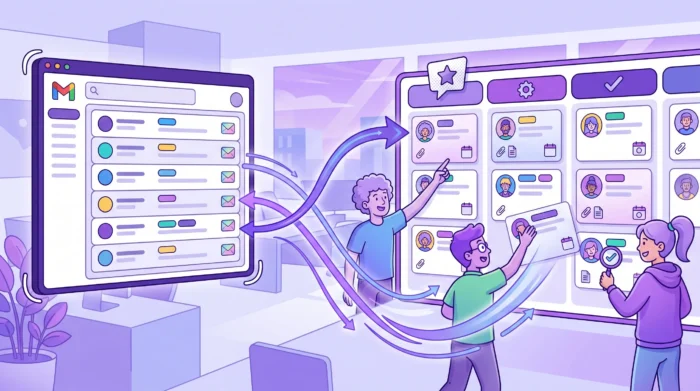
A digital illustration of how Gmail to task conversion works

A high-priority customer request arrives in Gmail. Someone replies, another person forwards it, a manager adds a label, and then everyone assumes the work is moving. Two days later, nobody knows who owns it, whether it is blocked, or if the deadline has changed.

That is the classic inbox problem. Gmail is excellent for communication, but email threads are not designed to be a shared task management system. The fix is a clear Gmail-to-task workflow that moves real work into a project management tool where the whole team can act on it.

If you are looking for a step-by-step guide on how to set up that workflow: inbox triage, card creation, board stages, and closing the loop, the Gmail task management guide covers the full process. This article focuses on something more specific: which types of emails should become tasks, what information each type needs, and how to handle the most common categories your team is likely to encounter.

What Makes an Email Ready to Become a Task?

Not every email should become a task. A newsletter, a simple FYI, or a completed confirmation may only need archiving. But if an email requires action, decision-making, tracking, or collaboration, it should leave the inbox and become structured work.

A useful task usually includes six elements:

Email informationTask field to createWhy it matters
Request or problemTask title and descriptionMakes the action clear at a glance
Sender or stakeholderRelated contact or context in the cardHelps the team understand who needs the result
Expected response dateDue datePrevents silent delays and missed commitments
Person responsibleAssigneeRemoves ambiguity around ownership
Supporting documentsAttachments from Google DriveKeeps files connected to the work
Current next stepWorkflow statusShows whether the task is ready, active, waiting, or done

A simple rule helps: if the email asks someone to do something, decide something, deliver something, or follow up later, it belongs in a task system.

Turn vague emails into actionable work

Many emails are not written like tasks. A client might write, “Please take a look when you can.” A colleague might forward a thread with no explanation. A manager might ask, “Can we handle this next week?”

Before converting the message, rewrite the request as a clear action. Review Q2 contract changes is better than Fwd: contract. Prepare a revised onboarding checklist by Friday, it is better than Onboarding updates. The task title should describe the action, not merely the email topic. This small habit improves search, prioritization, and progress tracking across the entire board.

Examples of Emails That Should Become Tasks

Client requests

Client emails often arrive with feedback, approvals, change requests, or questions that require coordination across more than one person. These should always become tasks when they affect delivery or involve several moving parts.

A client email asking for three website changes, for example, can become a single card with a checklist. Each checklist item describes one change. The card owner manages delivery and client communication from one place, instead of across three separate email threads.

What to include in the card:

  • A task title that names the deliverable, not the email subject
  • The client’s name or company in the card description or tags
  • Attachments from Google Drive with the relevant brief, mockup, or reference file
  • A due date tied to the client’s deadline, not the day the email arrived
  • A workflow stage, such as In Progress, Waiting for Client, or Review

Once the card exists, reply to the client with a short confirmation: Thanks, we have logged this and assigned it to Alex for delivery by Thursday. That closes the communication loop while the task handles execution.

Finance and operations emails

Invoices, payment approvals, procurement questions, and contract updates are easy to lose in a shared inbox. These messages typically involve multiple people: the requester, the approver, the finance team, the vendor, and sometimes the project owner. A missed step can delay a payment or a project.

Turning these emails into tasks creates a transparent approval workflow without making Gmail into a manual routing system. A finance request might move through stages such as Received, Needs Approval, Approved, Paid, and Archived. Each stage is visible to the team. No one has to ask where a payment stands.

What to include in the card:

  • A task title that names the financial action
  • The amount, vendor name, and deadline in the card description
  • The invoice or contract attached from Google Drive
  • The approver is the card owner or a tagged collaborator
  • A due date that reflects the actual payment or approval deadline

For teams that need to keep billing records organized alongside project tracking, pairing a task board with a financial reporting tool helps keep both layers visible. In Kanbanchi, a finance task card connects directly to Drive files, so the invoice and the approval chain live in the same place.

Internal approvals

Approvals are one of the most common sources of hidden delays. A manager receives an email, intends to review it later, and the project waits silently. Nobody follows up because nobody wants to appear impatient. A week passes.

Turning approval emails into tasks makes the waiting visible. The card exists. It has a stage, a due date, and an owner. If the approval has not moved by a certain date, the delay is on the board, not buried in someone’s inbox.

What to include in the card:

  • A task title that names what needs approval and by when
  • The approver as the card owner or primary collaborator
  • The draft, document, or item requiring approval attached from Google Drive
  • A Waiting for Approval or Review list so the team can see what is blocked
  • A Gantt chart entry if the approval affects a downstream deadline

If the approval affects a larger project timeline, a campaign launch, a product release, a client deliverable, the card should appear on the Gantt chart with a dependency. That makes the impact visible before it becomes a deadline problem.

Hiring and onboarding emails

Recruiting emails, interview feedback, equipment requests, and onboarding documents can quickly become scattered across multiple inboxes, folders, and threads. A Gmail-to-task process helps hiring managers and operations teams standardize the flow without building a complex HR system from scratch.

An email confirming a candidate’s start date, for example, can become an onboarding card with subcards for each step: account setup, equipment request, document signing, manager introduction, and first-week schedule. Each subcard has an owner and a due date. Nothing slips through because someone assumed someone else was handling it.

What to include in the card:

  • A task title that names the person and stage
  • Subcards for each onboarding step with individual owners
  • Relevant documents attached from Google Drive
  • A timeline view on the Gantt chart if onboarding overlaps with other team commitments
  • Clear workflow stages: Offer Accepted, Preparing, Day 1 Ready, Onboarding Complete

The same structure works for outgoing team members. An offboarding card can track account deactivations, equipment returns, knowledge transfer sessions, and final documentation, all visible on the board, all assigned, all with due dates.
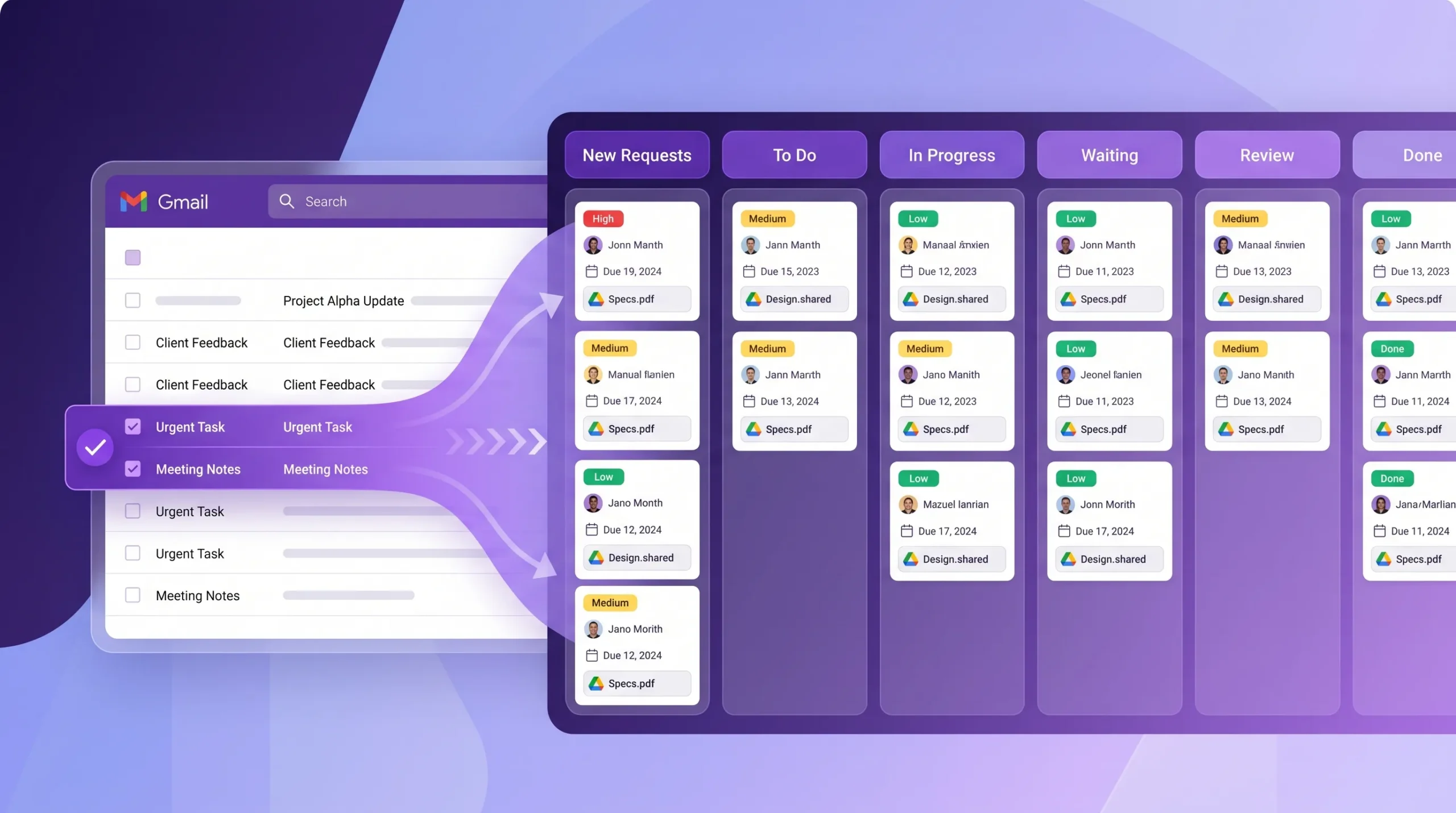
A Gmail inbox with selected messages flowing into a visual Kanban board with lists for New Requests, To Do, In Progress, Waiting, Review, and Done. Cards show owners, due dates, priorities, and attached Google Drive files
A Gmail-to-task workflow moves requests out of individual inboxes and into a shared board where ownership, deadlines, and progress are visible

Best Practices for Making This Work at Scale

Define what should be converted

If your team converts every email into a task, the board will become noisy. If people convert too few, work will still hide in inboxes. The most effective approach is to agree on a simple conversion rule.

A good team rule: Convert any email that requires work from more than one person, has a deadline, affects a customer, changes project scope, or needs formal follow-up. This keeps the board focused on actionable work instead of becoming a second inbox.

Use consistent naming conventions

Clear card titles make boards easier to scan. Start with a verb wherever possible: Review, Approve, Prepare, Send, Update, Confirm, Schedule, Investigate, Publish.

For recurring work, use a consistent pattern. Finance approval: vendor invoice for April, or Client feedback: homepage copy review are titles a teammate can understand without opening the card. Consistent titles improve filtering, reporting, and board-wide clarity.

Assign one clear owner

A task can involve many collaborators, but it should have one primary owner responsible for moving the card forward, asking for help when blocked, and closing the loop with the original sender.

If a card has no owner, it is only a reminder. If it has five equal owners, it may become nobody’s responsibility.

Keep the original context close

When converting emails into tasks, include enough context for the assignee to act without hunting for the original thread. Add the key request, relevant decisions, and any important constraints to the card description. Attach the relevant files directly. A card someone can act on immediately is worth far more than a card that sends people back to Gmail.

Review email-created tasks daily

Email-to-task workflows are most effective when someone reviews new cards regularly. A team lead or board owner should check the new requests each day, clarify vague tasks, assign owners, set priorities, and move cards into the correct workflow stage.

This prevents the board from becoming an unfiltered second inbox and keeps the process clean for everyone.

How Kanbanchi Supports Gmail-to-Task Workflows

Kanbanchi connects Gmail to a shared project board through a Gmail add-on. For Microsoft users, a board’s unique email address. Cards created from email support assignments, due dates, Google Drive attachments, Gantt chart planning, and time tracking. All inside the Google Workspace. For the Microsoft 365 environment, the same process should be tweaked a little bit.
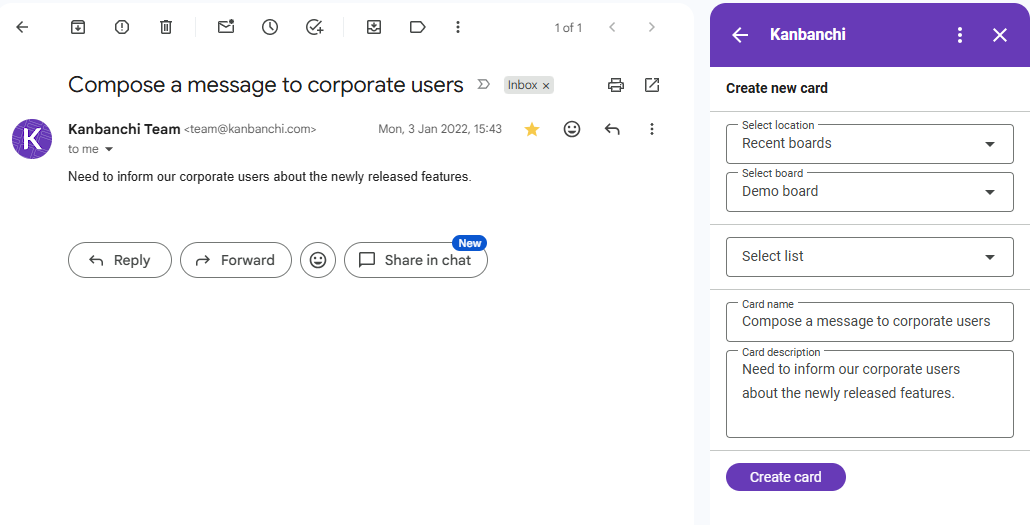
Kanbanchi integration with Gmail displaying project tasks and collaboration tools within the email sidebar
With Kanbanchi integrated into Gmail, project tasks can be created and managed directly from email

Try Kanbanchi today

For a detailed walkthrough on setting up the Gmail add-on, creating cards from email, and organizing the resulting workflow, see the Gmail task management guide, which covers the full setup and configuration.

The key advantage for teams is that a converted email does not become a private reminder. It becomes visible work on a shared board with an owner, a stage, a timeline, and attached files. Now the whole team can see and act on it.

Frequently Asked Questions

When should a finance email become a task rather than just an email thread?

Any finance email that requires action from more than one person or has a payment or approval deadline should become a task. Approval chains, invoice reviews, and contract sign-offs are particularly prone to stalling in shared inboxes. A task card with a clear owner and due date makes the approval status visible without repeated follow-up emails.

How do I manage onboarding tasks that start in Gmail without creating duplicate work?

Create one onboarding card per new hire as soon as the start date is confirmed, and use subcards for each onboarding step. Assign each subcard to the responsible person: IT for account setup, the manager for introductions, and HR for documents. That way, every step has a named owner and a due date, and nobody is relying on memory or a separate checklist buried in email.

What is the difference between using Gmail labels and converting emails to tasks?

Gmail labels are useful for sorting your own inbox by category. They do not assign work, show progress, reveal blockers, or give the rest of the team visibility into what is happening. A task card does all of those things. Labels are a good first triage step; a shared board is where the work actually gets managed.

Read all articles related to Google Workspace here

Turn Gmail Requests Into Trackable Work With Kanbanchi

If your team runs on Gmail, the next productivity improvement may not be another inbox rule. It may be a clearer process for deciding which emails need to become tasks, and what information those tasks need to be useful.

The use cases in this article, client requests, finance approvals, internal sign-offs, and onboarding, are where Gmail-to-task workflows make the biggest difference. Each type has its own rhythm, its own required fields, and its own risk of disappearing into a thread.

Try Kanbanchi to make Gmail the starting point of work, not the place where tasks disappear.
    MultipleAuthors\Classes\Objects\Author Object
    (
        [term_id] => 973
        [term:MultipleAuthors\Classes\Objects\Author:private] => 
        [metaCache:MultipleAuthors\Classes\Objects\Author:private] => Array
            (
                [user_email] => olga.alekseeva@kanbanchi.com
                [user_id] => 20
                [first_name] => Olga Alekseeva
                [last_name] => 
                [job_title] => Growth hacking expert with over 10 years of experience with Kanbanchi
                [description] => Olga wears multiple hats across marketing, sales, product, and ops after 10+ years in the SaaS world. She is passionate about helping teams streamline their workflows with Kanbanchi and Google Workspace or Microsoft 365. "When I'm not optimizing processes or writing guides, I'm probably tweaking our product roadmap or diving into the latest productivity tools".
                [user_url] => https://linkedin.com/in/olgksv
            )
    
        [userObject:MultipleAuthors\Classes\Objects\Author:private] => WP_User Object
            (
                [data] => stdClass Object
                    (
                        [ID] => 20
                        [user_login] => olga.alekseeva
                        [user_pass] => $wp$2y$10$WuiuvYMj7CDnLrRbWchEkuBwKzmbBakK64Uk5c68bDY3qA46MFam6
                        [user_nicename] => olga-alekseeva
                        [user_email] => olga.alekseeva@kanbanchi.com
                        [user_url] => https://linkedin.com/in/olgksv
                        [user_registered] => 2025-09-03 15:47:58
                        [user_activation_key] => 
                        [user_status] => 0
                        [display_name] => Olga Alekseeva
                    )
    
                [ID] => 20
                [caps] => Array
                    (
                        [editor] => 1
                        [author] => 1
                        [contributor] => 1
                        [wpseo_editor] => 1
                        [wpseo_manager] => 1
                        [administrator] => 1
                    )
    
                [cap_key] => wp_capabilities
                [roles] => Array
                    (
                        [0] => editor
                        [1] => author
                        [2] => contributor
                        [3] => wpseo_editor
                        [4] => wpseo_manager
                        [5] => administrator
                    )
    
                [allcaps] => Array
                    (
                        [moderate_comments] => 1
                        [manage_categories] => 1
                        [manage_links] => 1
                        [upload_files] => 1
                        [unfiltered_html] => 1
                        [edit_posts] => 1
                        [edit_others_posts] => 1
                        [edit_published_posts] => 1
                        [publish_posts] => 1
                        [edit_pages] => 1
                        [read] => 1
                        [level_7] => 1
                        [level_6] => 1
                        [level_5] => 1
                        [level_4] => 1
                        [level_3] => 1
                        [level_2] => 1
                        [level_1] => 1
                        [level_0] => 1
                        [edit_others_pages] => 1
                        [edit_published_pages] => 1
                        [publish_pages] => 1
                        [delete_pages] => 1
                        [delete_others_pages] => 1
                        [delete_published_pages] => 1
                        [delete_posts] => 1
                        [delete_others_posts] => 1
                        [delete_published_posts] => 1
                        [delete_private_posts] => 1
                        [edit_private_posts] => 1
                        [read_private_posts] => 1
                        [delete_private_pages] => 1
                        [edit_private_pages] => 1
                        [read_private_pages] => 1
                        [wpseo_bulk_edit] => 1
                        [copy_posts] => 1
                        [ppma_edit_post_authors] => 1
                        [ppma_edit_own_profile] => 1
                        [wpseo_edit_advanced_metadata] => 1
                        [wpseo_manage_options] => 1
                        [view_site_health_checks] => 1
                        [switch_themes] => 1
                        [edit_themes] => 1
                        [activate_plugins] => 1
                        [edit_plugins] => 1
                        [edit_users] => 1
                        [edit_files] => 1
                        [manage_options] => 1
                        [import] => 1
                        [level_10] => 1
                        [level_9] => 1
                        [level_8] => 1
                        [delete_users] => 1
                        [create_users] => 1
                        [unfiltered_upload] => 1
                        [edit_dashboard] => 1
                        [update_plugins] => 1
                        [delete_plugins] => 1
                        [install_plugins] => 1
                        [update_themes] => 1
                        [install_themes] => 1
                        [update_core] => 1
                        [list_users] => 1
                        [remove_users] => 1
                        [promote_users] => 1
                        [edit_theme_options] => 1
                        [delete_themes] => 1
                        [export] => 1
                        [bcn_manage_options] => 1
                        [manage_security] => 1
                        [restrict_content] => 1
                        [list_roles] => 1
                        [create_roles] => 1
                        [delete_roles] => 1
                        [edit_roles] => 1
                        [cfdb7_access] => 1
                        [ppma_manage_authors] => 1
                        [ppma_manage_layouts] => 1
                        [ppma_manage_custom_fields] => 1
                        [ppma_manage_author_categories] => 1
                        [iwc_read_posts] => 1
                        [iwc_create_posts] => 1
                        [iwc_edit_posts] => 1
                        [iwc_delete_posts] => 1
                        [iwc_read_users] => 1
                        [iwc_create_users] => 1
                        [iwc_edit_users] => 1
                        [iwc_delete_users] => 1
                        [iwc_read_comments] => 1
                        [iwc_create_comments] => 1
                        [iwc_edit_comments] => 1
                        [iwc_delete_comments] => 1
                        [iwc_upload_files] => 1
                        [iwc_read_media] => 1
                        [iwc_edit_media] => 1
                        [iwc_delete_media] => 1
                        [iwc_read_terms] => 1
                        [iwc_create_terms] => 1
                        [iwc_edit_terms] => 1
                        [iwc_delete_terms] => 1
                        [editor] => 1
                        [author] => 1
                        [contributor] => 1
                        [wpseo_editor] => 1
                        [wpseo_manager] => 1
                        [administrator] => 1
                    )
    
                [filter] => 
                [site_id:WP_User:private] => 1
            )
    
        [hasCustomAvatar:MultipleAuthors\Classes\Objects\Author:private] => 1
        [customAvatarUrl:MultipleAuthors\Classes\Objects\Author:private] => Array
            (
                [url] => https://www.kanbanchi.com/wp-content/uploads/2025/09/photo_2024-04-10_17-25-16.jpg
                [url2x] => https://www.kanbanchi.com/wp-content/uploads/2025/09/photo_2024-04-10_17-25-16.jpg
            )
    
        [avatarUrl:MultipleAuthors\Classes\Objects\Author:private] => 
        [avatarBySize:MultipleAuthors\Classes\Objects\Author:private] => Array
            (
                [96] => 
                [80] => 
                [50] => 
            )
    
    )
    
  • Growth hacking expert with over 10 years of experience with Kanbanchi

    Olga wears multiple hats across marketing, sales, product, and ops after 10+ years in the SaaS world. She is passionate about helping teams streamline their workflows with Kanbanchi and Google Workspace or Microsoft 365. "When I'm not optimizing processes or writing guides, I'm probably tweaking our product roadmap or diving into the latest productivity tools".

    All articles
Share

Try Kanbanchi now

  • Collaborate seamlessly
    with your team
  • Integrate Kanbanchi
    with Google or Microsoft
  • Manage all your work in one place
Start for free

Start using Kanbanchi now

Start your free trial