-  views

The Ultimate Guide to Using Google Calendar for Project Management

Try Kanbanchi now

Start your free trial

 

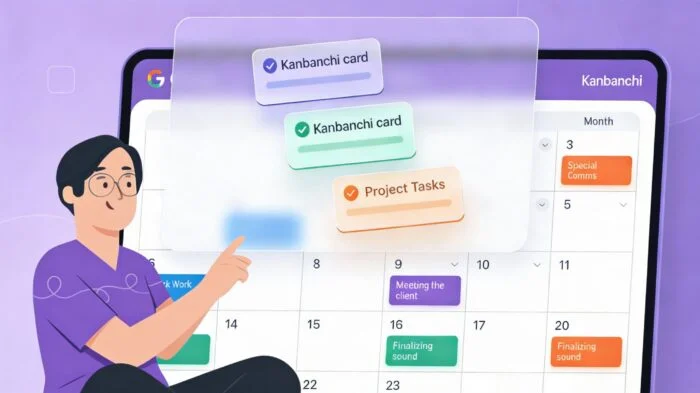
A person in purple professional attire sits with a tablet displaying a Google Calendar interface. Three floating Kanbanchi task cards in light purple, mint green, and orange - each with checkmarks - overlay the calendar, demonstrating the integration between Google Calendar events and Kanbanchi project cards

With over 3 billion users, Google Workspace outpaces its nearest rival, Microsoft Office 365, by a wide margin. So it’s likely that you’re already pretty familiar with its scheduling and planning tool: Google Calendar. It’s used for way more than tracking meetings. Google Calendar is the cornerstone of many teams’ organizational life at work. And why not? It’s free, familiar, and instantly available. So, the big question is: can you use Google Calendar for project management? Absolutely!

For teams managing:

  • straightforward projects
  • tracking key milestones
  • needing crystal-clear deadlines

Google Calendar offers a surprising amount of functionality. It’s often the best starting point for organizations that need quick clarity without the overhead of complex, external software.

In our guide to using Google Calendar for PM, we’re going to take you beyond basic scheduling. We’ll show you practical, step-by-step strategies for transforming Google Calendar into an effective, collaborative project hub. You’ll learn how to organize team schedules, map dependencies, and fully utilize its deep integration with Gmail, Drive, and Tasks.

But we’ll also be realistic about its limitations. When your projects demand complex workload views, Gantt timelines, or powerful reporting, Google Calendar reaches its limit. That’s when the next step is crucial. Choosing a project management software with Google Calendar integration that amplifies its brilliance and adds its own magic. 

This article will show you exactly where that line is drawn, and how Kanbanchi steps in as the perfect, native upgrade.

Read all articles related to Google Workspace here

Turning Google Calendar into a Project Hub

To have successful Google Calendar project management, you first need to stop treating it as a single, large-scale scheduler. It’s best to leverage Google Calendar’s ability to create and manage separate calendars. This is what makes the fundamental shift from a personal schedule to a project hub. We reckon there are four main points to consider here: 

1. Use Dedicated Project Calendars

First, think about each project, department, or client as its own calendar. Then look at these three stages: 
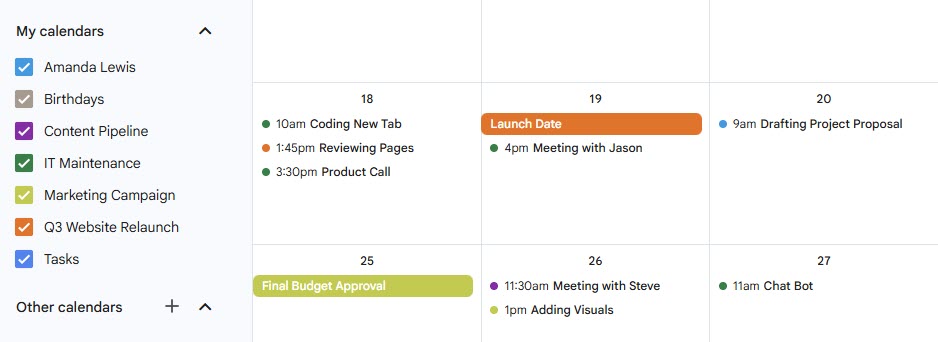
  1. Actionable Step: In the Google Calendar left sidebar, under “Other calendars,” click the “Plus” icon and select “Create new calendar.”
  2. Best Practice: Name it clearly (e.g., “Q3 Website Relaunch” or “Client X Content Pipeline”).
  3. Organization: Use Google Calendar’s intuitive color-coding feature. Assign a unique color to each project calendar to provide instant visual context. For instance, green events fall under “Marketing Campaign,” while yellow events fall under “IT Maintenance.”
Google Calendar interface displaying multiple project calendars organized by color: Q3 Website Relaunch (orange), Content Pipeline (purple), IT Maintenance (green), Marketing Campaign (yellow), and Tasks (blue). The left sidebar shows the calendar list with checkboxes for toggling visibility of each project calendar

Create dedicated, color-coded calendars for each project, department, or client in Google Calendar. Assign unique colors to instantly distinguish between them, making it easy to filter and visualize workload at a glance

2. Manage Shared Access and Permissions

Projects are pretty much always collaborative, and for this, Google Calendar is excellent at managing team visibility. It’s excellent for:
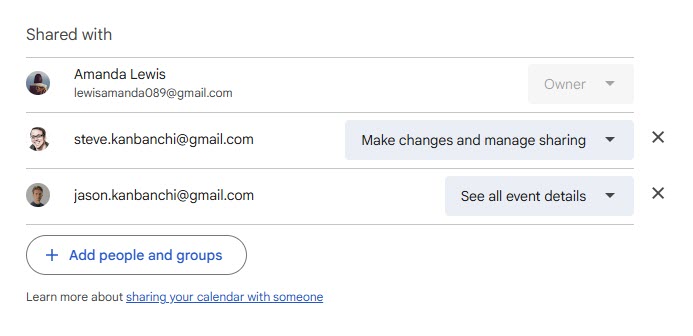
  • Team Alignment: To ensure every team member has access to the relevant project calendars. By default, your team can subscribe to any calendar you share.
  • Permission Control: You can set specific permissions: do team members only need to view the milestones, or do they need permission to edit and add new tasks? This prevents accidental deletions and maintains schedule integrity.
Google Calendar sharing settings showing three team members with different permission levels: Owner, Make changes and manage sharing, and See all event details

Use Google Calendar’s granular permission settings to give team members appropriate access: from view-only visibility to full editing and sharing capabilities

3. Define Milestones and Deadlines

Milestones, those non-negotiable, high-level deliverables, should be treated differently from everyday tasks.
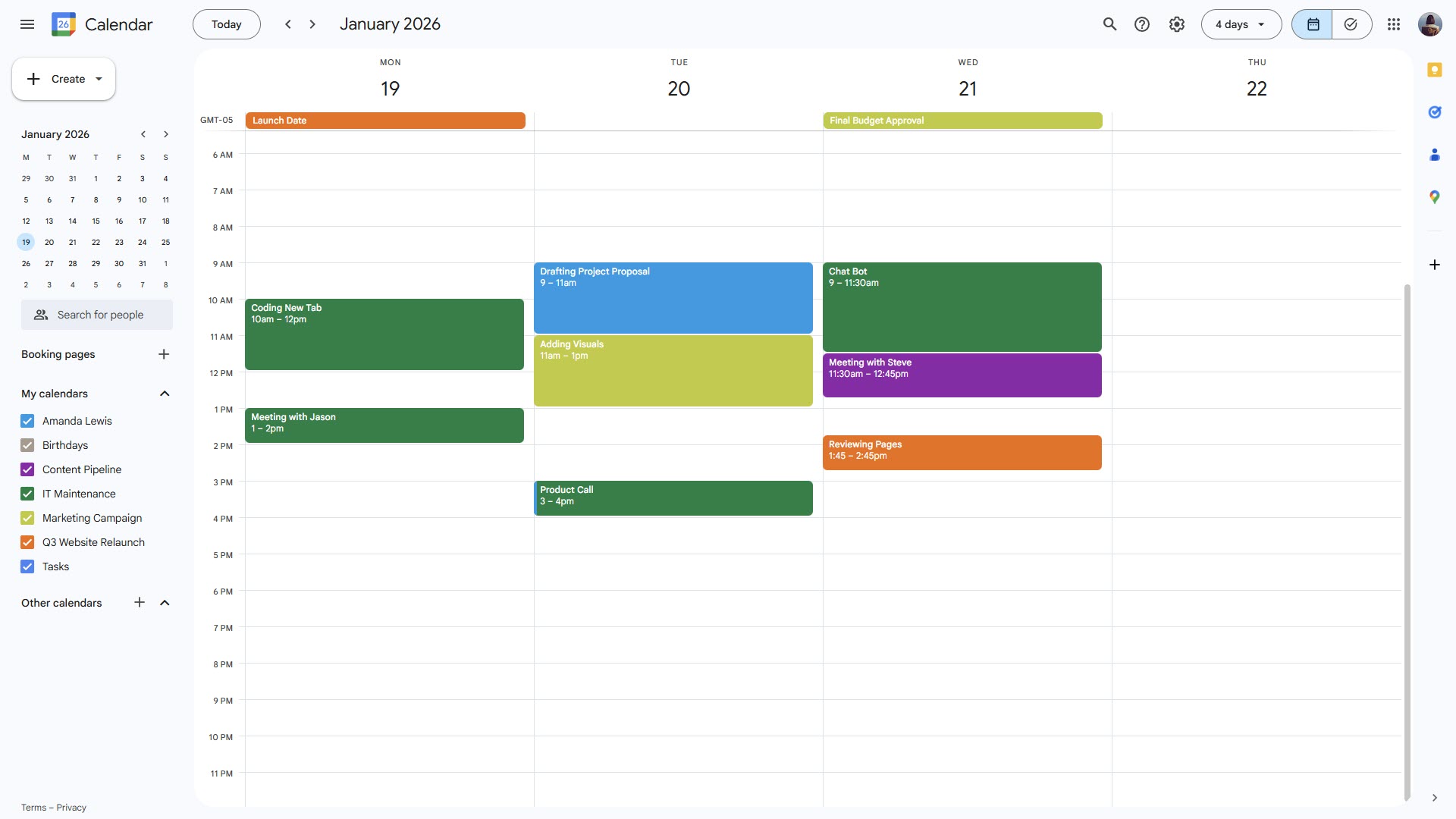
  • Milestones: Schedule major deadlines (like “Final Budget Approval” or “Launch Date”) as all-day events on the relevant project calendar. This means they sit prominently at the top of the day, acting as crucial, unmissable reference points.
  • Tasks: Use timed events for specific deliverables and deep work. For example, “Drafting Project Proposal” might be scheduled for 9:00 AM to 1:00 PM on Tuesday, clearly communicating when the work is expected to happen.
Google Calendar weekly view showing all-day milestones (Launch Date, Final Budget Approval) at the top and timed events like Drafting Project Proposal, Coding New Tab, and Product Call scheduled with specific times throughout the week

Schedule milestones as all-day events to make them unmissable, and use timed events for specific deliverables for clear work expectations

4. Plan Capacity with Working Hours

While Google Calendar lacks robust resource management, you can use its native settings to improve capacity planning. Think about all the following: 

  • Set Working Hours: Encourage your team to set their working hours in Google Calendar settings. When you try to schedule a meeting or task outside those hours, Google Calendar provides a helpful warning to prevent you from accidentally overloading a colleague during their designated downtime.

These core first steps help establish a clear visual system for using Google Calendar for project management, transforming a simple scheduling app into a highly effective team-wide coordination tool.
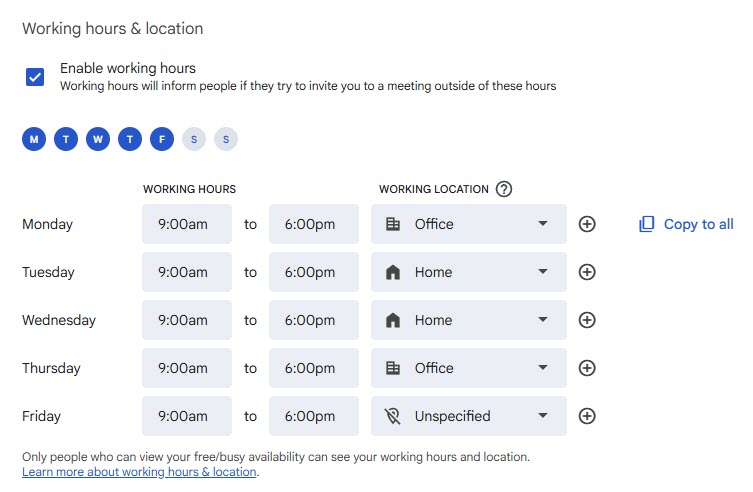
Google Calendar working hours settings showing Monday-Friday schedules from 9:00am to 6:00pm with working locations set to Office, Home, or Unspecified for capacity planning

Enable working hours for your team to prevent overloading colleagues. Google Calendar warns when scheduling outside designated hours, enabling smarter capacity planning

Practical Strategies for Scheduling and Tracking in Google Calendar

Now that the first steps are complete, let’s explore a few workable strategies for managing a project day-to-day using project management in Google Calendar. It requires treating events not just as meetings, but as core deliverables with a set deadline. 

1. Time-Blocking and Deadline Management

The most effective way to manage deliverables in Google Calendar is through dedicated time blocking.

  • Tasks are Timed Events: Don’t just write “Draft report” on your to-do list! Schedule a specific block of time for it on your calendar (e.g., Tuesday, 2 pm to 4 pm). This reserves the time, protects it from meetings, and turns the task into a commitment.
  • Visualize Workload: By turning all primary tasks into timed calendar events, managers can visually scan the combined project calendars to see who is allocated to what and when. If a team member’s calendar is fully booked for the week, it’s a clear signal that new assignments must be deferred.
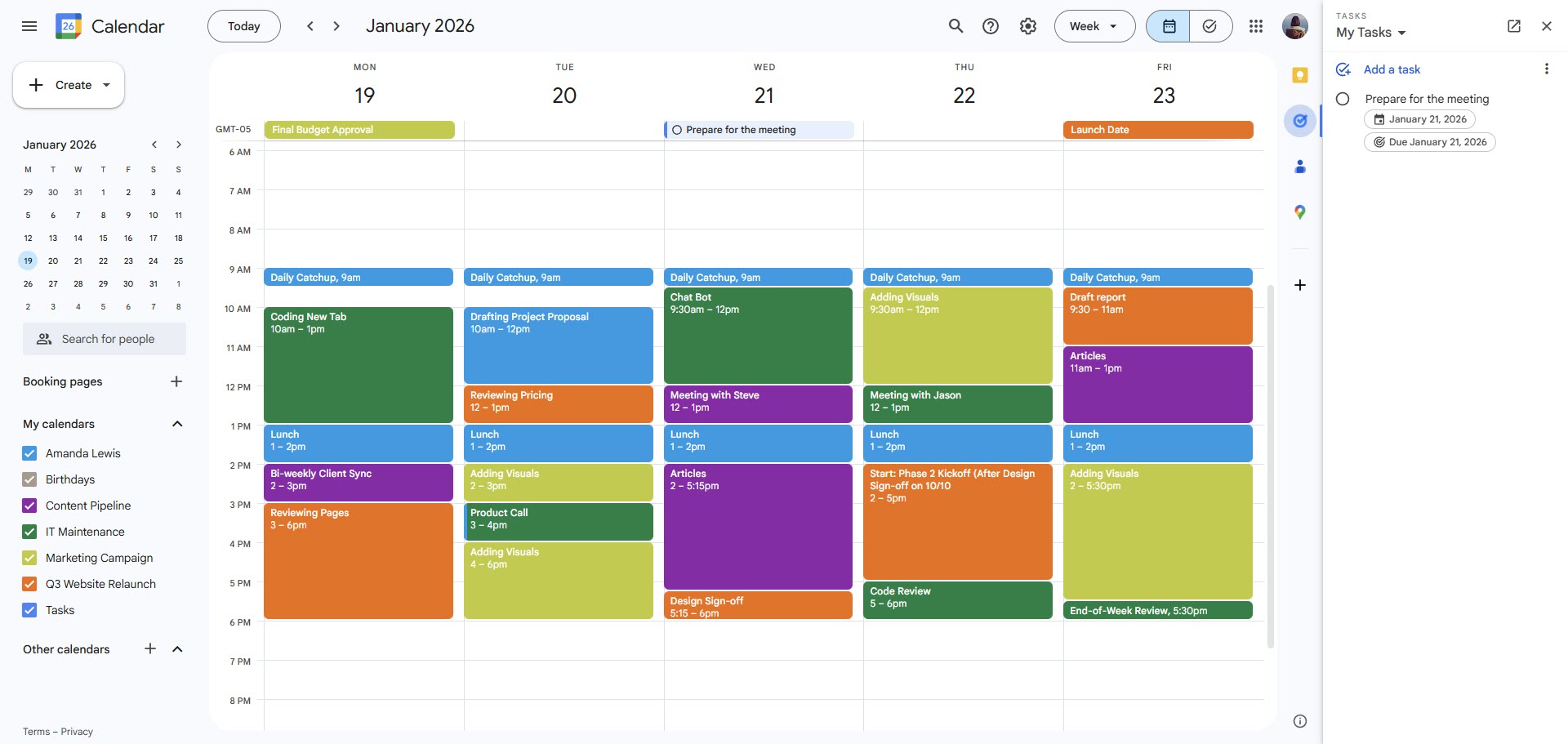
  • Use Recurring Events for Rituals: Schedule recurring events for project rituals that don’t need dedicated PM software, such as “Daily Catchup (15 min),” “Bi-weekly Client Sync,” or “End-of-Week Review.”

2. Leverage Google Tasks for Project To-Dos

Google Calendar seamlessly integrates with Google Tasks, offering a lightweight to-do list alongside your schedule. What are its standout features? 

  • The Tasks Sidebar: Use the Google Tasks panel in the Google Calendar sidebar (or on the right side of Gmail/Drive). It’ll allow you to list individual, non-time-sensitive project items.
  • Deadlines Display: When you assign a due date to a Task, it appears directly on your Google Calendar day view, reminding you of the deadline without cluttering your scheduled events.

However, it does have limitations: While it’s useful for personal to-dos, Google Tasks is not ideal for shared team visibility. This is because tasks assigned to a team member in a project calendar will not automatically appear on their individual Google Calendar unless they manually add them.

3. Mapping Milestones and Project Dependencies

Google Calendar can help map dependencies, but this requires manual effort and clear communication between team members.

  • Dependencies by Event Title: Since Google Calendar cannot automatically link one event’s start date to another’s completion date (a key PM software feature!), you must use the event title to link them. For example: “Start: Phase 2 Kickoff (After Design Sign-off on 10/10).” This communicates the dependent date.
  • Event Descriptions as Documentation: Use the event description field to link directly to the correct document in Google Drive (or the related preceding milestone event). This turns the calendar event into a documented action item.

4. Naming Conventions for Search and Categorization

A consistent approach to event naming is vital to maintaining an organized workflow when using Google Calendar for project management.
  • Standardized Format: Keep a standard, recognizable format for all project events, such as [Project Name] – [Task Type] – [Deliverable].
  • Use Hashtags for Search: Include hashtags in the event description or title (e.g., #Critical or #ClientA) so you can quickly search Google Calendar to pull up all events related to that category, overcoming the limits of the simple calendar view.
Google Calenadr with the properly scheduled events, added Google Tasks and color-coded events

By combining dedicated calendars, using disciplined time blocking, plus clear documentation in event descriptions, you can create a surprisingly robust project coordination system using the tools you already have

Supercharging Your Workflow with Google Workspace Integrations

The real power of Google Calendar for project management isn’t in the calendar itself, but in the way it integrates with the rest of the Google Workspace suite and other apps you use. Your goal? Minimize context switching to keep project data centralized within the ecosystem.

1. Tasks from Gmail: Convert Communication into Action

Project communication often lives in your email inbox. Google Calendar integration allows you to instantly convert that communication into a scheduled action item.

  • Use the Add to Tasks Feature: When an email arrives from a client or manager detailing a new deliverable, use the “Add to Tasks” button (available in the three-dot menu or the Tasks sidebar). This creates a Google Task directly linked to the email.
  • Scheduling the Task: Once created, you can assign a due date to the Google Task, which immediately populates your Google Calendar view. This ensures the action item is scheduled. 
  • Full Context Retention: Because the Task remains linked to the original email, you always have the full context and history of the request when the calendar reminder appears.

2. Attaching Google Drive Documents to Calendar Event

Project events are meaningless without the corresponding assets. Google Calendar makes attaching them effortless.

  • One-Click Attachment: When creating or editing a calendar event, you can search and attach relevant files, be they Google Docs, Sheets, Slides, or PDFs, directly from Google Drive. You don’t have to navigate to Drive, copy a link, and paste it.
  • Permission Checks: Google Calendar often prompts you to confirm that everyone invited to the event has the correct viewing or editing permissions on the attached Drive file, helping prevent common access issues.
  • Centralized Documentation: The event description is the ideal place to include key links to your Project Plan (Google Doc) or Project Budget (Google Sheet).

3. Utilizing Google Sheets as a Timeline Foundation (Gantt chart)

While Google Calendar doesn’t have a Gantt view, you can still use Google Sheets as a customized foundation for project timelines.

  • The Simple Timeline: Create a Google Sheet that lists tasks, start dates, and due dates. Although the Sheet itself won’t dynamically update the Google Calendar (you should use a dedicated PM tool for that), it serves as a master list for entering events into Google Calendar.
  • Visualization: Tools such as conditional formatting in Google Sheets can create a basic visual timeline similar to the Gantt chart, tracking progress againstdates scheduled in Google Calendar.

4. Tips on using Google Meet Integration for Project Standups

The instant integration of Google Meet into Google Calendar events streamlines team communication.

  • Instant Meeting Links: Every Google Calendar event includes an option to automatically generate a Google Meet link. This eliminates the need for external video conferencing tools and for manually creating links.
  • Project-Specific Notes: Use the Google Calendar event description to set the agenda and add the link to the Google Doc for meeting notes. This centralizes the entire project, from scheduling and communication to documentation, in one place.

This native ecosystem approach is the core reason why Google Calendar project management is so effective: it reduces complexity and ensures all project components stay synchronized and accessible.

You may also be interested in checking out our guides:
“How to Use Google Workspace for Project Management”
“Google Workspace Project Management Guide”

When Google Calendar Falls Short – The Need for a Project Management Tool

For simple projects and deadline tracking, Google Calendar for project management is an excellent solution. But every tool has its limits. When you start managing complex, multi-phase projects or multiple client portfolios, Google Calendar’s limitations become apparent. 

Here are the five key areas where Google Calendar cannot compete with a dedicated project management system:

  1. No Kanban or Task Flow Visualization: Google Calendar only shows you when something is due. It can’t show you the status of that task, i.e., whether it’s In Progress or Awaiting Review. Without a visual workflow like Kanban, project status reports rely entirely on meetings.
  2. Weak Dependency Mapping: While you can manually note dependencies in event descriptions, Google Calendar can’t automatically shift subsequent tasks when a predecessor task is delayed. This is perhaps where it falls down the most. 
  3. Limited Collaborative Features: Although you can use shared Calendars, adding something to Google Tasks creates your own task. Your colleagues can’t see the progress, so the whole process is less transparent.
  4. No Comprehensive Reporting: Google Calendar cannot generate reports on budget consumption, time spent per task, team velocity, or project health metrics. It’s a scheduling tool, not an analytical or reporting engine.
  5. Time Tracking Deficiency: While you can schedule time blocks, Google Calendar does not allow team members to track the time they actually spend on a task for billing or performance analysis.

These limitations can start to create chaos. When a slight delay cascades into a massive timeline shift, or when you can’t accurately report team utilization, it’s time for the upgrade. You need project management software with Google Calendar integration that adds the missing structure without sacrificing the familiarity of your Google Workspace.

This is where Kanbanchi shines: it provides the necessary organizational framework and reporting capabilities while remaining fully integrated with your existing Google environment.

Kanbanchi: The Next Step for Calendar-Centric Teams

The moment you realize you need a Kanban board, Gantt chart, or time-tracking, you shouldn’t have to jump ship to an external, complex PM solution. You should “upgrade” the functionality in Google Workspace using the external app. It’s the obvious next step for calendar-centric teams. And that’s where Kanbanchi will be a great help!
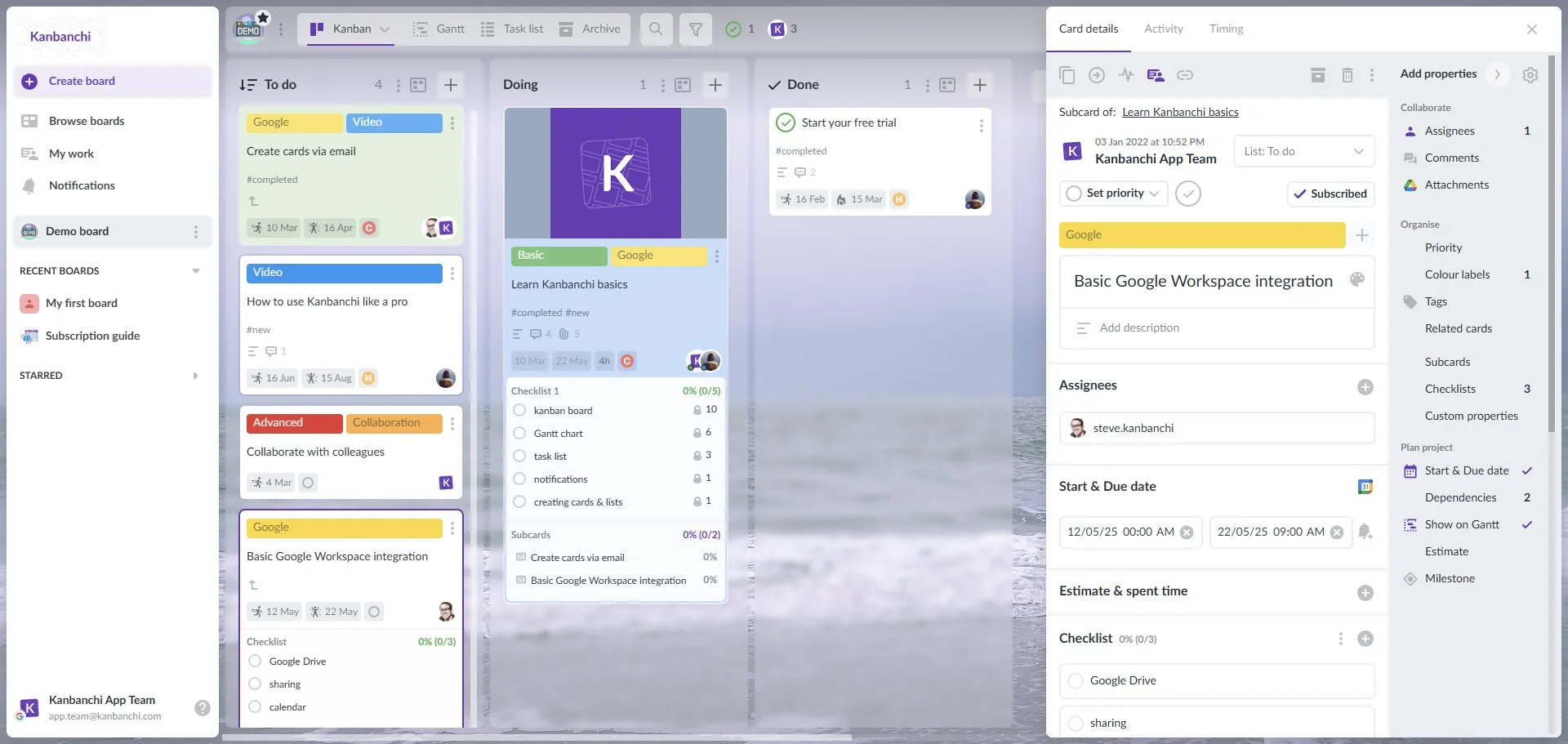
Kanbanchi interface example when using Google account

Kanbanchi is the dedicated project management software built to solve every Google Calendar limitation while maintaining 100% native integration with the tools your team uses daily

The Kanbanchi Advantage: Structure Meets Schedule

Kanbanchi seamlessly layers the missing PM structure into your Google Calendar workflow:

1. Kanban and Status Tracking

Kanbanchi provides the missing Kanban board. Tasks are visual cards that move across customizable status columns (“To Do,” “In Progress,” “Blocked”). Now you know not just when a task is due, but where it is in the process.

2. Native Gantt Chart

With a single click, Kanbanchi converts your Kanban task cards (with start and end dates) into a full Gantt Chart. You can instantly visualize timelines, identify critical paths, and map true dependencies, a feature that Google Calendar cannot provide.

3. Flawless Google Calendar Synchronization

Kanbanchi provides the best of both worlds. You can choose to “Add Dates to Google Calendar” directly from your Kanbanchi cards. This ensures that every task scheduled in Kanbanchi is instantly mirrored as an event in your Google Calendar, maintaining that vital calendar alignment.

4. Google-Native Everything

Your project boards are stored as files in Google Drive, Google permissions handle access control, and you can create tasks from Gmail. Kanbanchi works with Google, not outside of it.

If your team is already maximizing Google Calendar for project management and needs the structure and scalability of a professional tool, Kanbanchi is the most logical, integrated, and low-friction upgrade available.

Ready to make the change and switch to intuitive software with no learning curve, that will fit into your existing business systems?

TRY KANBANCHI FREE TODAY

FAQs about Google Calendar and PM

If there’s anything we’ve not covered in our guide you want to know about, then here are some frequently asked questions on the topic of Google Calendar for Project Management. 

Is Google Calendar effective for complex projects?

Google Calendar is highly effective for scheduling deadlines, tracking milestones, and managing simple, short-term projects. However, it is not designed for complex projects requiring dynamic dependency mapping, workload balancing, or comprehensive resource management. To meet these needs, a dedicated tool like Kanbanchi is required.

Can I use Google Calendar for time tracking?

No, Google Calendar can only be used for time blocking (scheduling the expected time for a task). It cannot track the actual time spent on a task for payroll, billing, or efficiency reporting. Dedicated PM software with integrated time tracking is needed for accurate time analysis.

How do I share a project schedule in Google Calendar?

The most effective approach is to create a dedicated calendar for the project. Go to the calendar’s settings, click “Share with specific people,” and invite your team members or clients, then set their access permissions (View Only or Edit).

What is the most significant advantage of Kanbanchi over Google Calendar for project management?

Kanbanchi’s biggest advantage is its visual structure (Kanban boards) and timeline capabilities (Gantt charts) that Google Calendar lacks, while maintaining native, real-time synchronization with Google Calendar. It turns your schedules into actionable, trackable workflows.

    MultipleAuthors\Classes\Objects\Author Object
    (
        [term_id] => 973
        [term:MultipleAuthors\Classes\Objects\Author:private] => 
        [metaCache:MultipleAuthors\Classes\Objects\Author:private] => Array
            (
                [user_email] => olga.alekseeva@kanbanchi.com
                [user_id] => 20
                [first_name] => Olga Alekseeva
                [last_name] => 
                [job_title] => Growth hacking expert with over 10 years of experience with Kanbanchi
                [description] => Olga wears multiple hats across marketing, sales, product, and ops after 10+ years in the SaaS world. She is passionate about helping teams streamline their workflows with Kanbanchi and Google Workspace or Microsoft 365. "When I'm not optimizing processes or writing guides, I'm probably tweaking our product roadmap or diving into the latest productivity tools".
                [user_url] => https://linkedin.com/in/olgksv
            )
    
        [userObject:MultipleAuthors\Classes\Objects\Author:private] => WP_User Object
            (
                [data] => stdClass Object
                    (
                        [ID] => 20
                        [user_login] => olga.alekseeva
                        [user_pass] => $wp$2y$10$WuiuvYMj7CDnLrRbWchEkuBwKzmbBakK64Uk5c68bDY3qA46MFam6
                        [user_nicename] => olga-alekseeva
                        [user_email] => olga.alekseeva@kanbanchi.com
                        [user_url] => https://linkedin.com/in/olgksv
                        [user_registered] => 2025-09-03 15:47:58
                        [user_activation_key] => 
                        [user_status] => 0
                        [display_name] => Olga Alekseeva
                    )
    
                [ID] => 20
                [caps] => Array
                    (
                        [editor] => 1
                        [author] => 1
                        [contributor] => 1
                        [wpseo_editor] => 1
                        [wpseo_manager] => 1
                    )
    
                [cap_key] => wp_capabilities
                [roles] => Array
                    (
                        [0] => editor
                        [1] => author
                        [2] => contributor
                        [3] => wpseo_editor
                        [4] => wpseo_manager
                    )
    
                [allcaps] => Array
                    (
                        [moderate_comments] => 1
                        [manage_categories] => 1
                        [manage_links] => 1
                        [upload_files] => 1
                        [unfiltered_html] => 1
                        [edit_posts] => 1
                        [edit_others_posts] => 1
                        [edit_published_posts] => 1
                        [publish_posts] => 1
                        [edit_pages] => 1
                        [read] => 1
                        [level_7] => 1
                        [level_6] => 1
                        [level_5] => 1
                        [level_4] => 1
                        [level_3] => 1
                        [level_2] => 1
                        [level_1] => 1
                        [level_0] => 1
                        [edit_others_pages] => 1
                        [edit_published_pages] => 1
                        [publish_pages] => 1
                        [delete_pages] => 1
                        [delete_others_pages] => 1
                        [delete_published_pages] => 1
                        [delete_posts] => 1
                        [delete_others_posts] => 1
                        [delete_published_posts] => 1
                        [delete_private_posts] => 1
                        [edit_private_posts] => 1
                        [read_private_posts] => 1
                        [delete_private_pages] => 1
                        [edit_private_pages] => 1
                        [read_private_pages] => 1
                        [wpseo_bulk_edit] => 1
                        [copy_posts] => 1
                        [ppma_edit_post_authors] => 1
                        [ppma_edit_own_profile] => 1
                        [wpseo_edit_advanced_metadata] => 1
                        [wpseo_manage_options] => 1
                        [view_site_health_checks] => 1
                        [editor] => 1
                        [author] => 1
                        [contributor] => 1
                        [wpseo_editor] => 1
                        [wpseo_manager] => 1
                    )
    
                [filter] => 
                [site_id:WP_User:private] => 1
            )
    
        [hasCustomAvatar:MultipleAuthors\Classes\Objects\Author:private] => 1
        [customAvatarUrl:MultipleAuthors\Classes\Objects\Author:private] => Array
            (
                [url] => https://www.kanbanchi.com/wp-content/uploads/2025/09/photo_2024-04-10_17-25-16.jpg
                [url2x] => https://www.kanbanchi.com/wp-content/uploads/2025/09/photo_2024-04-10_17-25-16.jpg
            )
    
        [avatarUrl:MultipleAuthors\Classes\Objects\Author:private] => 
        [avatarBySize:MultipleAuthors\Classes\Objects\Author:private] => Array
            (
                [96] => 
                [80] => 
                [50] => 
            )
    
    )
    
  • Growth hacking expert with over 10 years of experience with Kanbanchi

    Olga wears multiple hats across marketing, sales, product, and ops after 10+ years in the SaaS world. She is passionate about helping teams streamline their workflows with Kanbanchi and Google Workspace or Microsoft 365. "When I'm not optimizing processes or writing guides, I'm probably tweaking our product roadmap or diving into the latest productivity tools".

    All articles
Share

Try Kanbanchi now

  • Collaborate seamlessly
    with your team
  • Integrate Kanbanchi
    with Google or Microsoft
  • Manage all your work in one place
Start for free

Start using Kanbanchi now

Start your free trial