
In this Article:
Try Kanbanchi now
Start your free trial

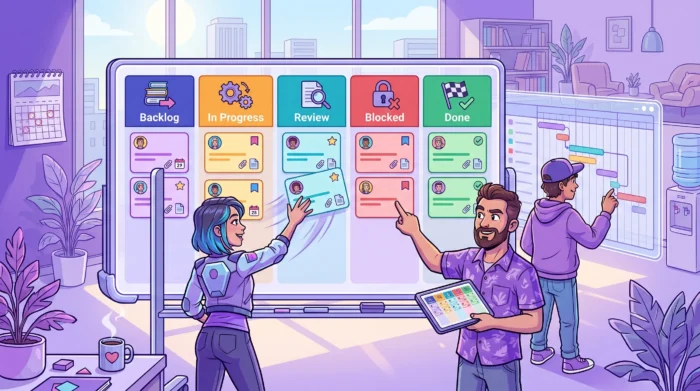
A project tracker is only useful when it answers the questions leaders ask every week: What is moving? What is blocked? Who owns the next step? Which deadlines are at risk? If the answer requires digging through email threads, spreadsheets, chat messages, and calendar invites, the tracker is not giving visibility. It is adding another place to maintain.
Clear visibility comes from designing the tracker around decisions, not data entry. A strong project management tracker should help a team see work status at a glance, understand timing, spot bottlenecks early, and keep accountability visible without creating reporting overhead.
Below is a practical setup you can use for small teams, growing departments, or enterprise groups working inside Google Workspace or Microsoft 365.
Before creating boards, columns, fields, or reports, define what visibility means for your team. Different stakeholders need different levels of detail. A project manager may need dependencies and daily blockers. A team lead may need workload and ownership. An executive may only need milestones, risks, and delivery confidence.
The best tracker separates these layers without duplicating work. Team members update tasks once, and managers use views, filters, and reports to interpret the same information.
A tracker becomes easier to maintain when it is based on clear operating rules. Start with these questions before choosing a structure:
If you cannot answer these questions, your tracker may become a digital dumping ground. If you can, the setup becomes much simpler.
Most teams need a tracker that combines workflow visibility, schedule visibility, ownership, and evidence. That means your structure should show both the work itself and the context around the work.
A good project tracker is not just a list of tasks. It is a shared operating view that connects tasks, files, timing, discussions, and responsibility.
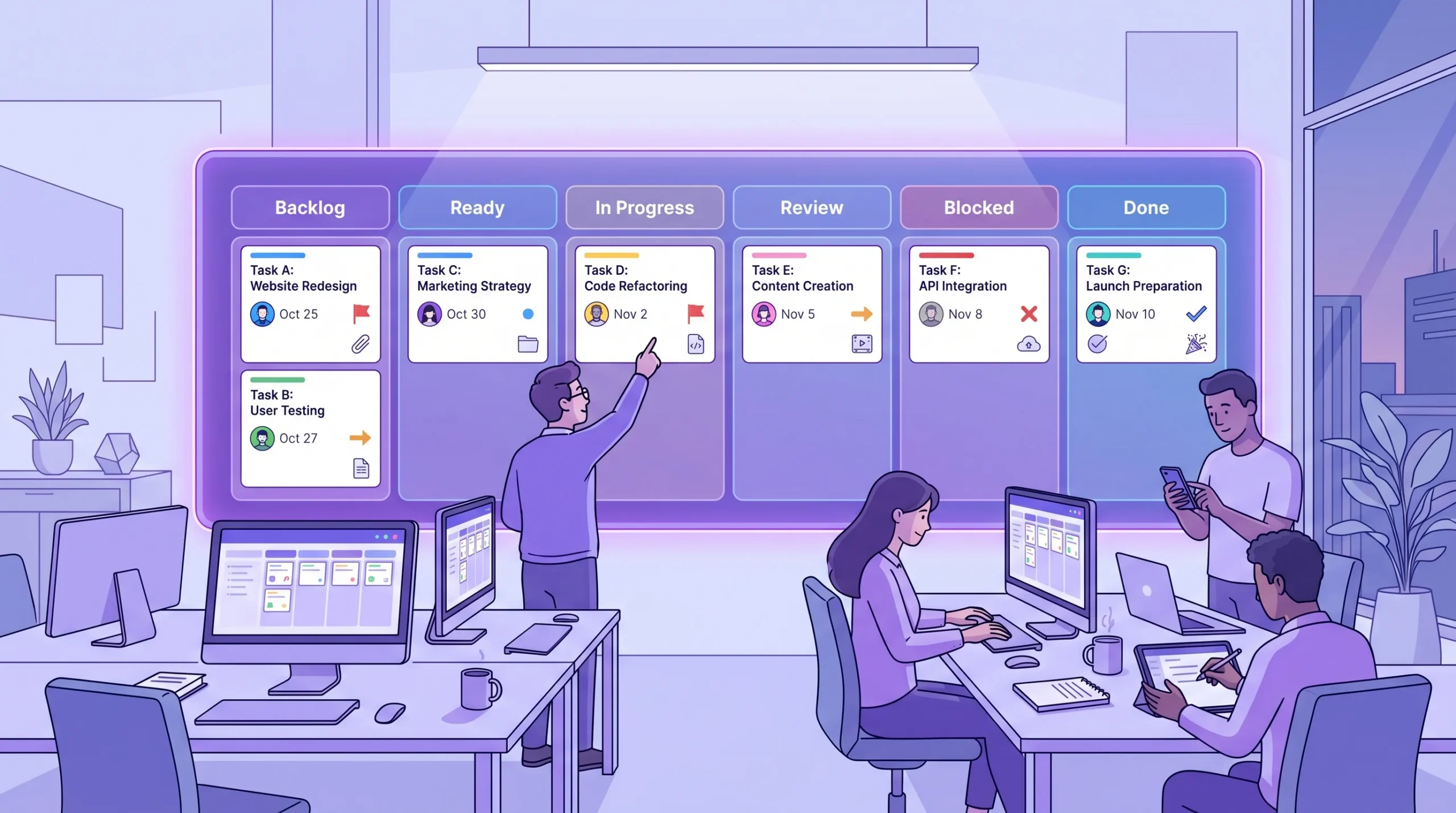
Start with a simple flow. Many teams can begin with columns such as Backlog, Ready, In Progress, Review, Blocked, and Done. These stages are clear enough for daily work but flexible enough for marketing, operations, HR, sales, IT, finance, and product teams.
Avoid creating too many columns at the start. More columns do not always mean more visibility. In many cases, they hide problems because people are unsure where a task belongs. A simple workflow that everyone understands is better than a detailed workflow that nobody updates correctly.
For teams using Kanban, the board should show where work is, not where people wish it were. If a task is waiting for approval, it should sit in Review. If it cannot move because a dependency is missing, it should sit in Blocked. This discipline creates reliable visibility.
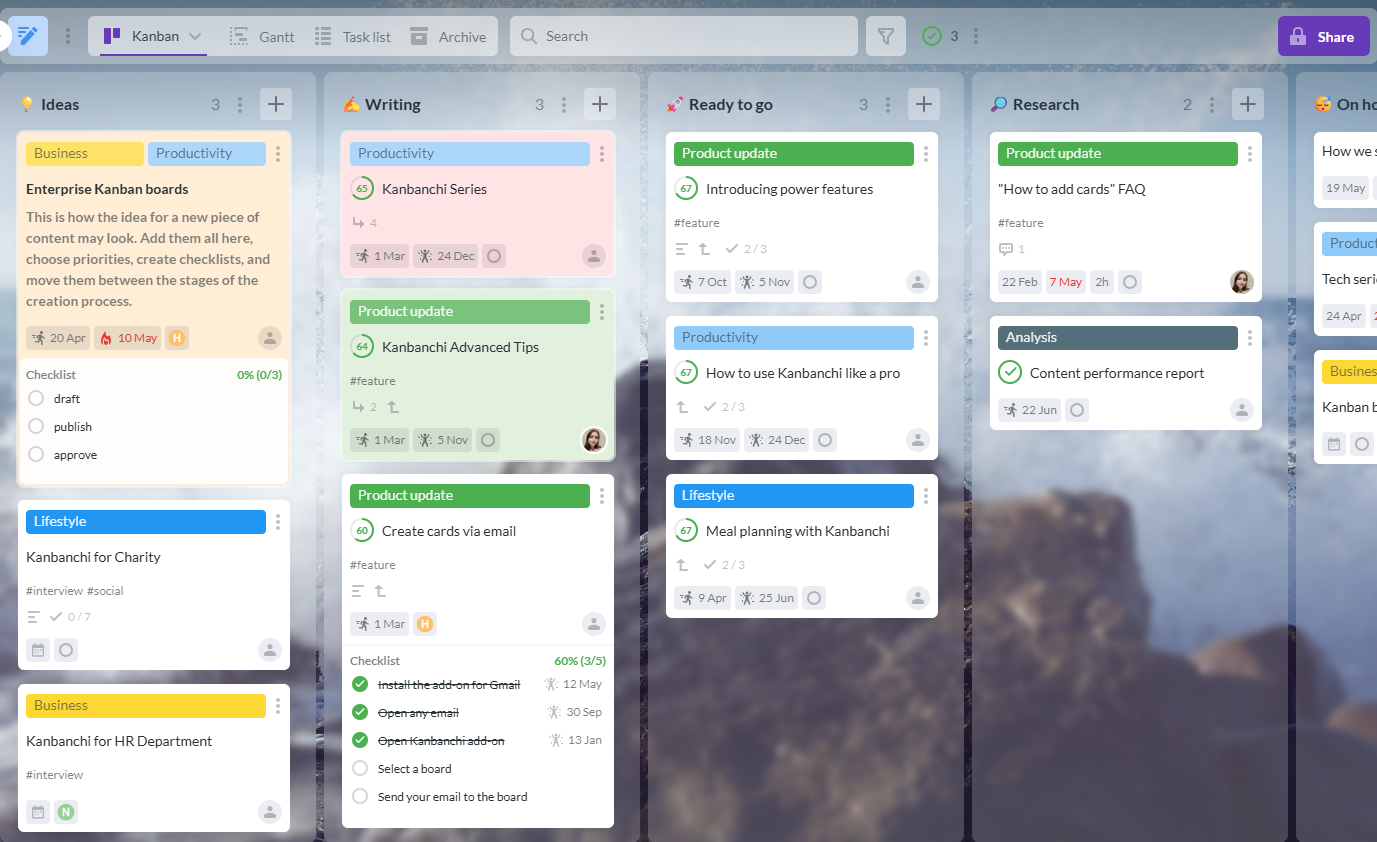
A project card should contain enough information for another team member to understand the task without a status meeting. In Kanbanchi, teams can use cards to hold task details such as descriptions, assignees, dates, checklists, comments, tags, priorities, and attachments.
Here is a practical field structure to use as your baseline:
| Tracker element | What it shows | Why it matters |
|---|---|---|
| Task title | The work to be completed | Makes the board scannable |
| Assignee | The person accountable for progress | Prevents unclear responsibility |
| Status or list | Current workflow stage | Shows progress at a glance |
| Start and due dates | Timing expectations | Supports scheduling and forecasting |
| Priority | Relative urgency or importance | Helps teams focus on the right work |
| Checklist or subcards | Smaller steps within the task | Improves execution detail |
| Dependencies | Work that must happen before or after | Reduces surprise delays |
| Files and links | Supporting documents | Keeps evidence close to the task |
| Comments | Decisions and updates | Creates a project history |
| Time tracked | Actual effort spent | Improves future planning |
You do not need every field for every project. The key is consistency. If due dates are required, they should be required across the board. If priority matters, define what each priority level means so the whole team uses it the same way.
One view rarely answers every project question. A board is excellent for workflow, but it may not show timeline risk clearly. A timeline is excellent for deadlines, but it may not show bottlenecks in execution. A list is useful for sorting, filtering, and reviewing many tasks quickly.
This is why a strong project tracker should support multiple views of the same work.
A Kanban board helps the team see what is currently happening. It is ideal for daily coordination because cards move through stages as work progresses.
Use the board view to answer questions like:
For team leads, this view is especially useful because it exposes bottlenecks quickly. If the Review column keeps growing, approvals may be slowing delivery. If Blocked cards stay untouched for days, dependencies need escalation.
Timeline visibility is different from workflow visibility. A task can be moving through the board and still be late in the schedule. A Gantt chart helps reveal whether tasks, dependencies, and milestones fit together in time.
In Kanbanchi, a board can be converted into a Gantt Chart, allowing teams to see how cards relate on a timeline. This is useful for projects with launch dates, phased rollouts, client deliverables, procurement steps, or approval chains.
Use the Gantt view to answer questions like:
If your team is deciding how to balance visual workflow and timeline planning, Kanbanchi’s guide to Hybrid Project Management explains when each view is most useful.
A task list view is helpful when managers need to scan many tasks, sort by priority, filter by assignee, or review due dates. It is also useful for administrative work, audits, or project cleanup.
Use a task list view when you need precision rather than visual flow. For example, you may want to see every overdue task assigned to a specific department, every high-priority card with no due date, or every task due this week.
A tracker fails when people do not know what to update, when to update it, or what a status change means. Clear visibility depends on team behavior as much as software.
Create simple working agreements that everyone can follow. These agreements should be short, visible, and repeated during onboarding.
Every active task should have one accountable owner. Multiple people can contribute, but accountability should not be vague. If everyone owns a task, nobody really owns the next step.
For larger tasks, use checklists or subcards to break work into smaller pieces. This keeps responsibility clear without creating separate projects for every detail. For example, a website launch card may include subcards for design review, legal approval, analytics setup, final copy, and launch QA.
Decide when updates are required. For many teams, a simple rule works well: update the card when the status changes, when a blocker appears, or before the weekly project review.
Avoid requiring updates that do not improve visibility. A daily “still working on it” comment is rarely useful. A short blocker note with the needed decision, person, or dependency is much more valuable.
A Blocked column is only useful if someone acts on it. Define what counts as blocked and how quickly blockers should be escalated.
For example, a task may be blocked when work cannot continue without a missing approval, file, decision, vendor response, technical dependency, or budget confirmation. If a blocker remains unresolved for more than a set period, the owner should mention the relevant stakeholder or raise it in the next project review.
Visibility drops when project information lives outside the tracker. If the brief is in Google Docs, the comments are in Gmail, the deadline is in Calendar, and the task is in a separate app, people waste time reconstructing the truth.
Kanbanchi is designed for teams working in Google Workspace and Microsoft 365, so the tracker can sit close to the files, calendars, and communication channels teams already use.
For Google Workspace teams, Kanbanchi can attach files from Google Drive and Shared Drives to cards. Enterprise users can also create boards directly in Shared Drives. For Microsoft 365 teams, compatibility with OneDrive and SharePoint helps keep project files connected to the related work.
This matters because files often contain the real evidence of progress: contracts, creative assets, proposals, technical documents, budgets, process maps, and meeting notes. When those files are attached to the relevant task, team members do not need to search across folders or ask for links.
Email is still where many tasks begin. A customer request, vendor response, internal approval, or leadership decision may arrive in Gmail before it reaches the project board.
Kanbanchi supports card creation from Gmail, either by emailing a board’s unique address or using the Gmail add-on to send information to an accessible board. This helps teams move work out of inboxes and into a visible workflow.
A project tracker should not compete with the team calendar. It should support it. Kanbanchi can add events to Google Calendar, helping teams keep important task dates and deadlines visible in the calendar environment they already check.
This is especially useful for deadline-driven teams that need to coordinate reviews, launches, handoffs, audits, training sessions, or client-facing milestones.
As a team grows, one board may not be enough. Different departments may need their own workflows, while leadership still needs a consistent way to understand progress.
This is where project tracker setup becomes more strategic. You need enough standardization to compare work across teams, but enough flexibility for each team to manage its own process.
If your team runs similar projects often, templates reduce setup time and improve consistency. Kanbanchi offers a template gallery and the ability to create custom board templates and card templates.
Templates are valuable for recurring workflows such as onboarding, campaign launches, procurement requests, quarterly planning, client implementation, content production, or compliance reviews. They help ensure the right steps, fields, and dates are not forgotten.
When multiple projects or workstreams share one board, swimlanes can keep them visually separated. For example, a marketing department might use swimlanes for campaigns, events, content, and partnerships. An operations team might use them for regions, vendors, or process areas.
Swimlanes help leaders compare progress without switching boards constantly. They also reduce clutter because related work stays grouped inside the same visual tracker.
Reports are only as good as the data behind them. If one team uses priorities carefully and another team never updates them, leadership cannot compare work reliably.
Define the fields that must be consistent across teams, such as owner, due date, priority, status, and project phase. Kanbanchi can export board data to Google Sheets, including assignments, dates, checklists, and comments. Teams can also extract data for reporting dashboards such as Google Looker Studio.
For example, a travel technology team coordinating integrations, approvals, and customer-facing workflows may need to track internal tasks while relying on a specialist provider for border-crossing administration. A partner like SimpleVisa can simplify eVisa processing for travel businesses, while the project tracker keeps internal owners, API milestones, content updates, compliance reviews, and support handoffs visible.
More articles on Team management here
A project tracker should not become a surveillance tool. Its purpose is to help the team deliver better. The right metrics reveal friction, capacity issues, and delivery risk.
Start with a small set of metrics that support decisions.
| Metric | What it tells you | How to use it |
|---|---|---|
| Open tasks by status | Where work is concentrated | Identify bottlenecks |
| Overdue tasks | Which commitments are slipping | Escalate or replan |
| Blocked tasks | Where progress has stopped | Remove obstacles quickly |
| Work in progress | Whether the team is overloaded | Limit multitasking |
| Time tracked | Actual effort compared with expectations | Improve future estimates |
| Tasks by owner | Work distribution across the team | Balance capacity |
Kanbanchi’s Time Tracker helps teams track time directly on cards. A user can choose a card, start the timer, and the Timing tab records user timing data. Over time, this gives managers better insight into effort, planning accuracy, and workload trends.

Even well-intentioned teams can create trackers that look organized but fail in practice. The most common mistakes are usually caused by overcomplication, unclear ownership, or disconnected tools.
A tracker with dozens of fields may look powerful, but it often discourages updates. Start with the minimum information needed for visibility, then add fields only when there is a clear reason.
A long comment thread does not always mean progress. A busy board does not always mean delivery. Progress should be visible through status movement, completed checklist items, resolved blockers, and updated timelines.
Outdated cards reduce trust. Schedule regular cleanup to archive completed work, close abandoned tasks, and update old due dates. If people see stale information, they stop relying on the tracker.
When executives, managers, and teams each maintain different trackers, reporting becomes inconsistent. Instead, use one source of truth and create views, filters, or exports for different audiences.
Project trackers often contain sensitive information: client names, financial details, internal planning, HR data, contracts, or legal notes. Make sure sharing follows your organization’s Google Workspace or Microsoft 365 policies.
Kanbanchi supports sharing internally and externally according to company Google policies, and it offers enterprise-grade security compliance. For Google Workspace users, boards are created as files in Google Drive, with Shared Drives support for Enterprise users.
If you are setting up a tracker from scratch, use this sequence:
This approach keeps the tracker simple enough for adoption while giving managers the visibility they need to lead.
Kanbanchi works well for teams that already live in Google Workspace or Microsoft 365 and want project visibility without forcing work into a disconnected system.
For Google Workspace teams, Kanbanchi brings together Kanban boards, Gantt charts, Time Tracker, Google Drive attachments, Gmail card creation, Google Calendar sync, exports to Google Sheets, Shared Drives support, swimlanes, templates, subcards, backups, and task prioritization.
For Microsoft 365 teams, Kanbanchi is compatible with OneDrive and SharePoint, helping teams connect tasks with the documents they already use.
The result is a tracker that supports daily execution and management visibility in one place. Team members work with cards, lists, files, and dates. Managers review progress, timelines, blockers, and workload. Leaders get clearer reporting without asking teams to maintain a separate status document.
Start free trial of Kanbanchi now
A project tracker is a shared system for monitoring tasks, assignees, deadlines, progress, blockers, and supporting information. It helps teams understand what is happening now, what is coming next, and where delivery may be at risk.
At minimum, it should include task names, assignees, status, due dates, priority, descriptions, supporting files, and a way to flag blockers. More advanced trackers may also include dependencies, time tracking, workload views, templates, and reporting exports.
Update the tracker whenever a task changes status, a blocker appears, a deadline changes, or an important decision is made. Many teams also review and clean up the tracker weekly to keep information reliable.
Google Workspace can support project work through Drive, Docs, Sheets, Calendar, Gmail, and Meet. However, it does not include a full visual project tracker with Kanban boards, Gantt charts, time tracking, and task workflow management. A Google Workspace-integrated tool like Kanbanchi adds that project management layer.
A project plan defines what should happen, when it should happen, and who is responsible. A project tracker shows what is actually happening as work moves forward. The best setup connects both, so plans stay realistic and execution remains visible.
A clear tracker should reduce status meetings, not create more administration. When tasks, files, owners, timelines, blockers, and updates live in one connected workspace, teams can focus on delivery instead of chasing information.
If your organization uses Google Workspace or Microsoft 365, Kanbanchi can help you build a project tracker that combines Kanban execution, Gantt planning, time tracking, calendar visibility, and file integration. Explore Kanbanchi and set up a workspace your team can actually keep updated.
Start free trial of Kanbanchi now


In this Article:
Start using Kanbanchi now
Start your free trial