
Getting started with Kanbanchi
You should already have a board if you picked one of our templates.
When you signed up, Kanbanchi asked you a few questions and built a board from a template that matches your kind of work. So you are not looking at an empty screen; you are looking at a structure we have already thought about. Your job is to make it yours.
This article has three parts.
- Part 1 gets you and your team working in about five minutes.
- Part 2 explains why those particular five steps are the ones that matter.
- Part 3 is everything else, arranged by the question you’ll have when you need it.
You don’t need Parts 2 and 3 to start
Part 1. Five minutes start
1. Learn three words
Board: a project or a process.
List: a stage that work passes through (the columns you see).
Card: a piece of work.
That’s the whole vocabulary. Everything else in Kanbanchi is either a card property, a different way of looking at cards, or a rule for how cards move.
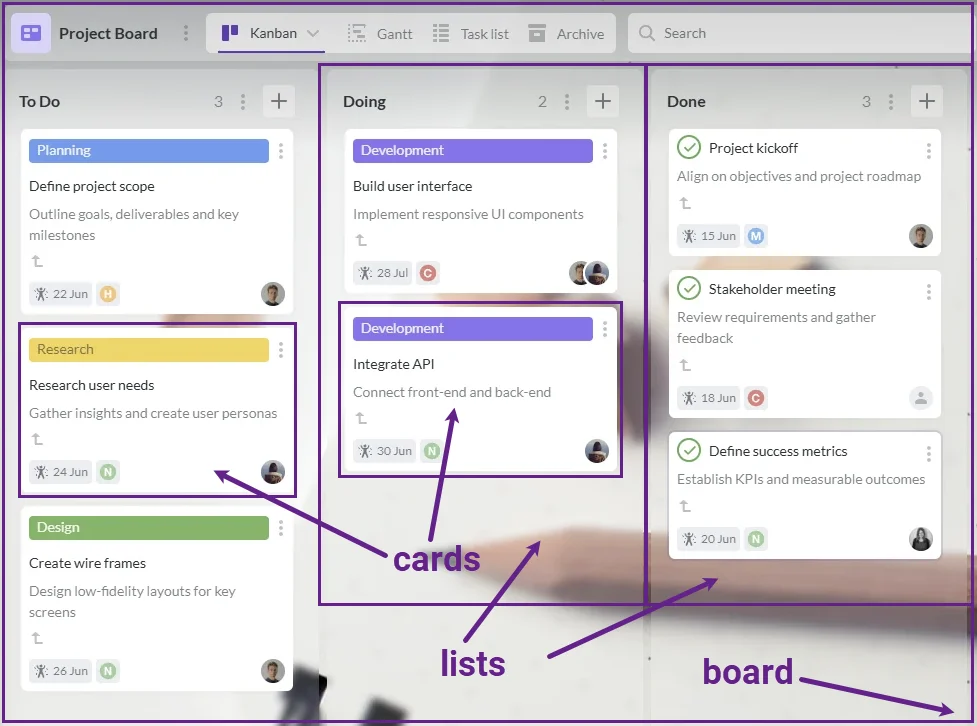
Remember the core: a board for a project, a list for each of the workflow stages, and cards for each particular task
2. Make the lists match your reality
Read the list names your template gave you. Add a stage that’s missing. Delete one your team doesn’t have.
The test: could a colleague look at which list a card is in and correctly tell you what happens to it next? If not, rename until they can.
3. Put real work on it
Delete or edit sample cards. Add what your team is actually doing this week. Five to ten is plenty. Titles only. No dates, no descriptions, nothing else yet. Resist adding everything at the beginning.
4. Give every card an owner and a due date
Assign a person. Set a date. No exceptions, including for your own cards.
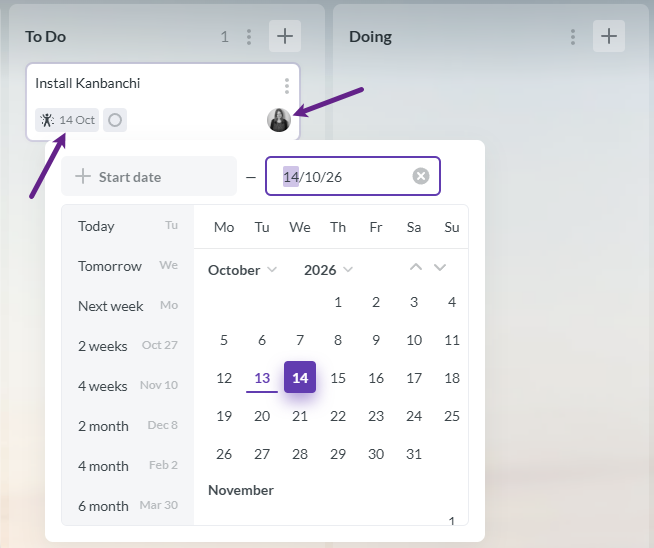
You don’t even need to open cards to change basic properties – just click on them
5. Share the board with your team
Invite the people who need to see it.
Your board is a file in your Google Drive or OneDrive, so sharing behaves the way Drive sharing behaves. You already know how this works; there’s no second permissions system to learn.
Related FAQ article: How can I share a board with others?
6. Move one card
Drag a card into the next list.
One thing to notice before you go further
You never created a Kanbanchi account. You signed in with a Google or Microsoft account, and that’s the point.
Your board is a file in your Google Drive or OneDrive, which is why sharing it a moment ago felt like sharing any other Drive file. Attachments live in Drive rather than being copied somewhere else. Card dates can appear in your Google Calendar. An email can become a card through the Gmail add-on. A Google Form can create a card. Any board exports to Sheets. And if you’re on a company domain, your Workspace administrator manages Kanbanchi the same way they manage everything else.
None of this needs setting up today. It’s how the product is built, and it’s already running.
>When you want the details on any one of these: Kanbanchi and Google Workspace
That’s it. That’s the daily ritual. Everything below is optional.
Part 2. Why those five steps
Five minutes of setup only helps if the board survives week three. These are the reasons behind each step, and they’re the same reasons our own team uses Kanbanchi the way we do.
One board is one project or one department, not everything
The instinct is to make a single board and put everything in it. It collapses under its own weight, usually around a hundred cards. The alternative that works: every initiative gets its own board, owner, and scope. In some cases, even a board for a department won’t work, because it needs to be split into initiatives.
For example, our marketing team runs separate boards for content, the website, and video rather than one giant board.
Lists are stages, not people
A column per team member feels organized, but quietly destroys the board. You can no longer see where work is stuck, only who’s holding it. Kanbanchi already answers “who has what” in Team Workload and My Work. Spend your lists on the thing nothing else can show you: flow.
A card with no owner doesn’t get done
An unassigned card belongs to everyone, which means it belongs to nobody. This is worth enforcing as a rule, not a preference. It’s one of two rules we hold to internally.
The other rule: if it’s not on a board, it doesn’t exist
The moment some work lives in a board and other work lives in somebody’s inbox, the board stops being trustworthy. And an untrusted board is worse than no board, because people check it, find it stale, and stop checking it. Half-adoption is the actual failure mode, not non-adoption.
Sharing early matters more than setting up properly
A board you’re still perfecting privately is a to-do list. Share it at ten cards, not at eighty. The things you’d have polished first will get fixed faster by the people using it.
Part 3. Question you’ll have, and we’ve already answered
“I need to see this same work a different way”
Kanbanchi stores your work once and shows it several ways. Switching views never means re-entering anything; a card is the same card wherever you look at it.
| View | The question it answers |
|---|---|
| Board | Where is everything in the process right now? |
| Task list | Let me sort, compare, and scan many cards at once. |
| Gantt chart | What happens when, and what’s waiting on what? |
| Team workload | Who’s overloaded, and what’s unassigned? |
| Swimlanes | Show me the same board cut by tag or color label instead. |
| My Work | What do I personally owe across all my boards? |
| Archive | What did we finish, and where did that old card go? |
Most teams live in Board view and visit the others when a specific question comes up. That’s the intended pattern. You’re not supposed to use all seven daily.
“This card needs to carry more than a title”
Open a card, and you get a detail panel. The useful fields, roughly in the order most people need them:
- Description: the context, the brief, the links. What someone needs to start without asking you a question. Supports Markdown.
- Assignee: who owns it.
- Start date and due date: when it can begin and when it’s expected to be done. Both matter once you use a Gantt chart; before then, only the due date matters.
- Checklist: the steps inside this one piece of work.
- Comments: the conversation. Keep these separate from the description: the description is what the task is; comments are what’s happening to it. Mixing them means new people have to read the whole thread to understand the task.
- Attachments: files from Google Drive or your computer related to this one piece of work.
- Tags, color labels, priority: three different classification systems. Priority if you need urgency; tags if you need categories; color labels if you want the category visible without opening cards.
Mention a teammate with @ in a comment to notify them. This is how you ask a question without leaving the card, and it’s the main reason discussion should happen here rather than in emails or messengers. Six months later, the reasoning is still attached to the work.
“This task is too big to be one card”
There are two tools that will help, and picking the wrong one is the most common early mistake.
- Checklist: steps you need to perform to complete the task. “Draft, edit, add images, publish.” It stays inside a card.
- Subcard: a real separate card, with its own owner, dates, comments, and description, that happens to be linked to a parent.
The most common case to use checklists is when a card has one or two people involved in this task. Once there are three or more, it is recommended to use subcards to avoid people searching for their particular part of the task for too long.
Epic card: this is the parent card that has subcards. Its progress is calculated from what’s finished underneath it rather than typed in by hand, so the status is always accurate. Nobody has to remember to update it.
Related cards: these are a bit different; they are linked cards that can even be from other boards. This relation says: “these are connected” without implying one contains or blocks the other.
“I need to schedule, not just track”
Board view shows position. Gantt chart shows time.
Cards with dates appear as bars on a timeline. Drag a bar to move the dates. Dependencies connect cards so the timeline knows one thing waits on another, and Kanbanchi shows you when the dates contradict the dependency. Milestones mark a single significant point: a launch, a review, a deadline, rather than a span.
The advantage over a separate planning document is that you don’t have to keep one. The Gantt chart is the same cards; nothing to keep in sync, nothing to go stale. You can save it to PDF when someone needs it printed.
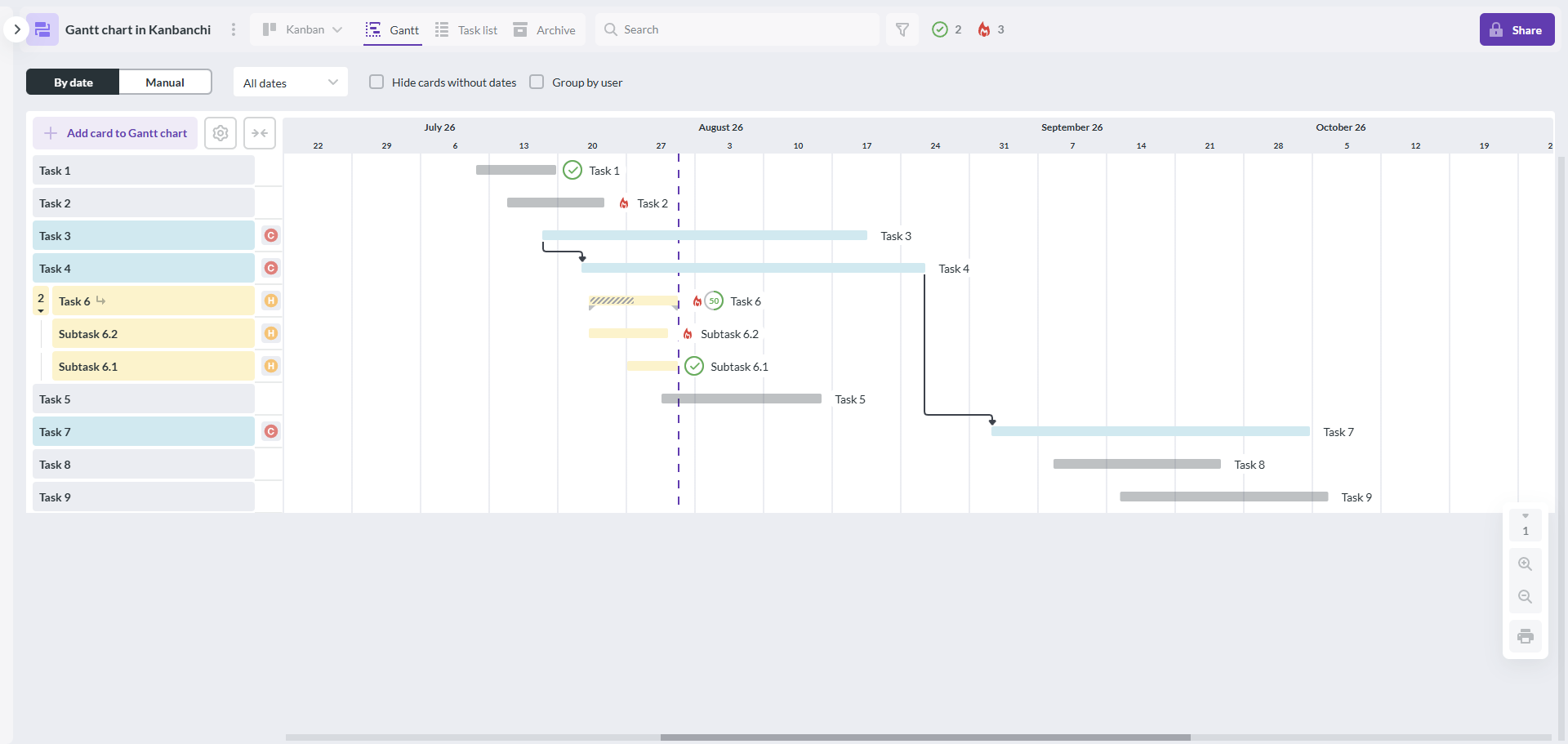
Gantt chart view: tasks placed on a timeline, with dependencies between them
“Who’s overloaded?”
Team workload groups the board by person so you can see distribution and spot what nobody has picked up. It’s a board-level view, not company-wide resource planning. It answers “is this project fairly spread” rather than “is this person over capacity across everything.”
My Work is the opposite direction: one person, all their boards. This is the view to point a new teammate at, because it’s the only one that answers “what do I actually need to do today?”
“I want this to happen every week”
Recurring cards recreate a task on a schedule. Weekly reports, monthly reviews, quarterly checks.
Card templates give repeated work the same shape every time. If your team ships the same kind of thing regularly, a template means nobody has to remember eleven steps of a checklist.
Board templates do the same for whole projects. Set a board up well once, save it, and every future project of that type starts configured rather than blank.
Board email address allows you to turn an incoming email into a card on that board. Forward a client request, and it becomes work instead of an inbox item. The subject becomes the title, the body becomes the description. Install a Gmail add-on to make this even faster.
“The board is getting noisy”
Archive finished work instead of deleting it. Archiving clears the board while keeping the history, and you need that history when someone asks what happened in March last year.
Filters narrow the board to one slice: one person, one tag, one date range. Save the ones you use repeatedly as presets.
Card aging shows you visually how long a card has sat in the same list. Stale cards are usually either blocked or abandoned, and both are worth knowing about.
Card limits on a list make a column turn red when it holds too many. Set one on your “In progress” list, and you have a work-in-progress limit, which is the cheapest way to stop a team starting five things and finishing none.
“Where is my data?”
When you signed up with Google, Kanbanchi created a folder called Kanbanchi in your Google Drive. Each board you create gets its own subfolder inside it, holding the board file itself plus any backups and exports you make.
This means the board is a Drive file, and you can do Drive things to it: share it, rename it, move it, delete it, restore it from your Drive trash.
Attachments stay in your Drive rather than being copied into Kanbanchi. Some operational data, like card text, comments, activity history, notifications, etc., is stored by Kanbanchi so the application can work.
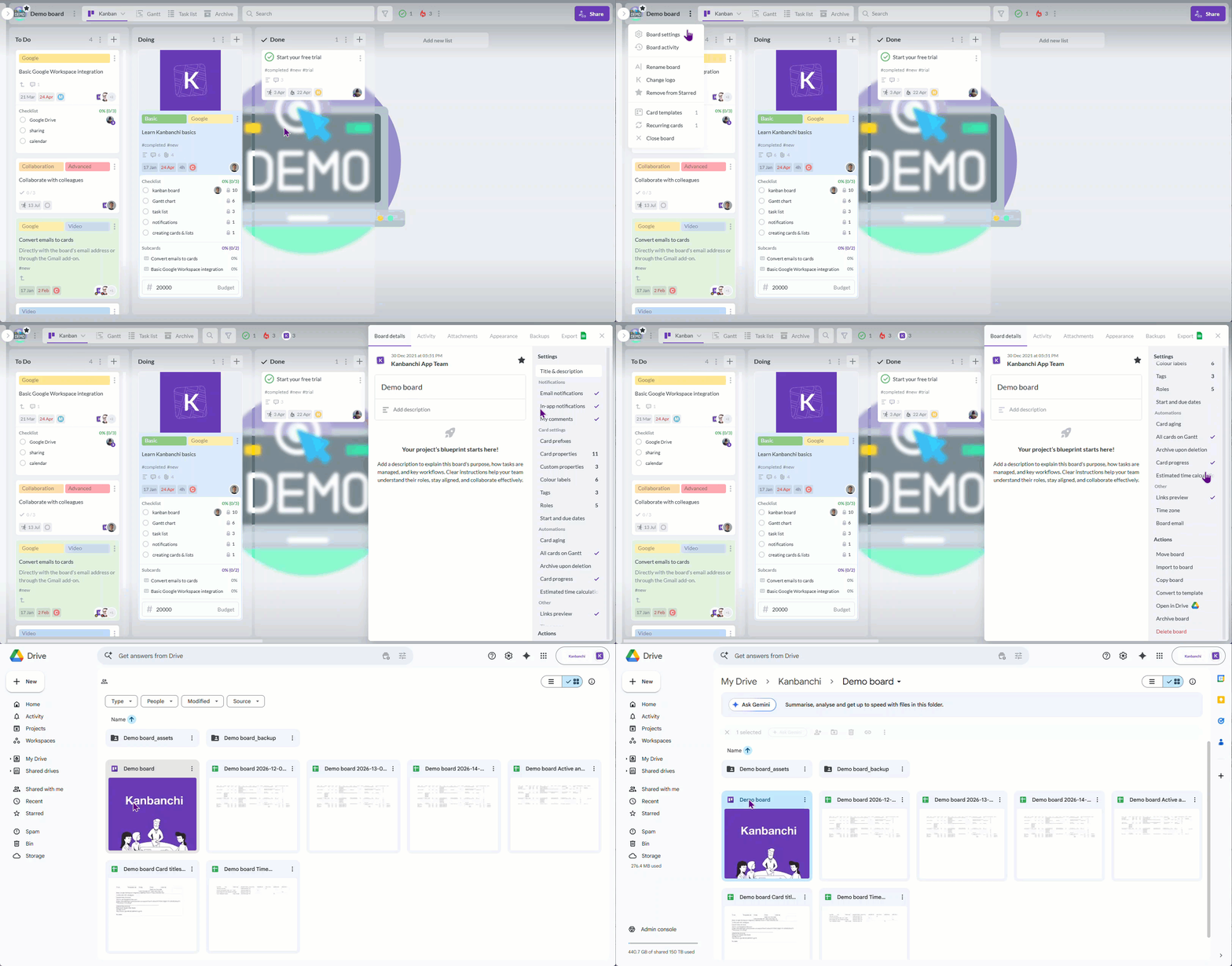
Kanbanchi works directly within Google Drive, making it easier to manage tasks, collaborate on projects, and keep work connected across your Google Workspace tools
“What do I actually get?”
You start on a 7-day free trial with everything unlocked, and you can extend it by another 7 days if you need more time.
After that, you move to the free plan: all features remain available, with a limit of 36 cards per board. Paid plans start at $5.99 per user per month and remove the card limit. Nothing is deleted when your trial ends.
Consult our pricing page to check the particular list of features included in each plan.
What to do next?
Tomorrow morning, open the board and move whatever moved.
That’s the habit. Everything else in this article supports it.
Don’t read anything else about Kanbanchi today. Give it at least one week.
Once the board has become routine and you’ve started noticing small frictions, those frictions are what Kanbanchi beyond the basics is about. It’ll make far more sense then than it would now.
If something here didn’t match what you see on screen, tell us, please. This article is maintained.