
Kanbanchi beyond the basics
New to Kanbanchi? Read Getting started with Kanbanchi first. It gets you and your team working in about five minutes, and this article assumes you’re already there.
If you continue reading this Kanbanchi advanced features guide, we assume you’ve had a board running for a few weeks. Cards move, people update them, nothing has fallen over.
This article is for that moment, and only that moment. Everything below solves a problem you can only have once you’re genuinely using Kanbanchi. On day one, these features sound like clutter. Now they should sound like answers to things that have been quietly irritating you.
Take one section at a time. None of it is urgent, and adding it all at once is the most common way to make a working board worse.
When one board isn’t enough
The problem: your board has passed a hundred cards, and you scroll past other people’s work to find your own.
The fix isn’t a bigger board. It’s a second one.
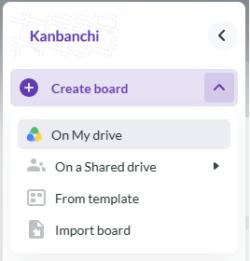
Kanbanchi allows multiple options of creating new boards depending on your plan and preferences
Split by initiative, not by team and not by person. A campaign is a board. A client is a board. A product launch is a board. A department isn’t a board because it does a dozen unrelated things at once, and they end up competing for the same screen.
Board templates make this cheap. Set one board up properly, save it as a template, and every future project of that type starts configured, not blank. If you run the same kind of work repeatedly, this is the single highest-return thing in this article.
How to make my board a template?
My Work is what makes multiple boards survivable. It pulls everything assigned to you from every board into one place, the only view that answers, “What do I owe today?”
How can I use “My Work” in Kanbanchi?
Be honest about the cost: more boards means more places to look. If your team doesn’t use My Work, don’t go past three or four. The teams that run twelve boards comfortably are the ones where everyone starts their day in My Work rather than on a board.
When everyone fills in cards differently
The problem: you filter for something and get half the results, because two people recorded it as a tag, one put it in the description, and one didn’t record it at all.
Default and required properties control which fields appear automatically and which must be filled before a card can be finished. Required fields matter for timing. They catch missing information while someone is working on the task, rather than three weeks later when nobody remembers the answer.
Custom properties add fields to every card on a board: text, number, email, phone, date, or dropdown. The dropdown is the valuable one. It forces a fixed vocabulary, and that fixed vocabulary makes filtering and reporting possible later.
Card templates give repeated work the same shape every time, so nobody has to remember step eleven.
Card prefixes give each card a short ID like MKT-114. Small feature, disproportionate effect: it gives people something to say out loud in a meeting and something to paste into an email or a commit message.
One rule that keeps this from becoming bureaucracy: add a property only after you’ve wanted to filter by it twice.
When “assigned to” stops meaning anything
The problem: four people are assigned to a card, and none of them is sure they’re the one who has to act.
Assignment answers who is doing the work. Roles answer who else is involved and in what capacity: reviewer, approver, designer, client contact, whatever your board needs. Assigning checklist items may also help here.
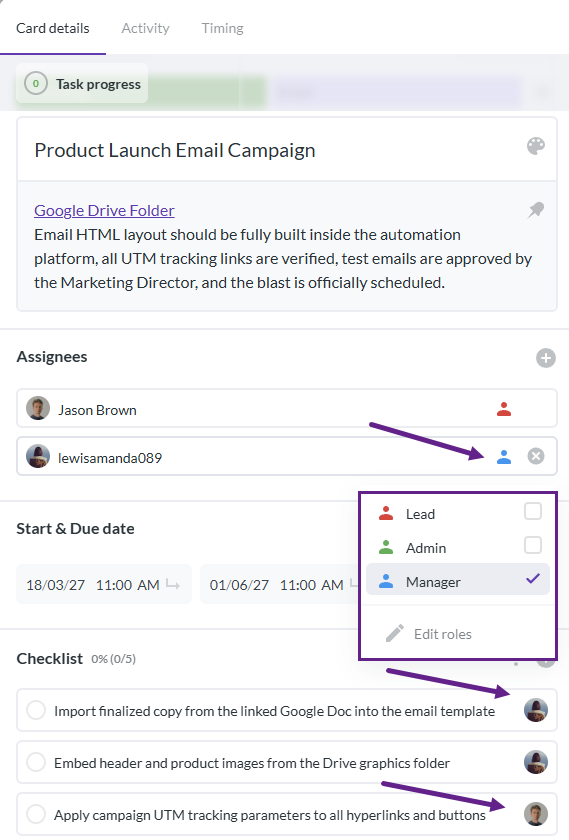
Roles and assignees on cards and checklists help to clearly define ownership
When “done” means different things to different people
The problem: a card sits in Review for a week because two people disagree about whose move it is.
This is almost never a tooling problem. Write down what has to be true for a card to enter a list and what has to be true for it to leave. Put it in the list description, where people can actually check it. Ten minutes of this fixes more than any feature in this article.
Card limits on a list turn the number of cards red when a list holds too many. Set one on your in-progress list, and you have a working limit. The reason is uncomfortable and worth stating plainly: a team that starts five things and finishes none feels extremely busy and ships nothing. The red sign is the only thing that makes that visible while it’s happening.
Card aging shows how long a card has sat in the same list. Stale cards are either blocked or abandoned, and both are worth knowing about.
When notifications are wrong
There are two failure modes, and most teams have one. Either everything notifies you, so you’ve muted it all and now miss things. Or nothing does, and you find out on Friday.
Kanbanchi notifies you in-app, by email, and in the browser, and can remind you before a due date. You can tune notifications according to your preferences.
Mentions with @ are a deliberate interruption. Use them when you need a specific person to do something specific. If mentions become how your team says “FYI”, they’ll get muted like everything else.
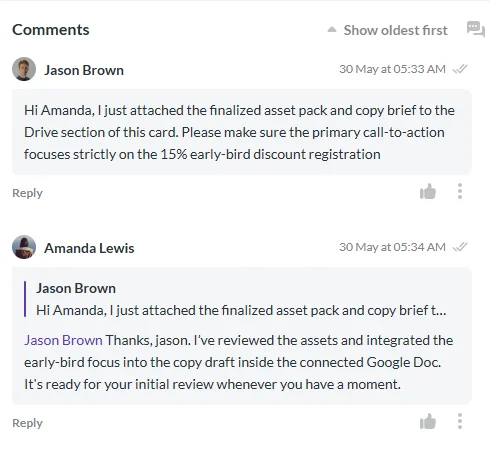
Mentions are automatically added to replies, but when you add a comment, think about whether you need to mention someone
When you can’t find things
Filters narrow a board to one slice. Saved filter presets let you keep the ones you use all the time.
Archive is where finished work goes so the board stays readable. Archived cards remain searchable, which matters more than people expect.
When work arrives from outside the board
Every route you don’t build is a route where work enters somebody’s head instead of the board. That’s how a board stops being trustworthy.
Board email turns a forwarded email into a card. The subject becomes the title, and the body becomes the description.
The Gmail add-on does the same thing without leaving Gmail.
Google Forms can feed a board directly. This is the underrated one. If your team receives requests (bug reports, design requests, IT tickets, content briefs), a form means they arrive structured and complete, not as a half-sentence in chat. You can point several forms at one board.
How does Kanbanchi integrate with Google Forms?
Imports bring in existing work from Trello, Jira, or a CSV, which matters if you’re considering switching.
How can I import data to Kanbanchi?
When someone asks for numbers
Board export to Google Sheets puts your board data in a spreadsheet in your Drive. In-app reports turn board data into charts without leaving Kanbanchi. If you want something more elaborate, exported Sheets feed Google Data Studio.
Time tracker records actual time against cards separately from the estimate and exports automatically.
Worth saying honestly: time tracking only works if the team genuinely does it. Partial time data is worse than none, because it looks like evidence, but it isn’t. If you’re not confident the habit will hold, only use dates instead.
The general principle for reporting: never build a habit that requires anyone to retype anything. If you assemble your weekly report by hand from the board, it will be accurate for about three weeks.
When you work with people outside your company
Give them their own board. Not a filtered view of your internal board, a separate board.
The reason is structural. Sharing follows Google Drive, so access is granted per board. A freelancer added to your main board sees everything on it, including what you didn’t mean to share. A dedicated board means you control exactly what’s visible, and when the engagement ends, you stop sharing one file.
What goes on it: the brief, each deliverable as a card with a date and an owner, and somewhere for them to ask questions. This is how we run freelancers ourselves, and what makes it work is that the freelancer has full access to their board rather than restricted access to ours. They can comment, attach, and move their own cards, even if they are on the free plan, because usually you won’t hit the 36-card limit per board when working with freelancers.
Small things that add up
- Markdown works in descriptions, comments, and checklists.
- Multi-select lets you act on several cards at once instead of one at a time.
- Two-column card view puts details and comments side by side, which is a real difference on cards with long discussions.
- Folded lists compress columns you don’t need to see today.
- Print and save to PDF works for cards, lists, and the Gantt chart.
- Board branding lets you set a background and a custom logo if you’re presenting boards to clients.
- Link previews control how pasted links render on cards.
- The mobile app can be installed from Google Play for Android and from any mobile browser for iOS.
What not to do with all this?
Don’t add it all in one week.
Every feature here needs attention, and a board that requires six fields, four roles, and a preset to use is a board people avoid. The teams that get the most out of Kanbanchi added things slowly, each one in response to something that had actually gone wrong.
Pick the section that describes a problem you recognize. Do that one. Leave the rest until it’s your problem too.