
In this Article:
Try Kanbanchi now
Start your free trial

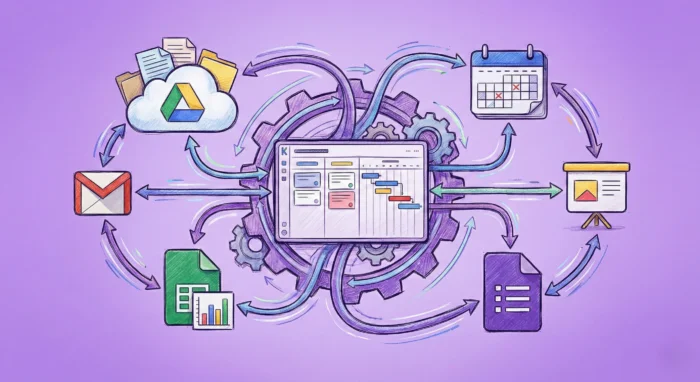
Google Workspace has revolutionized the way we work by providing a highly convenient way to handle most of our daily tasks. It lets us tie together elements like a calendar, email, and documents. We can stay up to date with the team and plan our strategy much more easily with this approach. It gives us a powerful way to work, with the data we need in one place. However, significant challenges often arise with Google Apps project management because these native tools aren’t always designed to integrate complex project workflows into your broader daily activities; teams are frequently left with a highly fragmented process.
You could end up using as many as five different apps that don’t talk to each other. This is where technology can create a barrier rather than bring them down. Your projects may even be at risk if the documents and notes are fragmented all over the place. This is why more teams are currently looking for ways to bring all of their tasks and documents together in a single app. By doing this correctly, you can build unified work processes that make Workspace even more useful and eliminate the need to split your work across different platforms.
The simple answer to this question is “yes”, as you can use Google Apps to carry out at least part of your project management tasks. In the past, this typically didn’t involve a single app. Instead, teams would have their project documentation scattered over the likes of Google Sheets, Drive, Calendar, and other areas. Using all of these tools certainly provided a helping hand in making life easier for project teams. However, it still wasn’t really the unified solution that we wanted. Rather, it felt like a DIY approach that involved cobbling together several different apps.
Of course, using the Google ecosystem for project work brings the huge advantage of familiarity. We’re all now used to using Google, and the way it provides a simple starting point for tasks such as writing emails and editing spreadsheets. The fact that Workspace is cloud-based means that the team members can work together seamlessly, even if they work remotely in different parts of the world. It’s free, and there is a very shallow learning curve, too, meaning that people can get started almost instantly.
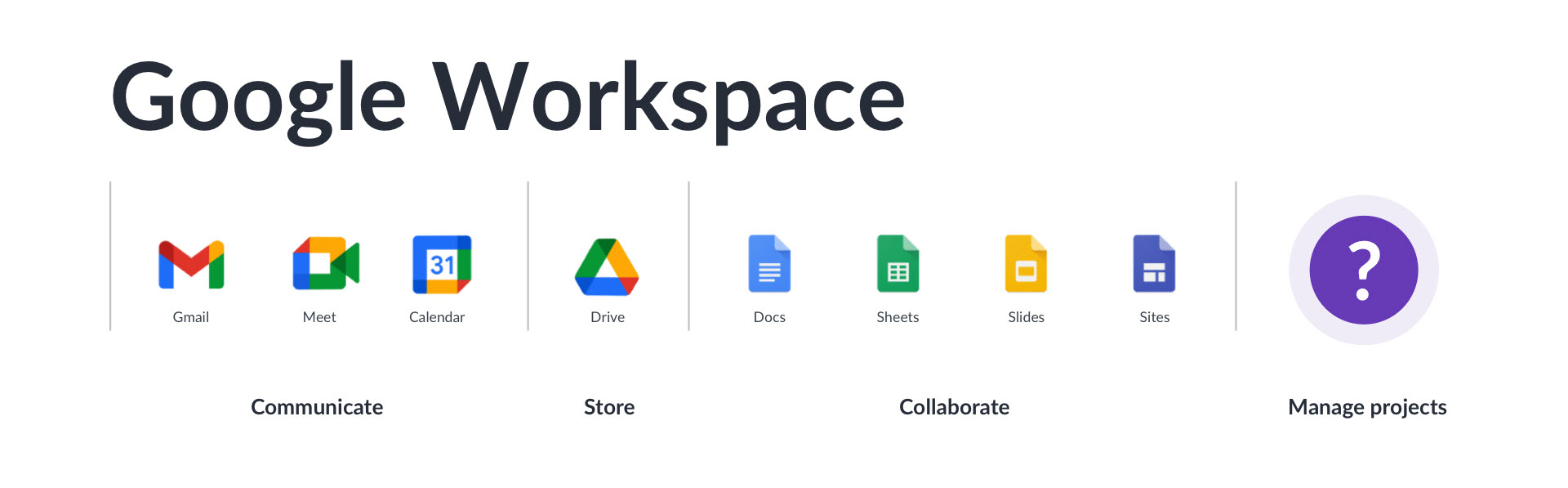
Having said that, the issues tend to arise when you try to add more complex project tasks and tools. Google isn’t a dedicated project management tool, which means that you can’t do everything here that you need to run a smooth project. You need something else, which is why the best project management software Google apps are necessary. Perhaps the biggest hurdle is the fact that Google doesn’t give you a way to visualize your tasks. If you’re used to working with a Kanban board or Gantt chart, not being able to see your tasks and milestones is going to be a big loss.
This is where many teams decide to add an extra tool into the mix. A project management tool that lets you see your tasks on a Gantt chart and updates milestones might seem like the solution to the problem. However, this method adds the inconvenience of having to leave the Google ecosystem to do some things. You’ll also need to carry out manual updates at times.
Read all articles related to Google Workspace here
When you use Google Workspace in a project management context, you’re actually using several different apps that each provide something useful. By looking at them one by one, we can see how each offers useful features for project teams. However, this also highlights the areas where adding PM-specific software could help to make them even more useful in the Google Apps project management setting. Here are the best project management Google apps you need to know about.
This is likely to be a central point for your projects, where you can structure your data and share it very easily. While many teams still use it as a simple type of static spreadsheet. Sheets can be used to allow you to carry out more complex tasks, like tracking budgets in real-time and highlighting overdue tasks.
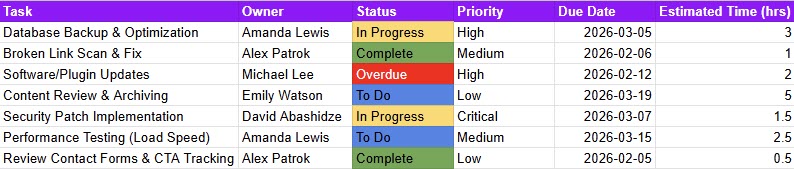
A simple spreadsheet is a good start to tracking tasks. However, more versatile tools may be needed for more complex projects.
Sheets also has a variety of built-in tools, such as automated email reminders and the option to filter views. Perhaps the biggest drawback to this tool is the lack of an overall view of the project’s timeline and milestones.
Here, you can add your meeting minutes, reports, and other project documentation in a single place. While the docs can be updated easily, getting an overview of the current workflow isn’t really this app’s strong point.
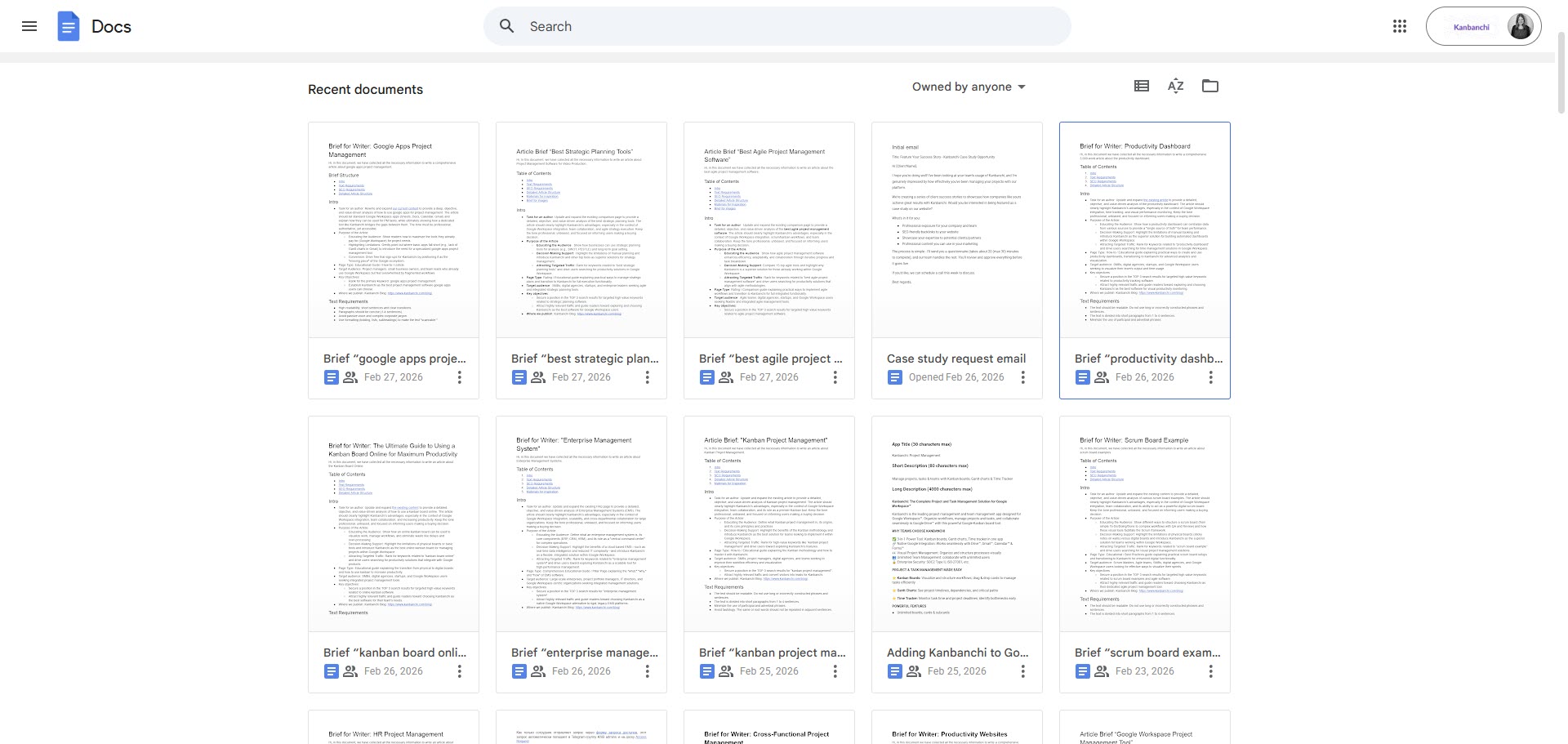
Google Docs is a great starting point, but true Google Apps project management requires seamlessly linking these isolated documents to your overall project workflow.
This is a great starting point for keeping the relevant information somewhere easily accessible, but on its own, it isn’t going to provide a solution for managing all of your paperwork. As with Sheets, you’ll also want to see a way of linking your Docs to the overall project seamlessly.
This digital calendar is ideal for coordinating the week with your team. You can mark the most important dates on it and block out time for anything that can’t be put off, like your all-important project meetings.
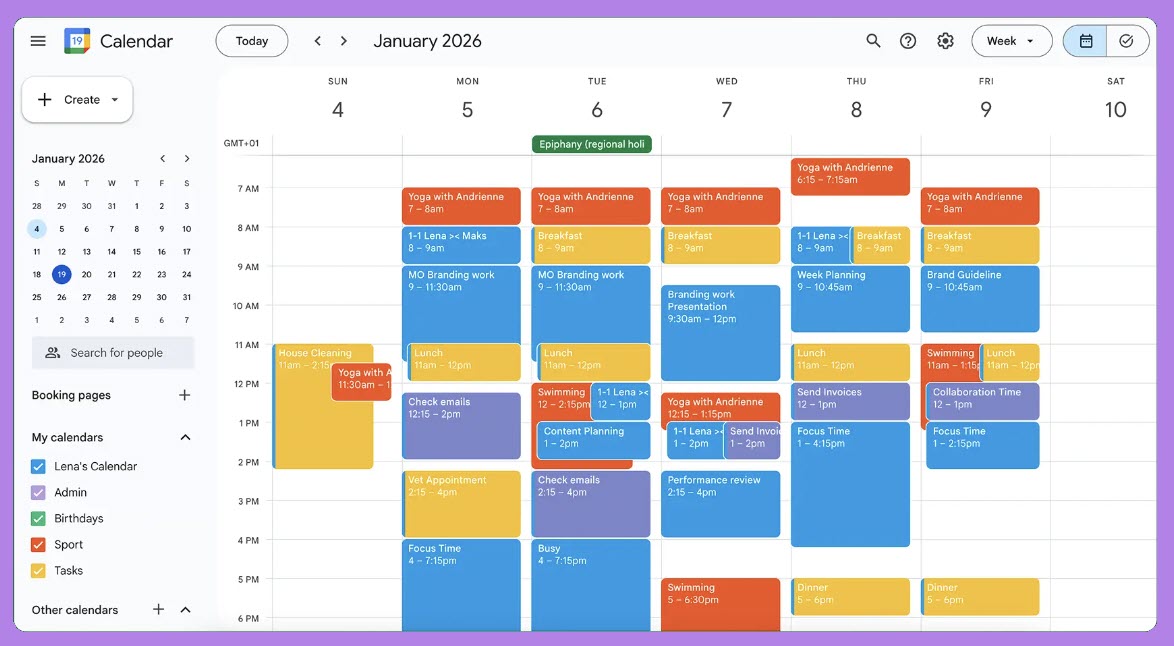
Google Calendar is ideal for marking important dates and meetings. However, as your project grows, adding every minor task directly to your calendar may result in a cluttered view.
As with the other apps that we’ve looked at, it’s not enough to help you run your projects without something extra being added. When you simply add all your tasks to a calendar, it can become extremely cluttered and difficult to manage. This is where you need something else to give you an overview and allow you to track everything without any fuss.
The power and simplicity of Gmail have made it easily the world’s number one email service. In the project management world, it’s critical that the service as an inbox can be expanded into new areas. Emails often spark new projects or change milestones, but it’s easy to lose track of these vital messages in long email threads.
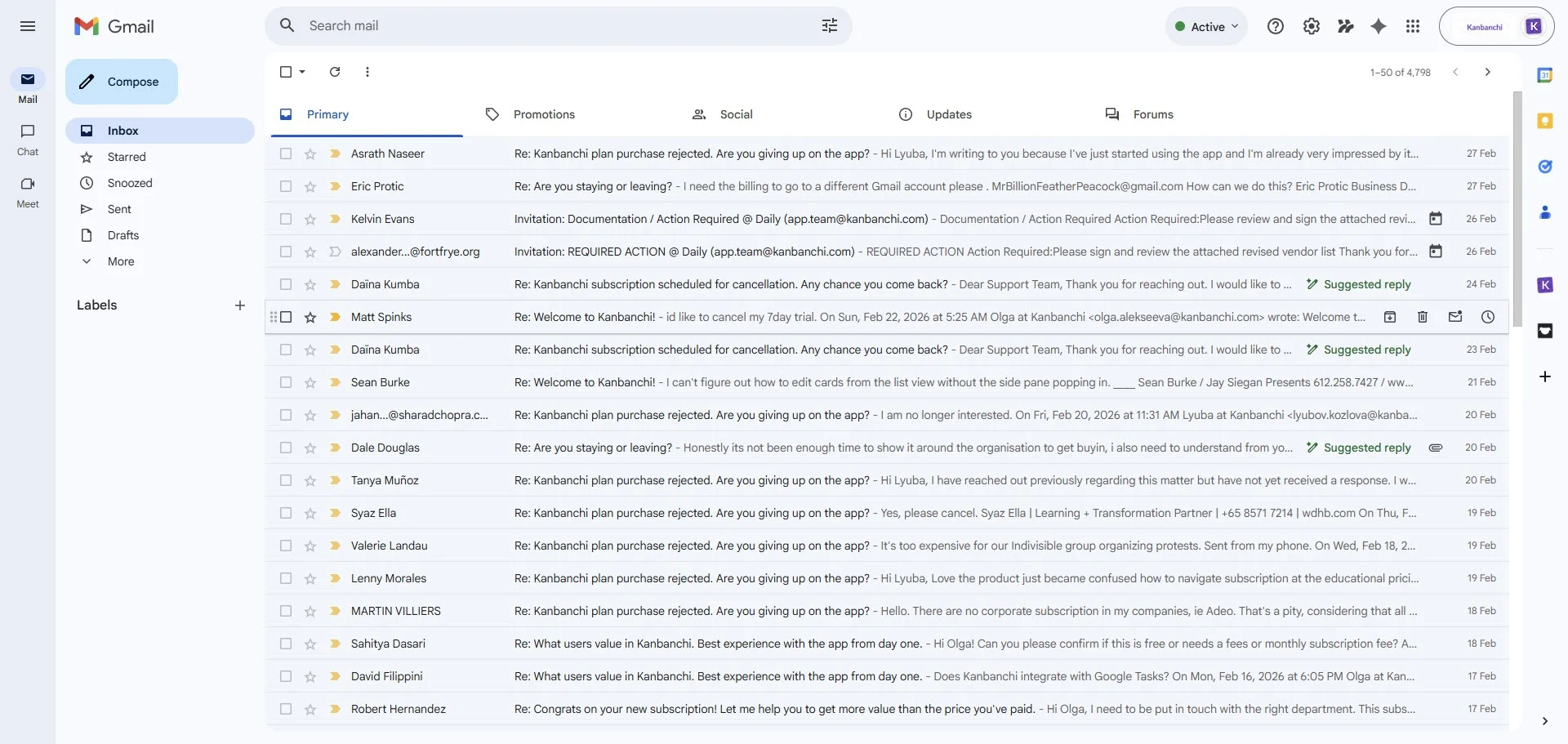
When you receive over 100 messages a day, it’s extremely hard not to get lost.
Many teams prefer to use a specialized project management app together with their Gmail. It’s a way of making sure that they get to use Gmail as they have always done, but with the added benefit of new messages being linked directly to the plan and ongoing milestones.
With more teams than ever before working remotely and not having the chance to meet in person each week, Google Meet has become a vital communication tool. This is a way of making sure that everyone is on the same page and that nobody feels left out.
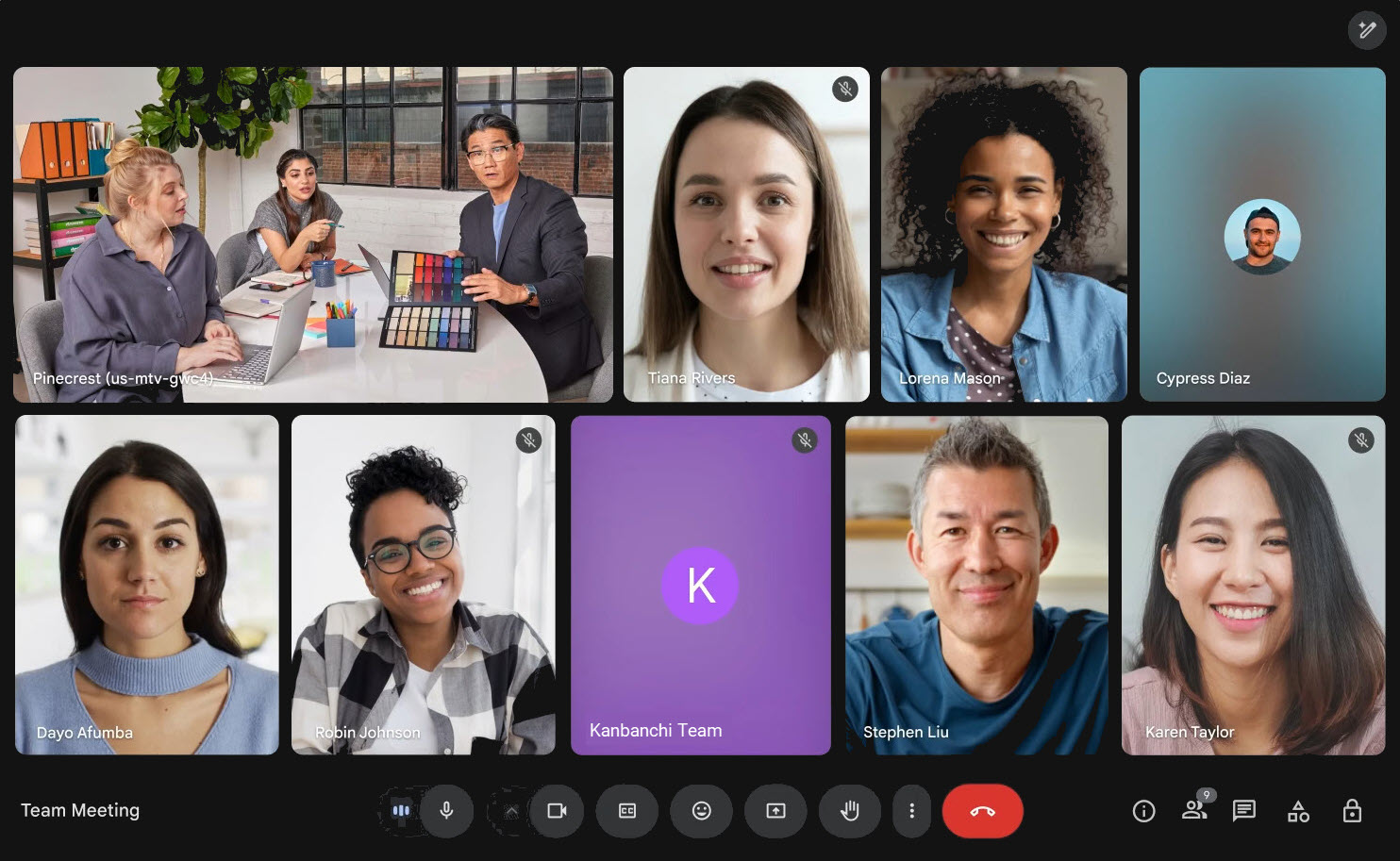
With remote work on the rise, Google Meet is a vital tool for team synchronization.
Teams can feel perfectly synchronized when they have regular Meet get-togethers. This Google tool provides a simple approach to video meetings. By combining it with other digital PM tools, meetings can be more productive, with everyone being able to contribute and feeling that they are part of the team.
The next of the Google apps for project management is Google Drive, which is where you can store all of the documents relating to your projects. This is the single source of reliable information that you need, allowing everyone to share and search it easily. Rather than simply seeing it as a folder in the cloud, you can see it as the place where your project architecture is organized.
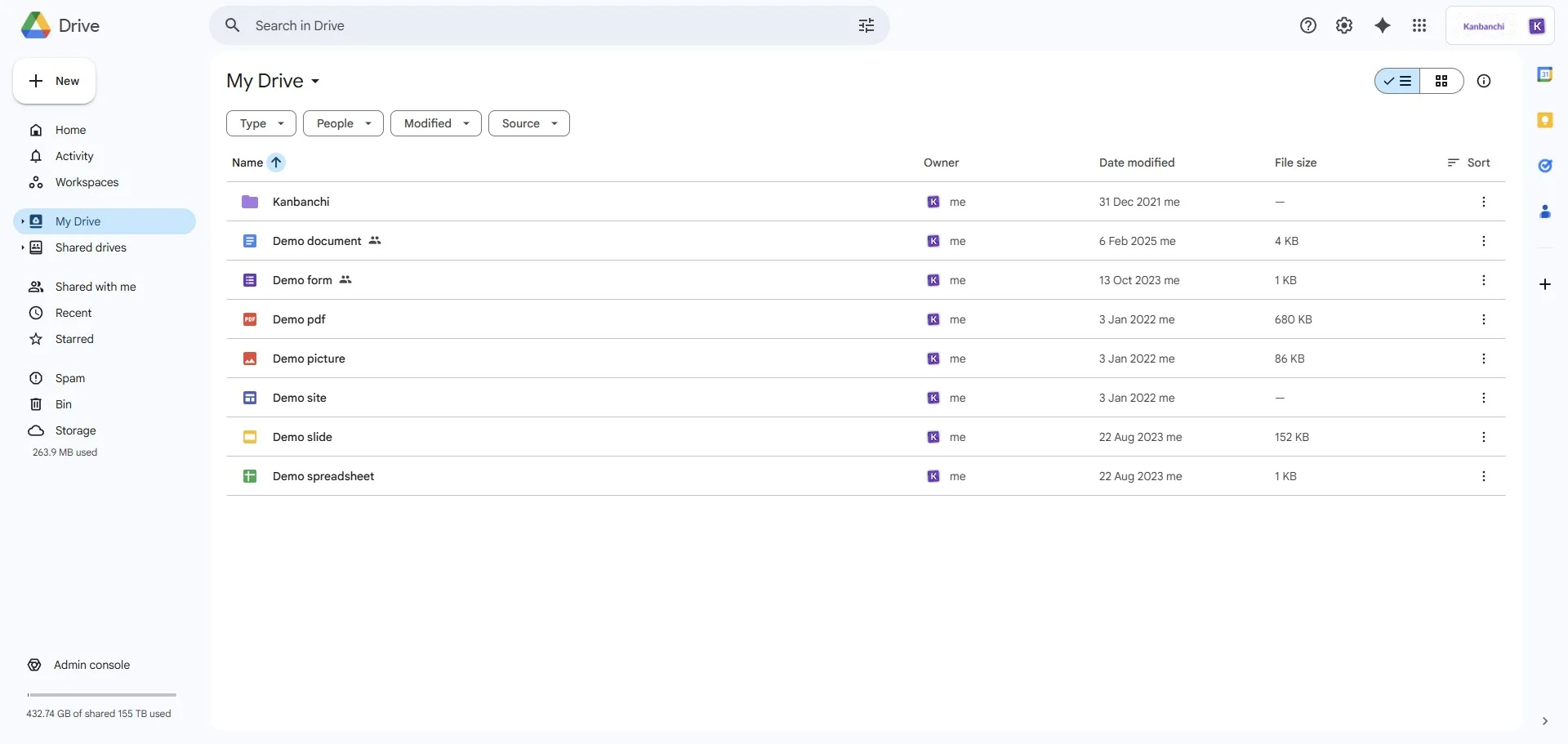
Secure your project architecture and create a single source of truth with Google Drive.
This structure is made even better if you use the right project tools to make sure that the documents are neatly linked to the milestones that they relate to. Enterprise-grade security and granular permissions are among the key aspects that make this an invaluable part of your project work.
Communicating your plans to stakeholders and colleagues is one of the trickiest aspects of any project. This is where you need to get the details right and also find the correct presentation style for the audience. Google Slides is helpful because it gives you a convenient way to turn your data and ideas into a coherent presentation.
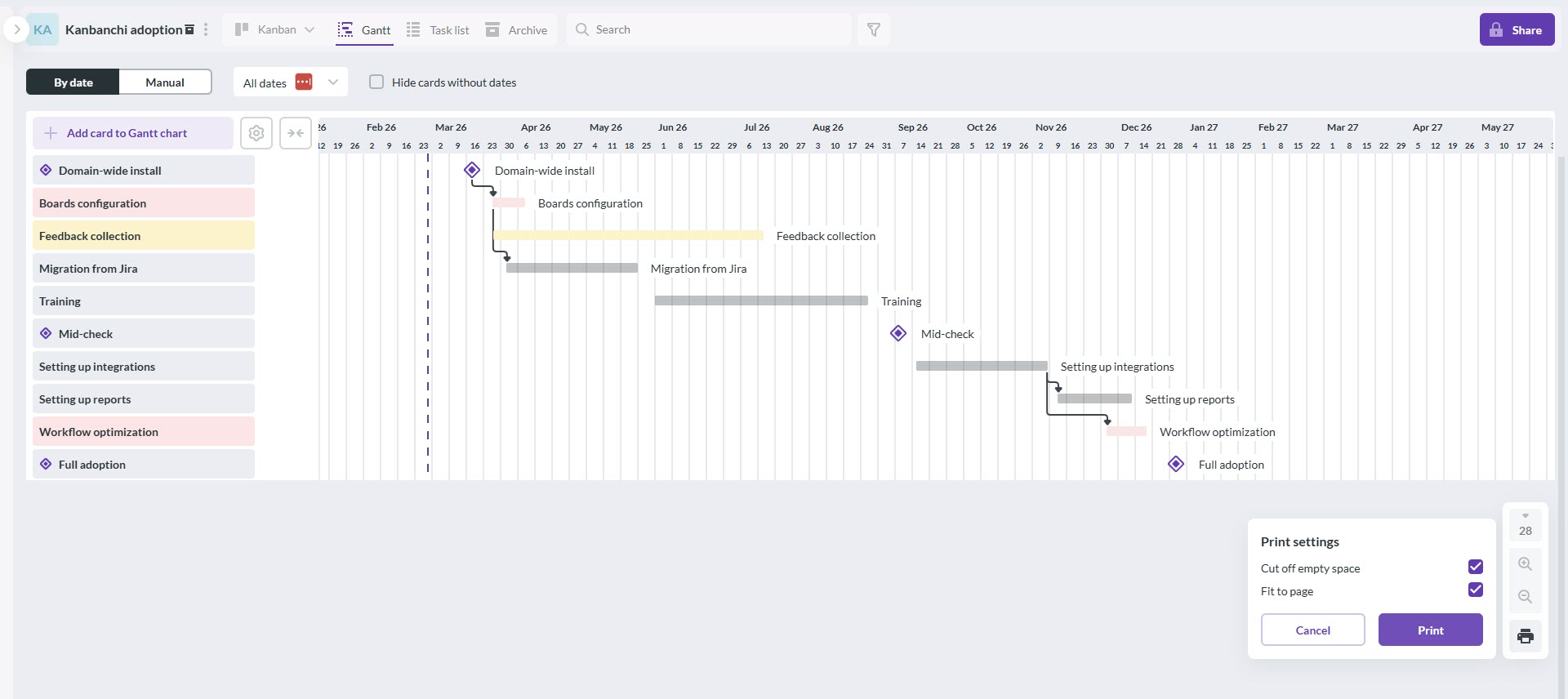
To truly master Google Apps project management, use Kanbanchi’s printable Gantt chart feature to export your visual timelines and add them to your slides, creating perfect, up-to-date reports for your stakeholders.
Use Google Slides as a reporting layer that ensures that there is no gap in the communication process. By integrating it fully with the rest of your PM tools, you can make sure that your presentations are always up-to-date and accurate.
We’ve seen that Google Workspace is a great place to get started on your team’s projects. But there are also clearly a few gaps here that stop you from using just these apps to run your Google Apps project management workflow. This becomes particularly clear on long projects or those that rely on a manual workflow. You’ll soon discover that the limitations of Workspace lead to issues such as manual entries being needed or even data falling through the gaps. This manual maintenance issue is time-consuming and can lead to major issues being missed or carried out incorrectly.
Even more importantly, you’ll realize that you always need to keep several tabs open in this way. While the Google ecosystem links together, it’s not done in a way that allows you to run projects from a single point. So, you need to jump between the apps to get all of the functions that you need, which eventually leads to tab fatigue.
These reasons help to explain why project leaders prefer a single point of truth where they can get the status and related details at any time. The lack of a native Gantt chart is another factor that encourages them to look for alternatives. While it’s possible to find a workaround using Google Sheets, it’s not an approach that gives you all the benefits of Gantt charts and won’t let you visualize the work in the same way.
Taking all of this into account, we can see how a team might simply outgrow the Google Apps approach. When their projects get bigger or more complex, they need to find something that works better for them, without losing the familiarity of the Google ecosystem.
If your team uses Google Workspace, you’ve probably already come across the pros and cons of these apps in a project setting. Having all of your data in different apps is something that can slowly start to get more worrying as you realize that the work is being split up more than you would like. Kanbanchi provides a smart way to conveniently bring everything together in one place. You have all of your data held in Sheets, your strategy laid out in Docs, the deadlines in Calendar, and so on. Kanbanchi brings it all together by giving you a single place to work.
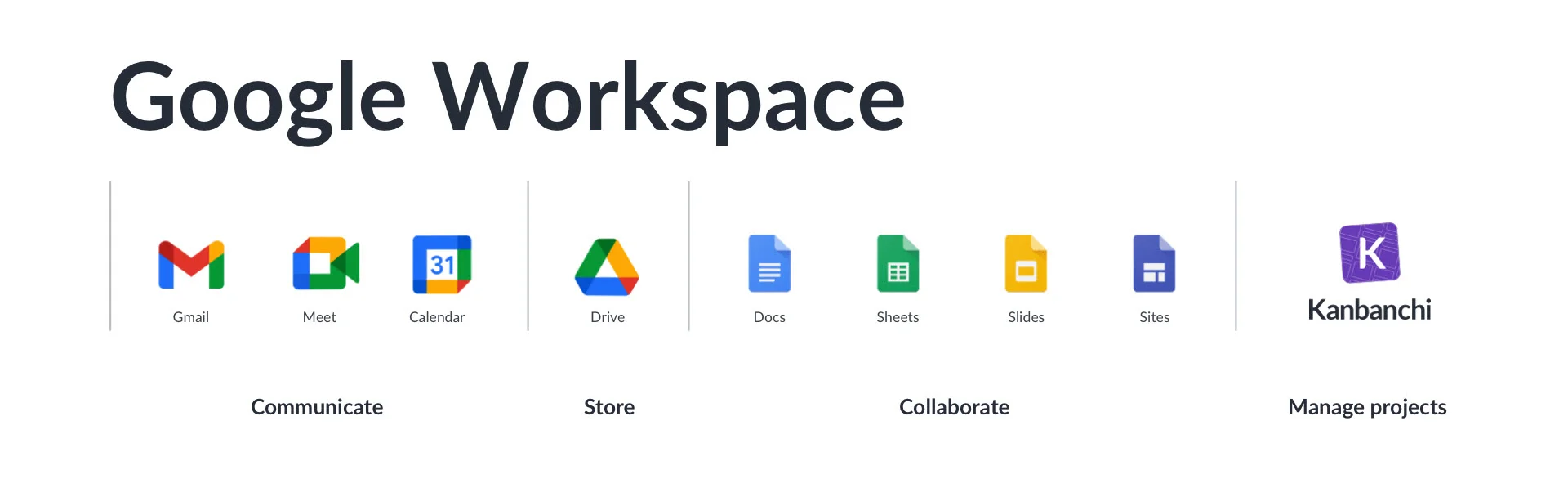
Unlike other apps that act as third-party guests, Kanbanchi operates as if it were born within Google Workspace, filling the project management gap with a tool that feels like home.
It’s worth taking into account that Kanbanchi isn’t simply a third-party app that connects in some way to Google. Rather, it uses native integration to ensure that you can carry out all of your tasks in one place without having to worry about keeping all the tabs open. Kanbanchi could be viewed as a type of dashboard that unifies all of your Google Apps. It can be used to add Kanban boards inside Drive, while its Gantt drive and time tracking options give you ways of making sure that you stay in control of all of your tasks and milestones.
Start a free Kanbanchi trial now
By creating your own highly robust project management ecosystem, you make sure that you get to use all of the Google apps that you’re familiar with. Yet, with Kanbanchi being used to synchronize them, you also get an added layer of organization to Google’s cloud infrastructure. Here are the steps needed for you to get started smoothly.
Having a standardized folder hierarchy is the ideal starting point. You should set up a main Project Hub folder to help you avoid clutter. After doing that, you could set up a tiered naming convention to make life events easier. Permissions have to be set at the root folder level. This automates the access for all of the sub-folders and the documents in them. This means that everyone who needs access to your documents can access them instantly without any need for manual intervention.
Having a Google Calendar that’s dedicated to your project gives you a great way to stay up to date with the latest developments. This lets you keep all of the relevant dates and upcoming events in one place without cluttering your team’s personal schedules or adding tasks manually. Start by creating a new calendar specifically for the project. You can then block out time as necessary, with all-day events used for major milestones. Sync the new calendar with your team’s main calendar so that any timing conflicts are identified instantly.
The native connection with Google Workspace is seen most clearly when you look at the visual flow that Kanbanchi provides you with. To create the dashboard, you need to open Kanbanchi and create a board that gets stored in your Drive’s Kanbanchi folder. You can then convert all of the project’s milestones into Kanban cards, with the Drive files attached to them. By doing this, you make sure that current versions of your documents are always easily available.
By enabling the Google Calendar synchronization in Kanbanchi’s settings, you push the start/due dates or events from your Kanban cards onto the shared calendar. This means that you get a unified timeline where any updates in either are immediately reflected in the other. With these simple steps, you can start to visualize the project timeline thanks to the Kanbanchi integration with Google’s apps. This removes the app-switching fatigue that your team might have felt when working with a selection of unrelated and unlinked apps.
Start a free Kanbanchi trial now
Yes, Google Workspace is an excellent starting point for creating your PM processes. However, to avoid app-switching fatigue, it makes sense to use a tool like Kanbanchi that unifies apps like Docs, Sheets, and Calendar in one place.
For most projects, the best starting point is in Google Docs, where you can outline the scope and share it with the stakeholder over Gmail. Google Sheets can then be used to track the milestones until you set up a Gantt chart or other specialized PM tool.
There is no standalone tool for this, but you could use the Timeline View in Google Sheets for a simple type of Gantt chart. For a more comprehensive approach, you might want to try Kanbanchi, where you can get a full Gantt view integrated with Google Workspace.
Google Tasks is a solid choice for tracking individual jobs to be done. On the other hand, Google Sheets is easily integrated with Kanbanchi to provide a dedicated tool that is ideal for managing team collaboration on your project workflow.
Creating a shared project calendar on Google Calendar gives you a way to manually add your tasks and deadlines. Using a tool like Kanbanchi makes life easier by automatically pushing the due dates on your Calendar.
The Workspace apps are excellent for carrying out general tasks, but lack some of the specialist features needed to make a modern project run smoothly. By adding a PM tool that integrates with Workspace, you get the best of both worlds.

In this Article:
Start using Kanbanchi now
Start your free trial