
In this Article:
Try Kanbanchi now
Start your free trial

Most teams already use Google Drive every day, but very few know how to tap into its full potential as a project management tool.
Think about it: how many times have you searched through half a dozen folders to find the latest version of an important doc, or lost time tracking updates across never-ending email chains? You know everything’s stored somewhere on the Drive, but being able to actually find what you need quickly? That’s a different story.
There is good news, though. Because with the right setup (and a few connected tools), Google Drive can actually serve as a powerful hub for organizing files, managing workflows, and keeping everyone on the same page.
So if you already use Google Drive and want to add a bit more structure to your team’s workflow, this guide is for you.
Read on for our step-by-step guide on how to build an efficient Google Drive project management system, plus how you can take things even further with advanced tools like Kanbanchi, built specifically for teams already making the most of Google Workspace.
Google Drive (or just “Drive” for short) is a cloud-based file storage and sharing platform that allows teams to store, organize, and collaborate on files in real-time, all from one centralized location in the cloud.
As a core part of Google Workspace, Drive is fully integrated with other Google tools (like Gmail, Google Docs, Google Sheets, and Google Calendar), making it easy for teams to communicate and work together without ever having to leave the Google ecosystem.
Here’s a quick overview of some of Google Drive’s key features:
For remote and hybrid teams, Drive makes it easy to stay organized regardless of your team’s location. And when everything’s structured properly? You can actually use Google Drive as a project management tool (not just a digital filing cabinet).
For startups, small businesses, and remote teams, Google Drive offers one of the most convenient platforms for staying organized.
Here’s why:
So, how does project management in Google Drive work in the real world? Here are just a few examples.
| How Teams Use Google Drive for Project Management | |
|---|---|
| Marketing Teams | Store campaign briefs, creative assets, and performance reports in shared folders. Plan content calendars in Sheets, link to drafts in Docs. Share client folders for reviews. |
| Product Development | Track bugs and features in Google Sheets, linked to Docs or screenshots. Store technical specs, sprint plans, and architecture diagrams. Keep shared Docs for meeting notes. |
| Design and Creative Teams | Centralize visual assets and brand guidelines in Drive. Use Slides and Docs for design reviews and feedback. Outline project timelines in Sheets, synced with Calendar. |
While Google Drive wasn’t originally built as a project management platform, it can absolutely serve that purpose… it just takes some planning and good habits across your team.
Here’s a step-by-step guide on how you can use Google Drive to start managing your own projects.
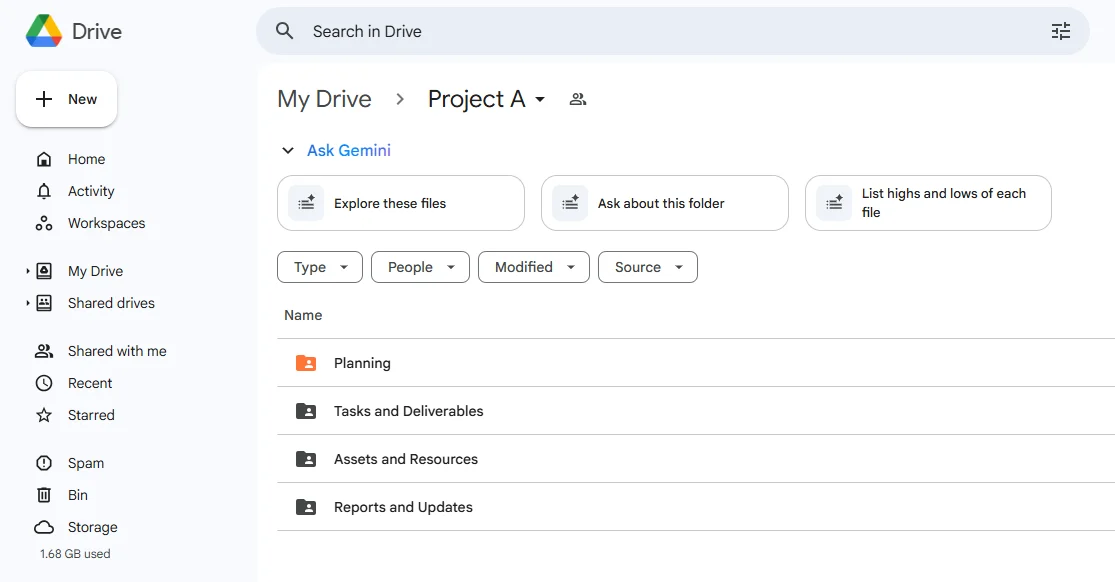
A sample folder hierarchy demonstrating how teams can organize planning files, assets, deliverables, and reports inside a dedicated project folder
The first step is to set up a clear, consistent folder structure. This sets the foundation for your entire project and acts as the “single source of truth” for your team.
Here’s how that works:
For each project, create a main project folder. Within that folder, organize your subfolders using a consistent file structure that makes sense with your workflow.
For example, a basic folder structure might look like this:
Using numbers helps keep folders in a logical order, making it easier for your team to navigate and find what they need at a glance.
Here are a few more file structure and naming best practices:
Although it can take a bit of time to set up, a clean folder structure will save everyone a ton of time (and confusion) in the long run.
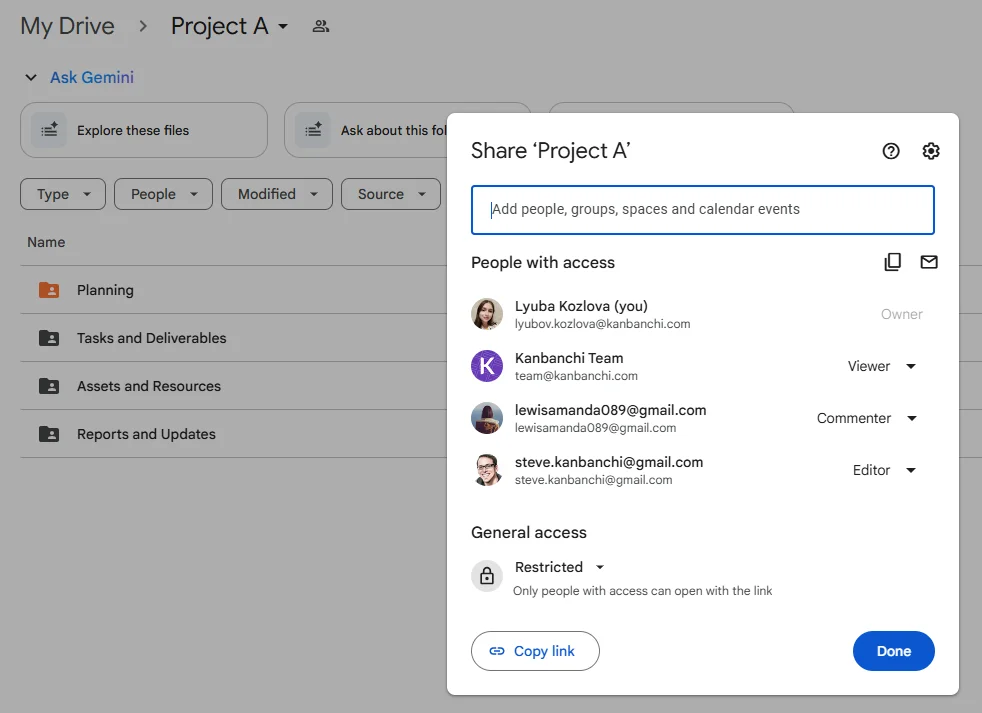
Google Drive’s sharing panel where teams can assign viewer, commenter, or editor access to ensure files remain secure and properly managed
Once your folders are structured, it’s time to control who can do what. Google Drive makes this easy by letting you share any file or folder with individuals, groups, and even entire domains. You can also assign specific access levels based on what each person needs to do:
Here are a few best practices to bear in mind when granting access in Google Drive:
By managing access intentionally, you can reduce the risk of accidental edits and make sure the right people have the right level of visibility across every project.
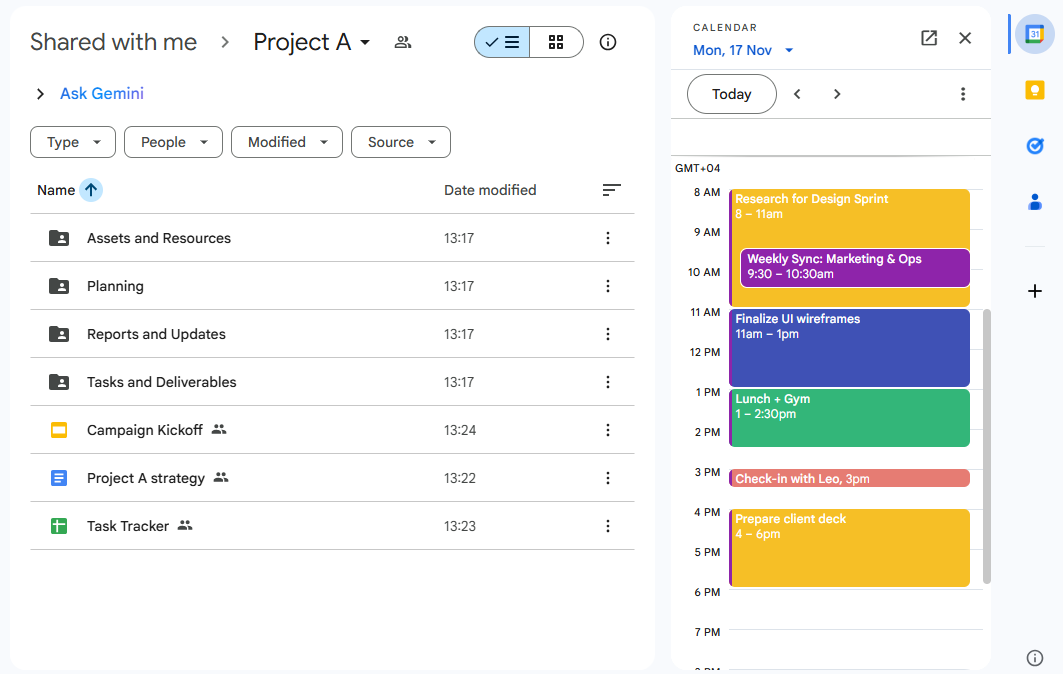
An example of how Google Workspace apps integrate to support project tracking, documentation, scheduling, and communication in one ecosystem
Google Drive is most effective when it’s used together with other Google Workspace tools, such as Sheets, Docs, Calendar, and Gmail.
Here’s an example of how this could look for a marketing team managing a campaign for a product launch:
| Using Google Workspace to Manage a Marketing Campaign | |
|---|---|
| Google Sheets | Create and maintain a shared task tracker with deadlines, owners, and statuses. |
| Google Docs | Document meeting notes, project briefs, and decisions, linking directly to Sheets. |
| Google Calendar | Set due dates, meeting reminders, and milestone alerts. |
| Google Slides | Build presentations for client pitches, internal reviews, and campaign kickoffs. |
| Gmail | Send task updates and share files with team members directly from Drive. |
The best part about staying within the Google Workspace ecosystem is that everything works together. You don’t have to switch between apps, upload files twice, or worry about keeping things up to date. Everything your team needs is all in one centralized, familiar place.

Visual showing how Google Drive can be paired with advanced project management tools to add timelines, dependencies, reporting, and team workload views
At some point, your team may outgrow basic task lists and spreadsheets. While this is a positive sign of growth, it also brings new challenges.
For example, even though Google Drive can give you a good foundation for organizing files and collaborating, it doesn’t offer true project management features that can help you plan ahead and stay on track, such as:
So if your team is starting to manage more complex projects (or if you simply want more visibility into timelines and progress), it may be time to level up your Google Workspace with a dedicated project management tool, like Kanbanchi.
These tools are helpful because they can add some structure to your project management processes, without forcing your team to adopt a completely new project management system.
Of all the Google Drive project management tools out there, few tools match the power and simplicity of Kanbanchi. It’s one of the most comprehensive and user-friendly tools built for Google Workspace, making it an ideal choice for teams already working in the Google ecosystem.
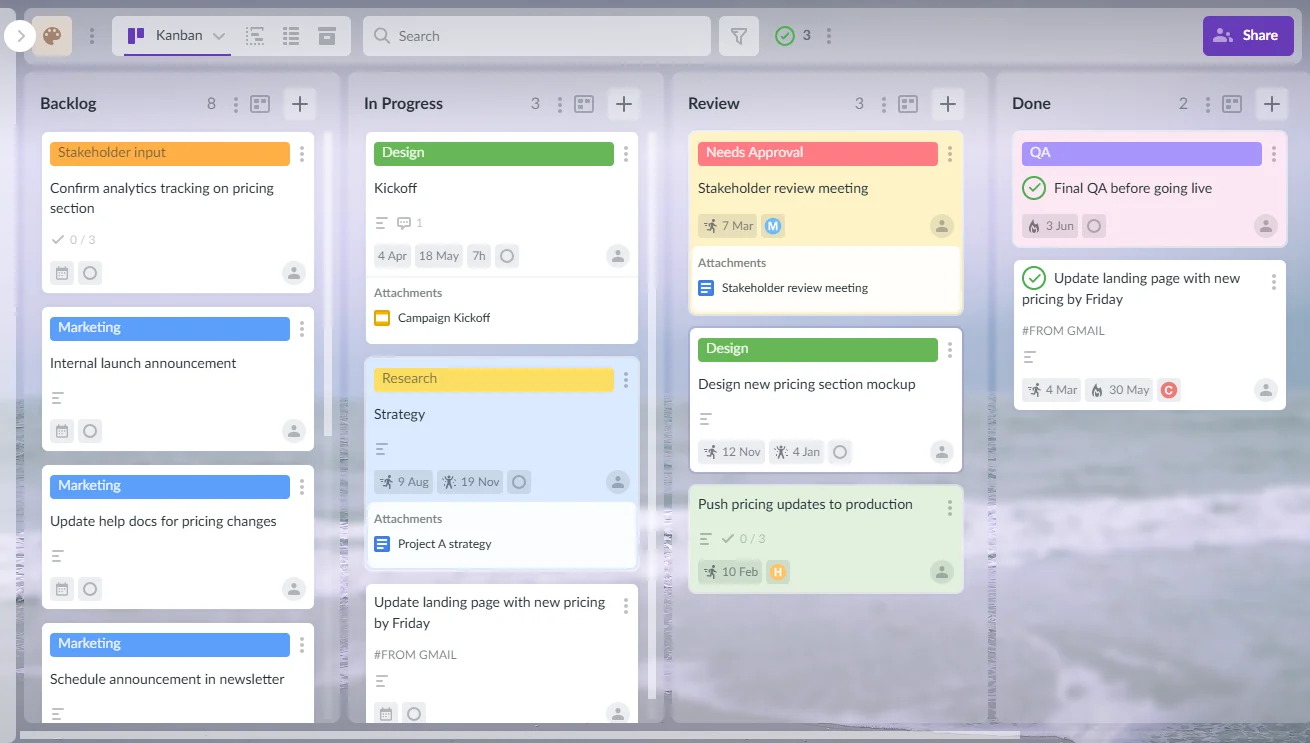
Kanbanchi’s interface with Kanban boards, timelines, and file attachments synced directly with Google Drive for seamless project coordination
Kanbanchi is a cloud-based project management software for Google Drive. It was built specifically for Google Workspace users, integrating seamlessly with Drive, Sheets, Calendar, Gmail, and Vault.
With Kanbanchi, you can:
As a natural extension of Google Workspace, Kanbanchi provides all the tools you need to manage projects within the Google apps you’re already familiar with. This is a massive perk for busy teams who don’t necessarily have the time (or resources) to learn a completely new project management system.
Kanbanchi is designed to add structure and visibility to your projects already living within Google Drive. Here are just a few key features worth noting.
| Kanbanchi Key Features | |
|---|---|
| Kanban Boards | Organize your tasks visually with drag-and-drop workflows. Great for sprints, pipelines, and status tracking. |
| Gantt Charts | Map out your entire project timeline and visualize task dependencies. See how tasks relate, shift deadlines as priorities change, and get a bird’s-eye view of major project milestones. |
| Shared Task Lists | Assign work, track progress, and keep everyone in the loop with live task lists. |
| Real-time Collaboration | Collaborate just like you would in Google Docs. See live edits, add comments, and keep communications tied to specific tasks. |
| Syncing With Google Workspace | Everything stays in sync with your Google Workspace account, no manual uploads or version confusion. |
| Time Tracker | Plan ahead with estimated task times and see how estimated times compare to the actual time tracked. |
| Project Analytics and Reporting | Get insights into team performance, project progress, and productivity trends without having to build a report in Sheets from scratch. |
Getting started with Kanbanchi only takes a few minutes. Here’s a step-by-step guide for setting up your first project:
Once you’re all set up, it’s also worth taking a moment to explore our blog for practical guides, productivity tips, and feature walkthroughs to help your team get the most value out of Kanbanchi and Google Workspace.
What sets Kanbanchi apart from other project management tools is how it fits so naturally into your existing Google Workspace setup.
This means:
You can use the same Google Drive structures, permissions, and sharing policies your team already trusts, while adding all the product tracking features you’ve been missing. And because Kanbanchi looks and feels just like the rest of Google Workspace, your team can start using it straight away with minimum downtime for training.
So if you’re ready to move beyond basic spreadsheets and scattered docs (but want to stay within the comfort of Google Workspace), Kanbanchi is the ideal upgrade.
Google Drive offers a strong foundation for project organization. It’s easy to use, it’s familiar, and it’s already a part of how many teams work every day.
But when it comes to managing timelines and tracking progress at scale, Google Drive can only take your team so far.
Enter: Kanbanchi.
As one of the most powerful project management tools for Google Drive, Kanbanchi enhances Google Drive setups with everything you need to plan, track, and manage projects across teams and departments.
This includes:
And the best part? It all happens within the familiar Google Workspace apps that your team already knows and loves. No switching platforms. No steep learning curves. And no disruptions to the way your team already works together.
This makes Kanbanchi perfect for…
When you have the right tools in place, your team gets to spend less time chasing down updates and more time creating, collaborating, and delivering exceptional work. Ready to simplify your team’s workflow within Google Drive? Try a free trial with Kanbanchi today to see how effortless project management can really be.



In this Article:
Start using Kanbanchi now
Start your free trial