
In this Article:
Try Kanbanchi now
Start your free trial

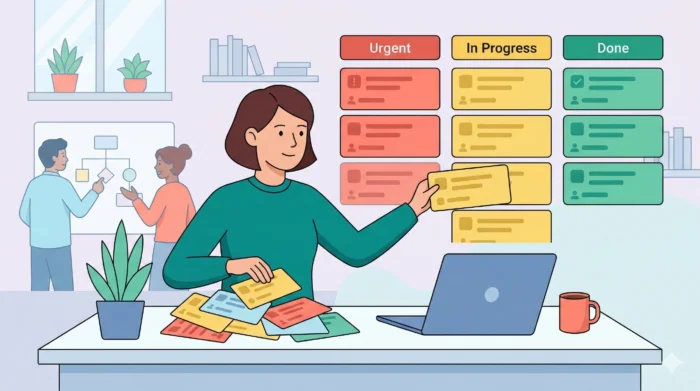
If you’ve ever searched for task categories examples, chances are your to-do list isn’t working as hard as you are. You’re not alone; most people manage a digital junk drawer where “Send email to Sarah about logos” sits right next to “Rebrand the company from scratch.” When everything is lumped together, nothing is prioritized.
Task categorization is the process of grouping individual actions by shared characteristics, such as the department they belong to, the mental energy they require, or the tools needed to complete them. When you categorize a task, you offload the “where does this go?” friction and move straight to “how do I do this?” Your brain isn’t a storage unit; it’s a processing plant.
In this guide, we’re going to:
The problem with a flat list is that it treats all tasks as equals, and if we’re being really honest, it’s just not very inspiring. Think about it a bit more deeply: a task is not just an item; it’s a commitment of time, energy, and resources.
When you look at a list of uncategorized items, your brain experiences a phenomenon called decision fatigue. You spend so much energy trying to decide which task to tackle next that you have less cognitive energy left to actually perform the work. Categorization solves this by creating pockets of focus.
Categorization isn’t just about being neat. It’s about building a system that works even when you aren’t watching it. So those are the reasons why you need it. But before we go into industry-specific examples, it’s worth taking a step back. What are the fundamental types of task categories that every professional should know about?
Not all task categories are created equal, and no single system works for everyone. Before building your own structure, it helps to understand the four universal frameworks that form the backbone of nearly every effective task management system.
The most intuitive starting point is to ask: what is this task actually for? Grouping tasks by their purpose gives you an immediate snapshot of how your time is truly being spent, and whether it’s aligned with your goals.
If you map your current to-do list against these four categories and find that 70% of your items land in Administrative / Operations, that’s a clear signal that strategic or creative work is being crowded out.
One of the most widely adopted task category frameworks is the Eisenhower Matrix, also known as the Urgent-Important Matrix. It divides every task into one of four quadrants based on two simple questions: Is this urgent? Is this important?
The Eisenhower Matrix is particularly powerful because it forces you to ask a question your to-do list will never ask: “Does this task actually matter?” Quadrant 2 is where the most high-impact, career-defining work tends to live. Yet it’s the category most often sacrificed to the noise of Quadrant 3.
You can also check out different methods of task prioritisation in our guide:
How to Prioritize Tasks in Project Management: Step-by-Step Guide
Another practical categorization approach splits your workload by the context in which work happens. This method has been popularized by productivity tools like Toggl Track and frameworks like David Allen’s GTD (Getting Things Done).
Keeping these categories distinct (even within the same tool) prevents professional tasks from bleeding into personal time and ensures that your work categories serve performance rather than just presence.
For teams using scheduling and resource management tools, tasks are often categorized by how they are calculated, not just what they are. This is particularly relevant in tools like Microsoft Project, where the relationship between time, effort, and people must be precisely defined.
Understanding these distinctions prevents scheduling errors when you add or remove resources mid-project. Add a second developer to a Fixed Units task and the duration shortens; add them to a Fixed Duration task and the work output increases instead.
Armed with these universal frameworks, the next question is: how do they translate into real, department-level applications?
Categorization is not a one-size-fits-all exercise. A software developer’s task list looks nothing like a human resources manager’s. To build a system that actually sticks, you need to speak the language of your specific field. Here are five industry-specific task categories, with examples broken down into easy-to-understand tables to help you move from a generic to-do list to a specialized workflow.
Marketing is a whirlwind of deadlines, creative assets, and data analysis. Without categories, the Launch Campaign becomes an insurmountable mountain.
For technical teams, categorization is the difference between a stable release and a system crash.
HR deals with sensitive timelines and high-volume recurring tasks. Categories keep the people side of the business running smoothly.
In sales, categories are often tied to the pressure of a lead or the stage of a deal.
When you are the glue holding a team together, your categories must reflect the diverse responsibilities of the team.
See more of our blogs about task management here
Those are the basics, but how can they be personalised further to suit the needs of more diverse teams? It can be done by using task and project management apps like Kanbanchi.
Tools matter, and the right one makes categorization effortless. Kanbanchi is built specifically for structured task management, offering color-coded labels, custom lists, and card organization. They’re designed to make task categorization much simpler for teams of all sizes.
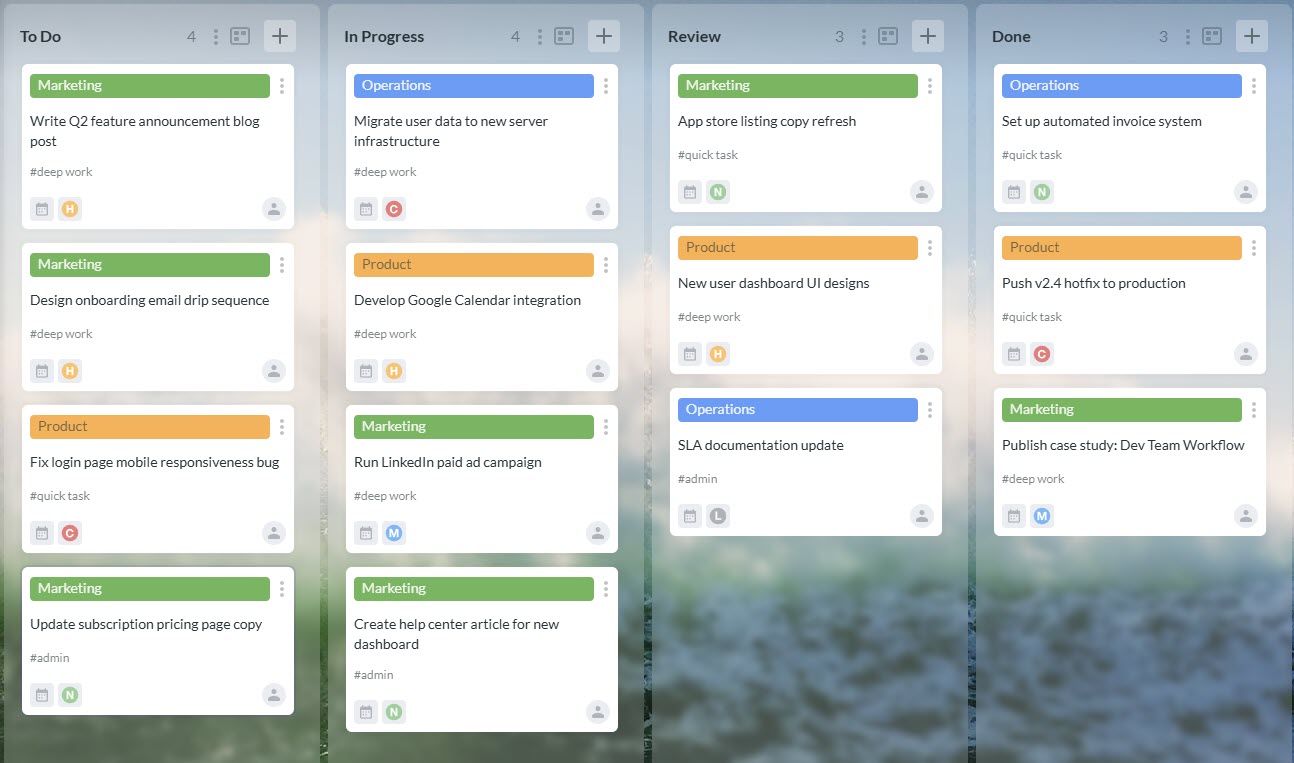
A Kanbanchi board in action: color labels and custom lists turn task categories into a clear, scannable workflow your whole team can act on
We’ve put together a simple setup guide that will help you to create a board like this one.
Set up columns such as:
These act as the backbone of your workflow, meaning you can see everything that needs to be done at a glance, and everything stays in your purview.
Use these properties to represent how important tasks are and how much effort they’ll take.
This allows one task to carry multiple categories at once and alerts anyone involved in it how long it’ll take and what it’ll require to complete it.
Create and apply color labels:
This keeps the high-level organization clean, scalable, and uncomplicated.
Use filtering options to:
The result? A dynamic system where categories are not static labels; they become powerful decision-making tools that your team wants to use and find helpful in their work.
Setting up some simple templates removes setup friction and gives you ready-made category structures. Earlier in our guide, we looked at 5 industry-specific task category examples to try. Here are ten other board templates you can use across those industries (and others), along with the task categories they rely on. When you log in to Kanbanchi, you will also find more templates in our template gallery that you will be able to copy and use in your projects.
Start a free Kanbanchi trial now
Here are the explanations of how you can create your own template from scratch:
What can they be used for when thinking about a company’s marketing needs? Status (Planning, Executing, Launched), Department (Content, Ads, Design), Priority
| Lists | Color labels | Priorities |
|---|---|---|
| Planning, Executing, Launched | Content, Ads, Design | Low, Normal, Medium, High, Critical |
What are they useful for?
Perfect for coordinated campaigns spanning different departments that need a unified approach.
These are mostly used by freelancers and solopreneurs to categorize the context of work (home, work, calls), energy levels, and time estimates.
| Lists | Color labels | Time estimate |
|---|---|---|
| Home, Work, Calls, etc. | Deep Work, Quick Task, Admin, etc. | Use the estimate field and the time tracking option to compare |
What are they useful for?
Ideal for individual productivity, and for freelancers who work mostly alone but sometimes need to coordinate with other workers or clients.
These are a great idea to give an indication of status (backlog, sprint, testing, done), time estimate, and priority
| Lists | Time estimate | Priorities |
|---|---|---|
| Backlog, Sprint, Testing, Done | Use the estimate field and the time tracking option to compare | Low, Normal, Medium, High, Critical |
What are they useful for?
Great for development teams preparing product launches and needing extensive help with creative direction.
Sales teams often need to be able to see their pipelines at a glance and quickly: status (lead, contacted, proposal, closed), priority, and revenue value.
| Lists | Priorities | Custom field |
|---|---|---|
| Lead, Contacted, Proposal, Closed | Low, Normal, Medium, High, Critical | Revenue value, MRR, etc. |
What are they useful for?
Keeps deals moving forward and sales on track, perfect for identifying and dealing with any potential product issues straight away, rather than leaving them until it’s too late.
Essential for any team who are producing lots of content on a mass scale, regularly. Great for looking at a project’s status, platform category, and publish date.
| Lists | Color labels | Due date |
|---|---|---|
| Idea, Preparing, Scheduled, Published. | Facebook, Instagram, TikTok, etc. | Use due dates and add them to Google Calendar for more visibility across teams |
What are they useful for?
Perfect for marketing teams and creative groups that need strong visuals and help in identifying bottlenecks.
These are non-negotiable when this department is dealing with a recruitment drive and a new intake of staff to oversee the different departments, statuses, and time estimates for onboarding.
| Lists | Color labels | Start and Due date |
|---|---|---|
| New, Review, Hired, Onboarding | Marketing, Sales, IT, etc. | Set start and due dates to define the time for new candidates’ onboarding |
What are they useful for?
Ensures smooth employee onboarding and long-term recruitment drives.
A great idea for any team (no matter what industry they’re in) for a simple overview of the work that needs to be done in any given week. Lists can be created for each day of the week, and every job will have a priority. Also, you can tag the energy levels required for tasks.
| Lists | Priorities | Color labels |
|---|---|---|
| Monday, Tuesday, Wednesday, Thursday, Friday | Low, Normal, Medium, High, Critical | Deep Work, Quick Task, Admin, etc. |
What are they useful for?
Balances workload across the week, and everyone can see what needs doing and when, without having to ask.
Great when teams are developing a new product for a brand or company and need an overview of how the job is going. You’ll be able to see the quarter you’re working in (and others), your status, and your progress over time.
| Lists | Color labels | Start and Due date |
|---|---|---|
| Backlog, Q1, Q2, Q3, Q4,Q5 | Estimating, Coding, Testing, Release, etc. | Set start and due dates to define the time for development |
What are they useful for?
Aligns tasks with the long-term vision and ties them to specific product developments and launches.
When a company plans a specific event and needs to see every stage of the process, from initial idea through to the gig itself. You’ll be able to see: statuses, client categories, and deadlines.
| Lists | Color labels | Due date |
|---|---|---|
| Preparation, Discussion, In progress, After, etc. | Names or categories of the clients that you use | Use due dates and add them to Google Calendar for more visibility across teams |
What are they useful for?
Prevents last-minute chaos and ensures everything stays on track and on budget. Essential when you’re undertaking work like this for a long-term (or brand new) client.
These are useful across many industry sectors, but particularly in construction, where processes are regular and require thorough assessment at every stage. You’ll be able to view the process stage, status, and priority.
| Lists | Color labels | Priorities |
|---|---|---|
| Backlog, Design, Approval, Procurement, In progress, Inspection, Done | On schedule, Subcontractor, Pending Approval, etc. | Low, Normal, Medium, High, Critical |
What are they useful for?
Ideal for recurring workflows, such as long-term production in the construction industry.
Each dashboard template demonstrates how combining multiple task categories creates clarity. That’s all well and good, but are there any pitfalls to think about when managing task categorisation? We’ve considered this below.
There’s a hidden productivity trap: organizing instead of doing. Too many labels, filters, and micro-categories can slow you down. If you spend more time color-coding than completing tasks, your system has become the problem.
Warning signs:
To avoid this:
Remember, categories exist to serve execution, not to replace it. The true Productivity Ninja doesn’t build the most complex system. They build the simplest one that makes action effortless.
You have the categories. Now, you need the engine. If your task categories examples only exist in a static document, they will die there. To make them work, they must live where your work happens. For most teams, that home is Google Workspace. But Workspace lacks a sorting layer. This is where Kanbanchi bridges the gap, turning your Drive and Gmail into a visual, categorized command center. Microsoft users may also benefit from adding Kanbanchi to their existing set of tools. Kanbanchi’s Microsoft version supports login with a Microsoft account, and lives inside OneDrive/SharePoint.
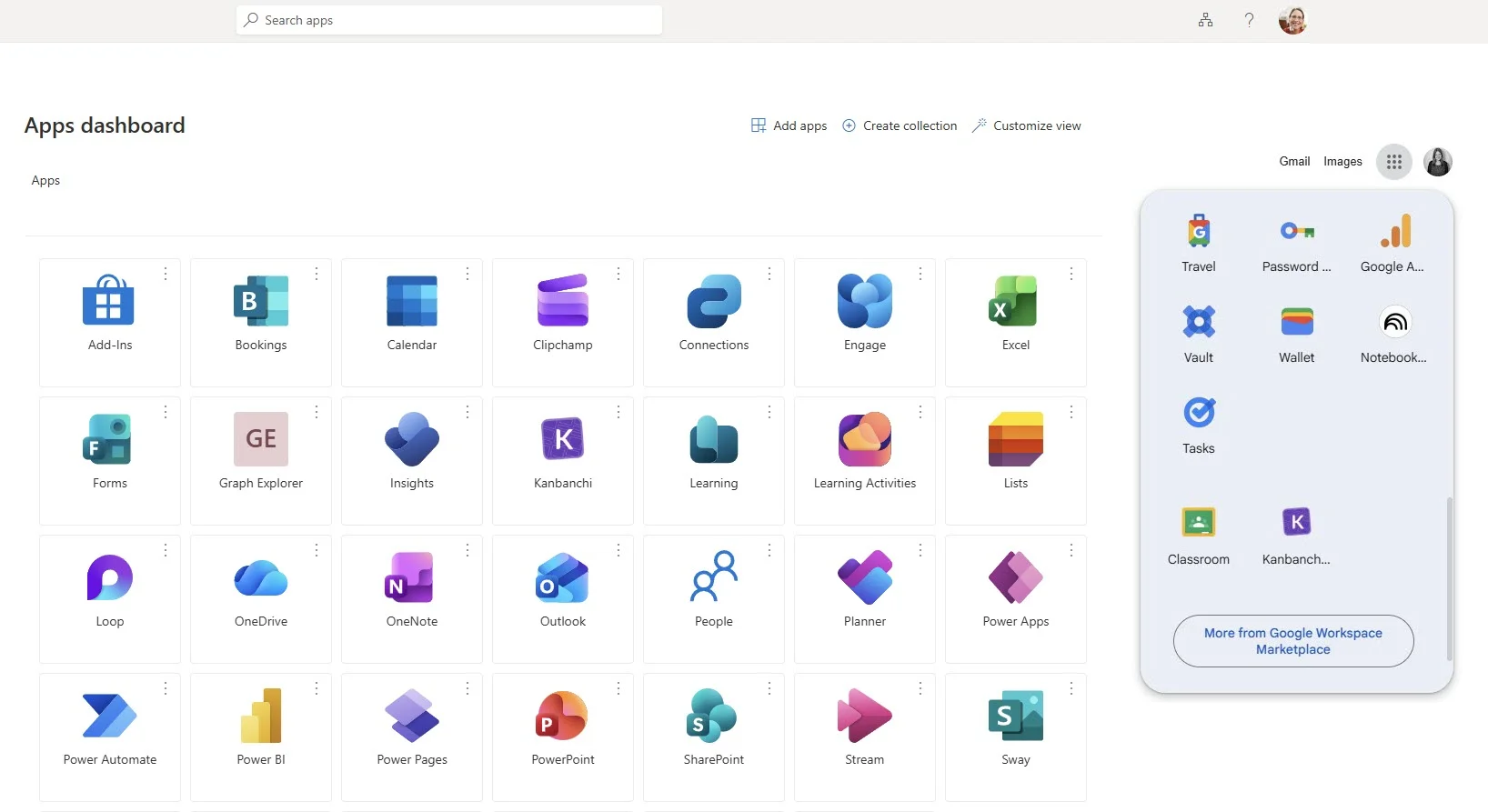
Simplify access for your team and reduce login fatigue by pinning your taskmanagement tool directly to the Microsoft or Google app launchers they use every day
Visualizing Categories with Kanbanchi Labels
In Kanbanchi, you don’t just label a task; you color-code your reality.
The Power of Recognition
Assign a specific color to Urgent, Marketing, or Client A. Your eyes will find those tasks on a crowded board in milliseconds.
Filter with Precision
Need to see only Bug Fixes for the new software release? One click on the category filter clears the noise, showing you exactly what matters right now.
Creating Category Boards
Sometimes, a single list isn’t enough. You can create entire boards dedicated to specific high-level categories.
Connecting to Google or Microsoft Assets
The true power of categorization in Kanbanchi lies in its deep integration with Google Drive or OneDrive. When you categorize a task as Legal Review, you can attach the specific Google Doc from your Drive or Word Doc from OneDrive directly to that card.
No searching, no tab-hopping, just categorized context. What’s not to like?
Our round-up ends with some of the most common queries relating to task categorization for SMEs. If you’ve still got any questions, please get in touch with the team at Kanbanchi to discuss setting up a free trial. We’d be delighted to chat.
Common professional categories include:
Tip: For personal productivity, many use Contexts (At Computer, Phone, Errand) or Time Estimates (5 mins, 30 mins, 1 hour).
Start by identifying natural clusters in your workload. Ask yourself: “What do these tasks have in common?”
Group them by:
Use visual tags or labels in a tool like Kanbanchi to make these groups instantly recognizable.
Categorization reduces cognitive load by preventing your brain from constantly switching contexts. It allows for better reporting on where time is spent, helps in identifying bottlenecks, and ensures that high-impact work isn’t buried under a mountain of low-value administrative busy work.
Beyond department labels, try:
These categories help you justify your time and resources to leadership during performance reviews or budget planning.



In this Article:
Start using Kanbanchi now
Start your free trial