
In this Article:
Try Kanbanchi now
Start your free trial


When a team is busy, project management often becomes a second job. Work is spread across email threads, chat messages, spreadsheets, meeting notes, file folders, and personal to-do lists. Everyone is working hard, but leaders still struggle to answer basic questions: who owns this task, what is blocked, what is due this week, and which project is at risk?
That is the gap collaborative project management tools are meant to close. The best ones do not simply store tasks. They give teams a shared operating system for planning, assigning, discussing, tracking, and completing work without forcing people to leave the tools they already use every day.
For busy teams, the right tool should reduce coordination effort, not add another layer of admin. It should make work visible, keep files and conversations connected to tasks, and help managers see progress without constant status meetings.
Small teams can sometimes get by with a shared spreadsheet, a checklist in a document, or a few tasks in a calendar. That works until projects become more cross-functional, deadlines overlap, and multiple people need to coordinate around the same deliverables.
At that point, the problem is rarely lack of effort. The problem is lack of visibility. A task may be “almost done” in one person’s inbox, “waiting for approval” in another person’s chat, and missing completely from the weekly report. Leaders spend time collecting updates instead of making decisions.
The Project Management Institute consistently emphasizes that project success depends on more than individual productivity. Teams need the right processes, skills, and technology to deliver value predictably. For a busy team, that means choosing a tool that supports collaboration as part of the workflow, not as an afterthought.
Fragmented work creates small delays that compound quickly. A designer waits for feedback that was sent in a private email. A manager updates a spreadsheet, but the task owner never sees the change. A deadline moves, but the calendar invite remains unchanged. None of these moments feels dramatic, but together they slow delivery and create avoidable stress.
Fragmentation also increases the risk of micromanagement. When managers cannot see progress, they ask for more updates. When team members receive more update requests, they lose focus. A good project management system gives leaders visibility while preserving autonomy.
Collaboration is not just commenting on a task. A collaborative project management tool should connect the practical pieces of work: ownership, priorities, files, conversations, dates, status, and reporting.
It should also support different working styles. Team members may prefer a simple board. Project managers may need a timeline. Executives may want a high-level progress report. A tool becomes truly collaborative when each role can see the same work from the perspective they need.
Before comparing software, define what the tool must do for your team. Busy teams benefit most from platforms that centralize work while keeping the interface simple enough for daily use.
| Capability | Why it matters for busy teams | What to look for |
|---|---|---|
| Shared task boards | Makes current work visible to everyone | Cards, columns, owners, priorities, tags, filters |
| Timeline planning | Shows deadlines, dependencies, and project phases | Gantt chart or timeline view with easy rescheduling |
| File integration | Keeps documents and assets connected to tasks | Google Drive, Shared Drives, OneDrive, or SharePoint support |
| Email-to-task workflow | Prevents requests from getting buried in inboxes | Task creation from Gmail or email forwarding |
| Calendar connection | Helps teams see project dates in their schedule | Sync or push task dates to calendar events |
| Time tracking | Shows effort, workload, and delivery patterns | Built-in timer or time entries connected to tasks |
| Reporting and exports | Gives leaders visibility without manual status chasing | Data exports, dashboard connections, or spreadsheet export |
| Permissions and security | Protects company information as teams scale | Workspace-aligned sharing, access control, compliance support |
The key is not to buy the tool with the longest feature list. The key is to choose a system that matches how your team already works, then gives them better structure.
For example, a marketing team may need boards for campaign tasks, Drive attachments for creative assets, and a calendar view for launch dates. An operations team may need recurring workflows, time tracking, and reports. A product team may need priorities, dependencies, and a visual backlog. The best tool should support these needs without turning every task into a form-filling exercise.
Busy teams do not have weeks to configure a complex project environment. They need a practical setup that creates value quickly. These are the features worth prioritizing first.
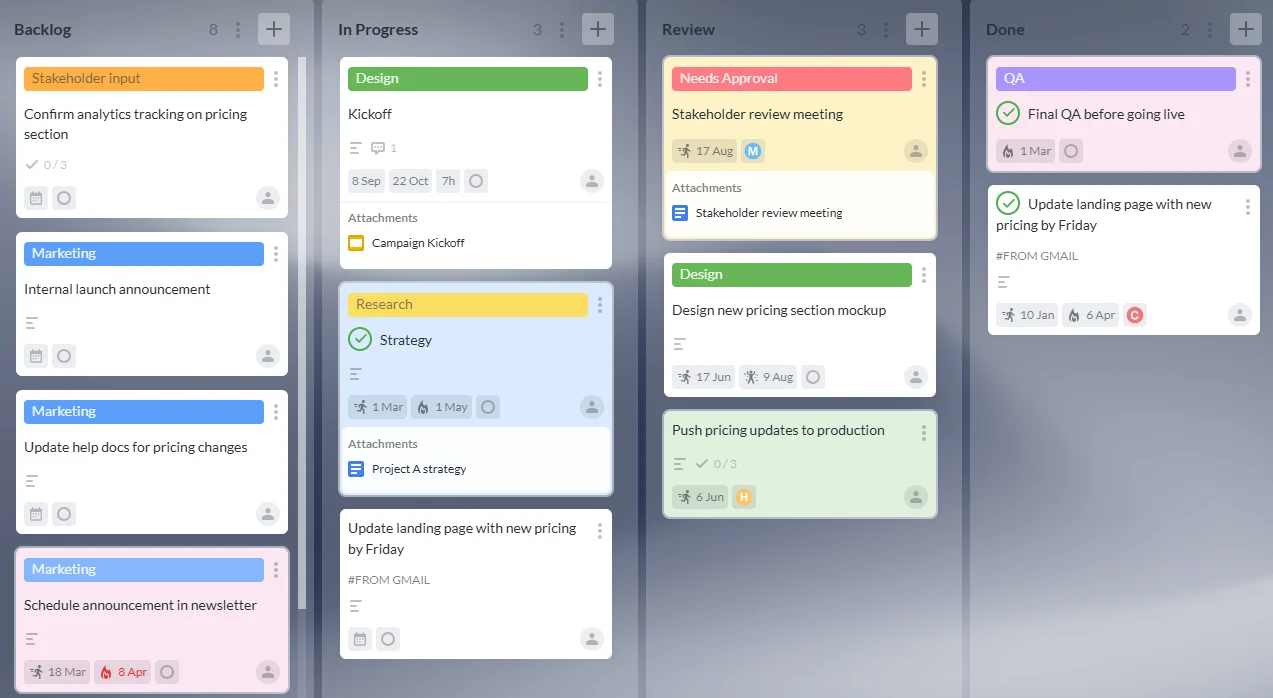
A visual board gives the team an immediate answer to “what is happening now?” Work moves through stages such as To Do, In Progress, Review, and Done. Each task card can hold the details needed to complete the work, including assignees, dates, checklists, comments, tags, and attachments.
This is why Kanban-style boards are useful across departments. They are easy to understand, fast to update, and flexible enough for marketing, HR, operations, IT, education, legal, and leadership workflows.
In Kanbanchi, teams can create project boards and cards inside the Google Workspace or Microsoft 365 environment. For Google Workspace teams, boards can work closely with Google Drive, including attachments from Drive and Shared Drives. That helps keep project tasks and project files connected.
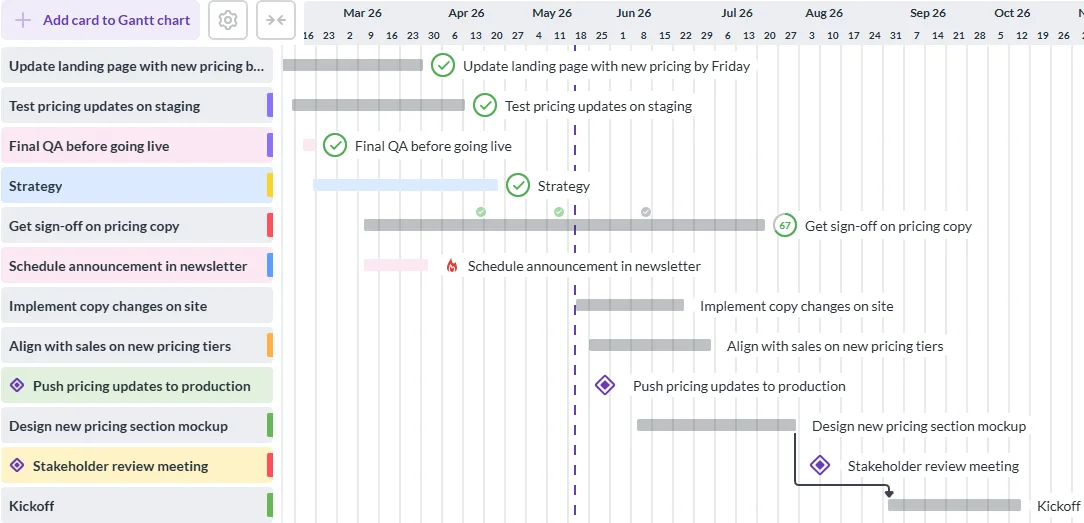
Boards are excellent for execution, but busy leaders also need to understand timing: if a launch date moves, what else is affected? A timeline view answers that, which is why most teams end up wanting both. Gantt vs Kanban: what to use for my project covers how to choose between them.
In Kanbanchi, a board converts into a Gantt chart view, so the same cards can be managed on the board and planned chronologically on a timeline. Nothing is entered twice, and nothing falls out of step.
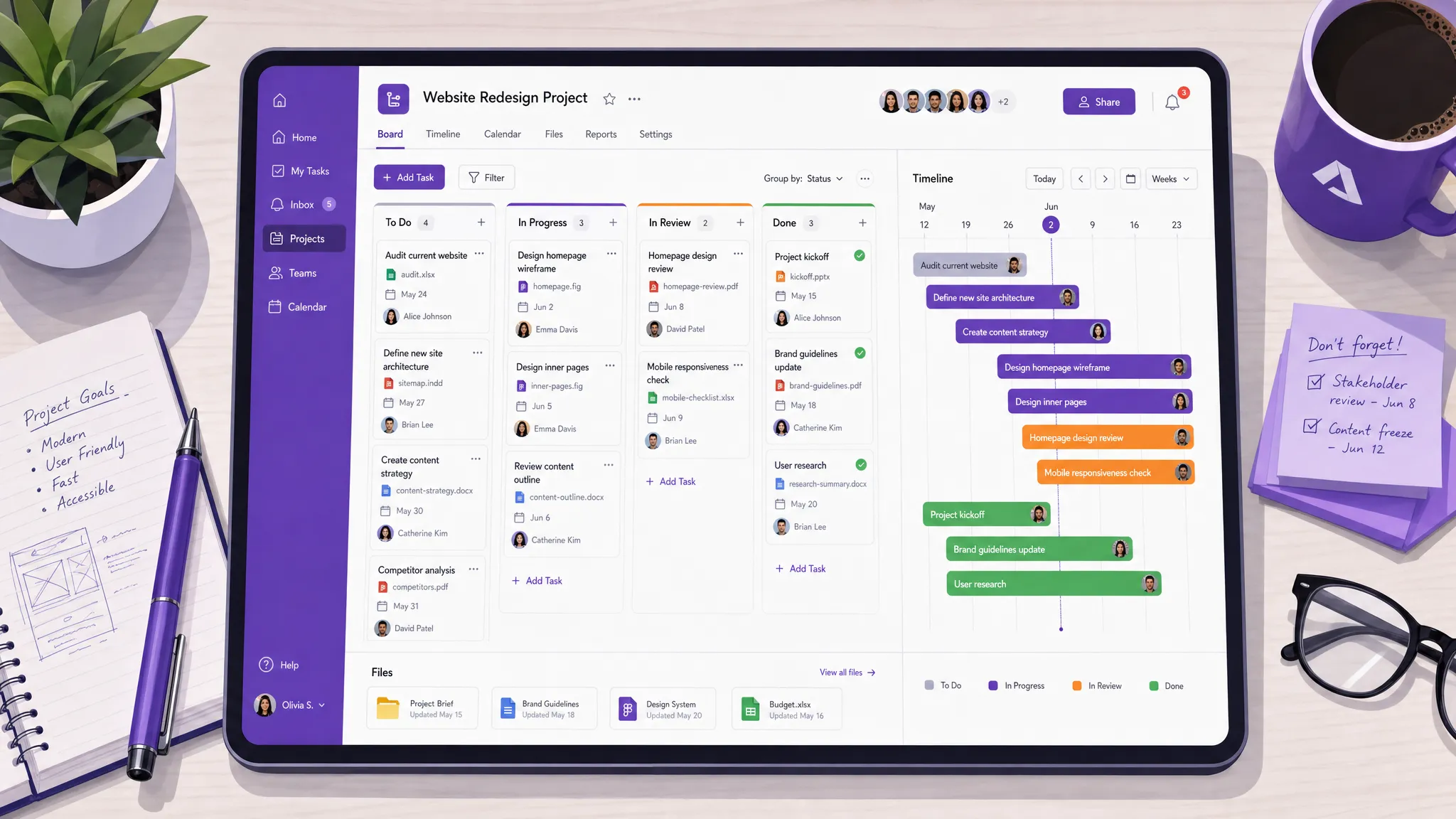
A common failure of project tools is that the task exists in one place, but the real discussion happens somewhere else. When decisions live in chat, files live in cloud storage, and deadlines live in a calendar, the task becomes a shell instead of a source of truth.
Look for tools that let people communicate directly around the work. Comments, notifications, assignments, file attachments, and clear status changes reduce the need to search across multiple apps.
Kanbanchi supports collaboration on cards, file attachments, notifications about board updates, sorting, filtering, color tags, and task organization features such as subcards and swimlanes. For teams that already use Gmail, the ability to create cards from Gmail helps turn incoming requests into trackable work.
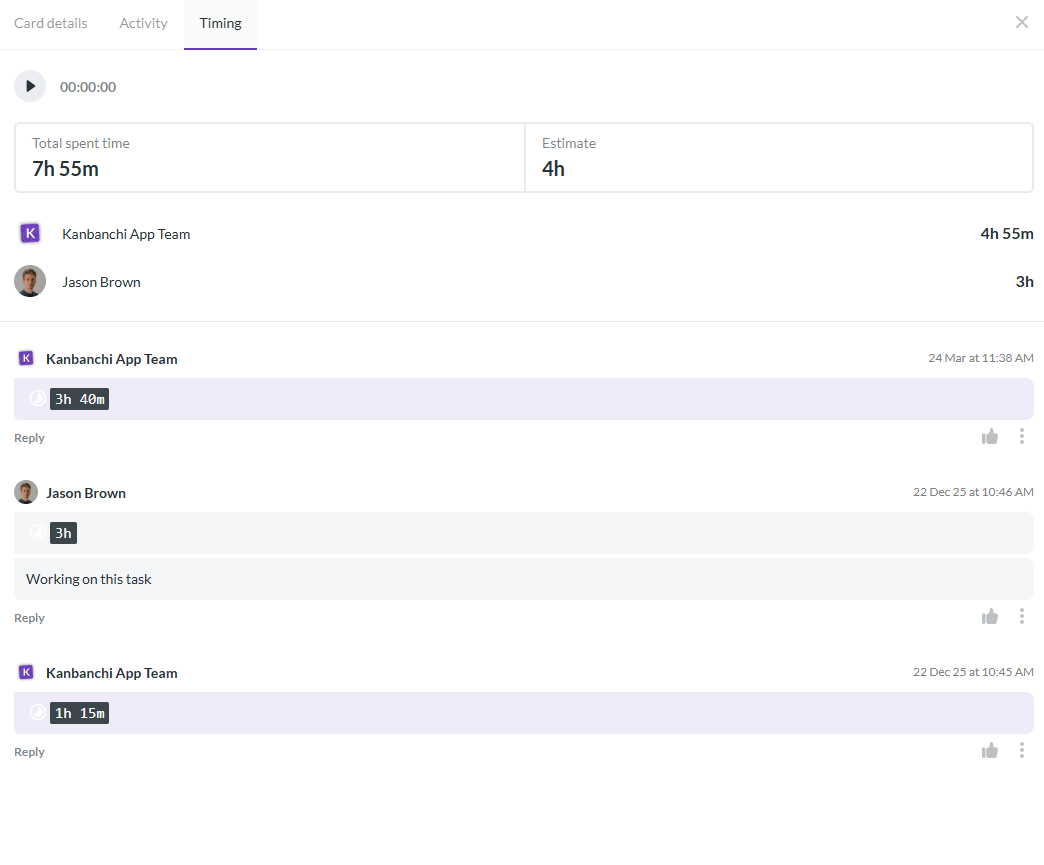
Time tracking is not only for billing. It helps teams understand where effort is going, which tasks take longer than expected, and where workload may be uneven. For managers, time data can improve estimates and make future planning more realistic.
Kanbanchi includes a Time Tracker that lets users track time directly on cards. Timing data can then support progress review and reporting. Teams can also export board data to Google Sheets or connect extracted data to reporting dashboards such as Google Data Studio, depending on their reporting workflow.
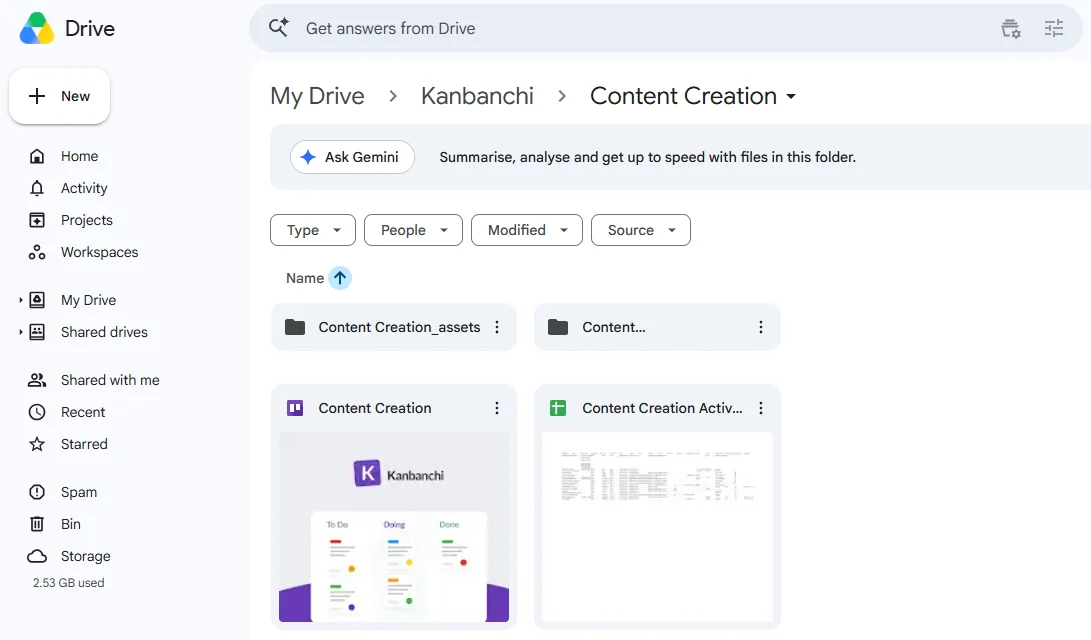
Adoption is easier when the project management tool fits into the platform the team already opens every morning. If your company runs on Google Workspace, the tool should work naturally with Google Drive, Gmail, Calendar, and Sheets. If your company uses Microsoft 365, it should support Microsoft sign-in and file storage through OneDrive or SharePoint.
This is where many generic tools create friction. They may manage tasks well, but they require separate logins, duplicate file uploads, or manual permission management. For busy teams, every extra step reduces adoption.
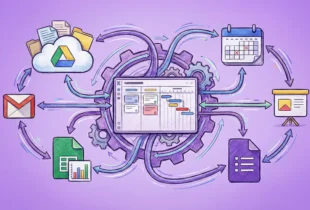
Kanbanchi is designed for Google Workspace and is compatible with Microsoft 365. It supports Google Drive file storage, Shared Drives integration for Enterprise users, Gmail task creation, Google Calendar sync, and Microsoft file environments through OneDrive and SharePoint. That makes it especially relevant for organizations that want project management without disconnecting from their core productivity suite.
The buying process should be practical. Instead of creating a long software wish list, start with the workflows that cause the most confusion today.
Ask where updates get lost, which meetings exist only to collect status, and which handoffs cause delays. Then evaluate tools against those specific pain points.
| Team situation | Tool requirement | Warning sign |
|---|---|---|
| Work gets lost in email | Email-to-task and clear ownership | Tasks must be copied manually from inboxes |
| Deadlines often shift | Timeline or Gantt view | Dates are stored only in task descriptions |
| Files are hard to find | Cloud file integration | Users re-upload files into a separate system |
| Managers lack visibility | Filters, reports, exports | Status reports require manual consolidation |
| Projects span departments | Shared boards, roles, permissions | Each team uses a separate unconnected tracker |
| Adoption is low | Simple interface and familiar ecosystem | The tool requires heavy training for basic use |
A useful pilot can be small. Choose one active project, invite the people who do the work, and run the project in the tool for two weeks. Do not evaluate only whether the software has many features. Evaluate whether people actually use it when work gets busy.
A strong tool should make the next team meeting shorter. If the board already shows status, blockers, owners, and due dates, the meeting can focus on decisions instead of updates.
Implementation does not need to become a project bigger than the work itself. The fastest path is to standardize just enough to create clarity, then improve as the team learns.
Create a board for one team or one project. Use simple columns that match how work actually moves. For many teams, To Do, In Progress, Review, and Done are enough to start. More complex workflows can add stages later.
The goal is not to design the perfect board on day one. The goal is to get real work visible quickly.
Set a minimum standard for task quality. A card should usually have a clear title, one owner, a due date when relevant, and enough context for someone else to understand the work. If the card requires a document, attach it. If a decision is made, add it to the task discussion.
This small habit prevents the board from becoming another vague list.
Team members may spend most of their day on the board view. Project managers may review the Gantt chart to check timing. Leaders may use filters, reports, or exports to understand workload and progress.
This is the benefit of a collaborative tool with multiple connected views. Everyone works from the same task data, but each person sees it in the format that supports their decisions.
Do not add the tool on top of every existing meeting. Replace at least one manual update process. For example, ask team members to update their cards before a weekly review. Then use the board during the meeting to discuss blockers, priorities, and decisions.
This sends a clear signal that the tool is not extra work. It is the place where work is coordinated.
After the pilot, remove unused columns, tags, or fields. Ask what made work easier and what felt like admin. Busy teams adopt tools that feel lighter than the process they replace.
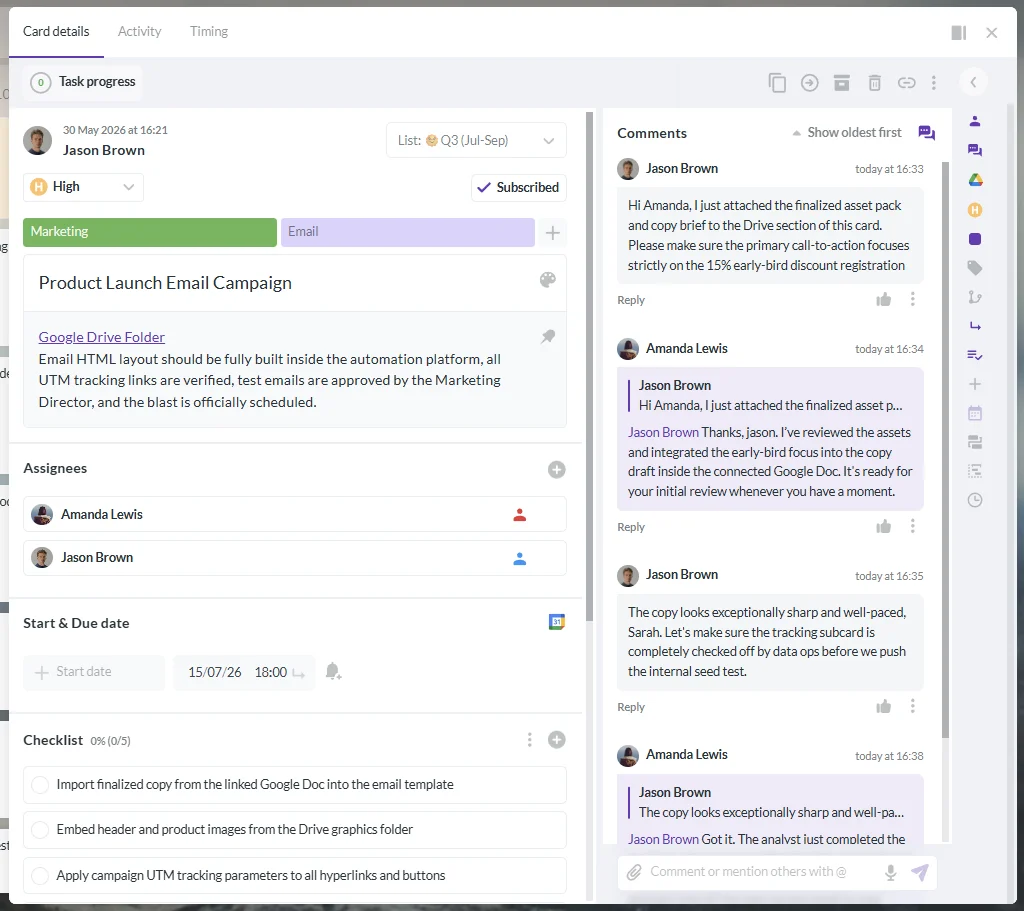
Kanbanchi is a strong fit for teams that want collaborative project management inside the productivity ecosystem they already trust. It combines Kanban boards, Gantt charts, time tracking, file integration, and reporting support in one workspace.
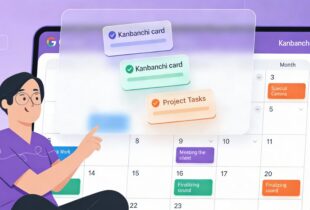
For Google Workspace teams, Kanbanchi aligns closely with Google Drive. Teams can create and share project boards, attach files from Google Drive and Shared Drives, create cards from Gmail, push dates to Google Calendar, and export board data to Google Sheets. Boards can be shared internally and externally according to company Google policies, which matters for organizations that already manage access through Google Workspace.
For Microsoft 365 teams, Kanbanchi supports Microsoft account usage and compatibility with OneDrive, SharePoint, and Microsoft 365 environments. This helps teams that prefer visual boards and timelines but still need to keep project files in their Microsoft workspace.
Kanbanchi can also help teams migrating from lighter tools. Trello boards or CSV data can be imported, which reduces the friction of moving existing work into a more integrated project management system.
Sign up for Kanbanchi trial today
Even good collaborative project management tools can fail if the rollout creates confusion. The most common mistakes are process mistakes, not software mistakes.
| Mistake | Why it hurts | Better approach |
|---|---|---|
| Creating too many boards | Work becomes scattered again | Start with fewer shared boards and use filters or swimlanes |
| Adding too many required fields | People stop updating tasks | Require only the information needed for coordination |
| Using the tool only for managers | Team members see it as reporting overhead | Make it useful for daily execution, not just oversight |
| Keeping decisions in private messages | The board becomes outdated | Record key decisions on the task card |
| Ignoring permissions | Sensitive files may be overshared | Align sharing with Google Workspace or Microsoft 365 policies |
| Never reviewing the workflow | Old processes stay embedded | Simplify the setup regularly based on real usage |
The best implementation is usually the simplest one that gives the team shared visibility. Add sophistication only when there is a clear reason.
If your team needs a deeper look at choosing tracking software, the Kanbanchi guide on the best team collaboration software is a useful next step. If your team works primarily in Google Workspace, you may also find this guide to Google task management for teams helpful.
Collaborative project management tools are software platforms that help teams plan, assign, discuss, track, and complete work together. They usually include shared task boards, owners, deadlines, comments, file attachments, notifications, reporting, and sometimes timeline or time tracking features.
Busy teams need a dedicated tool because work often becomes scattered across email, chat, spreadsheets, calendars, and file storage. A project management tool creates one shared place to see tasks, responsibilities, blockers, due dates, and progress.
For many teams, yes. What matters is whether both views show the same tasks rather than being two separate plans someone has to keep in sync. That’s the difference between a genuine dual view and duplicated admin work.
Google Workspace teams should look for Google Drive integration, Gmail task creation, Google Calendar support, Google Sheets export, familiar sign-in, and sharing that respects company policies. This reduces adoption friction and keeps project work close to existing files and communication.
Yes. Kanbanchi is compatible with Microsoft 365 and supports work with OneDrive and SharePoint file environments. It is also designed for teams that want visual project boards, timeline planning, and time tracking while staying connected to their existing productivity suite.
A busy team does not need more scattered updates. It needs a clear, shared place where tasks, files, deadlines, conversations, and progress stay connected.
Kanbanchi helps teams manage projects visually with Kanban boards, plan timelines with Gantt charts, track time on tasks, and collaborate inside Google Workspace or Microsoft 365. If your team is ready to replace fragmented tracking with a more connected workflow, try Kanbanchi and see how much easier project visibility can be.
Sign up for Kanbanchi trial today

In this Article:
Start using Kanbanchi now
Start your free trial