
In this Article:
Try Kanbanchi now
Start your free trial

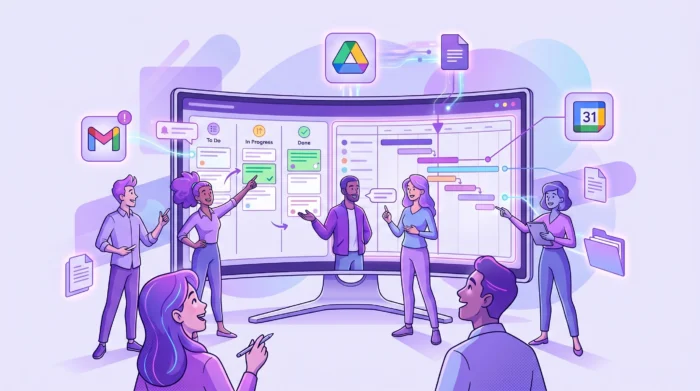
Teams that run on Google Workspace usually do not want another disconnected system. They want a planner that feels close to the tools they already use: Gmail for communication, Drive for files, Calendar for dates, and shared documents for collaboration.
The challenge is that Google Workspace gives teams excellent building blocks, but not a full project planning environment by default. A simple task list or spreadsheet may work for a few people. As soon as the team needs shared priorities, deadlines, dependencies, workload visibility, and reporting, the planner has to do more.
That is why the best Google Workspace planner option depends on the level of coordination your team needs. This guide compares the practical options, explains where each one fits, and shows when a dedicated tool such as Kanbanchi becomes the stronger choice.
A planner is more than a place to write down tasks. For a team lead, business owner, or department manager, a planner should answer five questions quickly:
Google Workspace supports parts of that process. Google Tasks helps users create task lists and manage personal follow-ups. Google Calendar gives visibility into dates and meetings. Google Sheets can become a shared tracker. Google Drive keeps project files accessible.
Those tools are useful, but they are not the same as a team project planner. A growing team needs a shared operational layer that connects tasks, files, schedules, discussions, and progress.
The most common issue is fragmentation. A due date may live in Calendar, project notes in Docs, status in Sheets, files in Drive, and follow-ups in Gmail. Each app makes sense on its own, but the project picture becomes harder to read.
This becomes especially painful when managers need visibility across several projects or departments. A spreadsheet can show rows of tasks, but it will not naturally show workflow bottlenecks. A calendar can show dates, but it will not show what needs to happen before a milestone. Email can capture requests, but it is not built for prioritizing and tracking work through completion.
If your team is still small, this may be acceptable. If your team is scaling, you need a planner that keeps Google Workspace as the foundation while adding structure on top.
There is no single correct answer for every team. The right option depends on the complexity of the work, the number of collaborators, and whether you need planning, execution, or reporting.
| Option | Best for | Main strength | Main limitation |
|---|---|---|---|
| Google Tasks and Calendar | Personal tasks and very light coordination | Simple, familiar, included in the Workspace flow | Limited for shared project boards, dependencies, reporting, and cross-team visibility |
| Google Sheets templates | Simple project trackers, checklists, and status tables | Flexible and easy to customize | Manual updates, weak workflow visualization, and limited automation |
| Google Chat spaces with tasks | Conversation-based team follow-ups | Keeps action items close to discussions | Not designed as a complete project planning system |
| AppSheet or custom no-code apps | Structured internal workflows with specific requirements | Highly customizable for business processes | Requires setup, governance, and ongoing ownership |
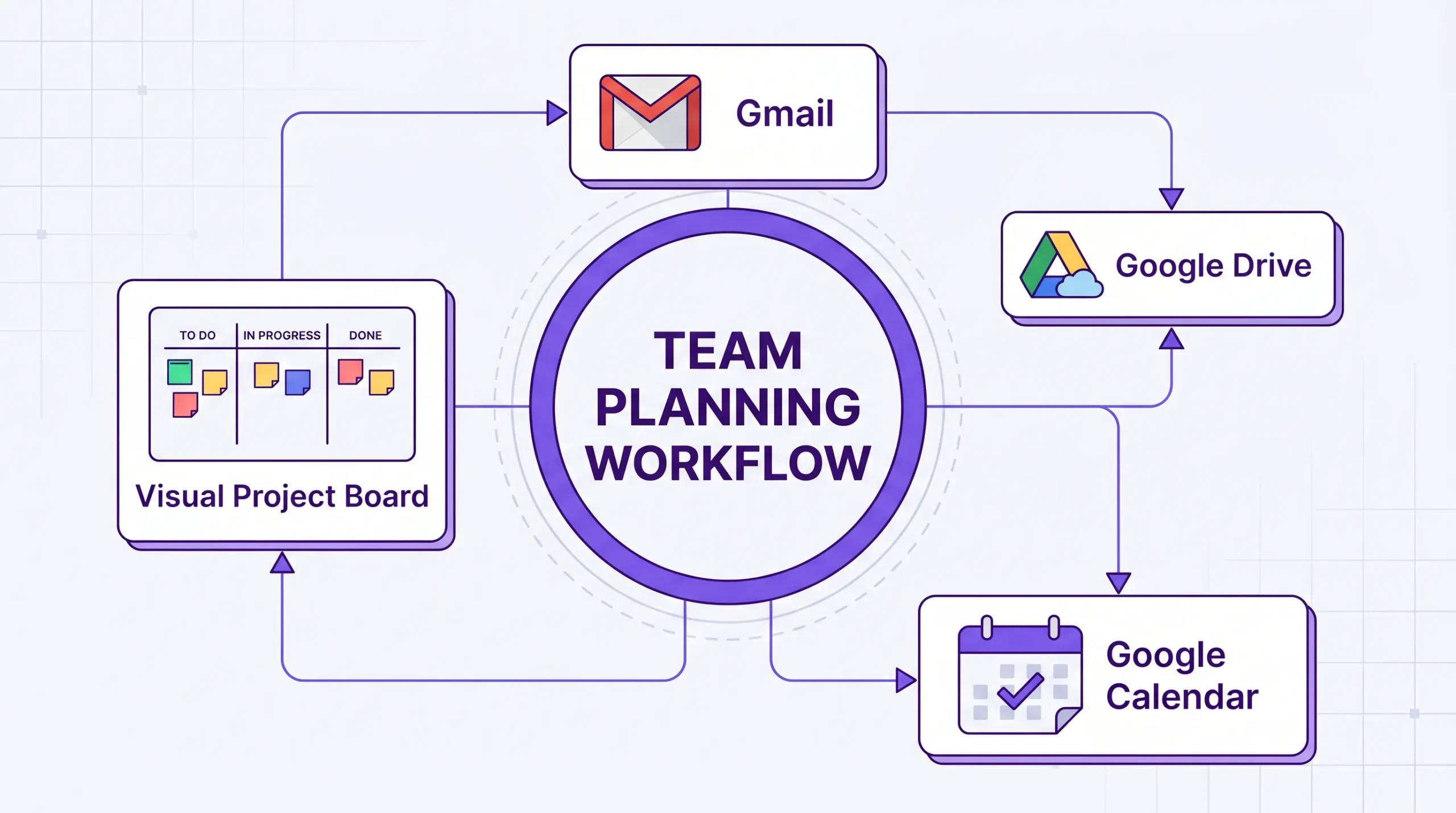
| Dedicated project planner integrated with Workspace | Team projects, operations, campaigns, and cross-functional work | Visual boards, timelines, task ownership, files, reporting, and collaboration in one place | Requires the team to adopt one source of truth |
A practical approach is to start with the simplest option that gives enough control. But if your work involves multiple owners, deadlines, dependencies, or recurring processes, it is usually better to move to a dedicated planner earlier rather than rebuilding a fragile spreadsheet system later.
Native tools work well when the planning need is individual, temporary, or very simple. For example, a manager can use Google Tasks for personal follow-ups after meetings. A small team can use Google Sheets to track a short internal checklist. A department can use Calendar to show key launch dates or review meetings.
These setups are valuable because adoption is almost instant. People already know the tools, there is no procurement process, and there is little training required.
A native Workspace setup is usually enough for work such as meeting action items, simple office checklists, personal reminders, small event preparation, and short tasks without dependencies.
It also works when one person owns most of the coordination. If a team lead manually updates the tracker, reminds people of deadlines, and compiles status updates, a spreadsheet may be acceptable for a while.
The question is whether that manual coordination is still the best use of time. Once the planner becomes a project in itself, the team needs a better system.
Teams rarely outgrow spreadsheets all at once. The warning signs usually appear gradually. A manager spends more time chasing updates. Team members ask which version of the plan is current. Deadlines move in one place but not another. Important files are attached to emails instead of linked to tasks.
Your team likely needs a stronger planning tool if several of these are true:
This is the point where a dedicated Google Workspace planner becomes more than a convenience. It becomes part of operational control.
A good planner should not force your team to abandon Google Workspace. It should extend it. The goal is to reduce context switching while giving managers better visibility.
| Capability | Why it matters | What to check |
|---|---|---|
| Visual task boards | Teams understand workflow faster when tasks are visible by status | Can you create boards, columns, tags, filters, and priorities? |
| Timeline planning | Managers need more than due dates for real projects | Does it include a Gantt chart, dependencies, or schedule visibility? |
| File integration | Project work depends on documents, briefs, assets, and approvals | Can users attach files from Google Drive or Shared Drives? |
| Email capture | Many tasks begin as email requests | Can emails become tasks without copy-paste work? |
| Calendar alignment | Dates should be visible where people plan their week | Can task dates sync or create calendar events? |
| Time tracking | Estimates improve when teams compare planned and actual effort | Can users track time directly on tasks? |
| Reporting and exports | Managers need reliable data for decisions | Can data be exported or connected to reporting dashboards? |
| Security and sharing | Business teams need access control and compliance | Does the tool respect company policies and support enterprise needs? |
If you are evaluating tools in the Google Workspace Marketplace, focus less on the longest feature list and more on how naturally the tool fits your daily work. A planner that nobody updates is not a planner. It is another abandoned database.
Kanbanchi is designed for teams that use Google Workspace and want project management without losing the Workspace environment. It combines visual task boards, timeline planning, and time tracking in one tool.
For teams comparing planner options, the main difference is that Kanbanchi gives structure to work that would otherwise be split between Sheets, Gmail, Drive, and Calendar. Read this guide on how Google integration actually works in Kanbanchi to learn more.
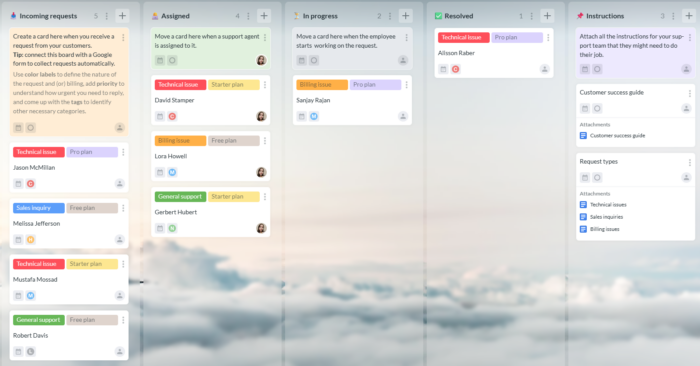
Kanbanchi uses Kanban boards to help teams see work by stage. Cards represent tasks, and teams can organize them with lists, assignees, start and due dates, priorities, text tags, color tags, checklists, subcards, and filters.
This is useful for operations, marketing, HR, sales support, product work, administration, education, and many other workflows. A team can start with a simple board and then add more structure as the process matures.
Swimlanes can help separate work across projects, departments, clients, or phases on the same board. Templates can also speed up repeatable workflows so teams do not rebuild the same setup every time.
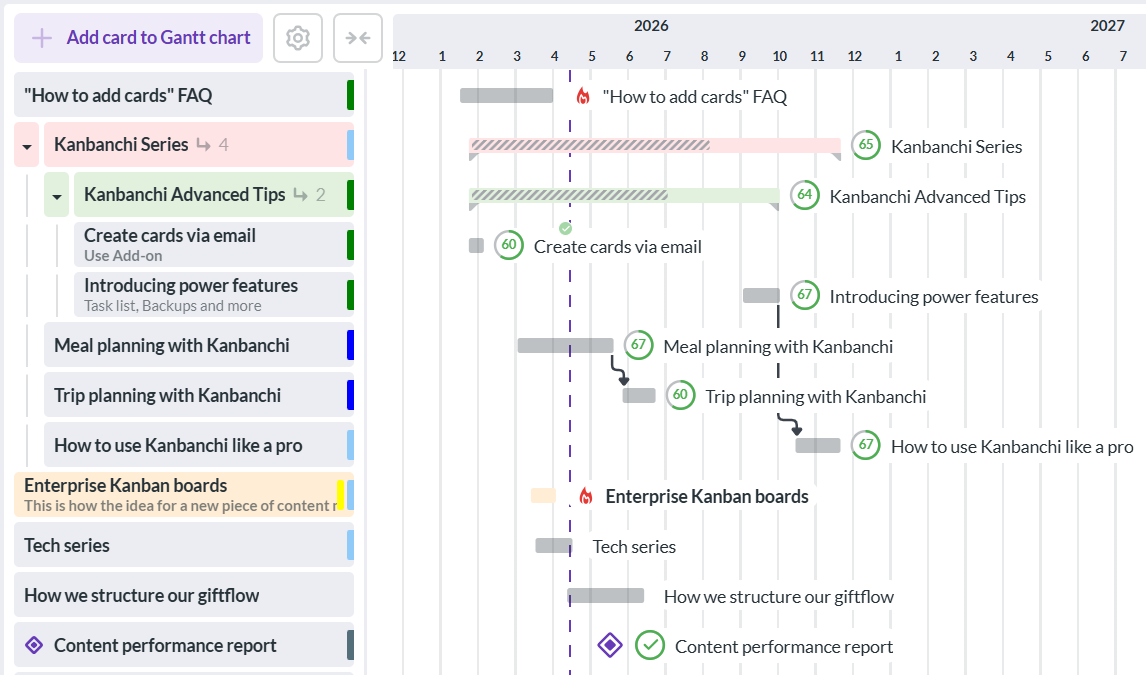
A board view is excellent for flow, but some projects need dates and dependencies. Kanbanchi lets teams see board data on a Gantt chart, so managers can see how tasks relate over time and plan schedules visually.
That matters when a missed task affects a milestone, a launch date, or another team. If timeline planning is a priority, you may also find this guide on a Google Workspace Gantt chart helpful.
Many projects begin in Gmail. Kanbanchi supports card creation from Gmail, either through a board email address or the Gmail add-on, so requests can become trackable cards instead of disappearing in inbox threads. For a deeper look at that workflow, see this guide to Gmail project management.
Files can be attached from Google Drive and Shared Drives, keeping project context close to the task. Teams can also add events to Google Calendar, which helps connect project commitments with the way people already manage their schedules.
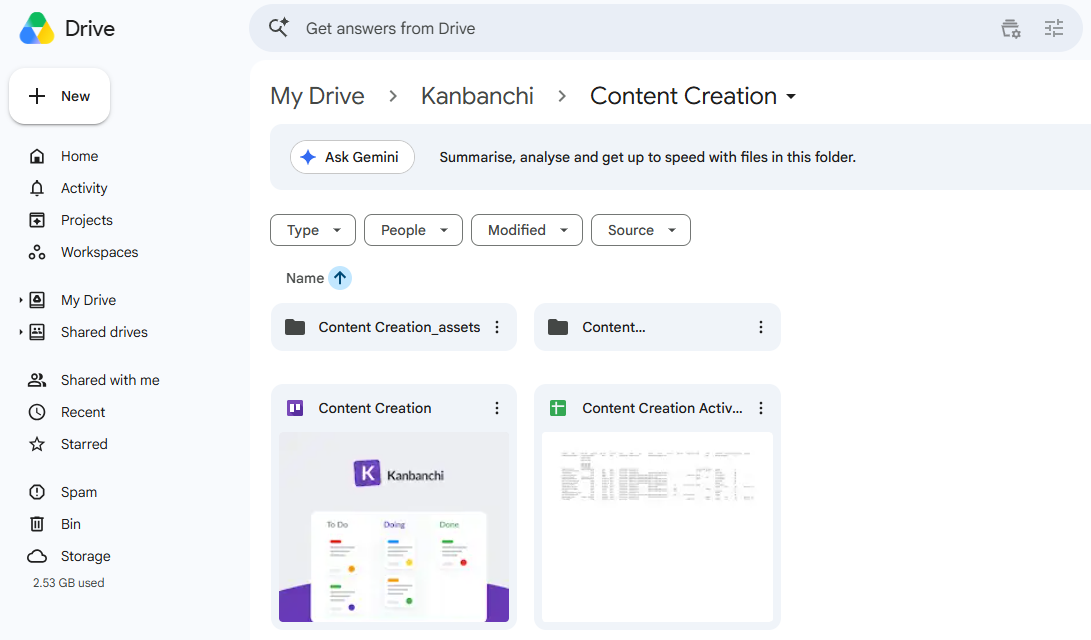
Kanbanchi boards are created as files in Google Drive, and Enterprise users can create boards in Shared Drives. Sharing can be managed internally or externally according to company Google policies.
For teams that need to understand effort, Kanbanchi includes a time tracker. Users can start a timer on a card, and team timing data is recorded in the Timing tab. This helps managers compare estimates with actual work and improve planning over time.
Kanbanchi also supports exporting board data to Google Sheets, including assignments, dates, checklists, and comments. Teams that need custom reporting can extract data and connect it to reporting dashboards such as Google Looker Studio.
Although Kanbanchi is often chosen by Google Workspace teams, it also supports Microsoft 365 environments with OneDrive and SharePoint file storage. This can be helpful for companies that operate across both ecosystems or are in the middle of a platform transition.
Start free trial of Kanbanchi now
The biggest mistake is trying to move every project and every department at once. A better rollout starts with one real workflow where the pain is visible.
This keeps adoption practical. Teams do not need a perfect system on day one. They need a clear place to find work, update progress, and see what matters next.
More articles related to Google Workspace here
Google Workspace includes tools that support planning, such as Tasks, Calendar, Sheets, Docs, Drive, Gmail, and Chat. However, it does not include a full dedicated project planner with Kanban boards, Gantt charts, time tracking, dependencies, and project reporting in one native app.
For a very small team with simple work, Google Sheets plus Calendar may be enough. If the team needs shared boards, clear ownership, deadlines, files, and status tracking, an integrated planner such as Kanbanchi is usually a better fit.
Yes, Google Sheets can be used for basic task lists, timelines, and status trackers. It becomes harder to manage when projects require workflow stages, dependencies, automated updates, time tracking, or reliable reporting across several teams.
Most team work depends on files: briefs, contracts, designs, reports, meeting notes, and approvals. A planner integrated with Google Drive keeps those files connected to the tasks they support, which reduces searching and prevents context from getting lost.
Kanbanchi is built with deep Google Workspace integration, including Google Drive, Gmail, and Google Calendar workflows. It also supports Microsoft 365 compatibility with OneDrive and SharePoint file storage, which can help mixed-environment organizations.
The best Google Workspace planner is not the most complicated one. It is the one your team will keep updated because it fits the way work already happens.
If your team has outgrown Tasks, Sheets, and Calendar workarounds, Kanbanchi adds the missing planning layer: Kanban boards, Gantt charts, time tracking, Gmail task creation, Drive file context, Calendar alignment, templates, reporting options, and enterprise-ready controls.
Explore Kanbanchi to give your Google Workspace team a clearer, more connected way to plan, manage, and track work.
Start free trial of Kanbanchi now



In this Article:
Start using Kanbanchi now
Start your free trial