
In this Article:
Try Kanbanchi now
Start your free trial

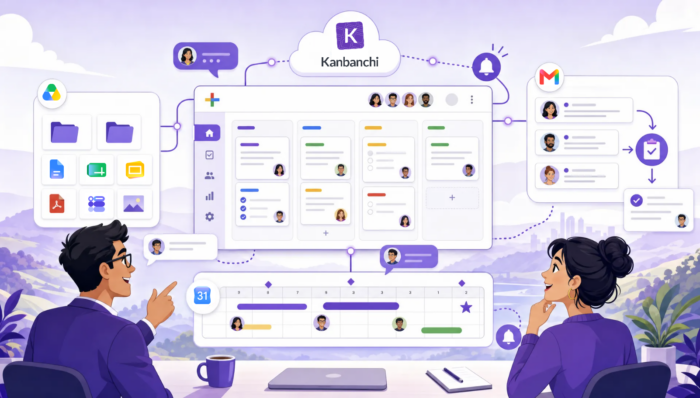
If you are reading this, you probably already know what Kanbanchi is. The question is how deeply it connects to Google Workspace, what that means for your files and permissions, and what your admin will need to do. This article is the answer. It covers what connects to what, where your data lives, how sharing behaves, and how to deploy Kanbanchi for a whole domain.
Here you will find the full list of every integration point
If you are still at an earlier stage and want to know whether Kanbanchi is the right fit at all, start with Kanbanchi as a Google Workspace collaboration app or
Using Google Workspace as a task manager.
Kanbanchi was built for Google Workspace first, and the connection runs deeper than a login button. There are six main points:
| Google service | What Kanbanchi does with it |
|---|---|
| Google account | Sign‑in and identity, no separate Kanbanchi credentials |
| Google Drive and Shared Drives | Boards are stored as Drive files; attachments stay in Drive |
| Gmail | Turn emails into cards, via an add‑on or a board email address |
| Google Calendar | Card dates appear in your calendar |
| Google Sheets | Board data exports for reporting and dashboards |
| Workspace Admin console | Domain‑wide deployment and management |
The rest of this article takes each in turn.
You sign in with your Google account. There is no separate Kanbanchi username or password, which means no additional credential for your team to forget and none for you to offboard when someone leaves.
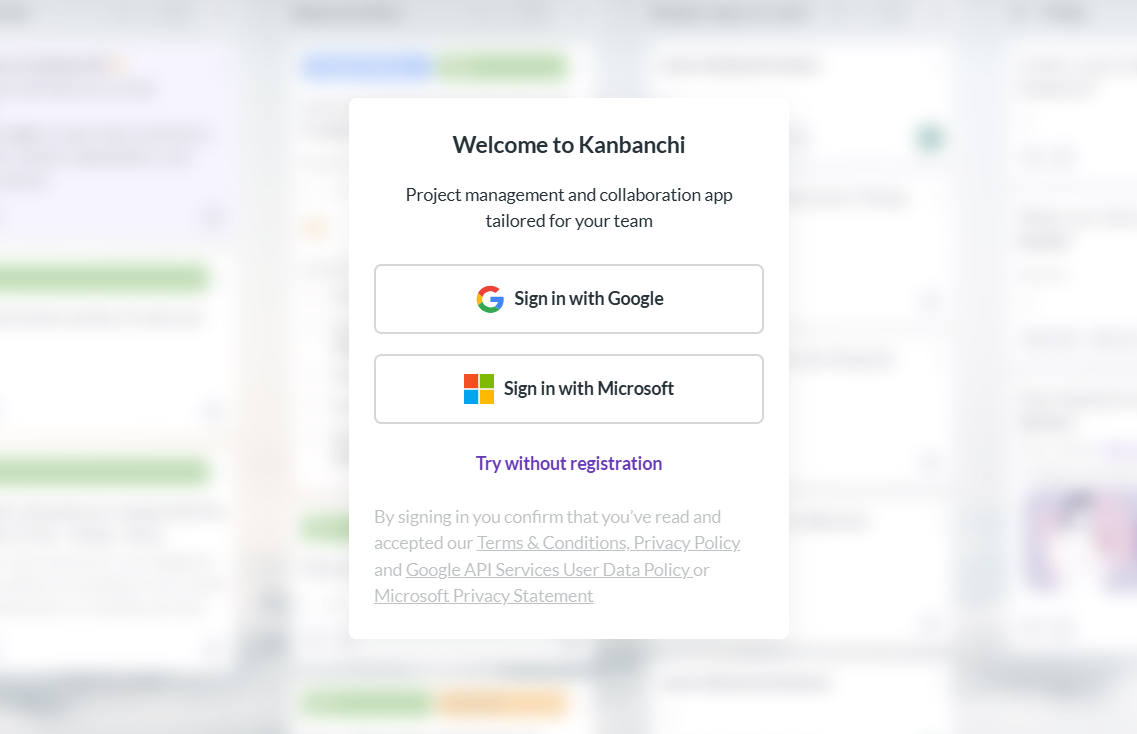
Kanbanchi supports quick sign-up with Google Workspace or Microsoft accounts
For organizations, this also means Kanbanchi inherits whatever identity controls you already run. If your domain enforces two-factor authentication or single sign-on, that applies here too, because authentication happens on Google’s side rather than Kanbanchi’s.
This is the part that most distinguishes Kanbanchi from other project tools, and it is worth understanding properly.
A Kanbanchi board is a file in Google Drive. It is not a record inside a database you access through Kanbanchi’s website. It appears in Drive alongside your documents and spreadsheets. That single design decision drives most of the integration’s behavior.
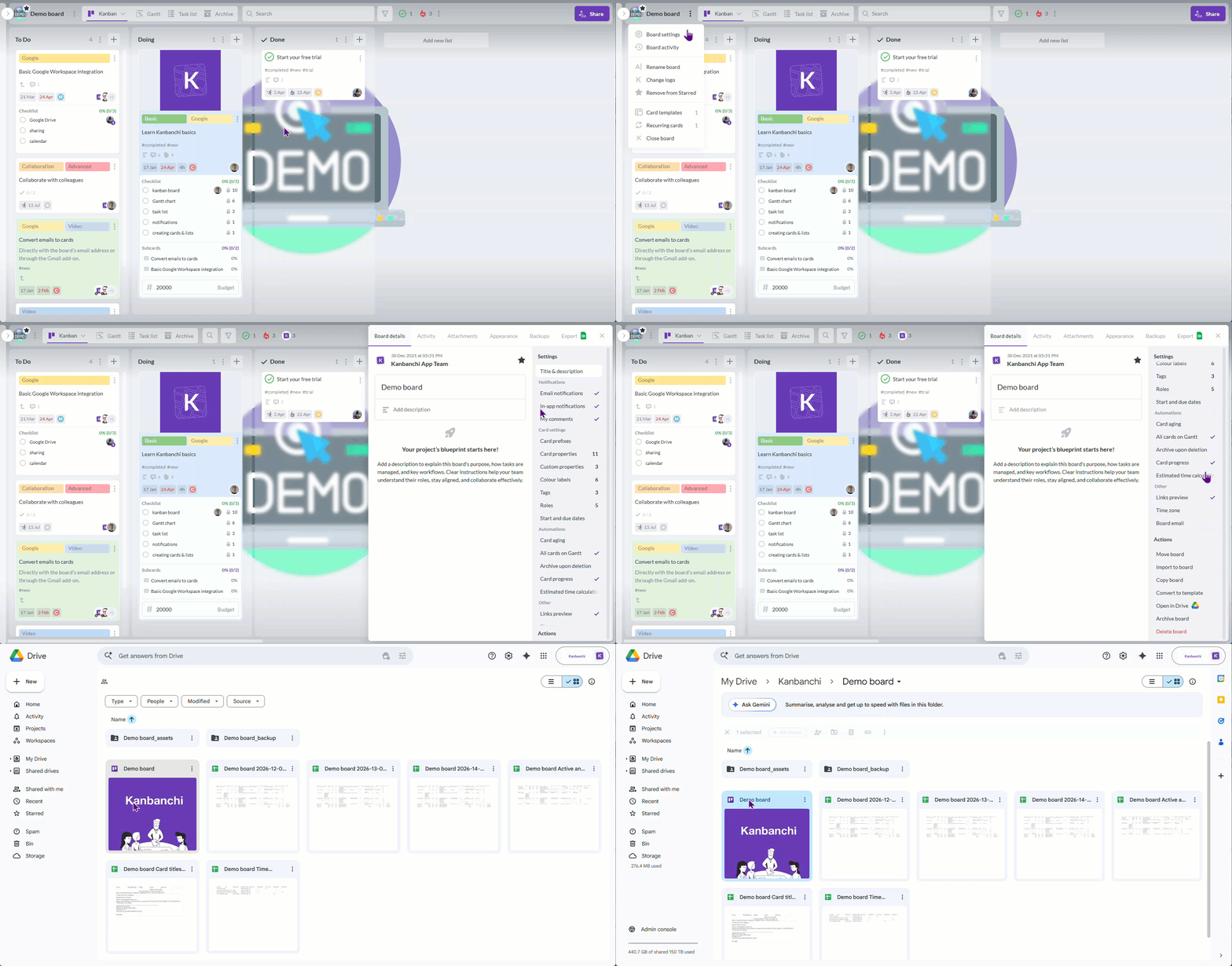
You can find any of your Kanbanchi boards inside your Google Drive
The practical consequences:
The honest caveat: not everything lives in Drive. Card descriptions, comments, and activity history are maintained by Kanbanchi to make the application function. Your files stay in your Drive; the operational data that makes boards work does not.
Because boards are Drive files, sharing follows Drive logic rather than a separate Kanbanchi model. That has one consequence worth planning for.
A board has one owner. Drive’s ownership model allows a single owner per file, and Kanbanchi inherits it. If the person who created a board leaves the company, that board needs its ownership transferred. And in some domains, transfer is restricted by administrative policy.
Shared Drives solve this. A board created in a Shared Drive belongs to the team or department rather than to an individual. When someone changes role or leaves, the board does not need rescuing. For any long-running or business-critical board (client work, recurring operations, product delivery), creating it in a Shared Drive rather than a personal Drive is the difference between continuity and a scramble.
External sharing works the same way, following whatever your Google policies already permit for documents. If your domain blocks external sharing, it blocks board sharing too.
Kanbanchi offers two separate mechanisms for turning email into work, and they suit different situations.
The Gmail add-on works inside your inbox. Open a message, and you can create a card from it without leaving Gmail. Useful when a request arrives, and you want it assigned before you close the thread. Perfect for using on mobile devices.

Any email can be converted to a task card in Kanbanchi with the Gmail add-on
A board email address is the other route. Every board has a unique address, and mail sent to it becomes a card automatically: the subject becomes the card title, the body becomes the description, and attachments come across. This way is better when you work on a computer.
The board address is the more powerful of the two, because it works for anything that can send email. Forward a client request. Point a form notification at it. Have a monitoring alert create a card. You can give the address to someone outside your organization without giving them access to the board itself.
Card dates can be added to Google Calendar, which puts deadlines and milestones in the same place your team already plans their day.
This is worth doing deliberately rather than universally. A calendar filled with every task due date becomes noise. Most teams get more value from putting milestones and hard external deadlines on the calendar and leaving day-to-day task dates on the board.
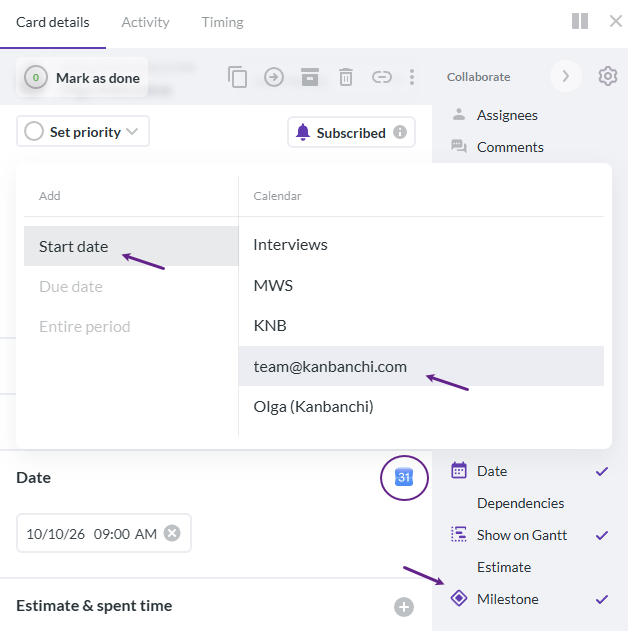
You can add any important milestone or event from Kanbanchi to any Google Calendar you have access to
Board data exports to Google Sheets, and this is now the primary reporting route for Kanbanchi. Earlier versions included in-app reports; those were retired because almost nobody used them: teams preferred building their own views from exported data.
The pattern most teams use: export board data to Sheets, then connect that sheet to Google Data Studio to build dashboards. Because it is your spreadsheet and your dashboard, you can shape reporting around the metrics your organization actually tracks rather than the ones a product team decided to build. Time tracker data and archived data can be included depending on your export settings.
For anyone already running Google Data Studio dashboards on other business data, project data becomes one more source rather than a separate reporting silo.
Forms can feed Kanbanchi through script-based workflows, which is useful for structured intake. Internal requests, IT tickets, content briefs, holiday requests.
The advantage over free-text email intake is that a form makes people supply the fields you need. A card created from a well-designed form arrives with a category, a priority and a description, rather than a one-line subject that somebody has to chase.
Individuals can install Kanbanchi themselves from the Google Workspace Marketplace. For organizations, an administrator can deploy it domain-wide from the Admin console, giving everyone access without individual installation.
Admins may also need to grant consent for the permissions Kanbanchi requests. Those permissions exist because of what the integration does: creating and managing board files in Drive, attaching files to cards, writing events to Calendar, and reading the Gmail message you are converting into a card. A tool that stores your boards in your Drive necessarily needs Drive access.
Governance details: Vault discoverability, admin controls, and enterprise deployment specifics are covered on the Google-integrated collaboration app page.
A reference article should be honest about boundaries.
There is no general public API. Automation happens through the routes described above: board email addresses, form workflows, as well as templates, recurring cards, imports and exports, the rules you set inside the app, rather than through arbitrary API calls. If your plan depends on custom code talking to Kanbanchi directly, check before committing.
Calendar sync is one-directional in practice. Card dates can populate your calendar; a calendar entry does not create a card. This is something Google Calendar doesn’t allow, unfortunately.
Drive’s rules apply, including the ones you dislike. Single ownership per board is a Drive constraint rather than a Kanbanchi choice. Shared Drives are the workaround, not a setting inside Kanbanchi. Restricting access to individual cards also falls under the same rule: you can’t share part of the file inside your Google Drive.
Microsoft 365 support exists, but is not identical. Kanbanchi works with Microsoft sign-in, OneDrive and SharePoint, and the board-list-card model is the same. Some storage, export, and administration behaviors differ because they follow the underlying platform. And it’s not possible to collaborate on the same boards with different types of accounts: Google and Microsoft.
Depending on what you need next:
Yes, and more deeply than most tools that claim Workspace integration. You sign in with your Google account; boards are stored as files in Google Drive; attachments link to Drive files rather than being copied; card dates can go to Google Calendar; emails can become cards through Gmail; and board data exports to Google Sheets. Administrators can deploy it across a whole domain from the Admin console.
Boards are files in your Google Drive and follow the same sharing and access rules as your other Drive files. Attachments stay in Drive rather than being copied into separate storage. Card descriptions, comments, and activity history are maintained by Kanbanchi so that the application works.
Because boards and attachments are Drive files. Kanbanchi needs to create and manage those files on your behalf, attach documents to cards, and store exports and backups in your Drive location. The permissions follow directly from storing your data in your own Drive rather than in a separate system.
Drive allows one owner per file, and Kanbanchi follows that model, so the board needs its ownership transferred. Some domains restrict this by policy. The way to avoid this entirely is to create important boards in a Shared Drive, where the board belongs to the team rather than to an individual.
Yes. Kanbanchi can be deployed domain-wide from the Google Workspace Admin console, so users get access without installing anything themselves. Admin consent may be required for the permissions the integration uses.
There is no general public API. Automation runs through board email addresses, Google Forms workflows, board and card templates, recurring cards, automations inside the app, and imports and exports. That covers most team automation needs, but it is worth verifying before building anything that assumes direct API access.
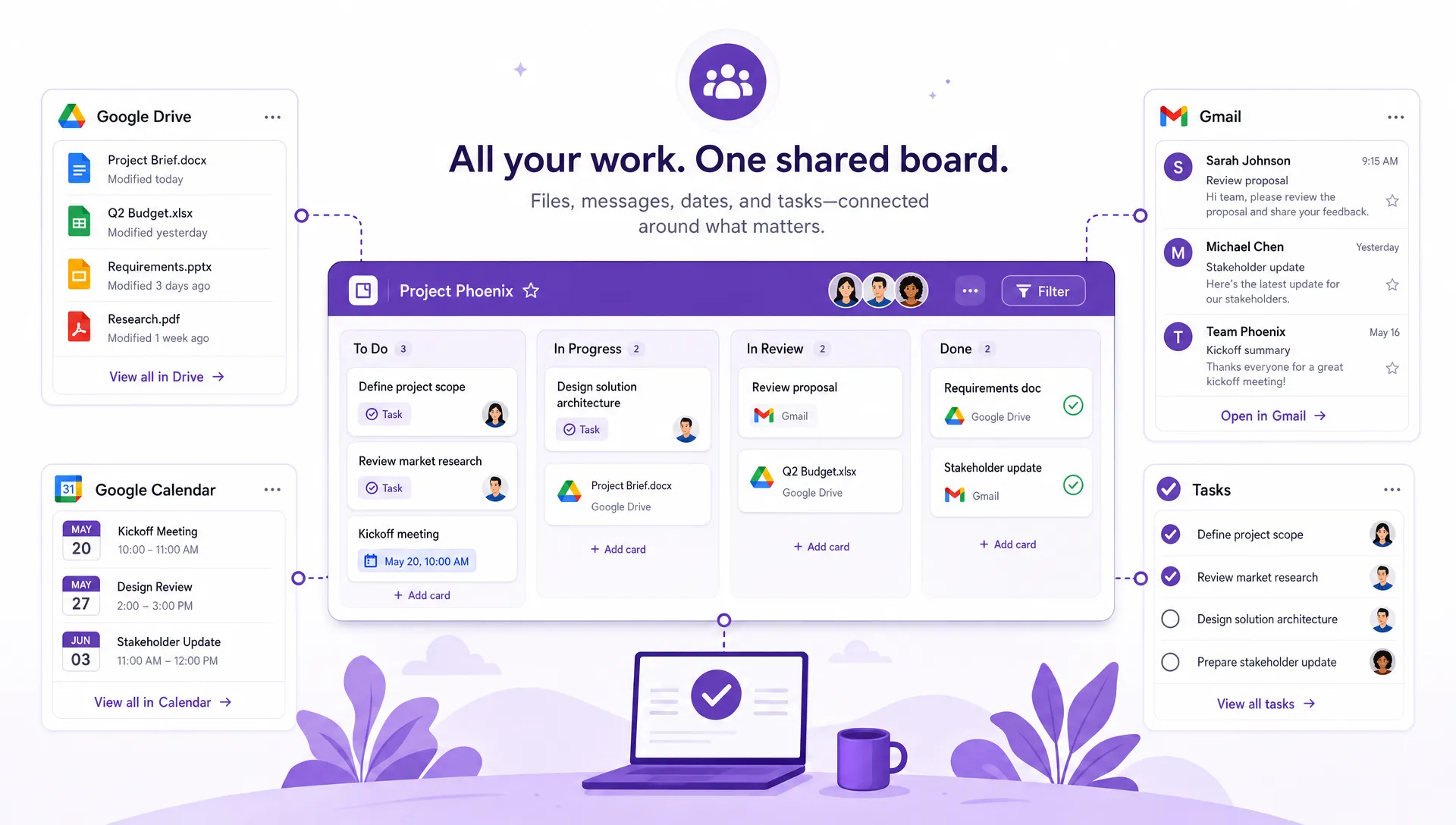
Kanbanchi connects familiar Google Workspace workstreams to a shared visual project board, helping teams keep tasks, files, and schedules in context
The point of a deep integration is not a longer feature list. It is that your team does not maintain several systems, different permission models, and multiple copies of every file.
Boards in Drive, files that stay where they live, dates in the calendar people already check, and reporting in the spreadsheets your organization already trusts. Project management stops being a separate destination and becomes part of the workspace.



In this Article:
Start using Kanbanchi now
Start your free trial