
In this Article:
Try Kanbanchi now
Start your free trial


Busy teams rarely fail because people do not care. They fail because work is scattered across chats, spreadsheets, inboxes, calendar invites, meeting notes, and personal to-do lists. By the time a manager asks, “What is the status?”, the team has already lost time reconstructing the answer.
That is why choosing the right project management and collaboration tools matters. The best tool is not simply a digital task list. It becomes the operating layer where your team can see what needs to happen, who owns it, when it is due, what files are attached, and how the work is progressing.
For business owners and team leads, the real question is not “Which tool has the most features?” It is “Which tool will help my team move faster without adding another layer of complexity?”
Spreadsheets, email, and chat apps can work when a team is small and the work is simple. But as soon as multiple people, deadlines, dependencies, and stakeholders are involved, informal systems start to break.
A spreadsheet can show a list of tasks, but it does not naturally support ongoing collaboration. A chat thread can speed up decisions, but it quickly buries important context. A meeting can align people, but it is expensive if the same status updates could be visible in real time.
The cost is not only the time spent searching for information. It is the decision delay that follows. Managers hesitate because they do not know whether the team is overloaded. Team members duplicate work because responsibilities are unclear. Clients and stakeholders wait because no one has a reliable source of truth.
Busy teams need a system that reduces status chasing. A good project management tool should make progress visible before anyone asks for it.
Collaboration is often treated as communication, but the two are not the same. Communication is the exchange of messages. Collaboration is coordinated progress toward a shared outcome.
A team can communicate constantly and still miss deadlines if there is no structure around ownership, priorities, timelines, and follow-through. That structure is exactly what modern project management software should provide.
The right tool should match the way your team plans, executes, reviews, and improves work. For busy teams, the most valuable features are usually the ones that reduce friction in daily operations.
A visual board helps teams understand the flow of work at a glance. Kanban boards are especially useful because they show tasks moving through stages such as Backlog, To Do, In Progress, Review, and Done.
This matters because managers can instantly see bottlenecks, stalled tasks, and overloaded stages. Team members can see what to pick up next without waiting for a meeting or direct instruction.
Visual boards are excellent for managing flow, but busy teams also need to understand time. When does a project start? Which work needs to be finished before the next phase begins? What deadlines are at risk?
A Gantt chart or timeline view helps answer those questions. It is especially useful for campaigns, launches, onboarding programs, implementation projects, and any work with milestones.
Every task should have an owner, a priority, and enough context to be completed. If a card or task does not have a responsible person, it is not really assigned. If everything is urgent, the team has no prioritization system.
Strong tools make it easy to assign work, set dates, add labels, sort by priority, and filter what matters now.
A task without context creates extra work. Team members should not have to search a shared drive, scan email threads, and check chat history just to understand what they need to do.
The best tools keep comments, attachments, checklists, and updates close to the task itself. This is especially important for teams already working in Google Workspace or Microsoft 365, where files and calendars are part of everyday work.
Time tracking is not only for billing. It helps managers understand effort, identify unrealistic estimates, and improve future planning. Reporting also helps leaders see whether work is moving, where delays happen, and which teams may need support.
The goal is not surveillance. The goal is better planning and healthier workloads.
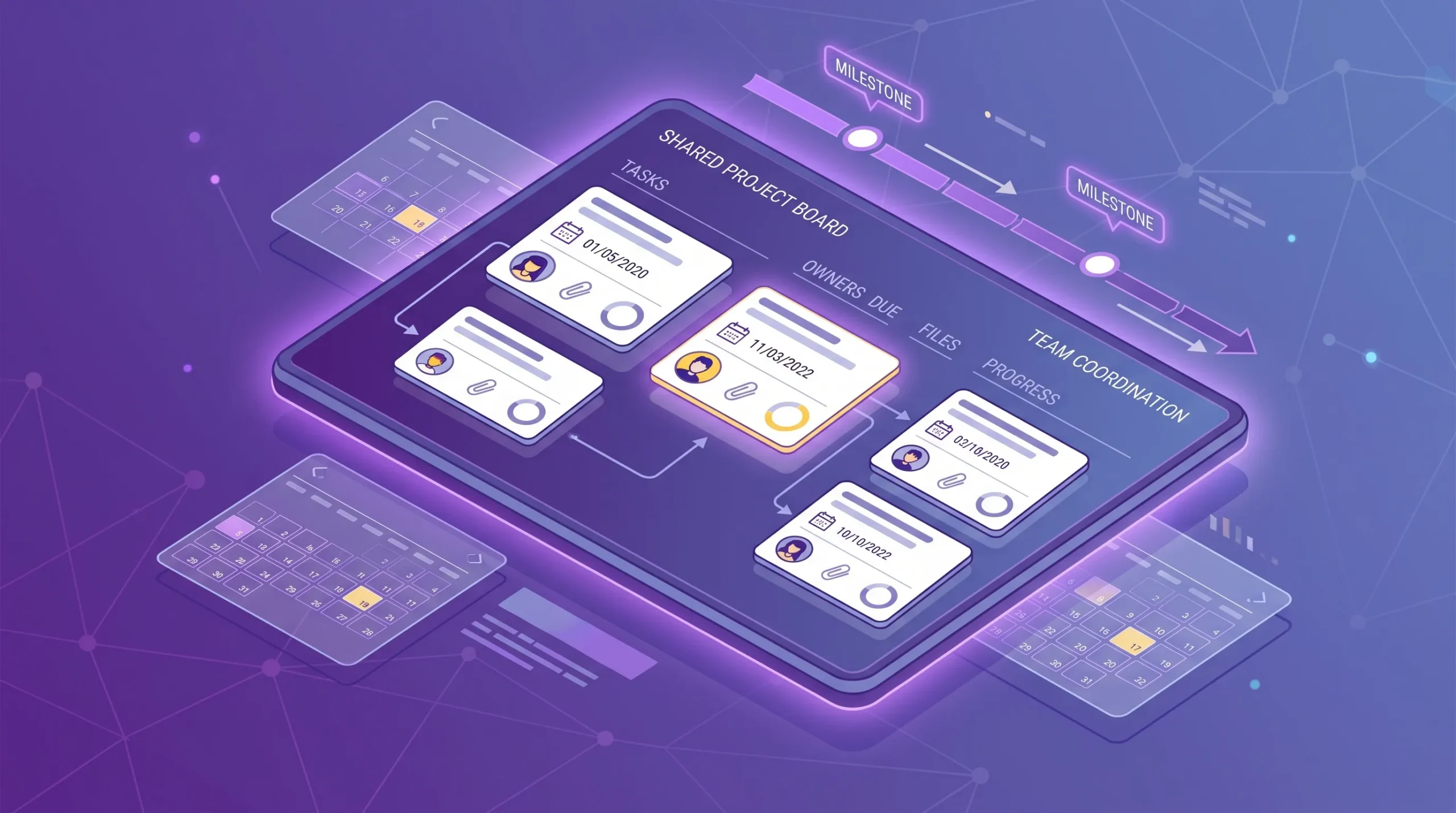
A shared project board gives busy teams one place to understand tasks, owners, deadlines, context, and progress.
As teams grow, security becomes part of project management. Leaders need to know how files are stored, how access is controlled, and whether the tool fits company policies.
This is particularly important for organizations that already manage permissions through Google Workspace or Microsoft 365. A tool that fits your existing environment is easier to govern than a separate system with its own disconnected access model.
| Capability | Why busy teams need it | Warning sign if missing |
|---|---|---|
| Visual boards | Shows work status quickly | Managers rely on meetings for every update |
| Timeline view | Connects tasks to deadlines | Projects slip because dates are unclear |
| Assignments and priorities | Clarifies ownership | Tasks sit untouched or duplicate effort appears |
| File integration | Keeps context with the work | People search email and folders before starting |
| Comments and notifications | Supports async collaboration | Decisions get buried in chat threads |
| Time tracking | Improves estimates and workload planning | Teams cannot explain where effort goes |
| Reporting | Turns activity into management insight | Leaders use manual spreadsheets for status reports |
| Security alignment | Supports scale and governance | Access control becomes difficult as teams grow |
Not every team needs the same type of software. Before choosing a solution, it helps to understand the major categories and where each one fits.
Workspace-native tools are built to fit the productivity suite your team already uses. For Google Workspace teams, that means close alignment with Google Drive, Gmail, Google Calendar, and company sharing policies. For Microsoft 365 teams, that means compatibility with OneDrive, SharePoint, and Microsoft-based collaboration habits.
This category is often the best fit for busy teams that want project management without forcing everyone into a completely separate environment.
All-in-one platforms can include tasks, documents, dashboards, automations, forms, and many other modules. They may be powerful, but they can also take longer to configure and train.
These tools may fit organizations that need heavy customization across many departments. However, if your team mainly needs clear task tracking, timelines, collaboration, and reporting, a simpler integrated tool may be faster to adopt.
Chat and video tools are essential, but they should not become the project system. They are good for quick discussion, clarification, and live collaboration. They are weaker for long-term accountability, deadlines, structured reporting, and project history.
Use communication tools to discuss work. Use project management tools to manage work.
Some teams need software built for a specific industry or operational model. For example, property boards may benefit from a focused platform such as Boardly for NYC condo and co-op board management, where building documents, board communication, and compliance-related operations need a dedicated home.
The lesson applies broadly: if your work has industry-specific requirements, consider whether a specialized tool should complement your general project management system.
| Tool category | Best fit | Possible limitation |
|---|---|---|
| Workspace-native project management | Teams already standardized on Google Workspace or Microsoft 365 | May be less suitable if the company wants a fully separate work OS |
| All-in-one work platforms | Large teams with many custom workflows | Can require more configuration and training |
| Communication-first tools | Fast conversations and real-time coordination | Weak as a source of truth for tasks and deadlines |
| Specialized operational tools | Industry-specific workflows | May not replace general project planning across departments |
A long feature list is attractive during software research, but adoption depends on daily fit. If a tool does not match where your team already works, people will avoid it or update it inconsistently.
For many organizations, Google Workspace or Microsoft 365 is already the center of work. Documents, spreadsheets, emails, calendars, and shared drives are where decisions and deliverables live. A project management tool should connect to that environment instead of pulling work away from it.
Every extra app creates a small tax on attention. A team member opens a file in one system, gets a request in another, checks a deadline in a third, and updates a task somewhere else. Multiply that by dozens of people and hundreds of tasks, and app switching becomes a real productivity problem.
Integrated tools reduce the number of places people need to check. This helps teams maintain cleaner records and better habits.
For business owners and team leads, integration is also a governance issue. If files are stored in a company-approved environment and shared according to company policies, it is easier to maintain control as the team grows.
This is one reason Google Workspace and Microsoft 365 compatibility should be high on your evaluation checklist.
Kanbanchi is designed for teams that want project management inside the productivity environment they already use. It supports Google Workspace and Microsoft 365, combining visual work management, timeline planning, time tracking, and collaboration in one tool.
For Google Workspace teams, Kanbanchi integrates with Google Drive, Shared Drives, Gmail, and Google Calendar. For Microsoft 365 teams, it supports compatibility with OneDrive and SharePoint. This makes it a practical option for teams that want stronger project control without abandoning their existing work ecosystem.
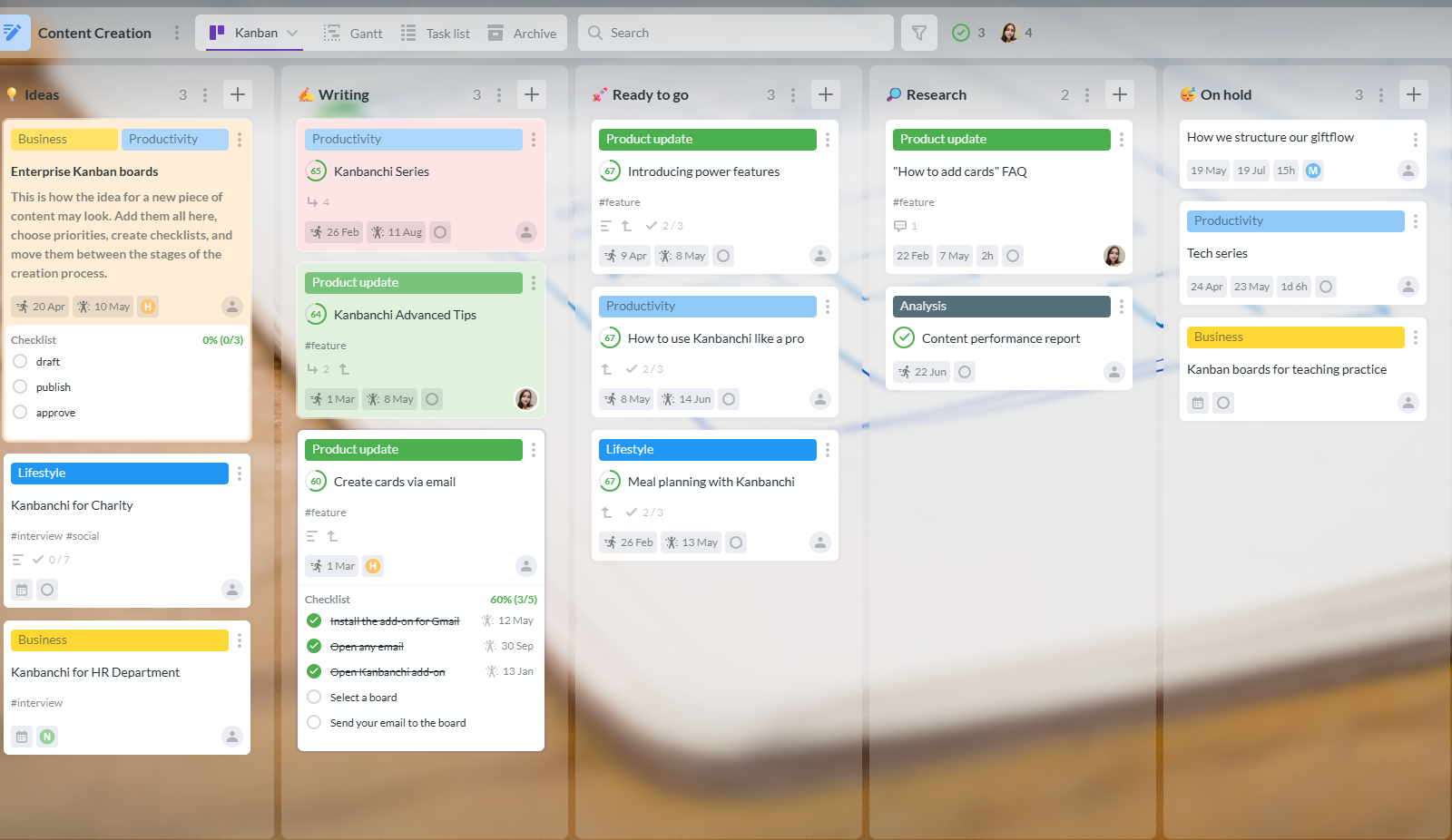
Kanbanchi lets teams create and share project boards and cards. Cards can represent tasks, requests, deliverables, issues, or project steps. Lists can represent workflow stages, departments, priorities, or any process that fits the team.
Teams can organize cards with text and color tags, sort and filter work, communicate with colleagues about tasks, and receive notifications about board updates. For managers, this creates a live view of what is happening. For team members, it clarifies what to do next.
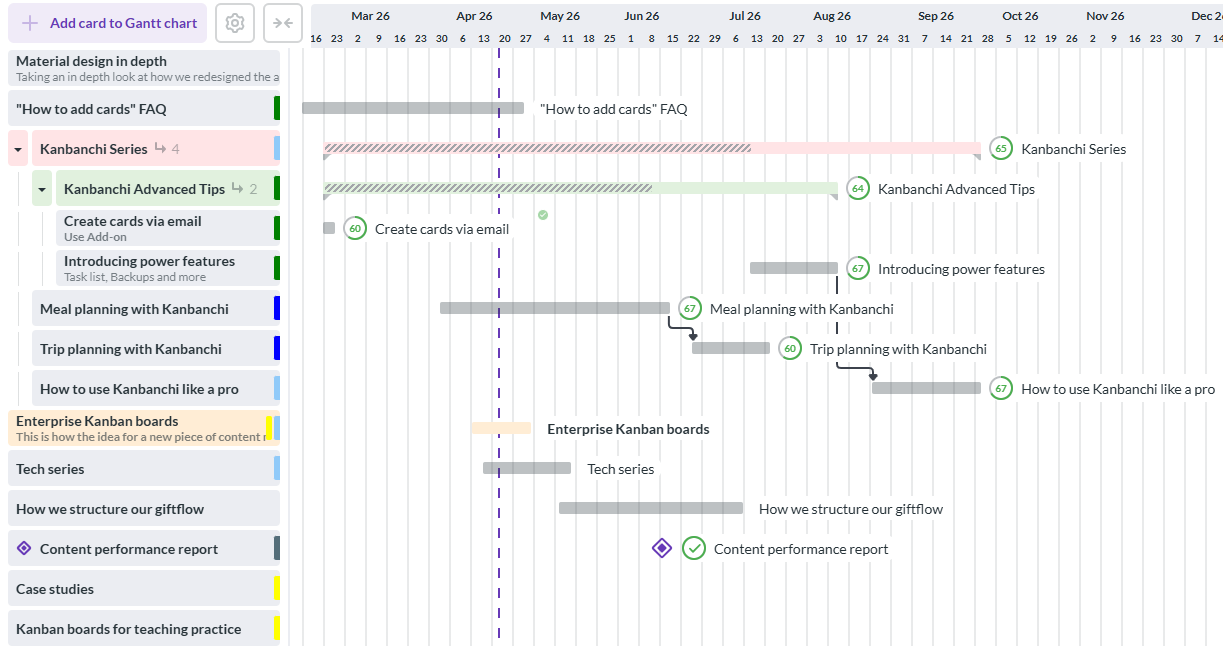
Busy teams often need both execution-level detail and schedule-level visibility. Kanbanchi allows a board to be viewed as a Gantt chart, helping teams see how cards relate in time and plan schedules visually.
This is useful when a team needs to coordinate milestones, launch dates, cross-functional work, or project phases. Instead of maintaining a separate timeline spreadsheet, teams can connect planning and execution in the same system.
Kanbanchi includes time tracking directly on cards. Team members can choose a card, start the timer, and record work. Managers can review timing data to understand effort and progress.
This supports better forecasting, more realistic workloads, and more informed discussions about capacity. It also helps teams learn from completed projects instead of repeating the same estimation mistakes.
Many tasks begin as emails. Kanbanchi supports card creation from Gmail, including options to create cards by emailing a board address or using the Gmail add-on. This helps teams turn requests into trackable work instead of leaving them buried in inboxes.
Teams can also attach files from Google Drive and Shared Drives, sync events with Google Calendar, and export board data to Google Sheets. These connections are especially valuable for organizations that already rely on Google Workspace every day.
Not everyone wants to see work the same way. Kanbanchi supports multiple ways to organize and review tasks, including Kanban boards, Gantt charts, Task List View, swimlanes, subcards, and templates.
That flexibility helps different teams work in the same platform without forcing identical processes. A marketing team might use swimlanes for campaigns, an operations team might use subcards for complex tasks, and leadership might rely on board exports to monitor progress.
Start free trial of Kanbanchi now
Before buying software, define what success should look like. A tool should solve specific operational problems, not simply feel modern.
Use this checklist when evaluating project management and collaboration tools:
If a tool scores well on these questions, it is more likely to become part of daily work instead of another abandoned software subscription.
Read more articles about Project Management
When trialing a tool, do not create a sample board that nobody uses. Choose a real project with real deadlines and real stakeholders. Import or create actual tasks, attach relevant files, assign owners, and run at least one weekly review from the tool.
This reveals adoption friction quickly. You will see whether people update tasks, whether managers can find answers, and whether the tool reduces meetings or simply adds administration.
Managers often evaluate reporting and visibility. Individual contributors care about daily usability. You need both perspectives.
A tool that managers love but team members avoid will not produce reliable data. A tool that team members like but managers cannot use for planning will not scale. The best choice supports both execution and oversight.
Busy teams are often skeptical of new software because they have seen tools come and go. A successful rollout should be simple, practical, and tied to visible benefits.
Do not try to digitize every process on day one. Start with one project type, such as client onboarding, content production, product launches, hiring, IT requests, or internal operations.
Build a board that reflects the current workflow. Keep the first version simple. You can add more fields, views, and templates later.
A project tool only works if people know how to use it consistently. Define a few basic rules, such as when to create a card, who updates due dates, how priorities are marked, and what “Done” means.
These agreements do not need to be complicated. They just need to be explicit.
The fastest way to prove value is to remove something painful. If the new tool can replace a weekly status spreadsheet, shorten a meeting, or reduce follow-up messages, the team will understand why it matters.
Adoption improves when people feel the tool is saving time, not creating extra work.
After two weeks, ask what is working and what is confusing. Adjust lists, labels, templates, or notifications based on real usage.
Project management systems should evolve with the team. The goal is not to create the perfect workflow immediately. The goal is to create a useful workflow that keeps improving.
The first mistake is choosing the most complex platform because it appears more powerful. Complexity can be useful, but only if the team has the time, admin support, and process maturity to benefit from it.
The second mistake is choosing a tool that does not match your existing ecosystem. If your company lives in Google Workspace, a tool with strong Google integration will usually be easier to adopt than one that treats Google files and calendars as an afterthought.
The third mistake is treating project management as a manager-only system. If the people doing the work do not update the tool, dashboards and reports become unreliable.
The fourth mistake is skipping governance. As soon as projects involve clients, contractors, sensitive files, or multiple departments, sharing and access control matter.
The final mistake is failing to define what problem the tool should solve. “We need better collaboration” is too vague. “We need one place to track task ownership, deadlines, files, and project status across three departments” is actionable.
What to Look for in the Best Team Collaboration Software in 2026
Project management and collaboration tools help teams plan, assign, track, discuss, and complete work in a shared system. They usually include task boards, due dates, assignments, comments, file attachments, notifications, and reporting.
The best tool is usually the one that fits your existing workflow and reduces coordination effort. For teams using Google Workspace or Microsoft 365, an integrated tool can be especially effective because it connects project work with files, email, and calendars.
Yes, if the team is handling shared deadlines, recurring workflows, client work, or cross-functional tasks. Even a team of 3 to 5 people can benefit from a clear system for ownership, priorities, and progress tracking.
You have likely outgrown spreadsheets if status updates require frequent meetings, deadlines are missed because ownership is unclear, files are hard to find, or managers spend too much time manually collecting progress information.
Kanbanchi is a strong fit for teams that want visual project management connected to Google Workspace or Microsoft 365. It combines Kanban boards, Gantt chart planning, time tracking, file integration, reporting, templates, and collaboration features in one workspace-friendly tool.
Busy teams do not need more disconnected software. They need a clearer way to plan, collaborate, and track progress without leaving the environment where work already happens.
Kanbanchi gives Google Workspace and Microsoft 365 teams a practical way to manage tasks, timelines, files, and progress in one visual system. If your team is ready to replace scattered spreadsheets, status meetings, and inbox-based task tracking, explore Kanbanchi and see how much easier project collaboration can be.
Start with Kanbanchi and give your team a shared place to see the work, own the work, and move it forward.
Start free trial of Kanbanchi now


In this Article:
Start using Kanbanchi now
Start your free trial