
In this Article:
Try Kanbanchi now
Start your free trial


A 10-person team feels small until work starts moving in parallel. Then the cracks show quickly. Tasks live in chats, deadlines sit in calendars nobody checks, and one person becomes the human status dashboard. The right project management app fixes that by giving you shared visibility, cleaner handoffs, and a calmer way to deliver work.
If you are choosing software for a team of 10-20, you need more than a task list. You need enough structure to manage dependencies, workloads, and reporting, but not so much complexity that setup becomes its own project. That is especially true if your business already runs on Google Workspace or Microsoft 365 and you want your project app to fit the way your team already works.
A team of 10 sits in an important middle ground. You are no longer managing work informally, but you are also not ready for a heavyweight enterprise platform that needs a dedicated admin. People wear multiple hats, projects overlap, and delays in one area can ripple through the rest of the team fast.
That is why the best project management apps for a 10-person team focus on speed and clarity first. A Kanban Board helps everyone see what is in progress. A Gantt Chart or timeline shows milestones and dependencies before they become missed deadlines. Workload views reveal when one person is overloaded while another has room to take more on.
The first outcome to look for is faster delivery. Good software reduces status chasing and makes the next steps obvious. The second is visibility. You should be able to answer, in seconds, what is late, what is blocked, and who needs help.
Predictable cost matters too. With 10 users, even a small price difference per seat adds up over 12 months. Finally, security should be strong enough for client work, operational planning, and internal documents. In practice, that means SSO, 2FA, encryption in transit and at rest, export controls, and clear data handling terms.
Find more project management blogs here
| App | Best For | Platforms | Standout Features | Google Workspace / Microsoft 365 Fit |
|---|---|---|---|---|
| Kanbanchi | Google Workspace teams | Web | Kanban Board, Gantt Chart, Time Tracker, Workloads | Deep Google Drive integration, Google Calendar support |
| Asana | Cross‑functional workflows | Web, iOS, Android, Desktop | Timeline, Automations, Goals, Reporting | Strong Google and Microsoft integrations |
| Trello | Simple visual task flow | Web, iOS, Android, Desktop | Kanban Board, Butler Automations, Power‑Ups | Good Google and Microsoft add‑ons |
| ClickUp | All‑in‑one customisation | Web, iOS, Android, Desktop | Docs, Dashboards, Gantt, Time Tracking | Broad integration library |
| Monday.com | Configurable workflows | Web, iOS, Android, Desktop | Boards, Dashboards, Automations, Workload | Strong Microsoft and Google integrations |
| Wrike | Reporting and resource management | Web, iOS, Android, Desktop | Gantt Chart, Resource Planning, Analytics | Enterprise‑ready integrations |
| Teamwork | Client work and billing | Web, iOS, Android, Desktop | Time Tracker, Billing, Project Templates | Good business app integrations |
| Microsoft Planner | Microsoft 365‑first teams | Web, iOS, Android | Task boards, basic planning, Teams integration | Native Microsoft 365 fit |
For a 10-person team, the low end starts around $50 to $70 per month on basic paid plans. Mid-tier setups with more reporting, automation, and security usually land closer to $150 to $280 per month. If you need SSO, advanced permissions, or stronger admin controls, costs rise further, but so does risk reduction.
We evaluated each app against the needs of a 10-person team rather than a large enterprise rollout. Ease of setup carried significant weight because small teams rarely have spare admin capacity. Collaboration features, reporting, customization, and pricing all mattered, but integrations with Google Workspace and Microsoft 365 were especially important.
Security was also part of the decision. We looked for core controls such as encryption, 2FA, role-based permissions, SSO availability, and clear documentation around compliance and data handling. Support quality and onboarding friction also shaped the ranking, because those factors directly affect adoption in the first month.
This comparison is based on vendor documentation, current pricing pages, public review aggregates, and hands-on evaluation of core workflows such as task creation, timeline planning, integrations, and user setup. Review patterns were useful for spotting recurring strengths and complaints, especially around usability, performance, and support.
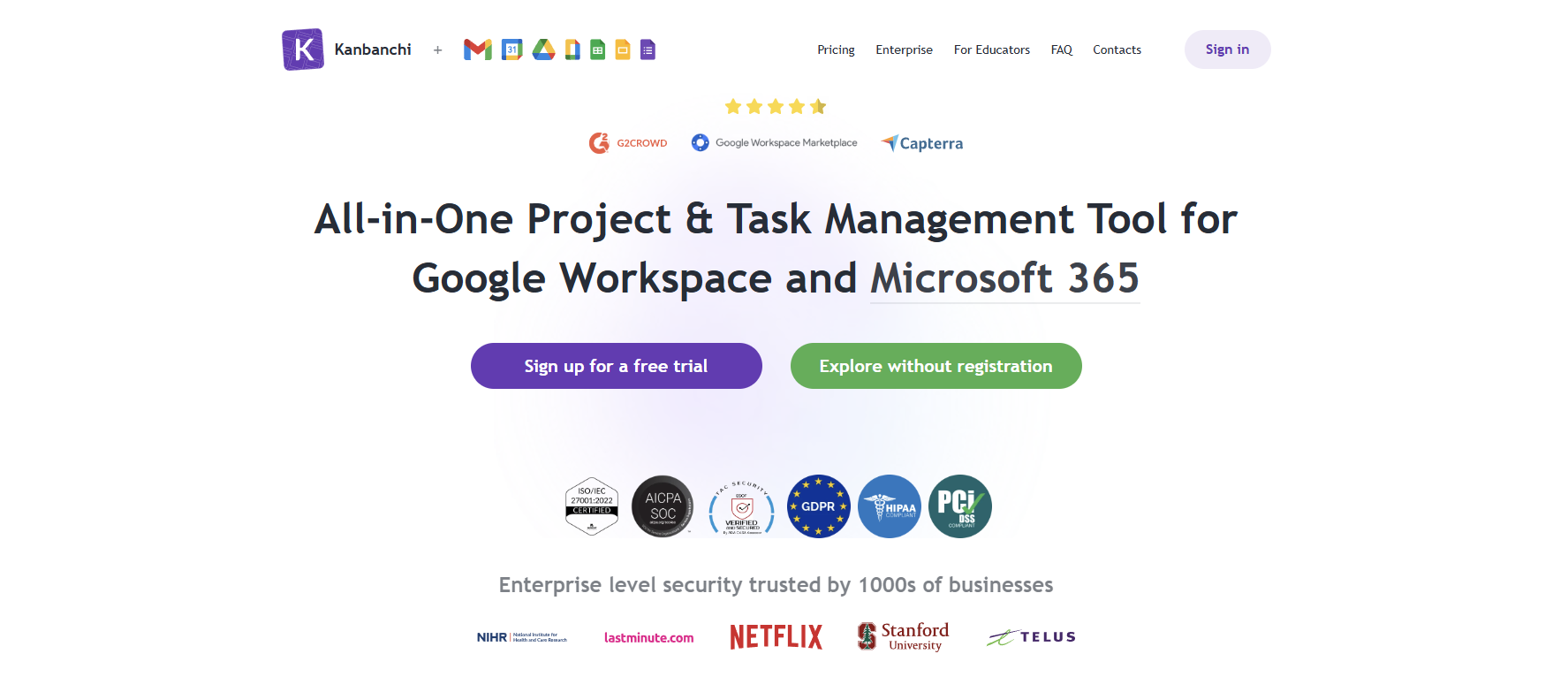
If your team already lives in Google Workspace, Kanbanchi gives you a faster path to adoption because it works where your team already works. It is particularly strong for businesses that want visual task management, timeline planning, and time tracking without forcing staff into an entirely separate ecosystem.
Kanbanchi is a deep fit for Google-centric teams and combines visual planning with timeline and time tracking. It is less ideal for organizations standardized on Microsoft 365, and some advanced enterprise controls may require higher-tier plans.
Kanbanchi’s Google-first design means you can manage projects from within Google Drive, attach files directly, and keep work close to Docs, Sheets, Calendar, and shared folders. For a 10-person team, that means less training, fewer context switches, and a cleaner handoff between planning and execution. Key capabilities include a visual Kanban Board for day-to-day flow, an integrated Gantt Chart for milestones and dependencies, native time tracking to capture effort, and workload views to balance capacity.
Pricing starts from $5.99 per user/month, with a 7-day free trial. For a 10-person team, that keeps annual spend relatively predictable while still covering the features most growing teams need.
Social proof is strong, with high user satisfaction in Google Workspace-focused reviews. A typical sentiment is practical and outcome-focused: “It fits into the way we already use Google Drive, so rollout was easy.”
Asana is one of the safest choices if your team runs cross-functional work across marketing, operations, product, and client delivery. It balances structure and usability well, which is why many growing businesses adopt it as their first serious project management platform.
Asana’s strengths include list, board, and timeline views, automations that reduce repetitive admin, goals and reporting for progress tracking, and good support for task dependencies and milestones. It integrates with Google Calendar to surface deadlines and supports Microsoft identity and collaboration integrations. Asana is excellent for cross-functional coordination, offering clean reporting and a strong ecosystem, but time tracking often requires integrations or higher plans, and costs can rise as you scale features.
Pricing starts at $10.99 per user/month for Starter. Asana also offers a free Personal tier for small-scale use, though most 10-person teams will want a paid plan for timelines and admin controls.
Public review sentiment is consistently positive, often around 4.3 to 4.5 stars across major software directories. One common view from operations leaders is: “Asana gives us visibility without overwhelming the team.”
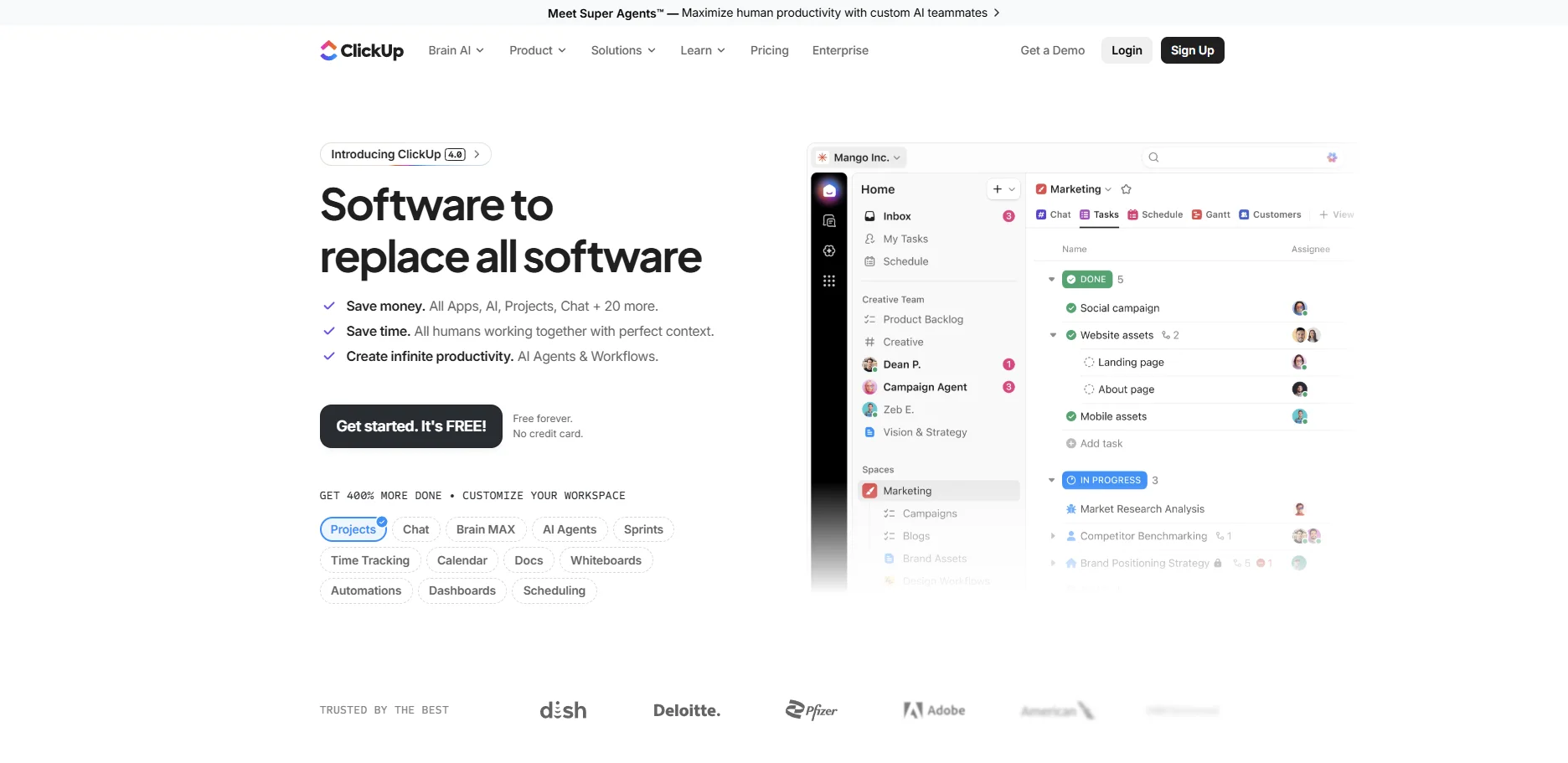
ClickUp suits teams that want to consolidate tools and heavily customize workflows. If you want tasks, docs, dashboards, goals, chat, and time tracking in one platform, ClickUp offers impressive breadth for the price.
ClickUp provides Kanban, list, calendar, and Gantt views, native time tracking, dashboards and workload reporting, collaborative docs, and strong automation and custom fields. It’s feature-rich at entry pricing and a good fit for teams replacing multiple tools, though it can feel busy for less technical users, and setup quality strongly affects the experience. Some teams report performance inconsistencies when heavily configured.
Pricing starts at $7 per user/month for Unlimited, with a free plan available, making it attractive for cost-conscious teams that want advanced features.
Review scores often sit around 4.6 stars on major platforms, with users frequently highlighting value. A common user takeaway is: “We replaced several separate tools with ClickUp.”
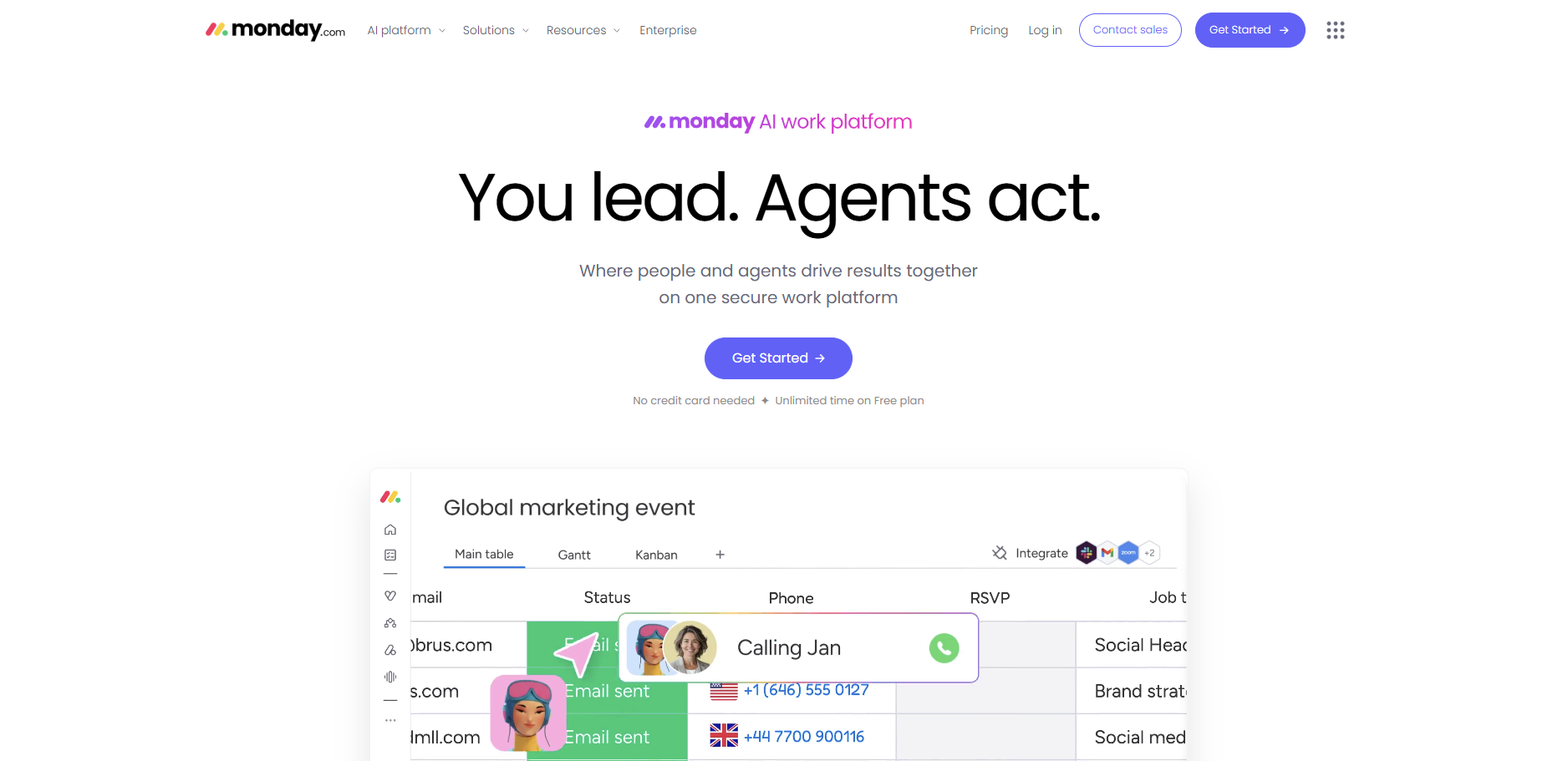
Monday.com is a strong option if you want configurable workflows without going too deep into technical setup. It is visually polished, easy to understand, and works well for teams managing projects across departments.
You can build boards for campaigns, delivery pipelines, operations, or approvals, and keep reporting consistent across them. Monday’s visual dashboards and workload planning are useful for managers who need a broad view without sacrificing team-level detail. Pricing can escalate by tier and seat bundles, and some custom setups become hard to govern over time.
Pricing starts at $9 per seat/month on annual billing, though plan minimums and seat bundles can affect the real cost. Monday.com also offers a 14-day free trial.
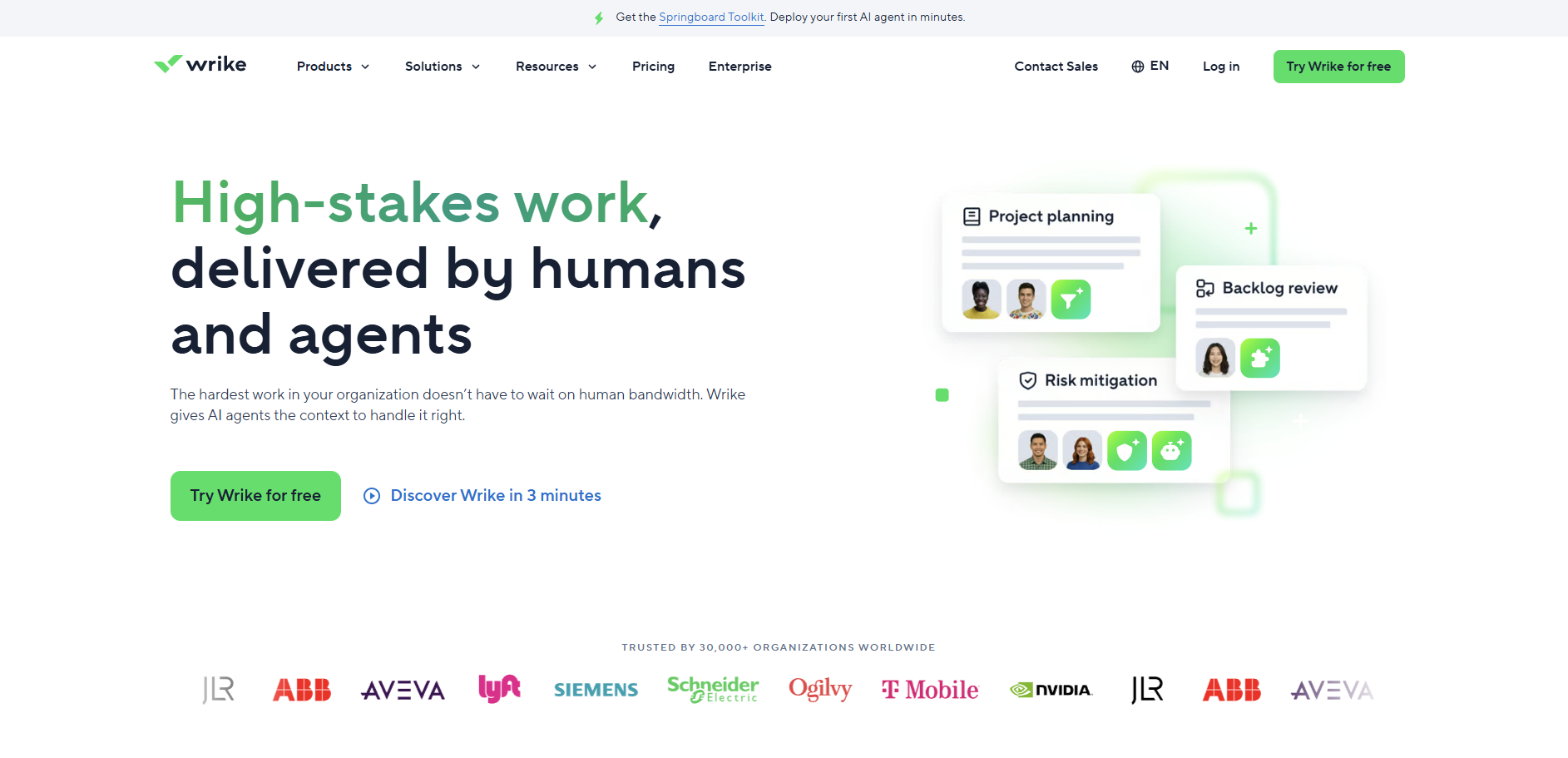
Wrike is best for teams that care about reporting, resource management, and more formal project controls. If you need stronger oversight across multiple projects, Wrike gives managers deeper visibility than many lighter tools.
Wrike includes a Gantt Chart and dependency management, resource planning and workload views, advanced reporting and dashboards, and enterprise-grade admin and security options. It’s excellent for structured project environments and offers good security and admin controls, but the interface can feel dense, and complexity may be higher than that of lighter tools. Wrike tends to deliver better value for teams with reporting-heavy needs.
Pricing starts at $9.80 per user/month, with a free plan available for basic collaboration.
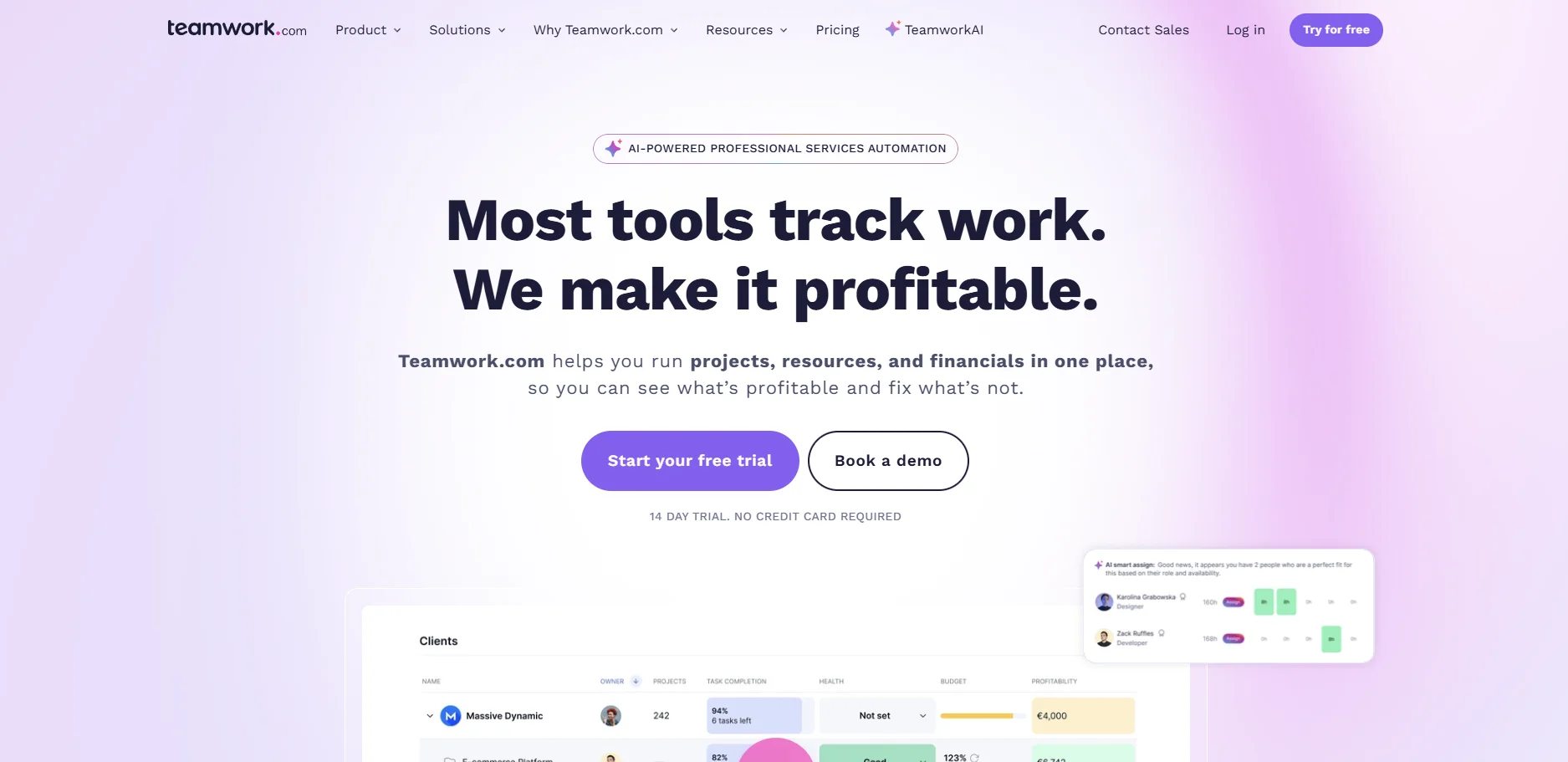
Teamwork is particularly effective for agencies, consultancies, and other client-service teams. It brings project planning, time tracking, and billing-oriented workflows together in a way many general tools do not.
Teamwork’s focus on time tracking and profitability makes it a strong fit when you need to track billable hours, manage delivery dates, and keep client operations profitable. It supports project templates and milestone planning, client collaboration, and reporting for utilization and delivery. The interface is more utilitarian than some rivals, and advanced financial workflows may require higher plans.
Pricing starts at $10.99 per user/month, with a free tier for very small-scale use.
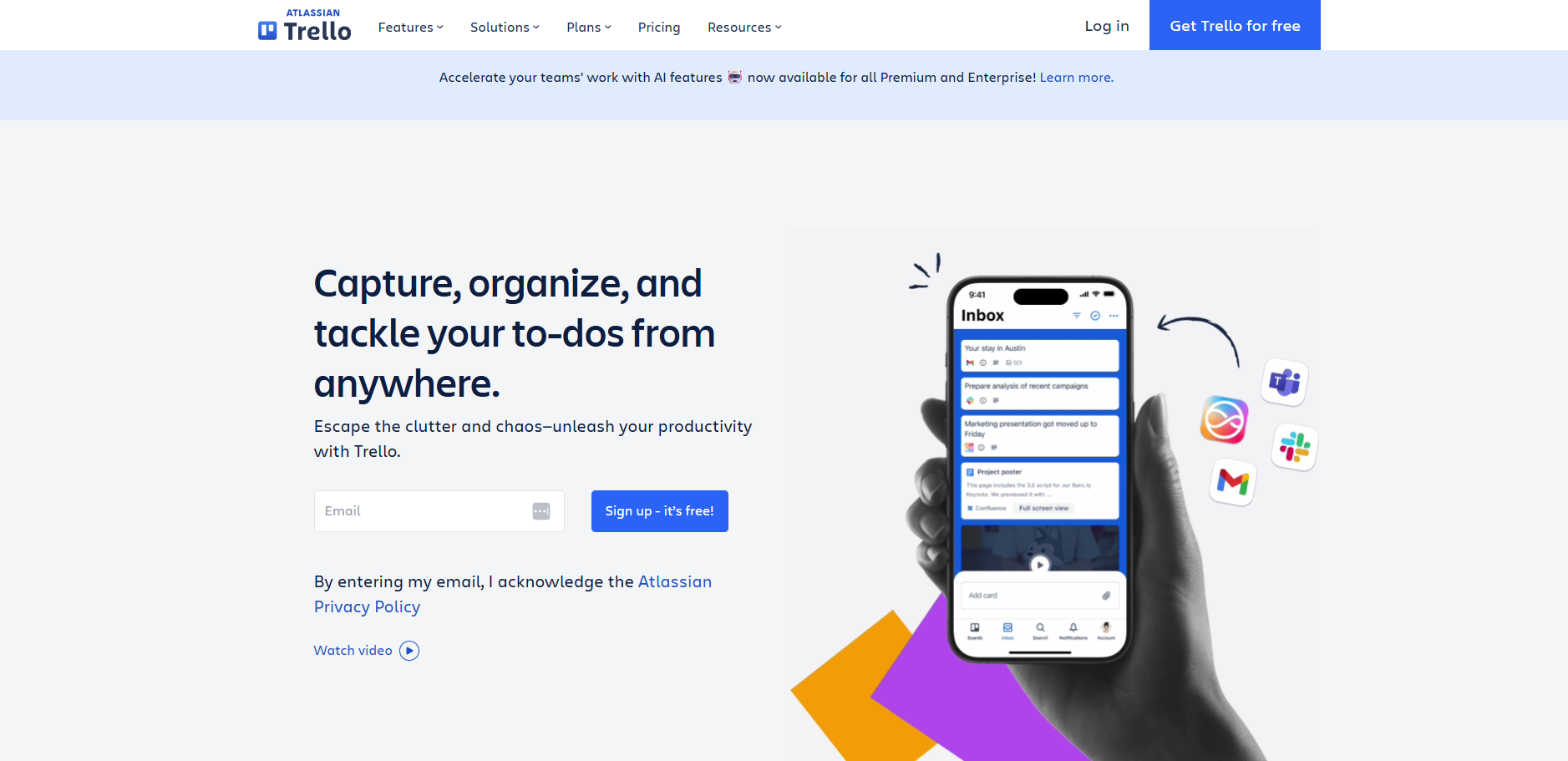
Trello remains one of the easiest tools to adopt because it makes work visible immediately. If your team values simplicity and wants a fast start, Trello is still one of the strongest visual task management options available.
Trello’s core is a Kanban-style board with Butler automations and Power-Ups to add integrations and features. It’s very easy to learn, fast to set up, and low friction, but once you need richer workload planning, advanced reporting, or structured dependencies, you may outgrow it. Many teams use Trello for light-weight workflows and link it to other tools as they scale.
Pricing starts at $5 per user/month for Standard, with a 14-day free trial for paid plans.
If your business is deeply invested in Microsoft 365, Planner, and To Do can be a practical starting point. They work naturally with Teams, Outlook, and Microsoft identity, which reduces friction for staff already operating inside that environment.
Planner offers task boards and personal task management, and it works inside Microsoft Teams with identity managed through Azure AD. It’s a low-friction option for internal coordination but is a lighter project layer rather than a full project management platform. Reporting, resource planning, and sophisticated time tracking are limited compared with dedicated tools.
Pricing depends on your Microsoft 365 subscription, with Planner included in many business plans.
For most teams of 10-20 people, the must-haves are straightforward. You should have a Kanban Board, so work is visible, task dependencies so blocked work is obvious, and a timeline or Gantt Chart so delivery dates are realistic. A workload view helps you avoid overloading your most dependable people, while a Time Tracker matters if you bill clients or need accurate effort data.
You should also expect reliable integration with Google Workspace or Microsoft 365, as well as SSO, data export, role controls, and audit visibility. Nice-to-have features include invoicing, resource forecasting, templates, API access, and automation rules that reduce repetitive admin.
Even for a 10-person team, security should not be informal. Ask vendors whether data is encrypted at rest with AES-256 and in transit with TLS 1.2+ or better. Confirm whether two-factor authentication is available to all users and whether SSO supports SAML or Microsoft Azure AD, where relevant. Also check role-based permissions, account recovery controls, audit logs, and export or deletion options. If client data is involved, GDPR terms and a clear data processing agreement matter.
If your organization operates in regulated markets or works with enterprise clients, data residency and compliance language become procurement issues, not technical nice-to-haves. Ask where data is stored, how backups work, and what the vendor’s recovery commitments look like. For many buyers, SOC 2 Type II, GDPR support, and documented incident response processes are practical benchmarks. The right level depends on your risk profile, but ambiguity is usually a warning sign.
The fastest way to get adoption is to connect the project app to tools your team already uses. Integrate with Google Calendar to plan and track deadlines, sync with Google Drive to attach and version files inside tasks, and use Google Sign-In to reduce password fatigue and speed onboarding. On the Microsoft side, connect with Microsoft Teams to discuss tasks without leaving the app, use Azure AD for SSO and provisioning, and sync with Outlook Calendar and OneDrive or SharePoint for files.
PM Tools That Help Teams Plan and Deliver Better
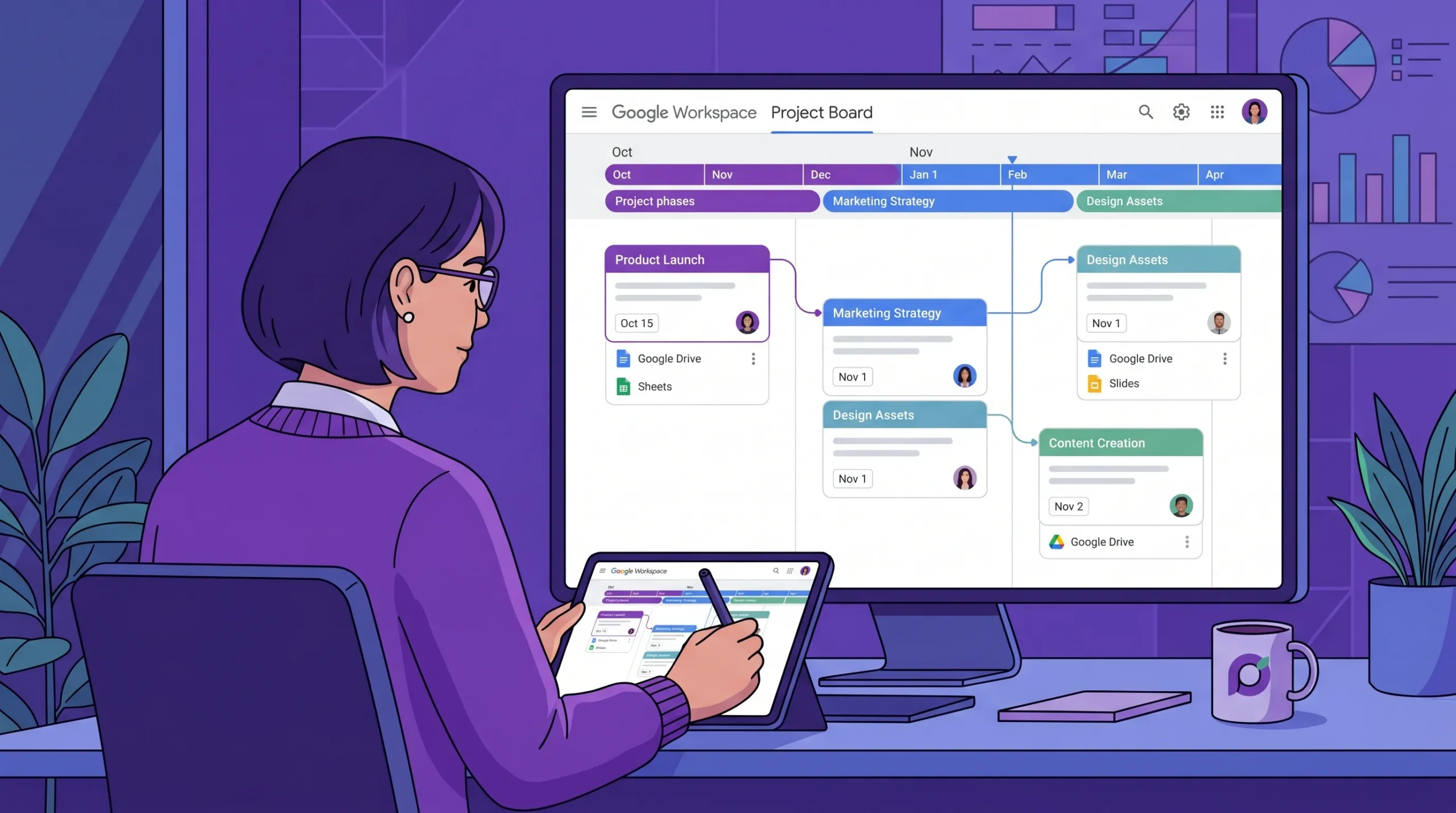
Start with two shortlisted apps, not five. Build one live project in each and test the workflow your team uses most often. Measure time to first project, ease of assigning work, and whether deadlines show up where your team already plans its week.
Set up user roles, connect Google Drive or Microsoft 365, configure SSO if available, and import one or two templates. Keep the initial structure simple. A clean board and a clear naming system outperform a complicated setup that nobody understands.
Run one real project with the full team or a core subset. Hold a 30 to 60 minute training session covering task updates, owners, due dates, file attachments, and status conventions. Track adoption rate and note where users still fall back to chat or spreadsheets.
Expand to the rest of the team once the pilot proves workable. Review metrics such as reduction in status meetings, fewer missed deadlines, and faster project setup. Then refine templates and automations based on real usage, not assumptions.
A low-cost scenario might be Trello Standard at $5 per user/month. For 10 users, that is about $600 per year before add-ons. Kanbanchi at $5.99 per user/month comes to about $718.80 per year, which is still accessible for teams wanting timeline and time tracking in a Google-centric setup.
A feature-rich mid-tier scenario could be ClickUp at $7 per user/month, or $840 annually for 10 users, versus Asana Starter at $10.99 per user/month, or about $1,318.80 annually. Monday.com Basic at $9 per seat/month lands around $1,080 annually, subject to seat rules and billing structure.
The ROI case is usually not about license cost alone. It comes from fewer meetings, less rework, more reliable delivery, and better utilization. If your team saves even two hours per person per month through better visibility, the software often pays for itself.
Across the market, review themes are consistent. Teams reward software that is easy to adopt, visible at a glance, and well integrated with the rest of the stack. They criticize tools that are either too shallow once work becomes complex or too configurable for busy teams to manage well.
Representative feedback often sounds like this: “We finally stopped chasing updates in chat,” from an operations manager. “The timeline view helped us catch conflicts before they became delays,” from a project lead. “Because it connected with our existing workspace, rollout felt natural,” from a team administrator.
Trello is usually the easiest to learn, while Asana gives you more structure without becoming too technical. If your company already runs on Google Workspace, Kanbanchi is often the easiest practical choice because it fits the tools your team already uses. You can start a free trial to test that fit quickly.
Not always, but it becomes valuable as soon as you have dependencies, shared deadlines, or multiple overlapping projects. A simple board shows flow, while a Gantt Chart shows timing risk.
A small team can usually get a useful setup running in one to two weeks, with a full pilot and rollout inside 30 days. The main variable is not the software; it is how disciplined your team is about using it consistently.
Verify encryption at rest and in transit, two-factor authentication, SSO options, permission controls, audit visibility, and export or deletion processes. If you work with clients or regulated data, also ask about SOC 2, GDPR, backups, and data residency.
If you run a service business or agency, Teamwork is a strong choice when time tracking and delivery economics matter. If you build software or need a highly adaptable workspace, ClickUp is compelling. If you want broad business usability with mature workflow management, Asana is one of the safest all-around picks.
If your team already works in Google Workspace, Kanbanchi deserves especially close attention because it reduces adoption friction while still giving you the planning depth a 10-person team needs. If you are comparing options now, the most practical next step is simple: shortlist two tools, test one live workflow, connect your calendar and file system, and measure what changes. Then start your free trial, compare plans, or schedule a demo based on the stack your team already trusts.


In this Article:
Start using Kanbanchi now
Start your free trial